
Do this before you create groups, acknowledgements, or version strategies. If the instructions here don’t work, stop and use https://support.qc-analytics.com/qc-read-and-understood-for-confluence-cloud/troubleshooting.
Step 1: Open the space
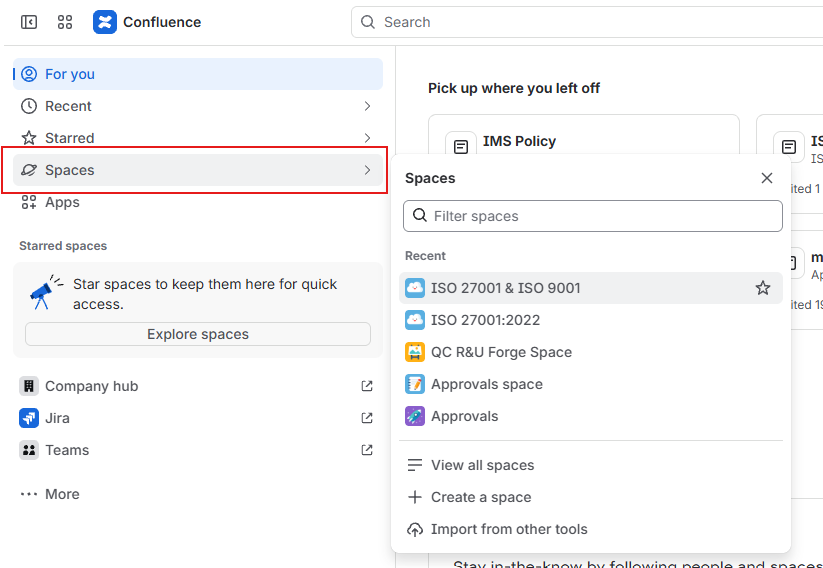
In the Confluence left sidebar:
-
Open the Spaces menu,
-
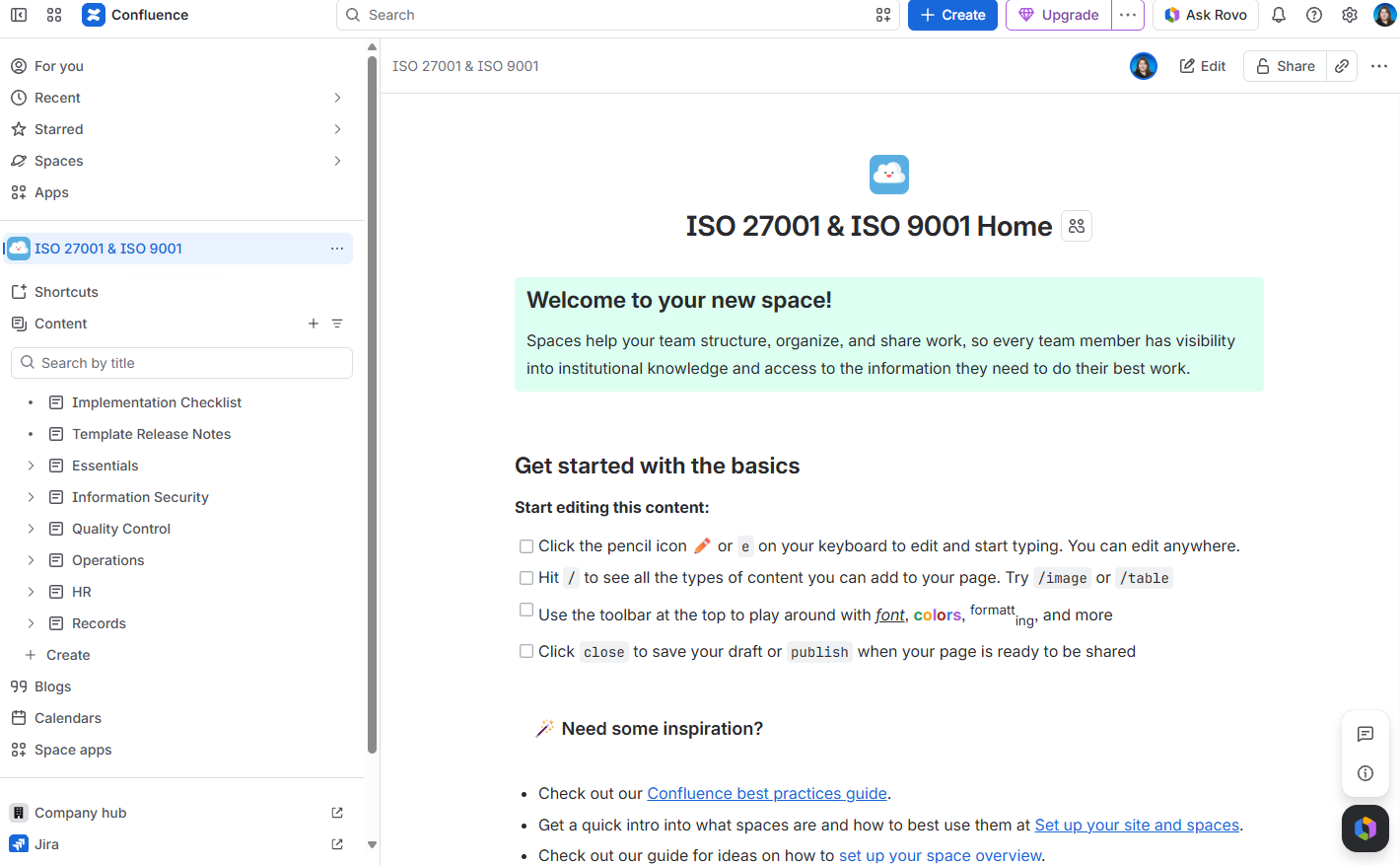
Find the space you’ll use QC R&U and click its name (the area where your pages live).
Step 2: Turn the app on for the space
-
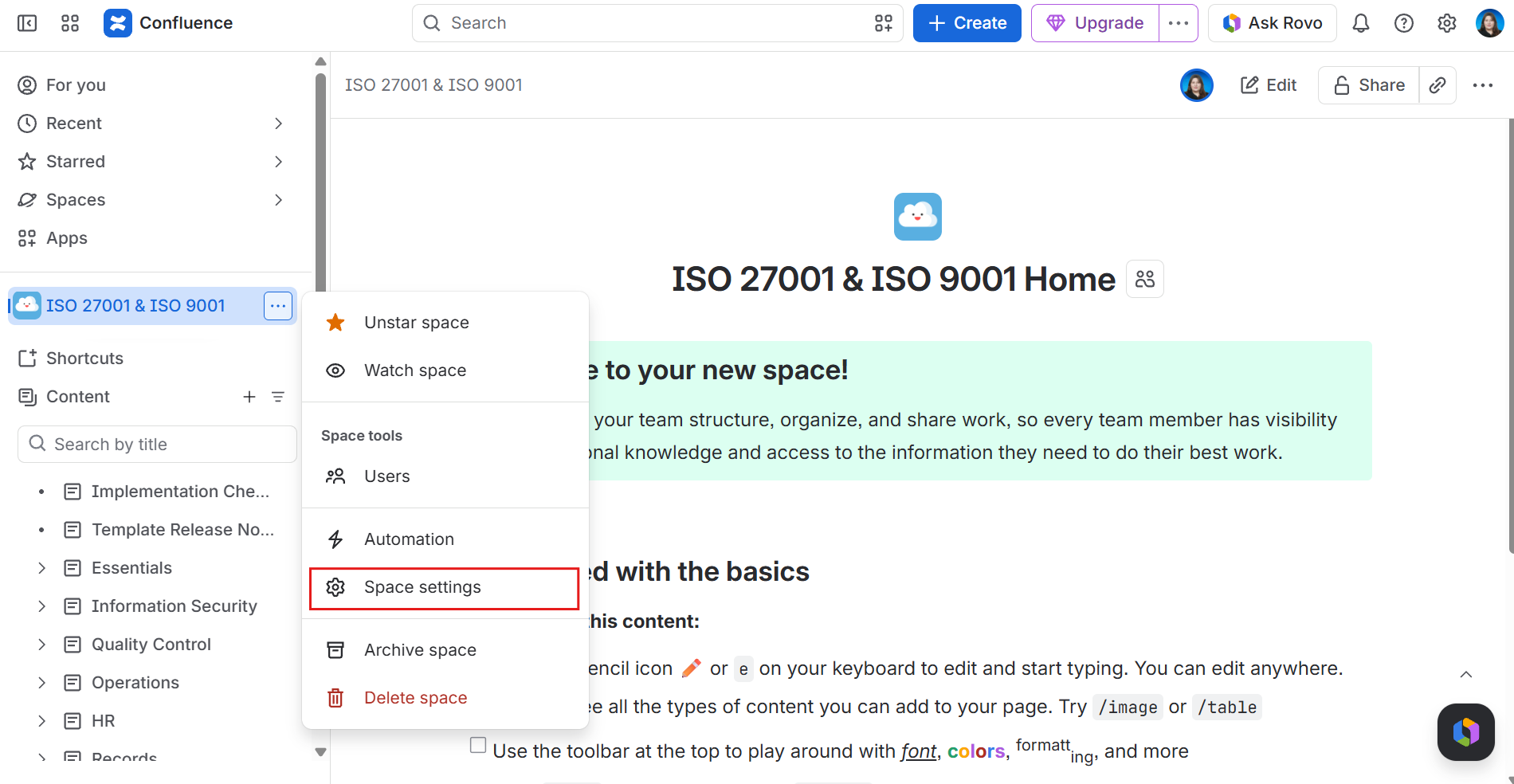
Open Space settings (three dots next to the space name).
-
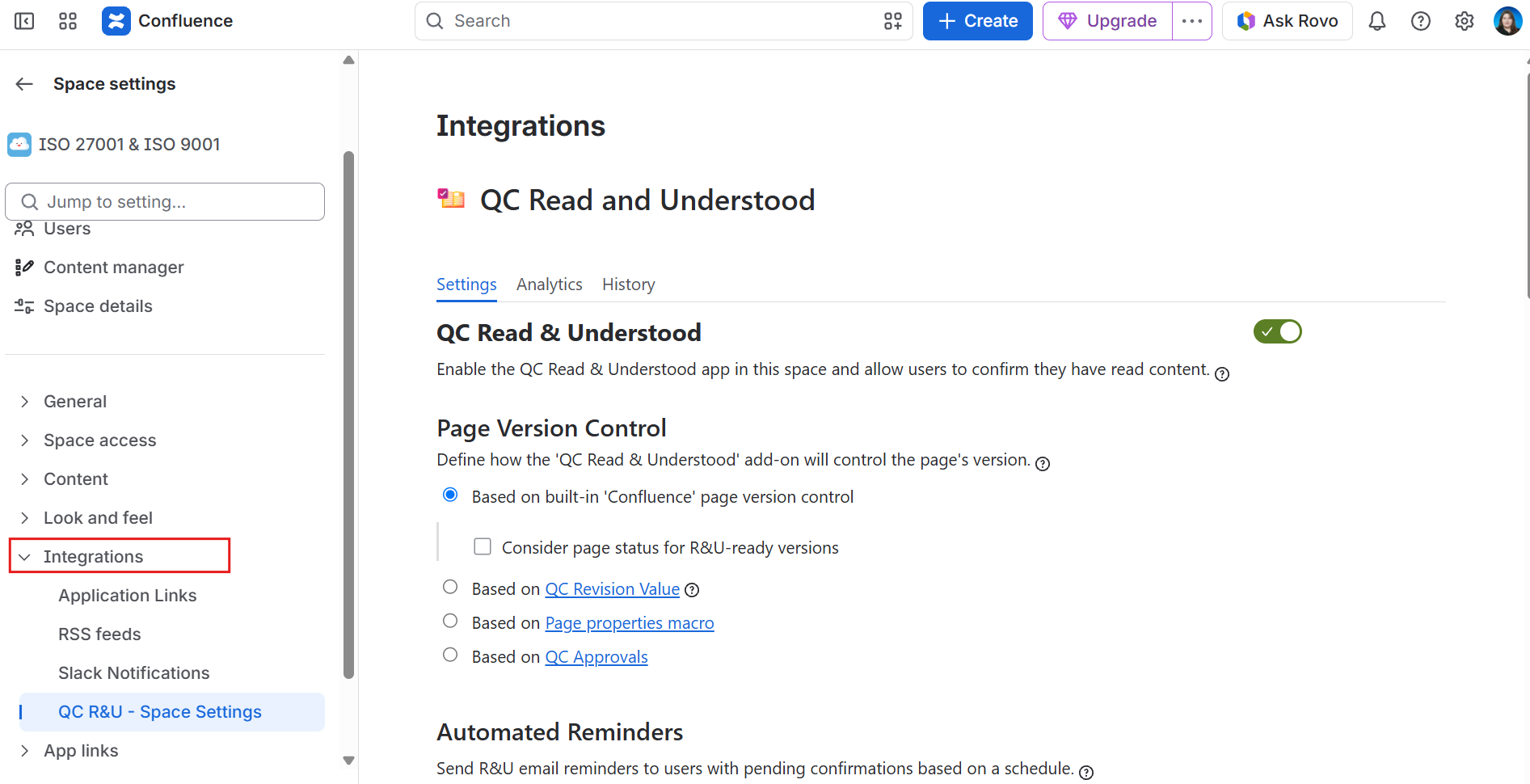
In the left list, open the Integrations menu and click QC R&U - Space Settings.
-
On the Settings tab, turn the Enabled switch on.
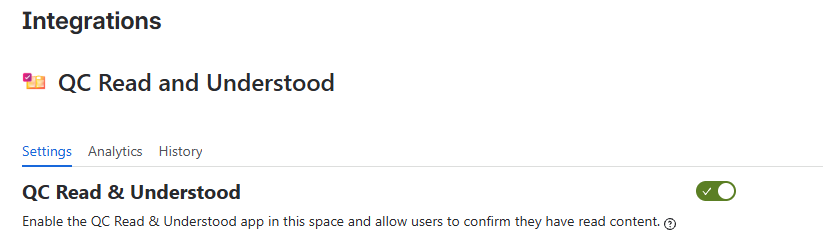
Step 3: Open one page
-
In the space sidebar, click a page your colleague is allowed to open
-
Look near the title for QC - R&U
If QC - R&U is missing, the space may still be off, or the page may override the byline. See https://support.qc-analytics.com/qc-read-and-understood-for-confluence-cloud/i-cannot-find-the-qc-r-u-button.
Step 4: Assign your colleague
-
On that page, click
•••(top right, More actions). -
Open the Apps menu and click QC R&U - Page Overview.
-
Navigate to the Users tab.
-
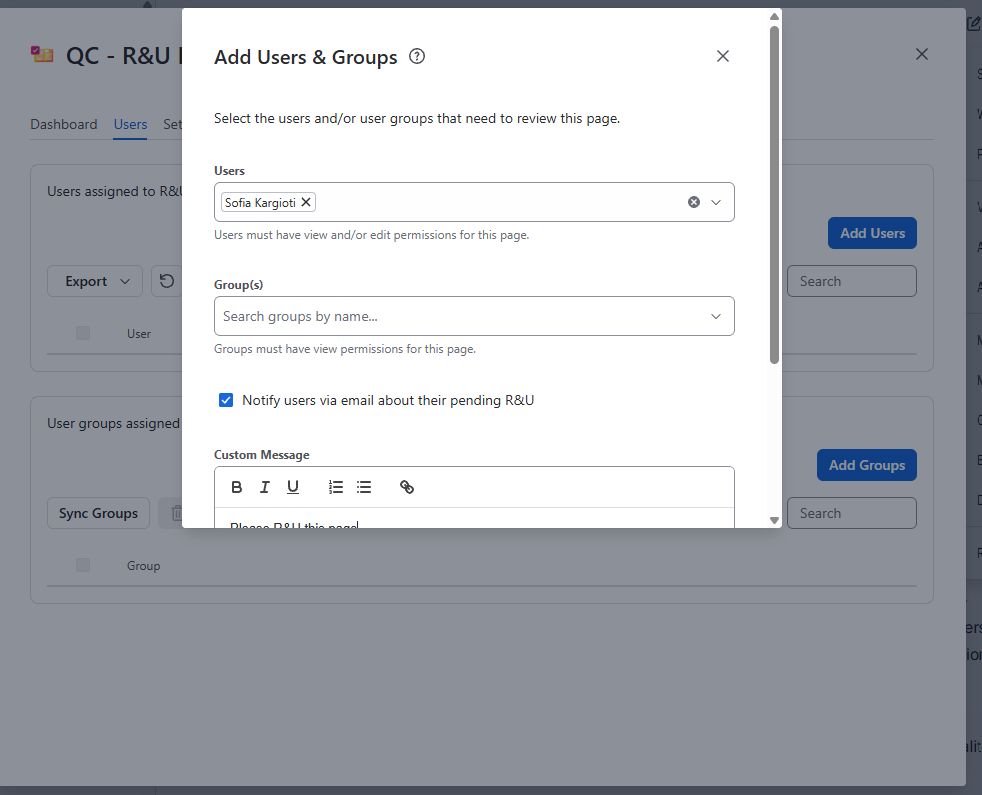
Click the Add Users button. A panel titled “Add Users & Groups” opens.
-
Type your colleague’s name and select them.
-
You can tick Notify users via email about their pending R&U if you want them to get an email.
-
Click Add Users & Groups.
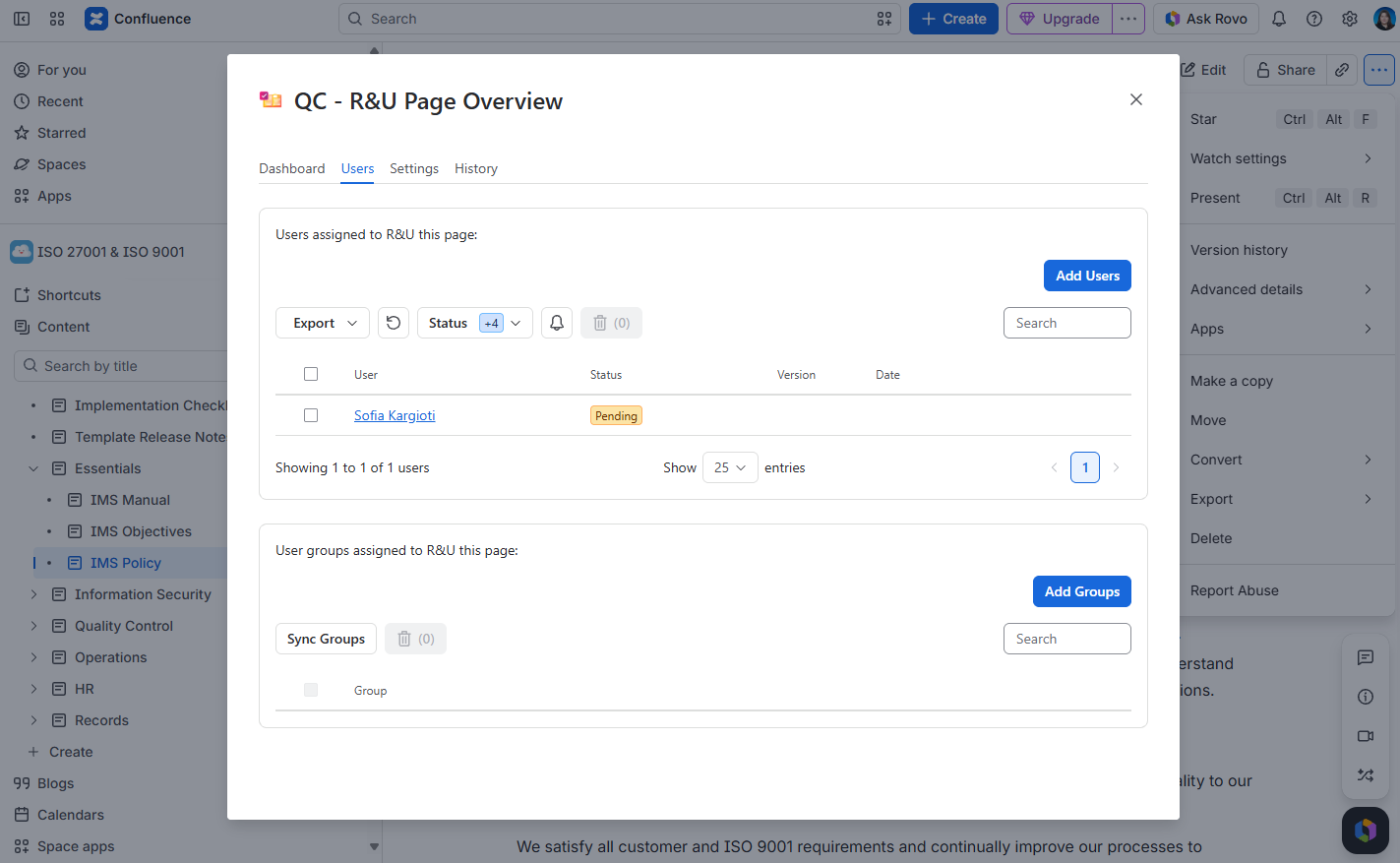
If the app cannot find them in the Add Users menu, they may lack view permission on the space. Give them access in Space settings → Users (Confluence), then try again.
Step 5: Your colleague confirms the page
Ask your colleague to:
-
Open the same page.
-
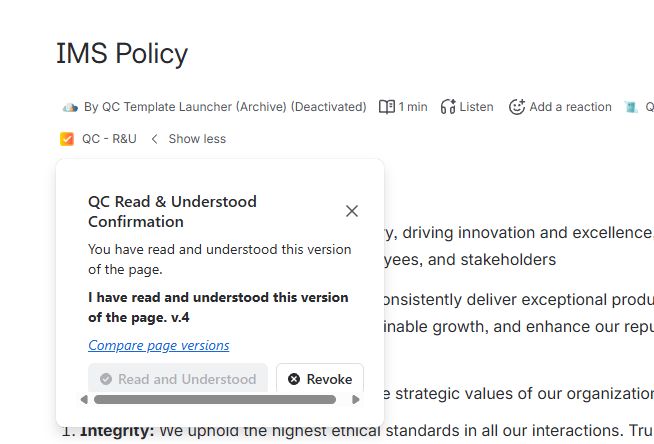
Click QC - R&U in the byline.
-
Click Read and Understood.
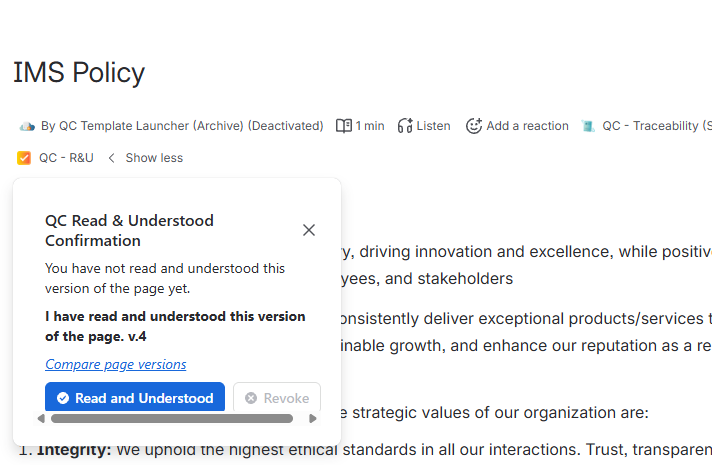
They should see: A message that they have read and understood this version. The message will also show the version number they R&U.
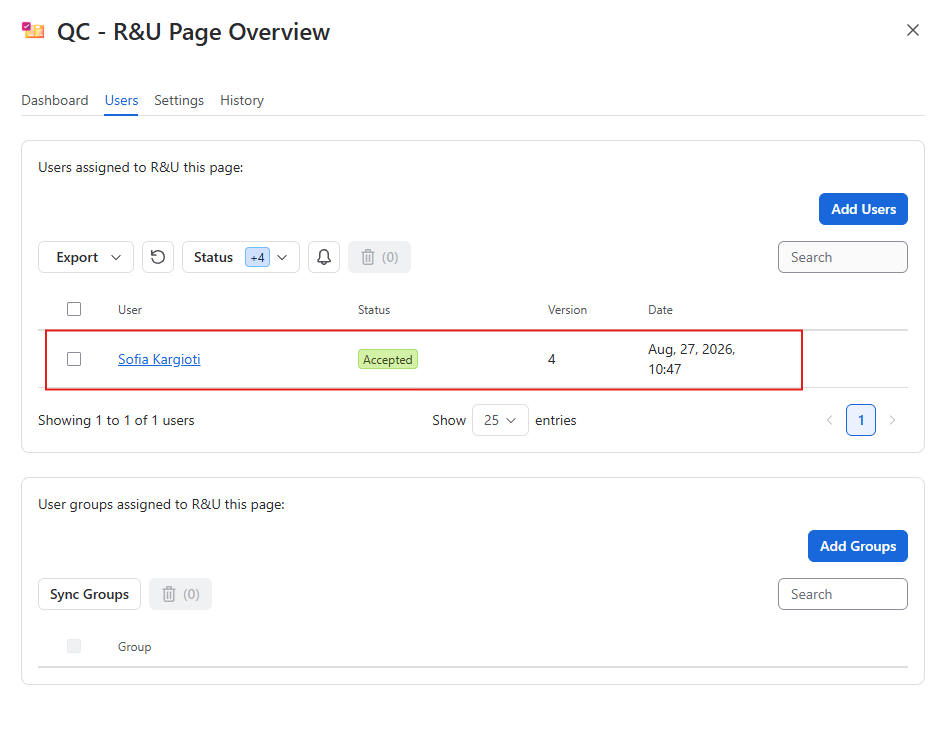
If you want, you can confirm that it worked by going to QC R&U - Page Overview → Users → and check if the user’s status says Accepted .
What to do next
|
Goal |
Article |
|---|---|
|
They should confirm from a box in the page body |
|
|
You are rolling out SOPs / induction / training records |
|
|
Assign a whole group |
|
|
Many pages at once |
|
|
Versions should follow a document number, not Confluence v.12 |
https://support.qc-analytics.com/qc-read-and-understood-for-confluence-cloud/choose-version-strategy |