
Places
|
We say |
What it is |
|---|---|
|
Byline |
The row of small buttons near a Confluence page title. QC - R&U lives there. You can confirm you’ve read and understood a page using the byline. 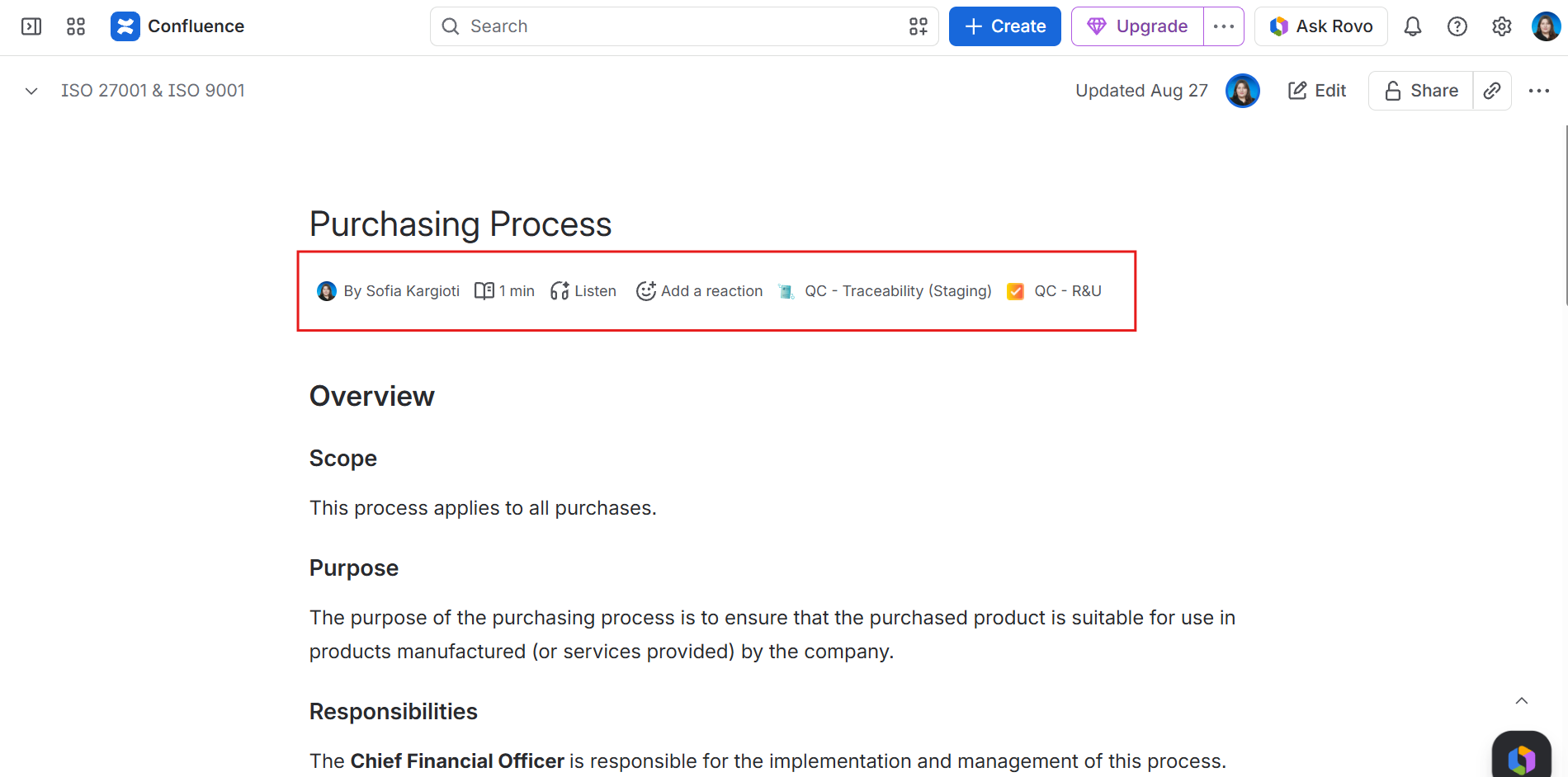
|
|
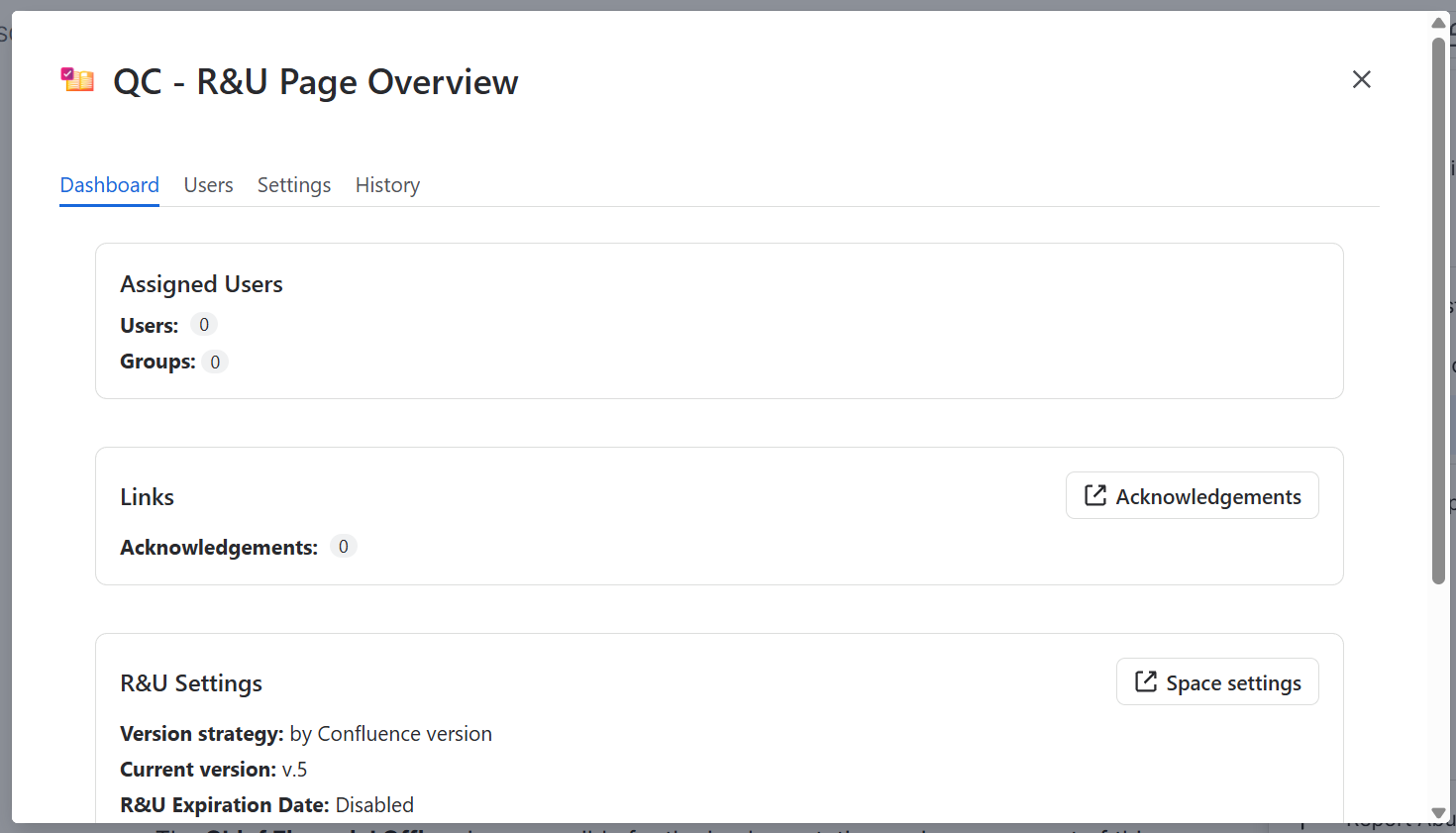
QC R&U - Page Overview |
The large panel from the page 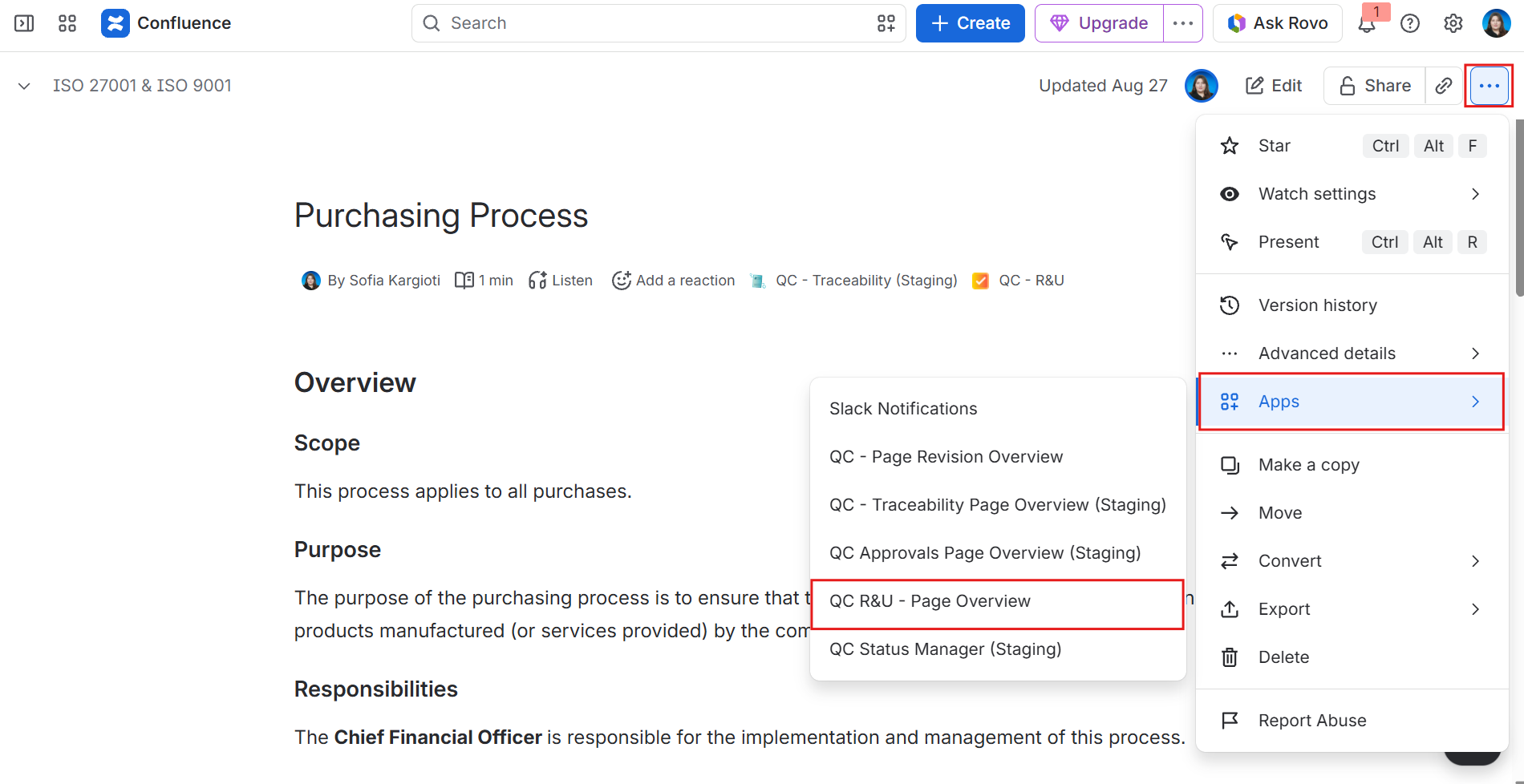
|
|
QC R&U - Space Overview |
The QC R&U - Space Overview is located in the left sidebar, under Space apps. Use this to see the space-wide R&U progress, and create and manage Acknowledgements. 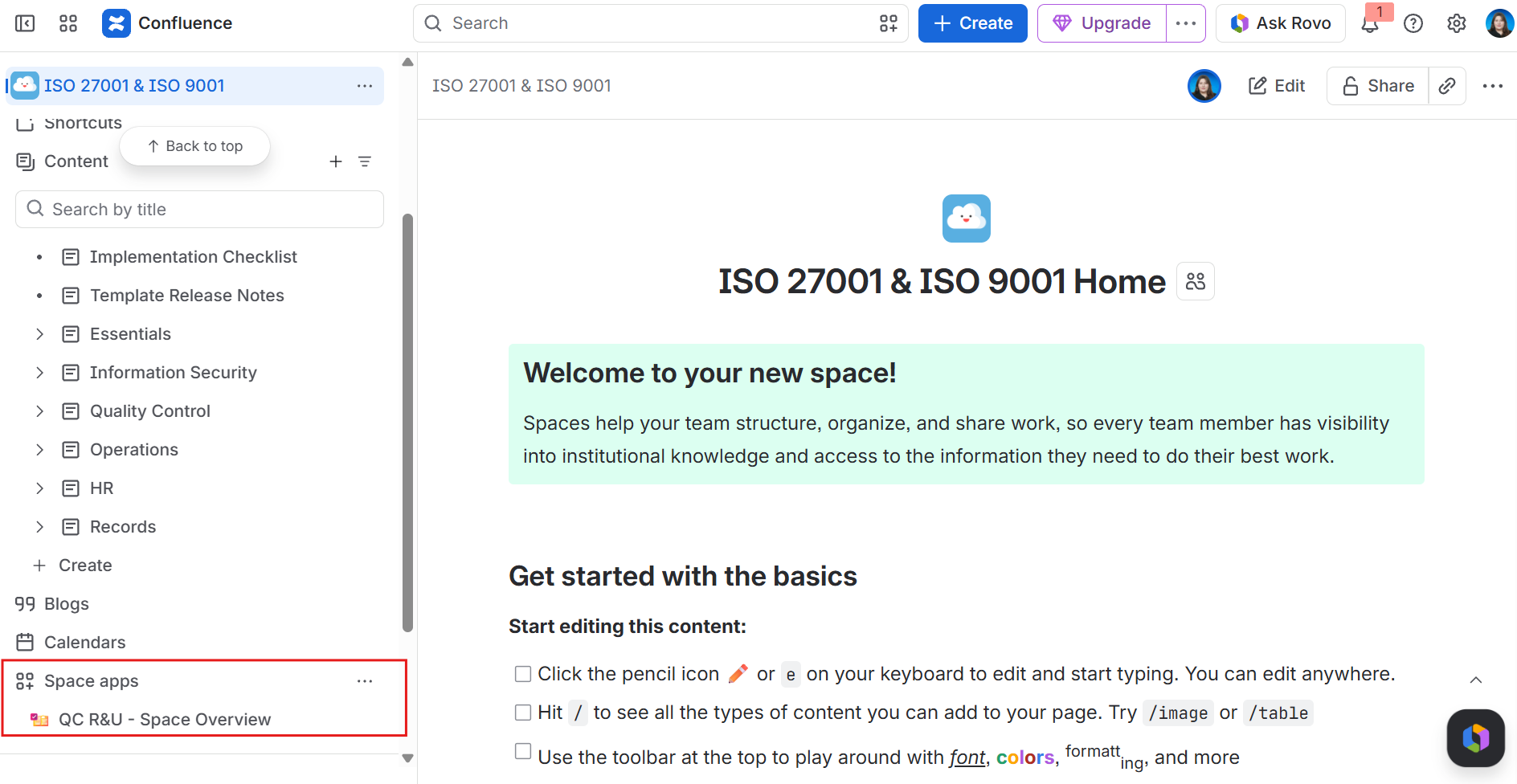
|
|
QC R&U - Space Settings |
To set the rules that the R&U app must follow for a specific space, go to Space settings → Integrations → QC R&U - Space Settings. 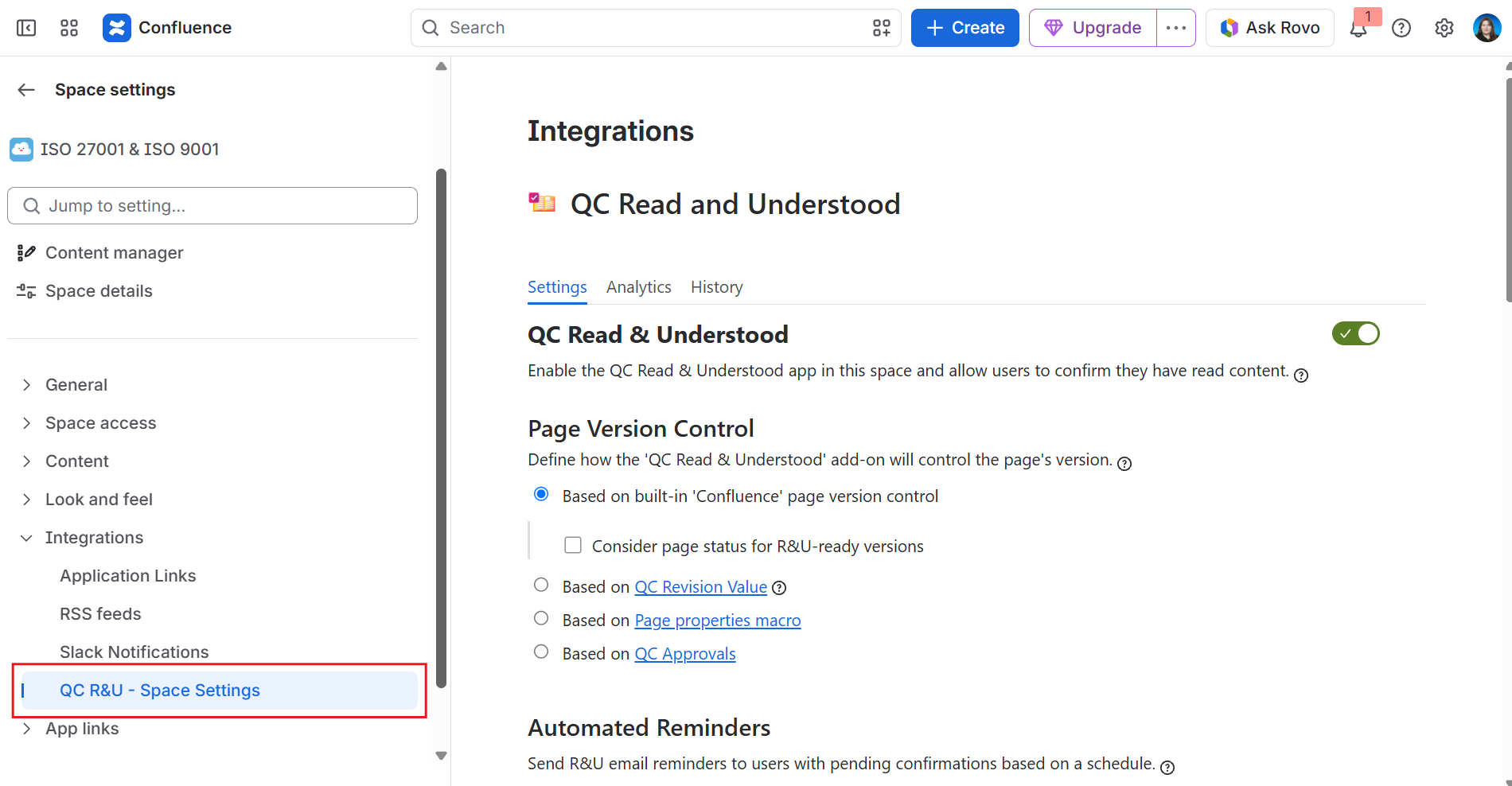
|
|
QC R&U - Acknowledgement |
The QC Read & Understood feature that’s designed to assign multiple users on multiple pages at the same time. An Acknowledgement is a set of pages and users, with its own separate report. Acknowledgements can include due and expiration dates, and automated reminders. 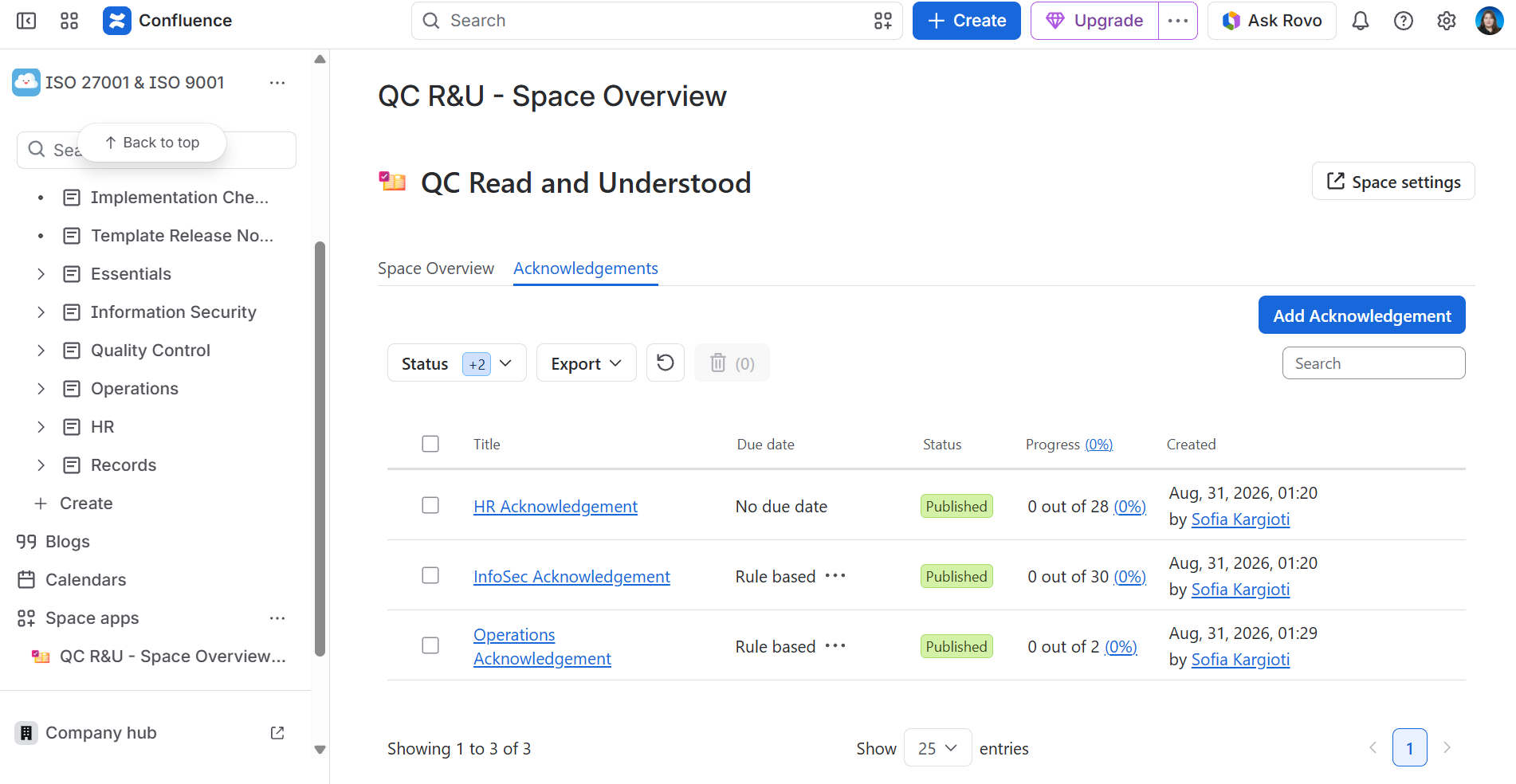
|
|
QC R&U - Signature Box |
A block you insert in the page body so people can confirm they’ve read and understood a page without opening the byline. 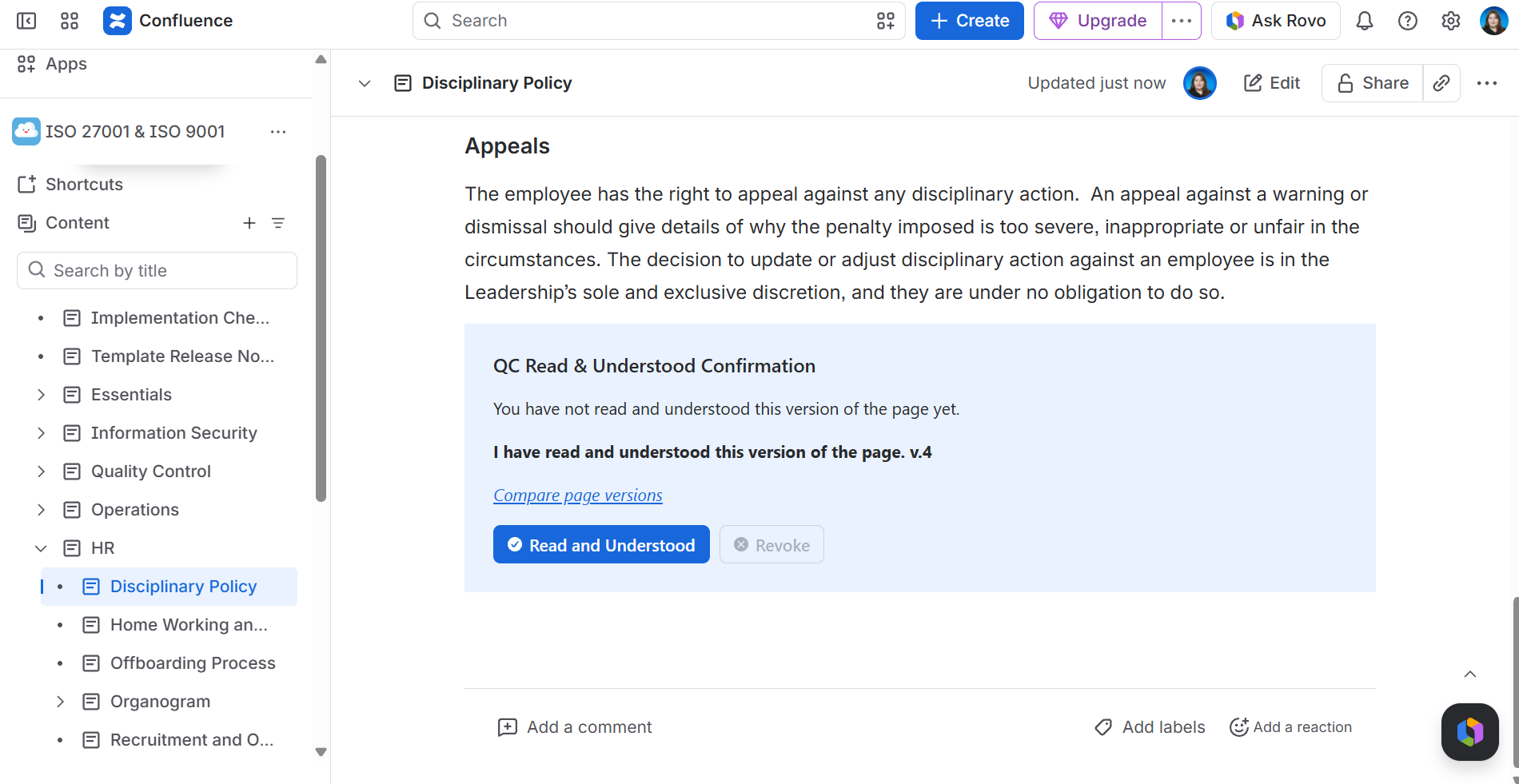
|
People and assignment
|
We say |
What it is |
|---|---|
|
Assigned |
This person (or a group they belong to) was added on Page Overview or through an acknowledgement. They are expected to confirm the page. |
|
Group |
A Confluence user group (a named list of people). Adding the group is not enough until Sync Groups (or space Sync) has run. |
|
Guest |
A Confluence guest user. They can confirm pages in the one space they can open, with limits. See https://support.qc-analytics.com/qc-read-and-understood-for-confluence-cloud/guests-and-unlicensed-users |
Status in tables
|
Status |
Meaning |
|---|---|
|
Accepted 
|
The person confirmed the current R&U version of the page. |
|
Accepted older version 
|
They confirmed a previous version. The page’s R&U version has moved on. |
|
Pending 
|
They are assigned and have not confirmed this version. |
|
Revoked 
|
They had confirmed, then used Revoke (if your space allows it). |
|
Not assigned 
|
They appear in a report but are not assigned to that page. |
Version
Version here is the number (or label) the app stores with a confirmation. It is not always the same as the small “v.12” Confluence shows in page history.
A space admin chooses a version strategy in Space Settings. That choice is what you see next to I have read and understood the page. Examples: v.17 or 3.0 (v.4).
If the strategy uses the Page properties macro, the page must contain that Confluence macro or the app cannot detect a version. Details: https://support.qc-analytics.com/qc-read-and-understood-for-confluence-cloud/choose-version-strategy
Training and documents
|
We say |
What it is |
|---|---|
|
Policy/procedure/SOP |
Your documents. Each one should be a Confluence page people can read in the browser. |
|
Controlled page version |
The version the acknowledgment is stored against. Set by version strategy. |
|
Training record |
Person + page + status + version + date (table or export) for audits and competence. |
|
Induction/onboarding |
First-time training for a role, often one acknowledgement with a due date. |
|
Completion rate/by deadline/time to completion |
Numbers on Space Settings → Analytics after you click Calculate. Used in a management review. |
Confirm, revoke, OTP
|
We say |
What it is |
|---|---|
|
Read and Understood |
The primary button that records your acknowledgment. |
|
Revoke |
Takes back a confirmation. Hidden if the space disables it. |
|
OTP |
One-time password from an authenticator app. Required only if the space turns it on and you enable it under Personal Settings. |