
Option A — from inside Confluence
-
Open your Confluence site in a browser and sign in.
-
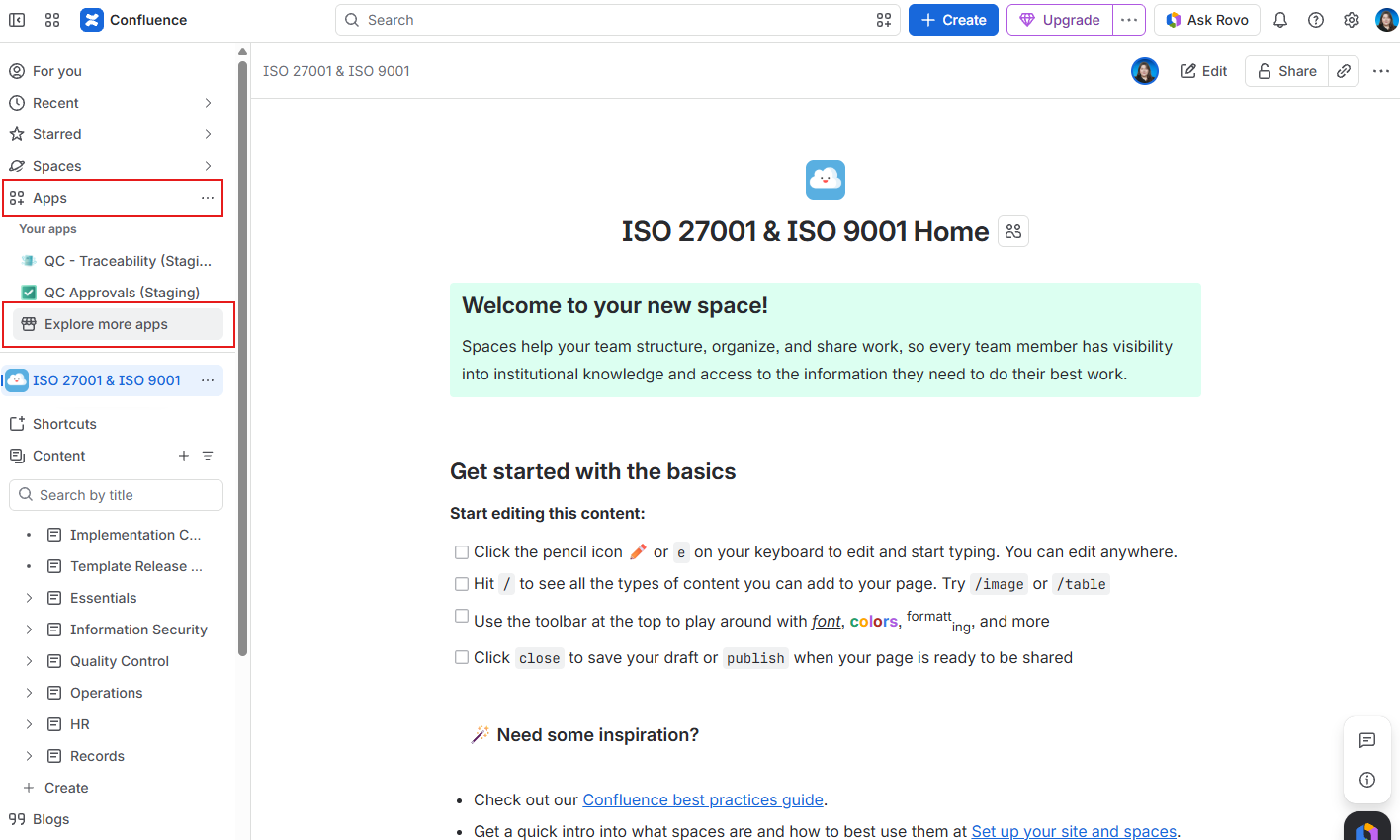
In the left sidebar, click Apps.
-
Click Explore more apps.
-
In the search box, type QC Read & Understood.
-
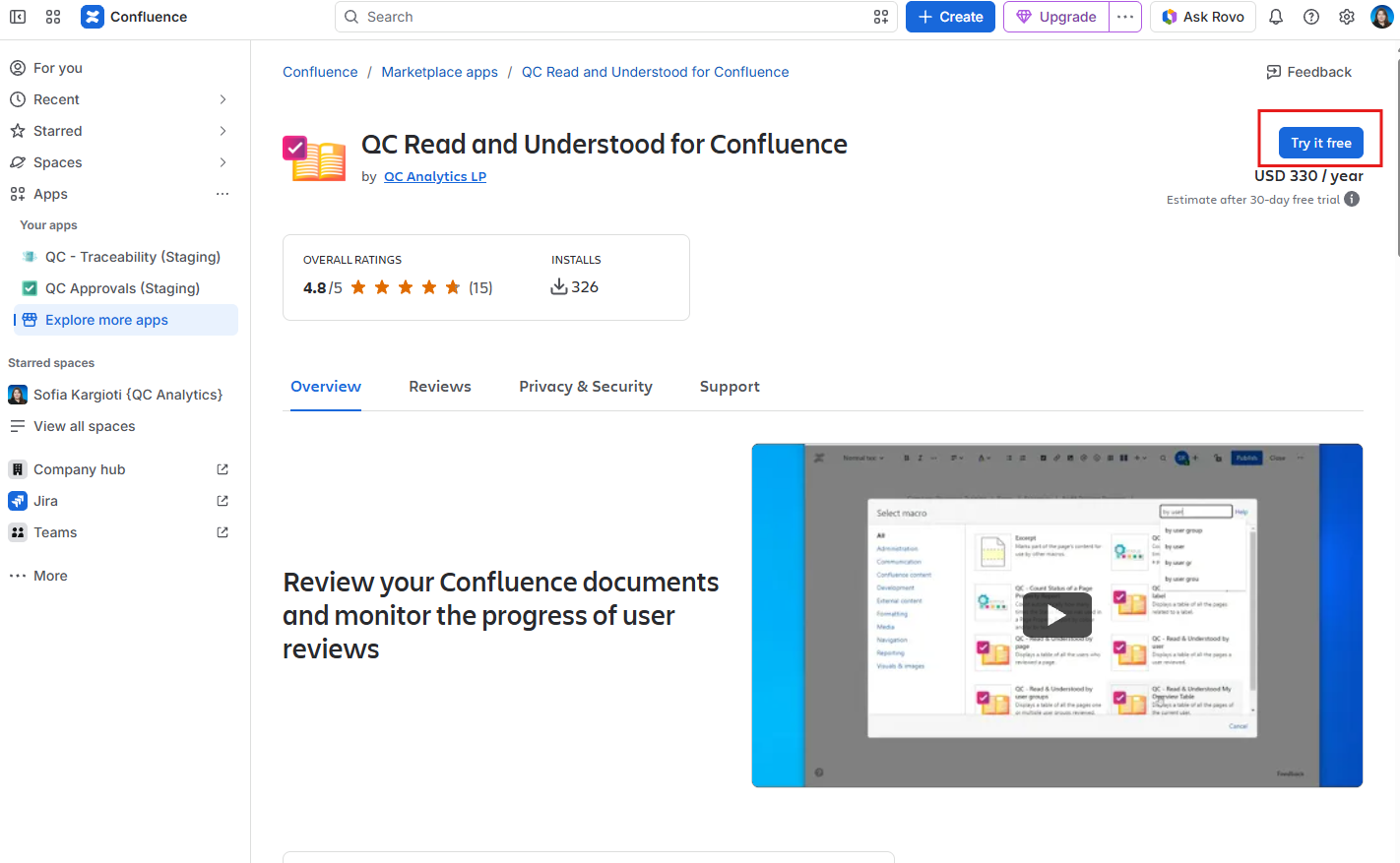
Open the listing QC Read & Understood for Confluence Cloud.
-
Click Try it free (or Get it now if your site already has a license).
-
Choose this Confluence site if you are asked.
-
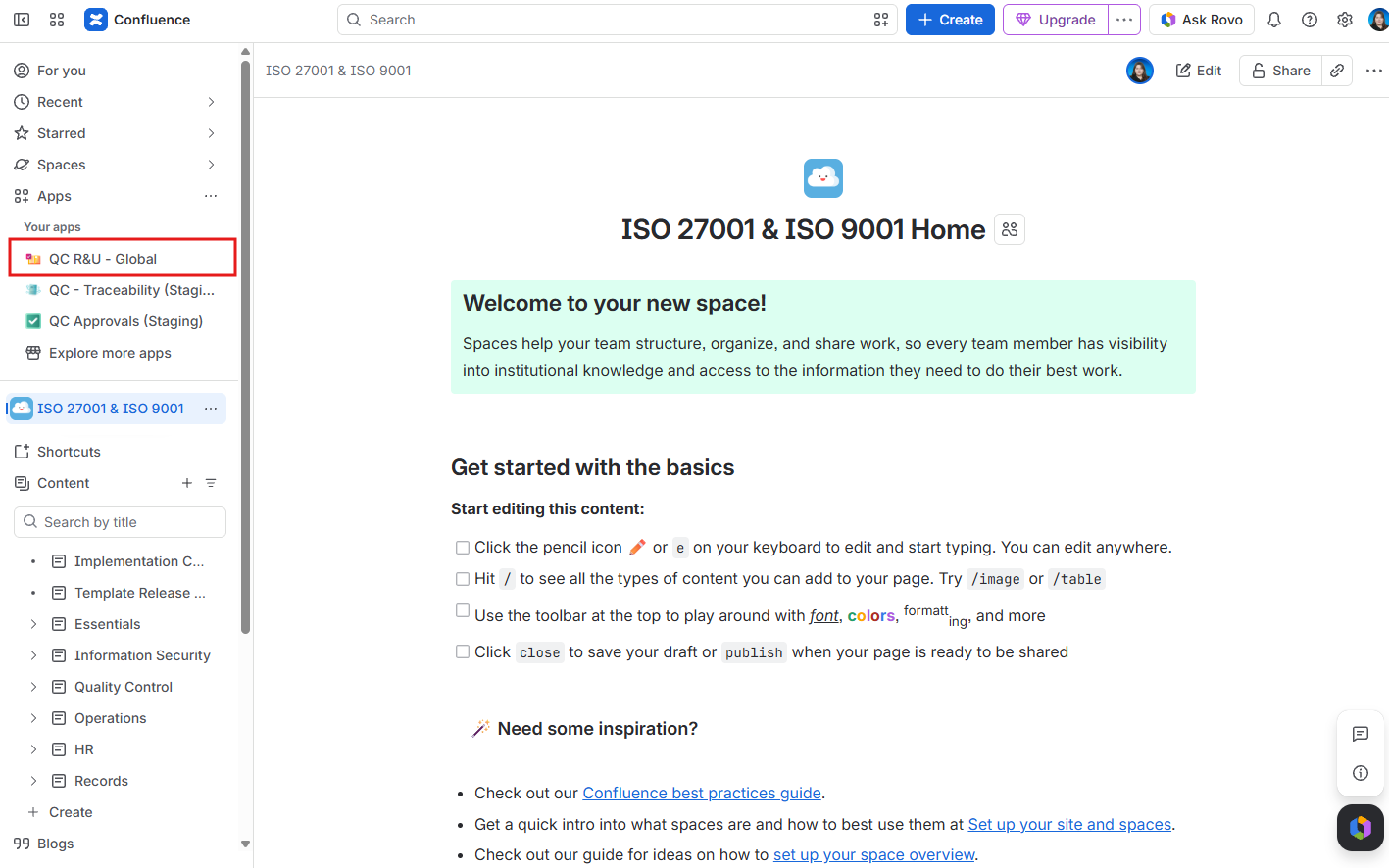
When Confluence asks you to review app permissions, read them and accept to finish the install.
Option B — from the Marketplace
-
Open the Atlassian Marketplace.
-
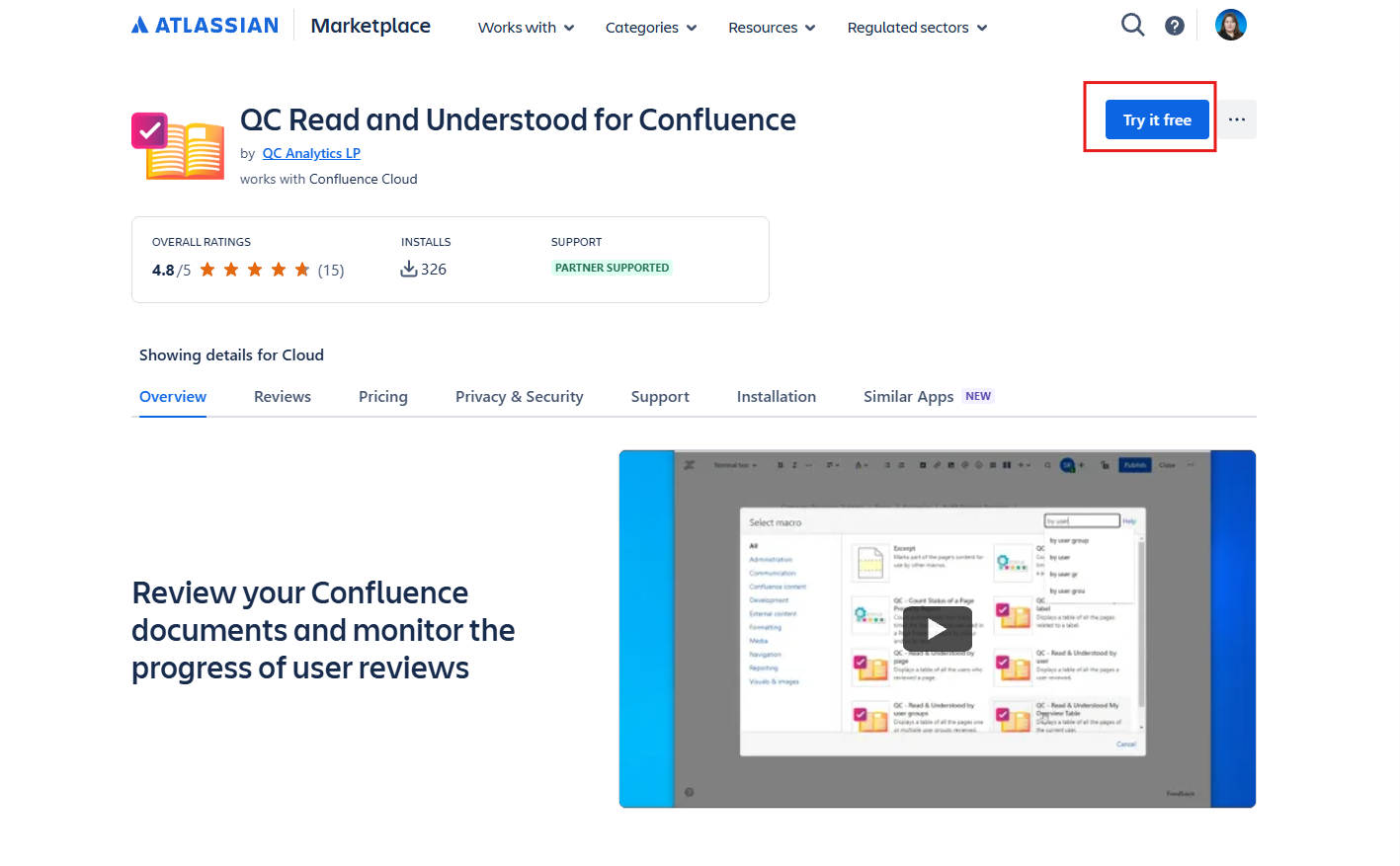
Search for QC Read & Understood.
-
Click Try it free.
-
Select your Confluence Cloud site.
Free trial and extending a trial
By clicking “Try it free”, a 30-day period begins where you can test the app for free. Free trials are controlled by Atlassian and can be extended, as long as you receive confirmation from the app developer.
If you need more time to see how QC Read & Understood works, you can raise a support ticket with us and ask for a trial extension. Once we give you the confirmation, you should ask Atlassian to extend your trial period, along with our confirmation.
After install
Installing the app is just the first step, it won’t work on your pages automatically as you’d expect it. Next steps:
-
Enable the app: A space admin needs to turn the app on for the space you’re going to use it (see https://support.qc-analytics.com/qc-read-and-understood-for-confluence-cloud/turn-qc-read-understood-on)
-
Assign users: Someone must assign users to the pages they need to R&U, unless your way of work allows anyone to confirm they’ve read and understood all pages (see https://support.qc-analytics.com/qc-read-and-understood-for-confluence-cloud/first-success-one-space-one-page-one-signature)
Upgrading? If you’re moving from the older Connect app, please follow the https://support.qc-analytics.com/qc-read-and-understood-for-confluence-cloud/upgrade-from-connect-to-forge instead of doing a fresh install.