
Important notice: Any changes to the version strategy will affect the R&U data of the space. QC Read & Understood will ask for your confirmation before saving the changes.
Navigate to the Version Strategy settings
-
Open the space → Space settings → Integrations → QC R&U - Space Settings.
-
Click Settings.
-
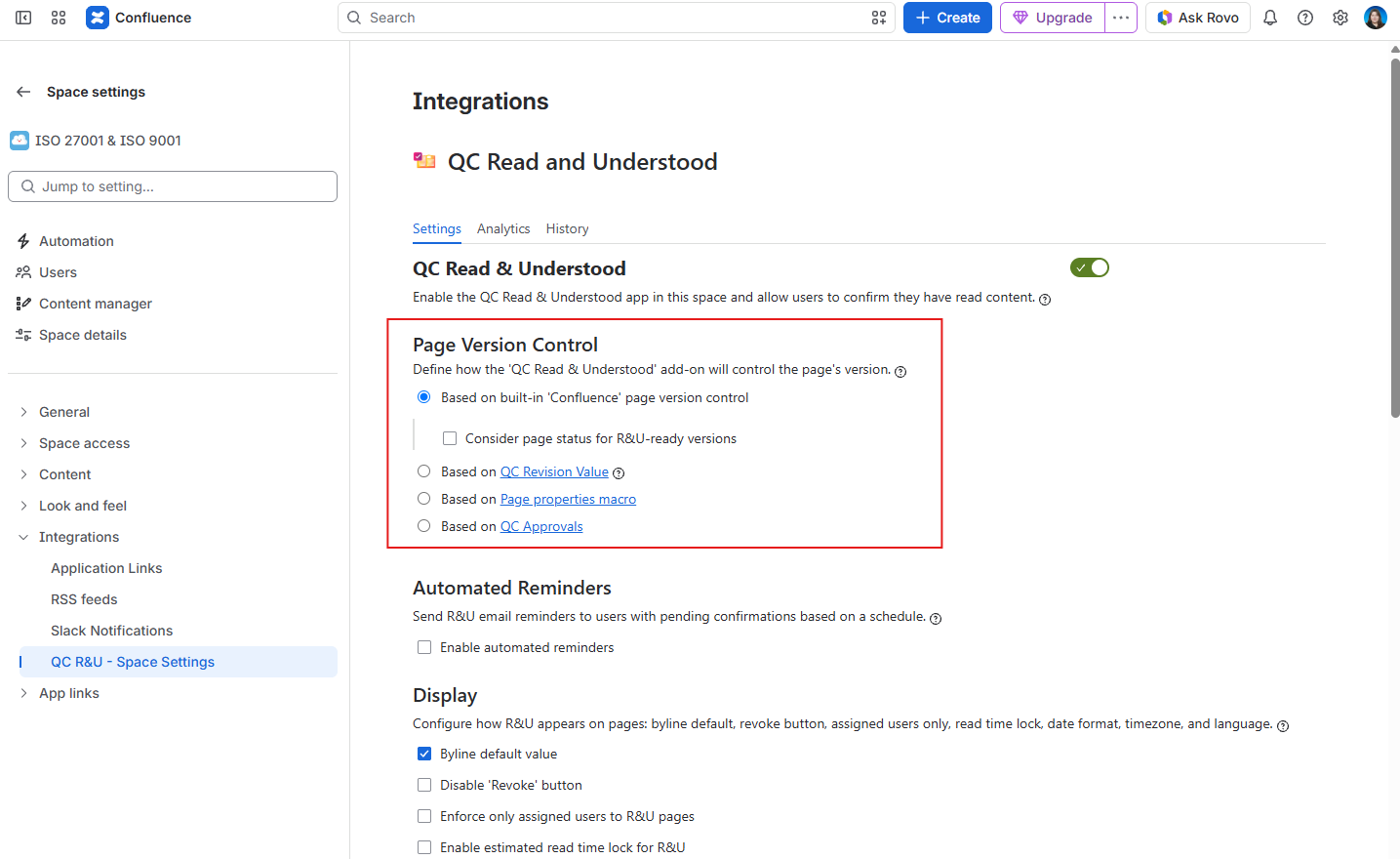
Find Page Version Control.
-
Select one option (wording below matches the radios).
-
Fill any extra fields (Page properties needs a header).
-
Click Update. If a warning appears, read it, then confirm only if you intend to change existing records.
Option A: Based on built-in 'Confluence' page version control
No extra macros are required for this version strategy. Every time you click “Publish” on a Confluence page, a new version is created, and it’s available for R&U.
With the “based on built-in Confluence version strategy”, you can also select to “Consider page status for R&U-ready versions”. When this option is selected, the app will count as significant for R&U only the versions that reach the selected page status.
Option B: Based on QC Revision Value
Requires the QC Documents app. Set revision values in QC Page Revision Overview on each document page, then select this strategy.
If QC Documents is not installed, do not choose this option. To see how the app integrates with the other apps: https://support.qc-analytics.com/qc-read-and-understood-for-confluence-cloud/integrations-with-other-apps.
Option C: Based on Page properties macro
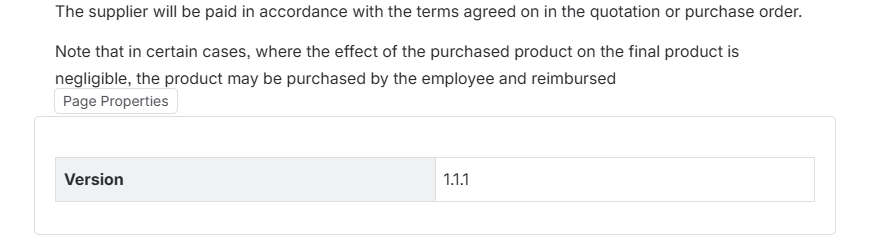
The version is a cell in Confluence’s Page Properties macro on the page.
Step 1: Add Page Properties on a page (Confluence)
-
Open the page and click Edit.
-
In the body, type
/and choose Page Properties. -
In the macro, create a two-column table (horizontal, not a vertical list of tables).
-
Left column: the header name you will type in Space Settings (for example
Version). -
Right column: the value (for example
3.2.0). -
Click Publish.
Step 2: Tell the space which cell to read
Back in Space Settings → Settings:
-
Page Property ID — only if the page has more than one Page Properties macro.
-
Page Property Header — must match the left-column text exactly (required).
-
Version format — how many parts the number has, and which parts force people to confirm again:
|
Format |
People must confirm again when… |
|---|---|
|
Major.Minor.Revision |
Any part changes |
|
Major.Minor.* |
Major or Minor changes; Revision does not |
|
Major.*.* |
Only Major changes |
|
Major.Minor / Major.* / Major |
As the names suggest |
If the app cannot read a version, the byline shows an error instead of Read and Understood. Fix the macro and header, then refresh the page.
You can put another app’s “current official version” field in the right column if that app’s macro is supported (for example Workflows metadata). The Page Properties macro must stay visible on the page.
Option D: Based on QC Approvals
QC Approvals is an app designed to work with QC Read & Understood to provide you with a seamless way to track version approvals. It’s important to choose this version strategy only if you’re using the QC Approvals app in the same space with QC Read & Understood.
What you need to know:
-
The byline stays blocked until the approvals process is complete.
-
QC Read & Understood treats a Minor version as not requiring R&U.
-
If a version is rejected in QC Approvals, the version isn’t available for R&U.
For more information on how to use QC Read & Understood with QC Approvals, see this guide: https://support.qc-analytics.com/qc-read-and-understood-for-confluence-cloud/integrations-with-other-apps#QC-Approvals-and-Read-&-Understood
Once you choose your preferred version strategy, open a page → QC - R&U. The signature line should show a version that matches the strategy (for example v.17 or 3.0 (v.4)).