
Confirm R&U from the Byline Dialog
Steps
-
In Confluence, open the page (use search, or click it in the space sidebar).
-
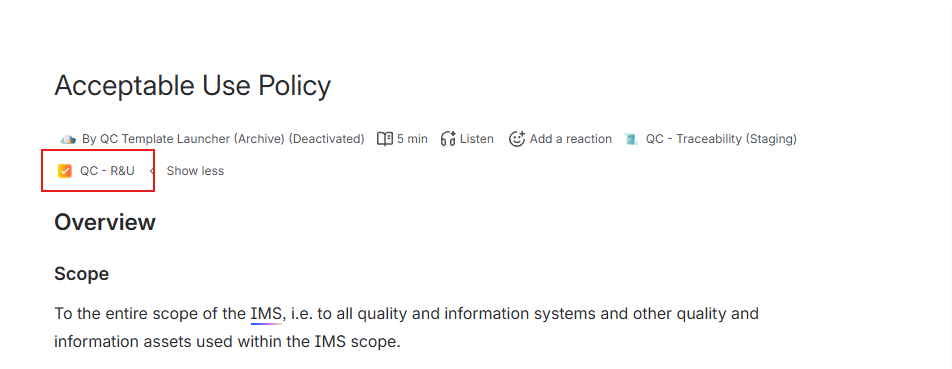
Near the title, click QC - R&U.
-
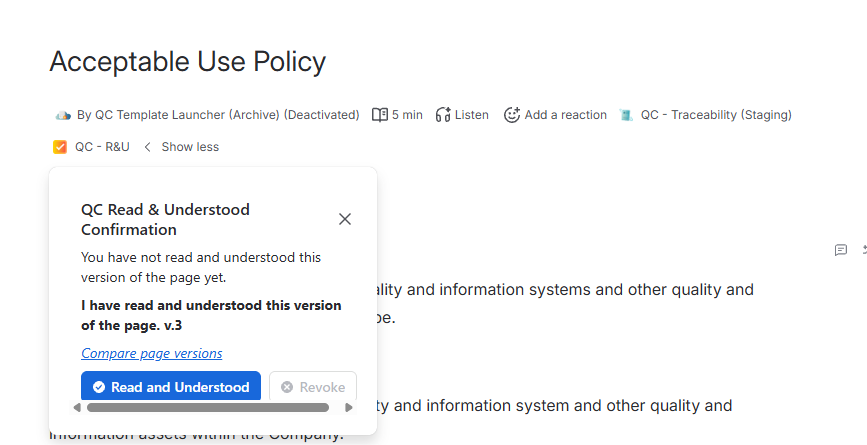
Read the message in the panel.
-
If you see an OTP box, enter the code from your authenticator app and click Verify OTP. Wait until you see that the code is correct. (Setup https://support.qc-analytics.com/qc-read-and-understood-for-confluence-cloud/use-one-time-password-otp-to-r-u)
-
Click Read and Understood.
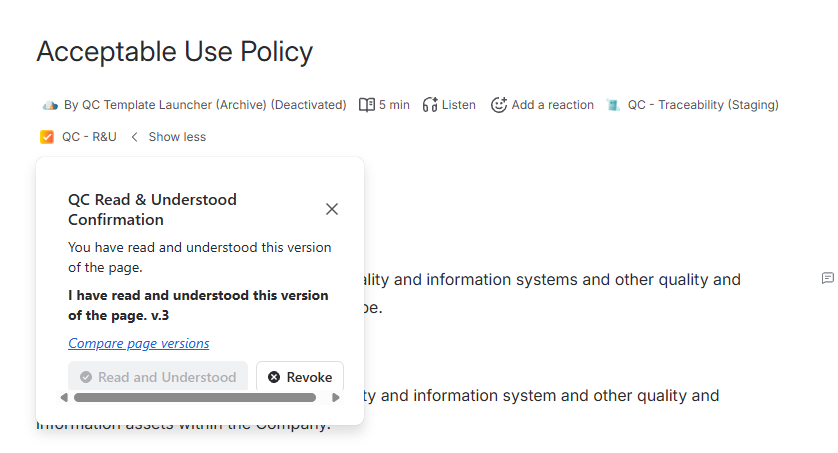
Once you read and understand a page, you should see a message that you have read and understood this version, along with the version number.
Compare page versions
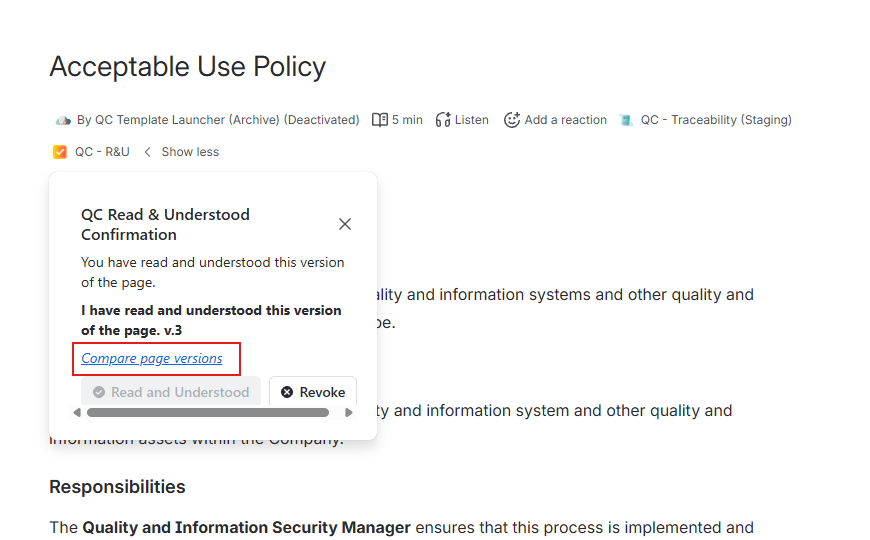
In the QC R&U - Byline panel, look for Compare page versions.
-
If it is a link, click it. Confluence opens a comparison of this page’s versions.
-
If it is grey and not clickable, you are on the first Confluence version of the page. There is nothing earlier to compare.
Revoke a confirmation
Use Revoke only if you need to take your confirmation back for this version. Other people’s records do not change.
-
Open the page and click QC - R&U.
-
Confirm that the panel shows you already accepted this version (Read and Understood is unavailable).
-
Click Revoke.
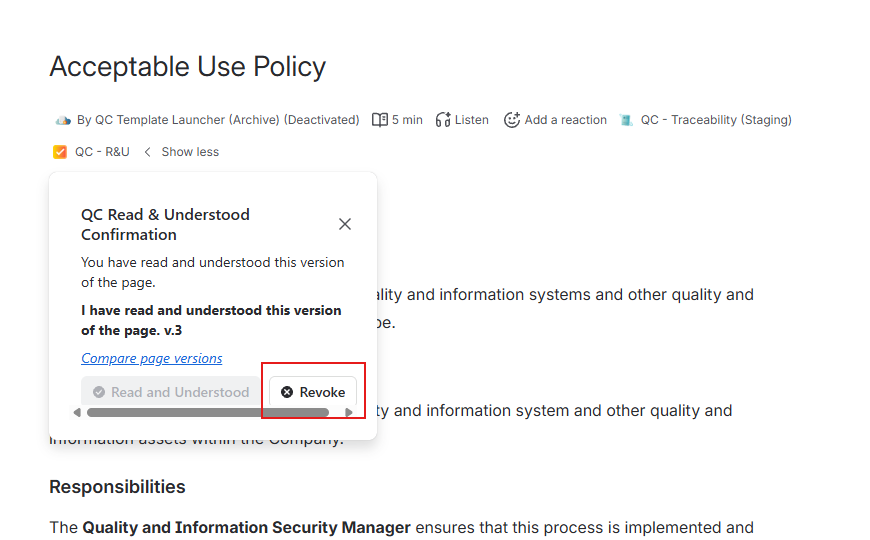
Once you click Revoke, you should see a message that you revoked this version. Read and Understood becomes available again if you still may confirm.
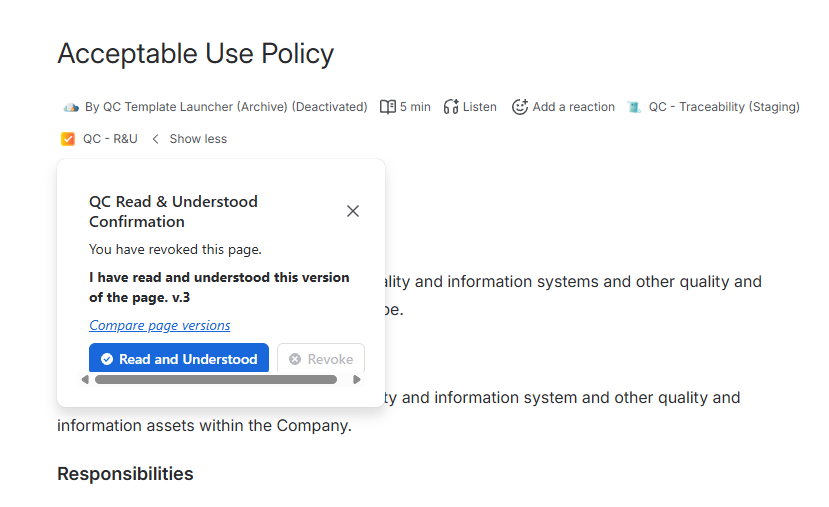
If you do not see Revoke, a space admin ticked Disable Revoke button in Space Settings. That is intentional: confirmations are one-way in that space.
A few things you need to know
-
If the message says you’re not assigned to R&U the page: Someone with access to QC R&U Page Overview (or the page owner) must add you or your group to the page, following the steps in https://support.qc-analytics.com/qc-read-and-understood-for-confluence-cloud/add-or-remove-users.
-
If you confirmed an older version of this page: The panel may tell you that you accepted an older version. Signing a specific old Confluence version from this byline isn’t available. To do this, open the QC R&U My Overview and confirm the version from there.
Confirm R&U from the Signature Box
Find the Signature Box
-
Open the Confluence page you need to R&U and scroll in the page body
-
Look for a blue block with the title QC Read & Understood Confirmation.
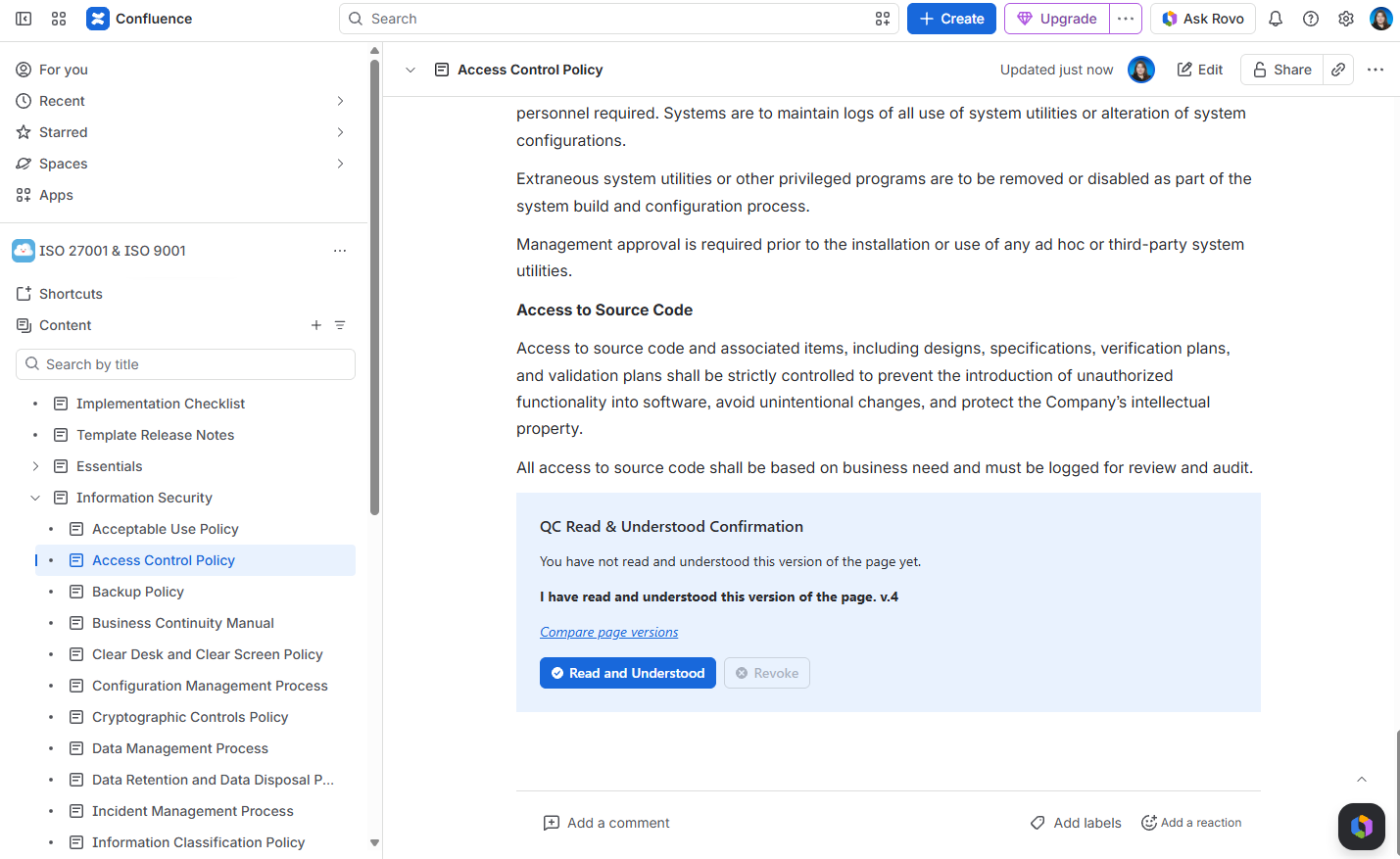
If you only see a grey macro placeholder, the page may not have finished loading. Refresh the page.
Read & Understand the page
-
If you see OTP, enter the code and click Verify OTP. Wait for the “correct” message.
-
If you see a countdown such as (2m 15s) next to the button, wait until it reaches zero. The space admin turned on a minimum reading time. This countdown exists on the Signature Box only. The byline does not wait.
-
Click Read and Understood.
You should see: The same kind of success message as in the byline, including the version number.
If the “Read & Understood” button stays disabled
|
What you see |
What to do |
|---|---|
|
Yellow warning about OTP and Profile Settings |
Enable OTP, then return to the page. |
|
Countdown still running |
Wait. Do not use the byline if your process requires the wait — the byline can still be clicked unless the space turned the byline off. |
|
“You are not assigned” |
Ask the page owner to add you. |
|
No Signature Box on the page |
Use the byline, or ask the author to insert the macro. |
Confirm R&U using Confluence on your phone
Using the Confluence mobile app
-
Open the Confluence mobile app and sign in.
-
Open the page and scroll the page body until you see the QC Read & Understood Confirmation.
-
If you see Tap to load, tap it, then tap View.
-
Tap Read and Understood.
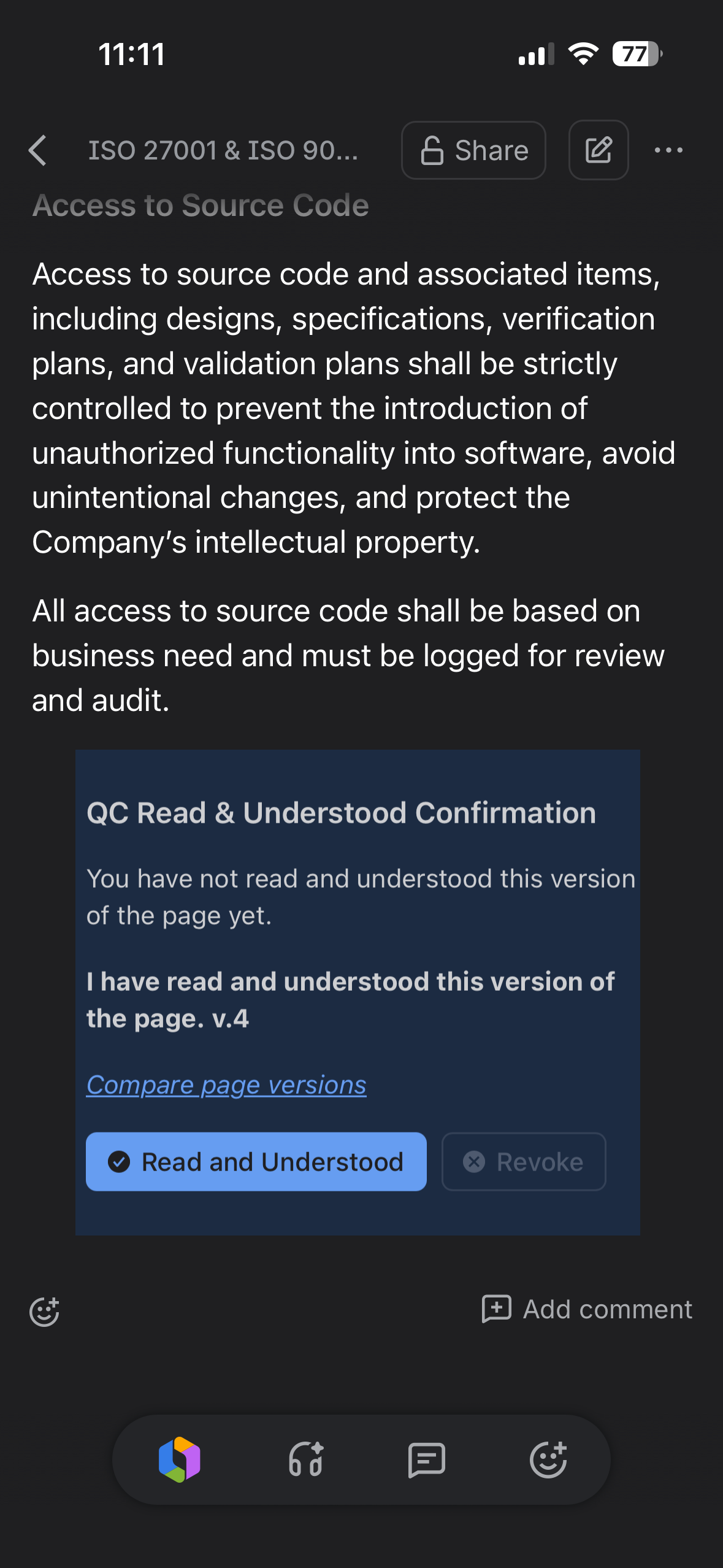
When using the Confluence mobile app, you cannot R&U a page from the byline. If there is no Signature Box in the page, ask the page author to insert it, or you can use a mobile browser (below).
Using your phone’s browser
-
Open Safari or Chrome on the phone.
-
Go to your Confluence site and sign in.
-
Open the page.
-
Use the Signature Box, or request the desktop site in the browser menu, then click QC - R&U in the byline.
“Switch to desktop version” in the Confluence app
-
Open the menu (often top left).
-
Choose Switch to desktop version.
-
Use the page as you would on a computer: byline QC - R&U, or
•••→ Apps if you need Page Overview. -
Page Overview, Space Settings, and Site Overview are awkward on a small screen. Prefer a computer for assigning people.