
QC Read & Understood does not live in one menu. It appears in seven Confluence places. Opening the wrong place is usually why you can’t find a control and think it’s missing.
On a Confluence page
Sign this page
A page is one Confluence document (the thing with a title and body).
-
Open the page you want to confirm you’ve read and understood
-
Look near the title, in the row of small buttons (this row is the byline)
-
Click the “QC R&U” button
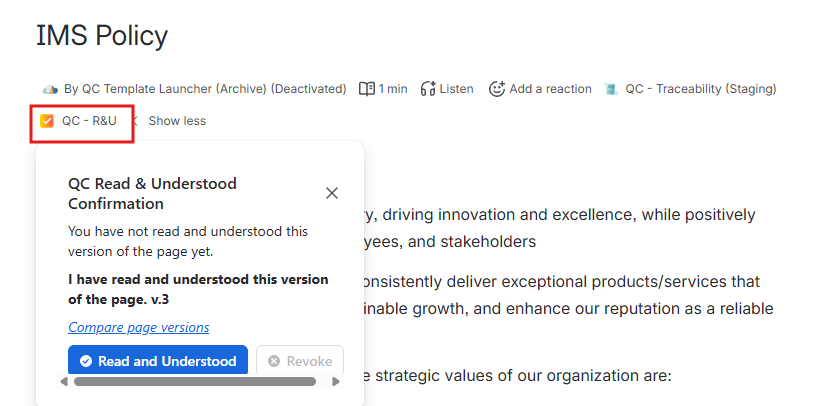
A panel titled “QC Read and Understood Confirmation” with a Read and Understood button opens up.
If that button is missing: https://support.qc-analytics.com/qc-read-and-understood-for-confluence-cloud/i-cannot-find-the-qc-r-u-button
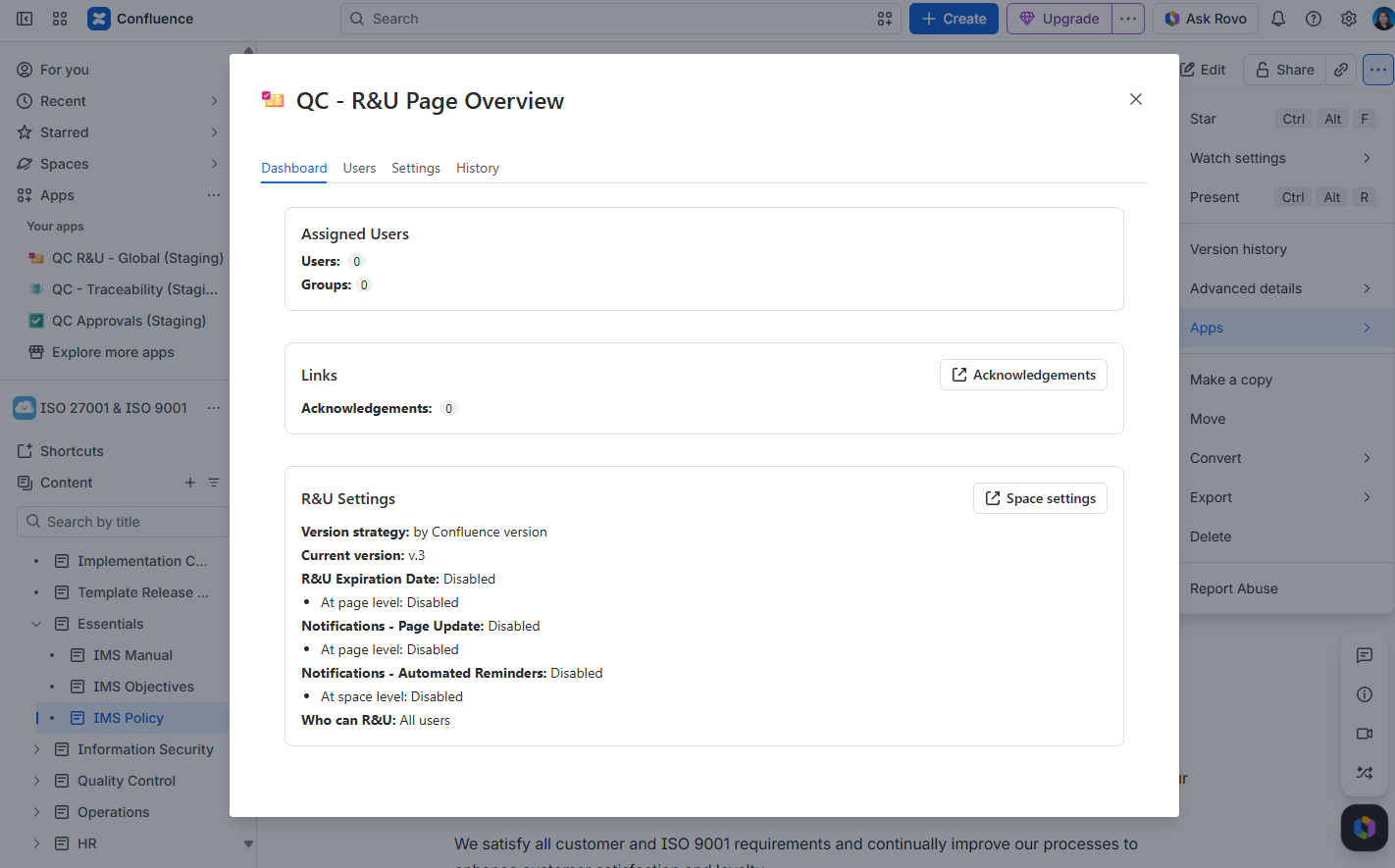
Manage who must read it
-
Stay on the same page.
-
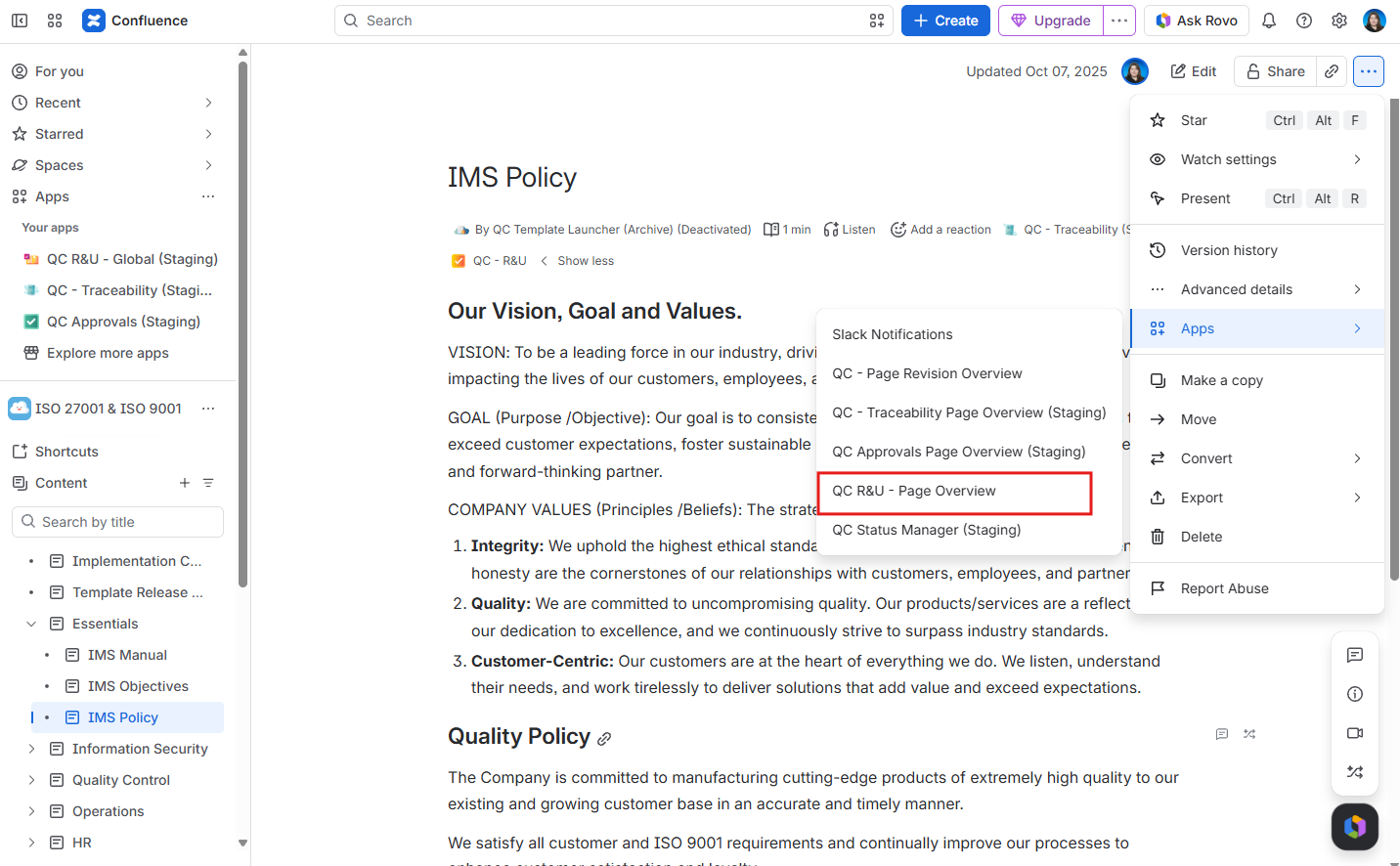
In the top-right, click
•••(More actions). -
Open Apps.
-
Click QC R&U - Page Overview.
Put a box or table in text
-
Open the page.
-
Click Edit (pencil, top right).
-
In the page body, type
/(forward slash). -
Type “qc r&u”.
-
Choose a macro whose title starts with QC R&U -.
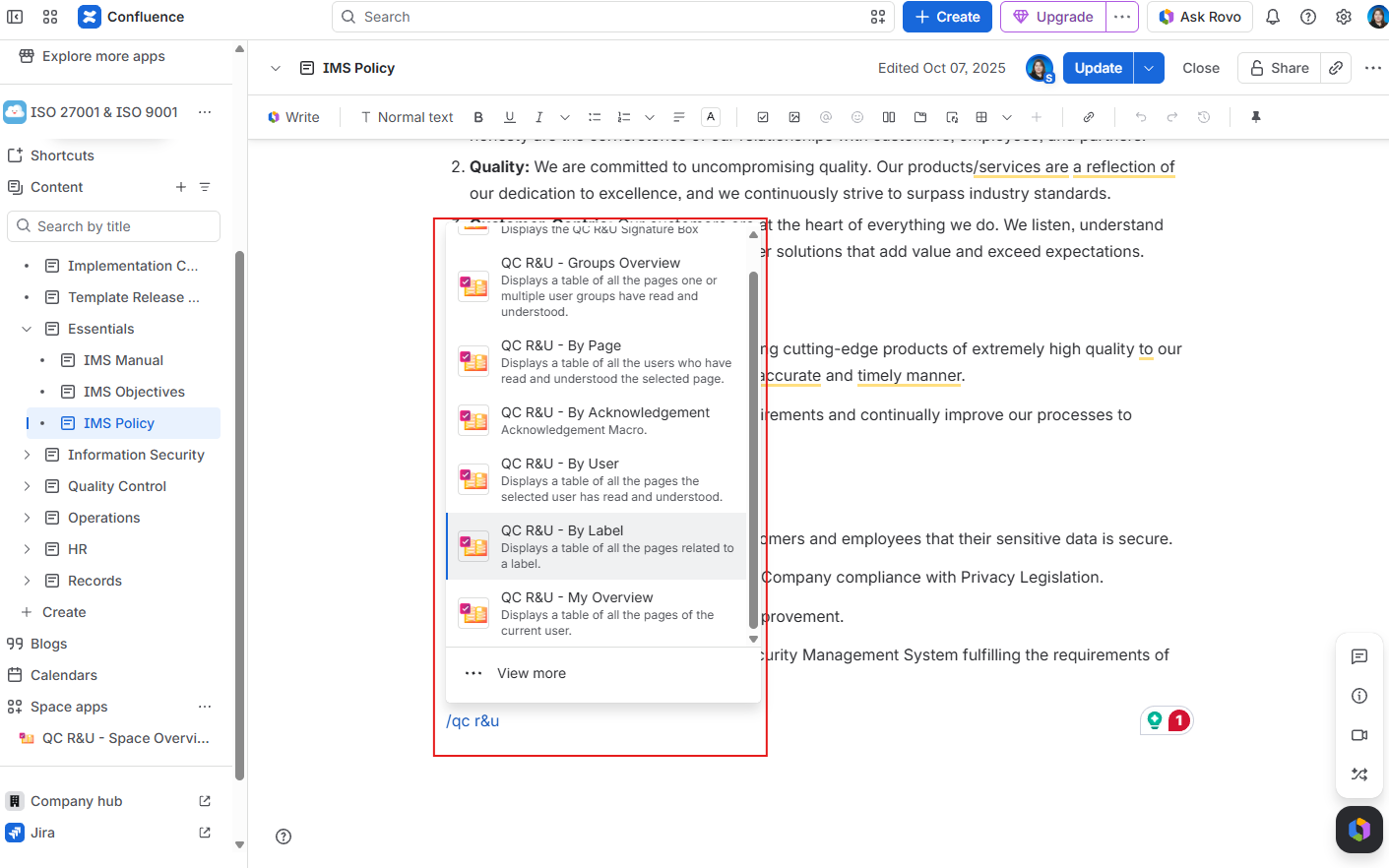
For more details on QC R&U macros, see here https://support.qc-analytics.com/qc-read-and-understood-for-confluence-cloud/insert-a-qc-r-u-macro
In a Space
Reports and Acknowledgements
A space is a set of pages that belong together (for example Quality, HR, or a project).
-
Go to the space you’ll use the QC Read & Understood app.
-
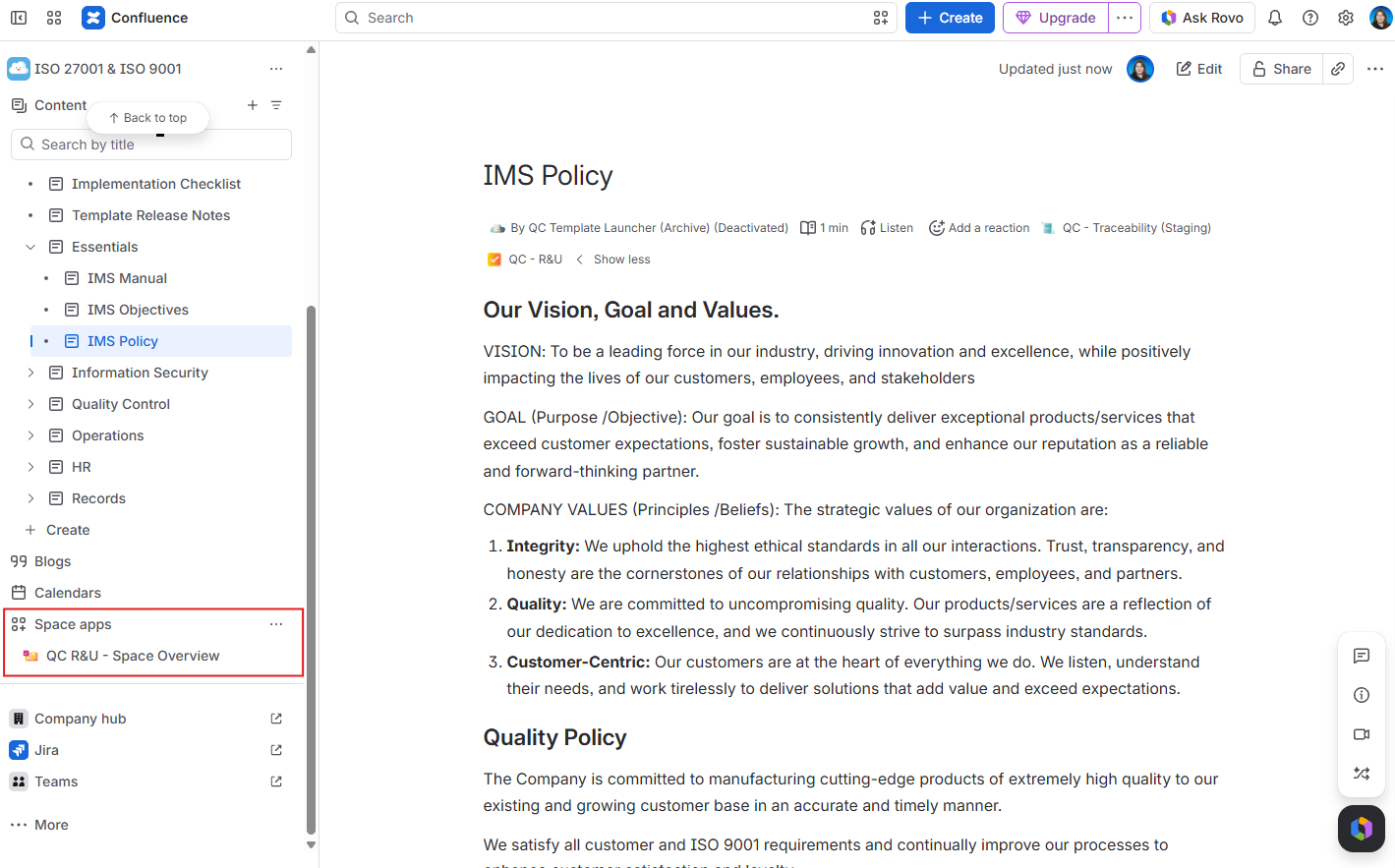
In that space’s left sidebar, look for the “Space apps” menu and the QC R&U - Space Overview option.
-
Click it.
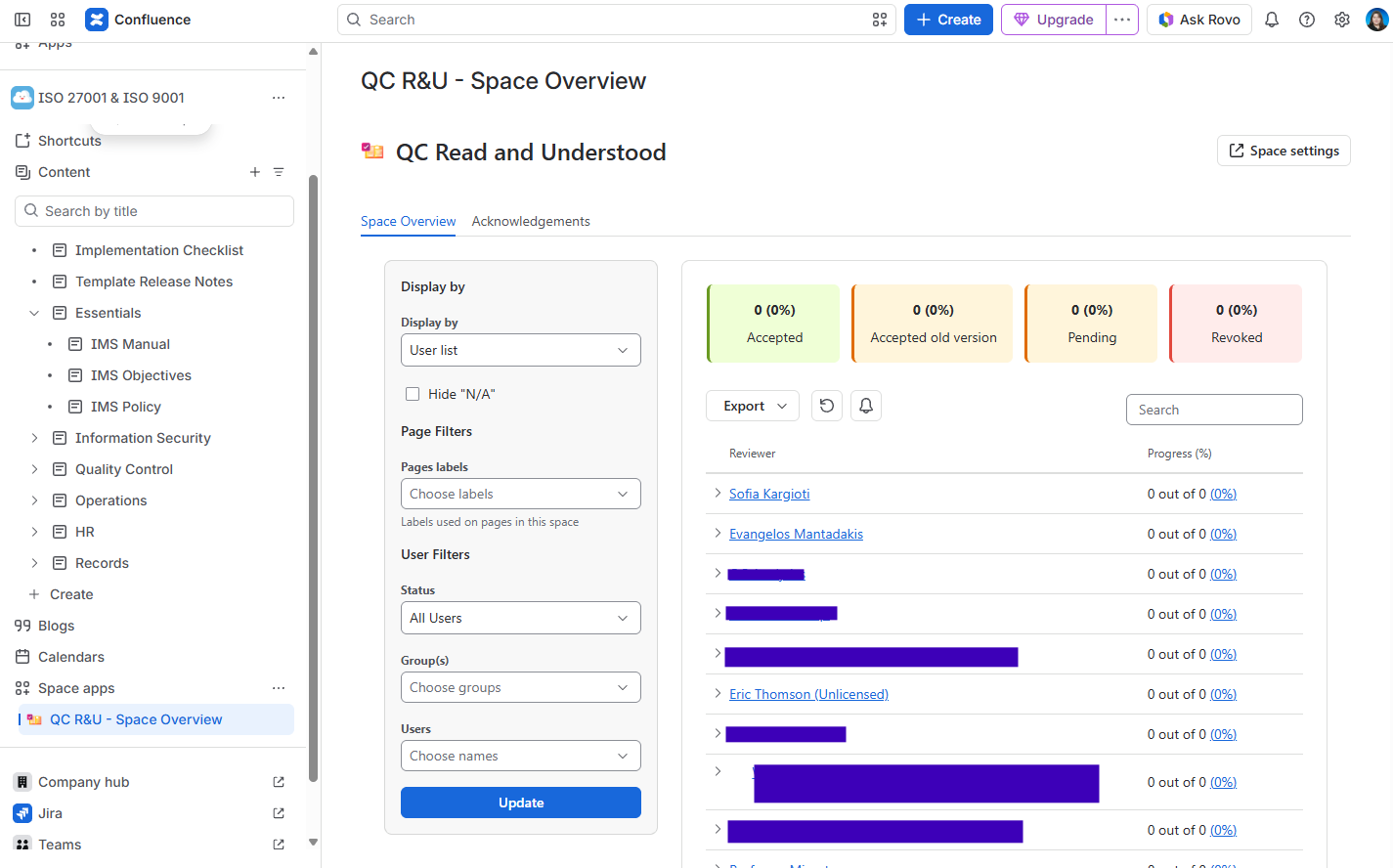
Use this R&U table to:
-
See progress for the space (Overview)
-
Create acknowledgement lists (Acknowledgements)
You will not find version strategy, OTP, or the Sync button here.
In Space settings
Turn the app on and change rules
-
Go to the space you’ll use the QC Read & Understood app.
-
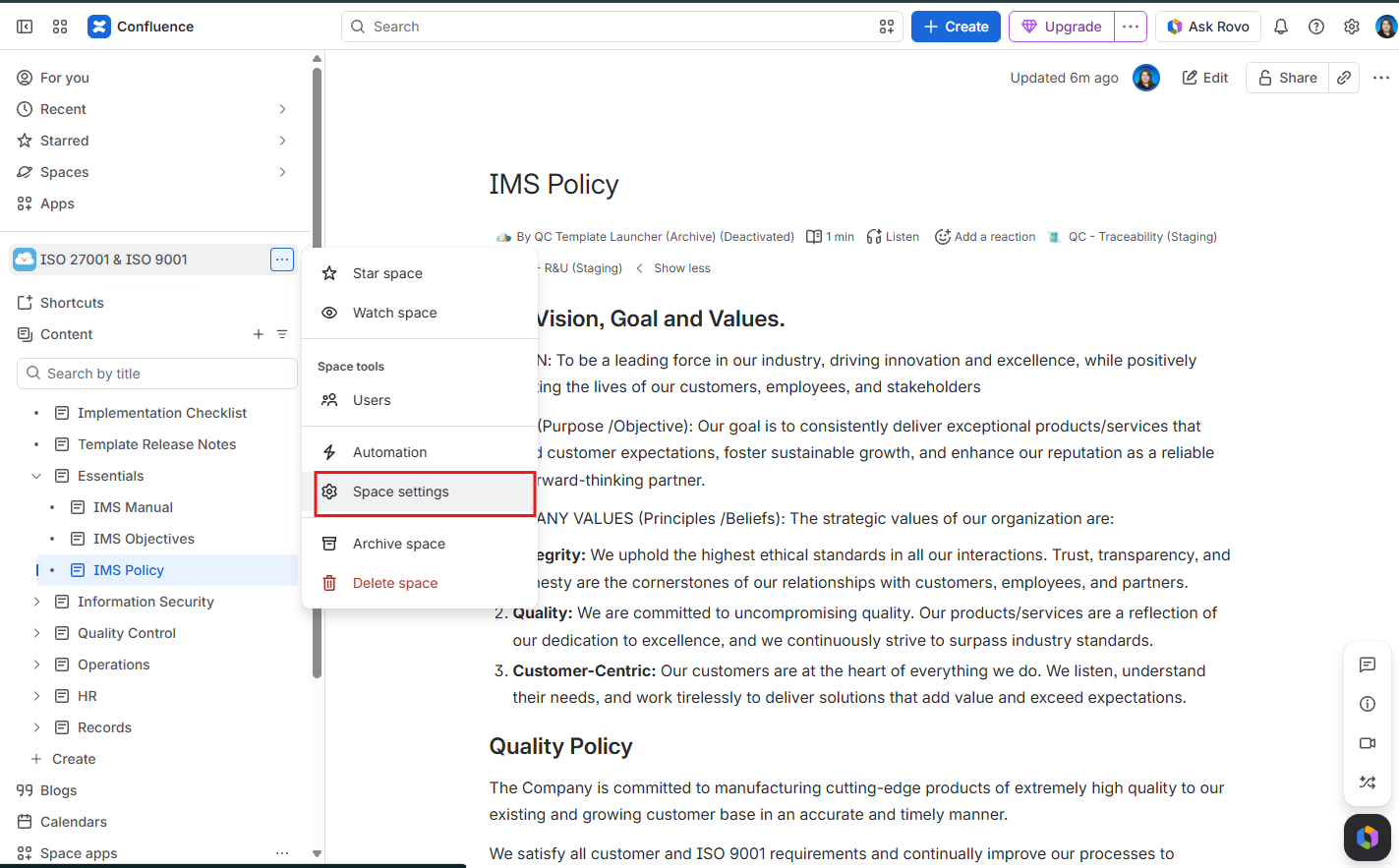
Click the three dots next to the space name and select Space settings.
-
In the left list, open the Integrations menu.
-
Click QC R&U - Space Settings.
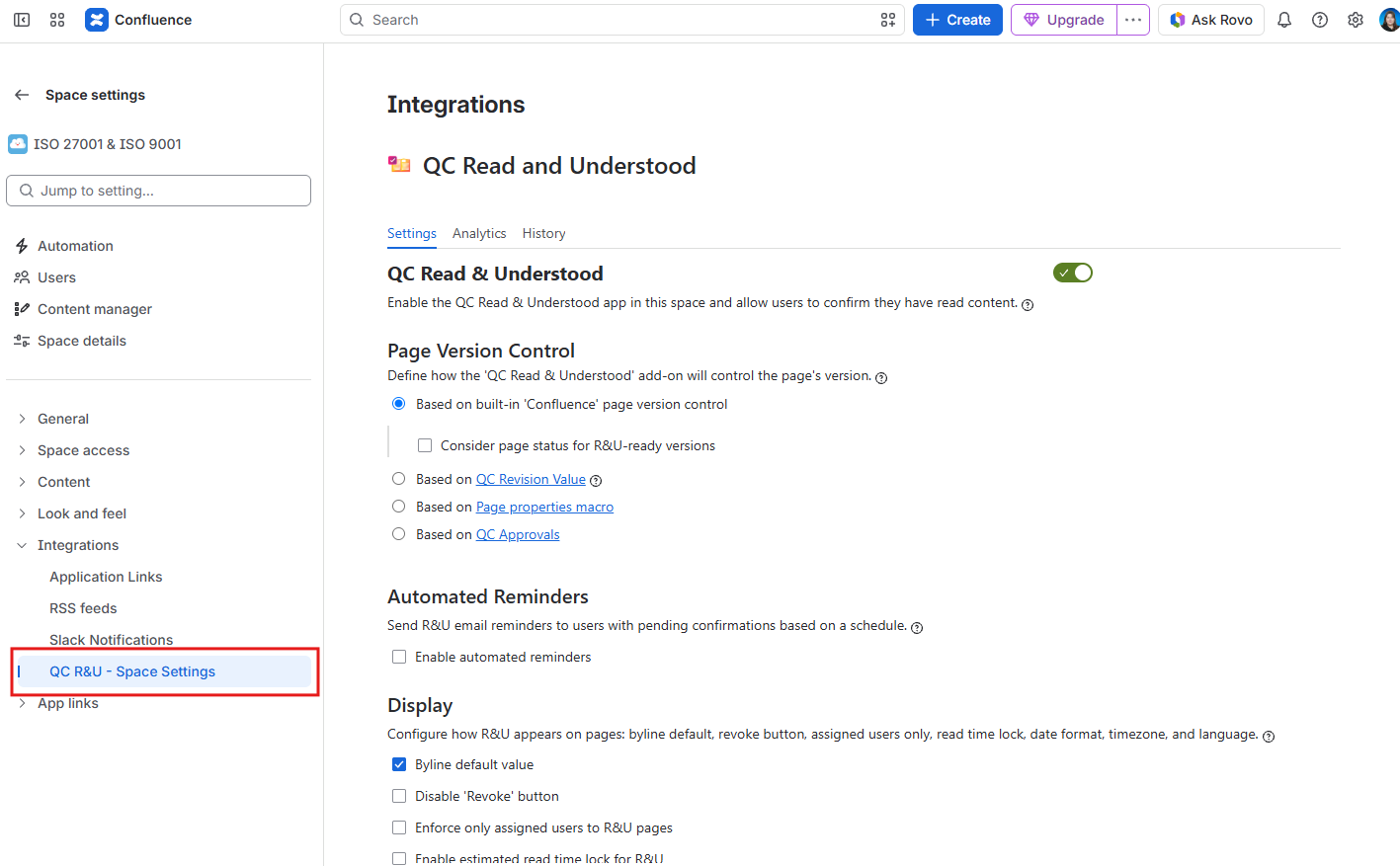
This is where a space admin turns the app on, chooses how versions work, and runs manual user synchronization.
If you want to compare the two space places side by side, see https://support.qc-analytics.com/qc-read-and-understood-for-confluence-cloud/space-overview-vs-space-settings
Apps menu
My pages, the whole site, my OTP and email settings
-
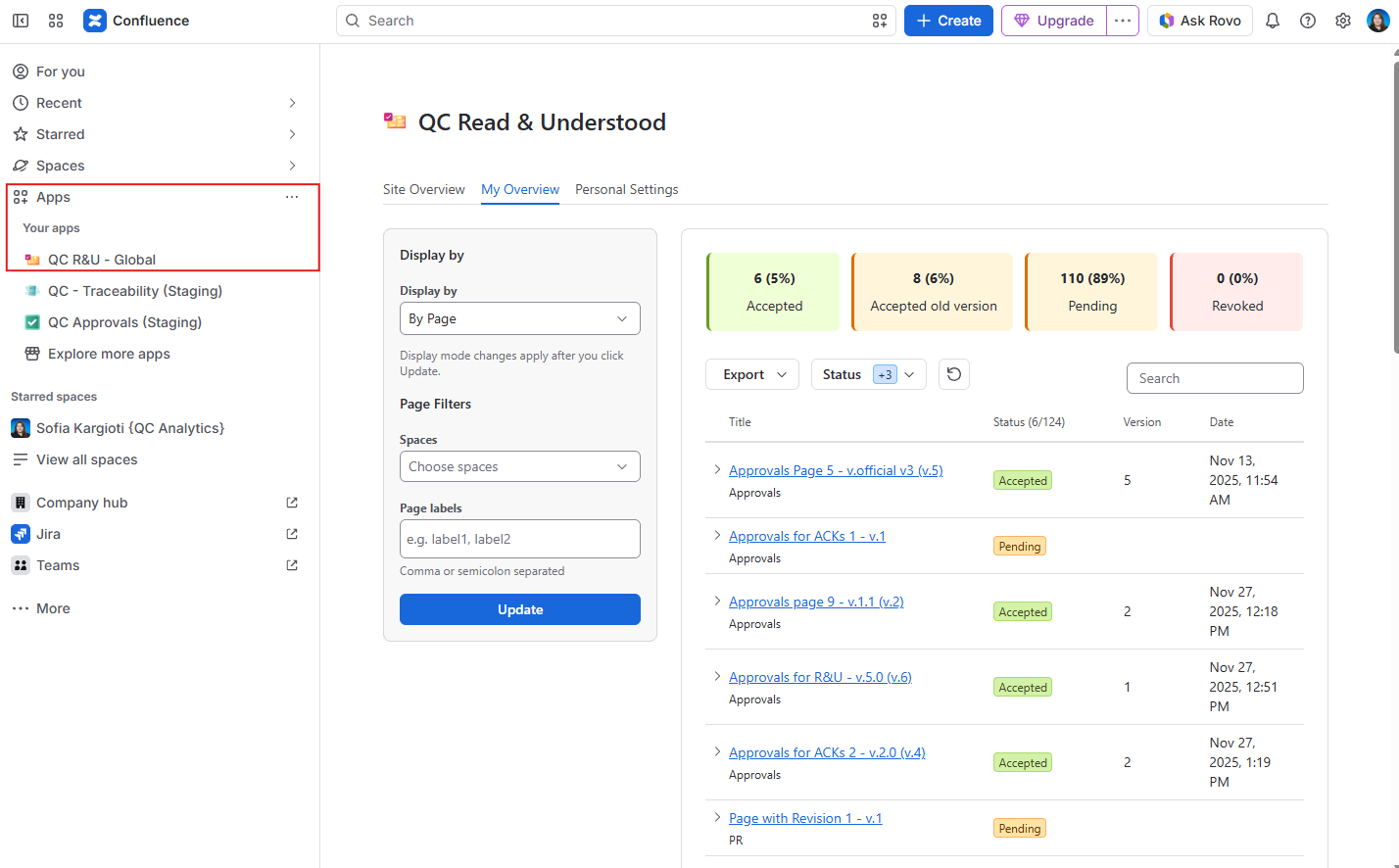
In the Confluence left sidebar, click Apps.
-
Click QC R&U - Global.
|
Tab |
Who uses it |
|---|---|
|
My Overview |
You. These are the pages you must confirm, including older versions. |
|
Personal Settings |
You. Here you can enable/disable the email notifications you receive and register your device for OTP. |
|
Site Overview |
People allowed to see site-wide reports. |
Confluence administration
Site-wide switches
Only site administrators can do this.
-
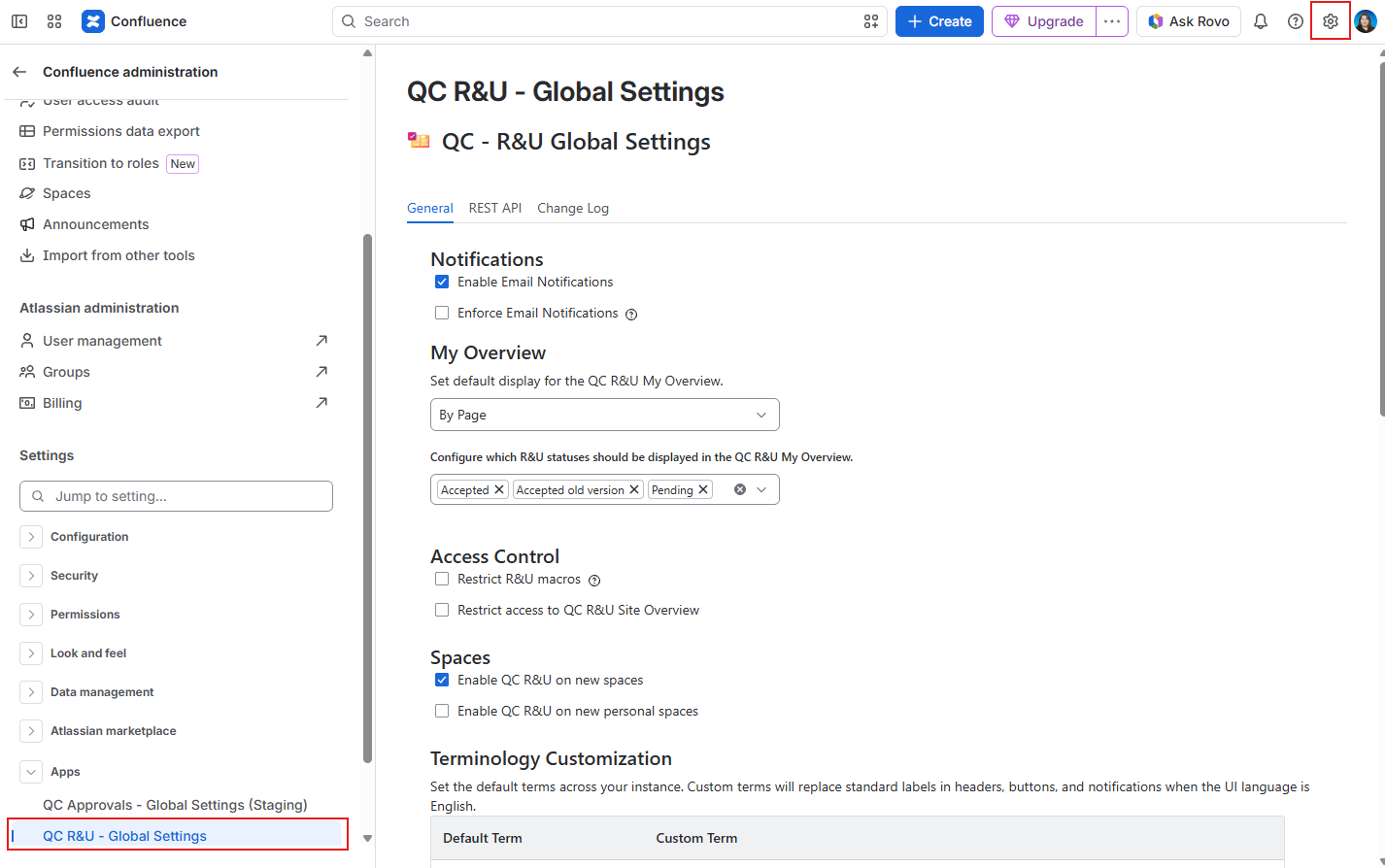
In the top right of Confluence, click the gear (Confluence administration).
-
Open Apps.
-
Click QC R&U - Global Settings.
Quickly decide where you need to go
|
I want to… |
Start here |
|---|---|
|
Confirm this page |
Byline QC - R&U |
|
Add people to this page |
Page |
|
See my to-do list |
Apps → QC R&U - Global → My Overview |
|
Turn email or OTP on for me |
Apps → QC R&U - Global → Personal Settings |
|
Create an acknowledgement |
Space sidebar → QC R&U - Space Overview → Acknowledgements |
|
Change version rules for the space |
Space settings → Integrations → QC R&U - Space Settings |
|
Turn the app on for a space |
Space Settings → Settings tab |
|
Use QC Approvals, QC Documents, AppFox, or Comala with R&U |
If another app already owns the version
Read & Understood stores who confirmed which version. If QC Approvals, QC Documents, AppFox Workflows, or Comala Publishing already decide that version, you must tell R&U to follow it. Otherwise people confirm a draft, or the byline shows no version.