
Add users
-
Open the page.
-
Click
•••(top right) → Apps → QC R&U - Page Overview. -
Click the Users tab.
-
Click Add Users.
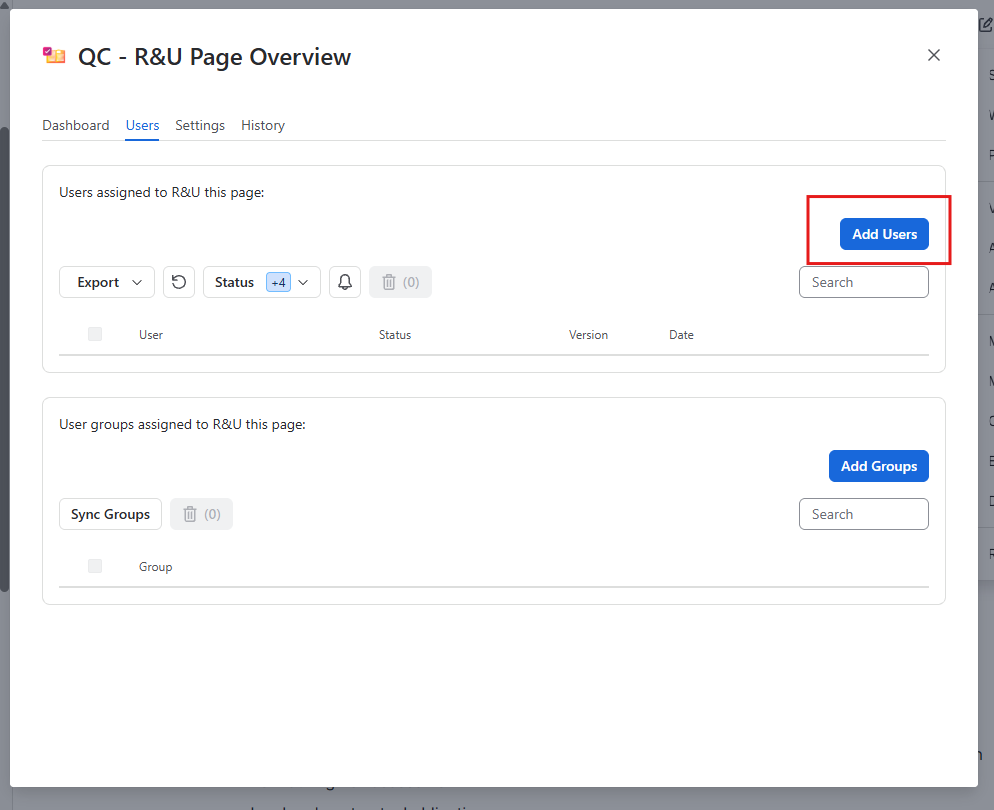
-
In Users, search for a user by typing their username, and select them.
-
Repeat for more people if needed.
-
Optional: tick Notify users via email about their pending R&U and type a short message.
-
Click Add Users & Groups.
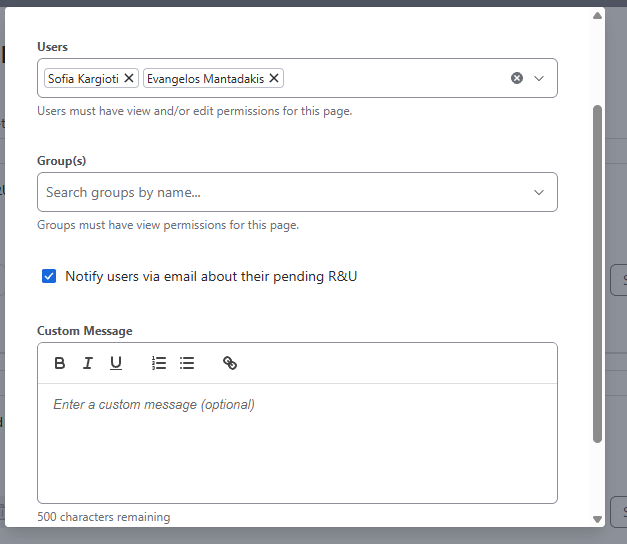
After you do this, you should see these users in the table with status Pending (until they confirm the page).
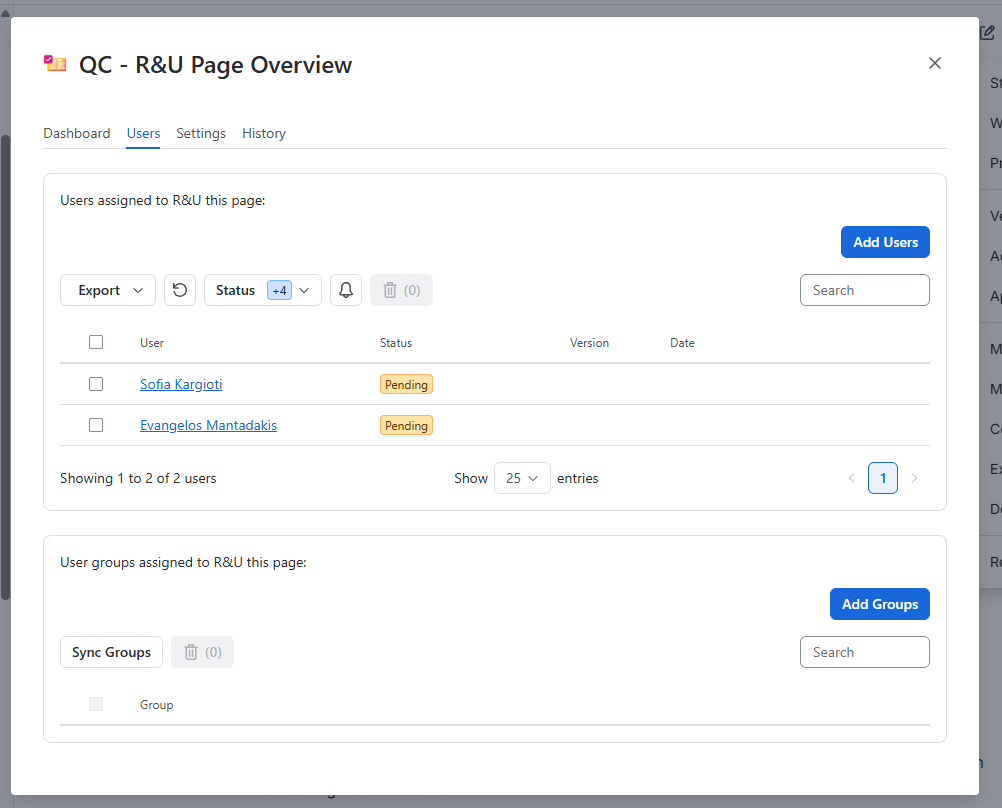
If a name does not appear in search
Confluence will not list people who cannot access the space.
-
Open the space (left sidebar).
-
Go to Space settings → Users.
-
Click Add people, search for the user, and give them the Viewer role.
-
Return to Page Overview and search again.
Guests often cannot be picked as individuals. See Guests and unlicensed users.
Remove people
-
On the Users tab, select the people in the table.
-
Click Delete Users.
-
Confirm in the Delete Users panel.
Removing a person from Page Overview does not remove them from the Confluence group.
You do not have to be a Confluence administrator to add people here, but you do need view access to the page, and the app needs view and edit on that page.
Add a group
Important: Putting someone in a Confluence group is not enough. The app must sync that membership and then assign those people to the pages. Without sync, the Page Overview table stays empty.
Step 1: Give the group space access (Confluence)
-
Open the space from the left sidebar.
-
Go to Space settings → Users
-
Click Add people, search for the group, and give it the Viewer role.
If the group cannot view the space, it will not show up in QC Read & Understood.
Step 2: Add the group on the page
-
Open the page →
•••→ Apps → QC R&U - Page Overview. -
Click Users.
-
Scroll to the groups table (below the people table).
-
Click Add Groups. A panel titled Add User Groups opens.
-
Type the group name and select it.
-
Optional: tick Notify users via email about their pending R&U.
-
Click Add Groups.
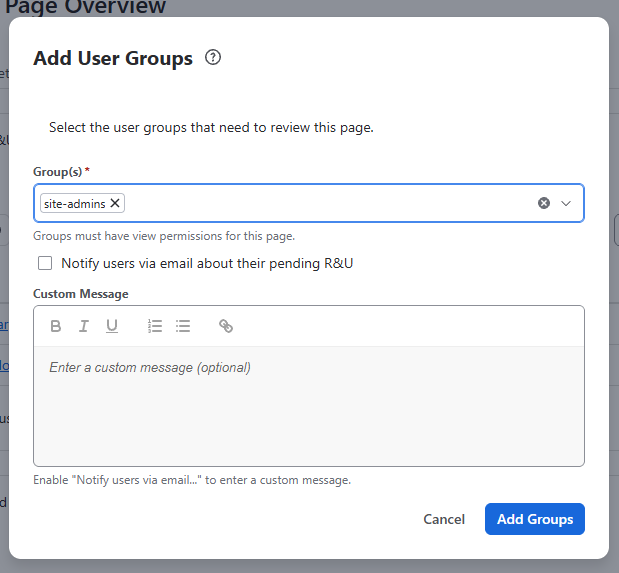
You should see: The group listed. Members may not appear in the people table until you sync.
Sync Groups on this page
-
Stay on Users, groups table.
-
Click Sync Groups.
-
Choose Sync with notifying or Sync without notifying.
-
Wait until it finishes.
You should see: New members in the people table as Pending.
If sync reports success but names are still missing, run it again after a minute, or run space-level Sync (below).
Sync the whole space (optional, faster for many pages)
-
Open Space settings → Integrations → QC R&U - Space Settings.
-
On Settings, scroll to Synchronization.
-
Click Sync.
-
Choose whether to notify.
This updates group membership and assignments across the space, not only one page.
What sync does not do
-
Removing someone from the Confluence group does not automatically remove them from the page. Remove them on the Users people table if they should no longer be assigned.
-
Removing the group from the page stops future sync from adding that group’s members. People already on the page stay until you remove them.
Automatic add of new members
Space Settings can Automatically add new group members to assigned pages, limited to pages from the last 7 / 14 / 30 days or all days. That still depends on sync running (daily and/or the Sync button). Details: Space settings catalog.
Send a reminder
From this page
-
Open the page →
•••→ Apps → QC R&U - Page Overview. -
Click Users.
-
Click Send Reminder.
-
The list is filled with people who are Pending, Revoked, or Accepted older version — not people who are already Accepted.
-
Remove anyone who should not get this mail.
-
Send.
You should see: A confirmation that reminders were sent.
From the space
-
Open the space sidebar → QC R&U - Space Overview.
-
Click Overview.
-
Use Notify Users for the rows you are looking at.
Automatic reminders
A space admin can schedule reminders for the whole space. See https://support.qc-analytics.com/qc-read-and-understood-for-confluence-cloud/qc-r-u-space-settings.