
Steps
-
Open the space from the Confluence left sidebar.
-
Open Space settings.
-
Click Integrations.
-
Click QC R&U - Space Settings.
-
Open Settings.
-
Turn Enabled on.
-
Under Display, set Byline default value to Enabled if you want QC - R&U on pages by default.
-
Click Update at the bottom.
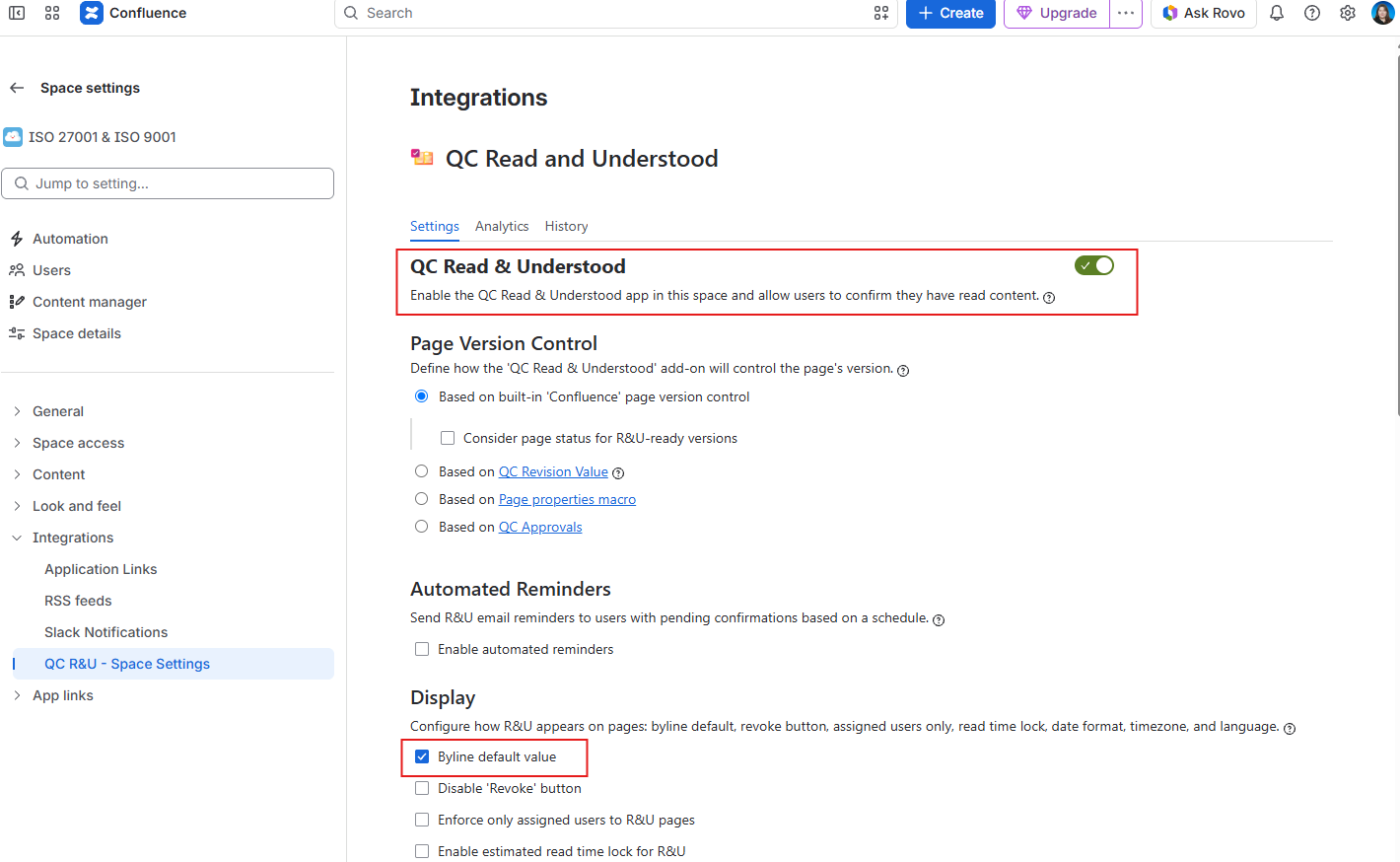
You should see: Settings saved. Open any page in the space and look for QC - R&U near the title.
If the byline still does not show
-
Confirm you clicked Update.
-
Refresh the Confluence page.
-
Open that page’s Page Overview → Settings and check the byline is not Disabled for that page.
-
Continue with https://support.qc-analytics.com/qc-read-and-understood-for-confluence-cloud/i-cannot-find-the-qc-r-u-button