
Site level
-
Go to Apps → QC R&U - Global
-
On the Site Overview tab, configure the table and click Update
-
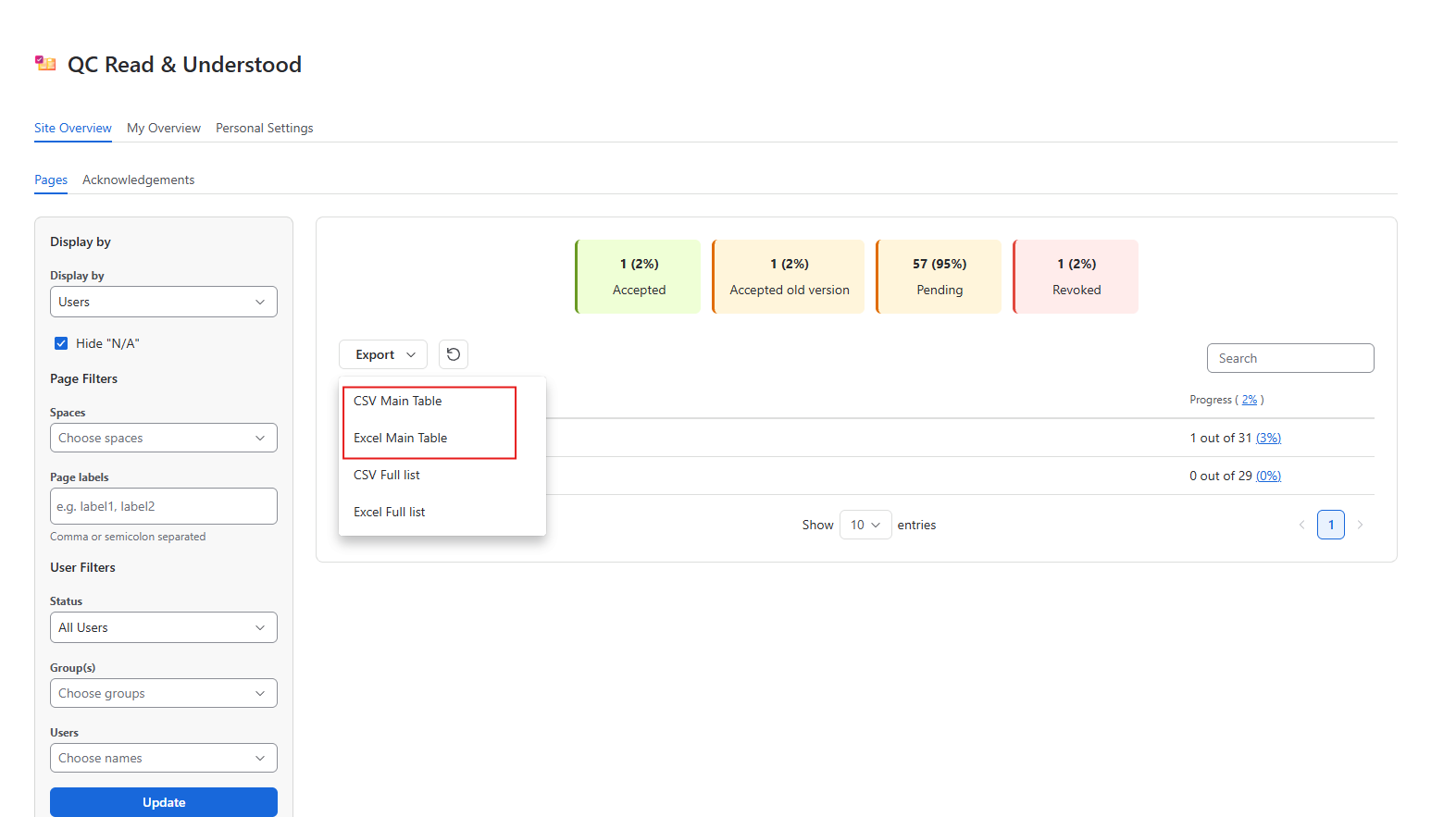
To export only the data displayed in the parent table, open the Export button and select CSV Main Table or Excel Main Table
-
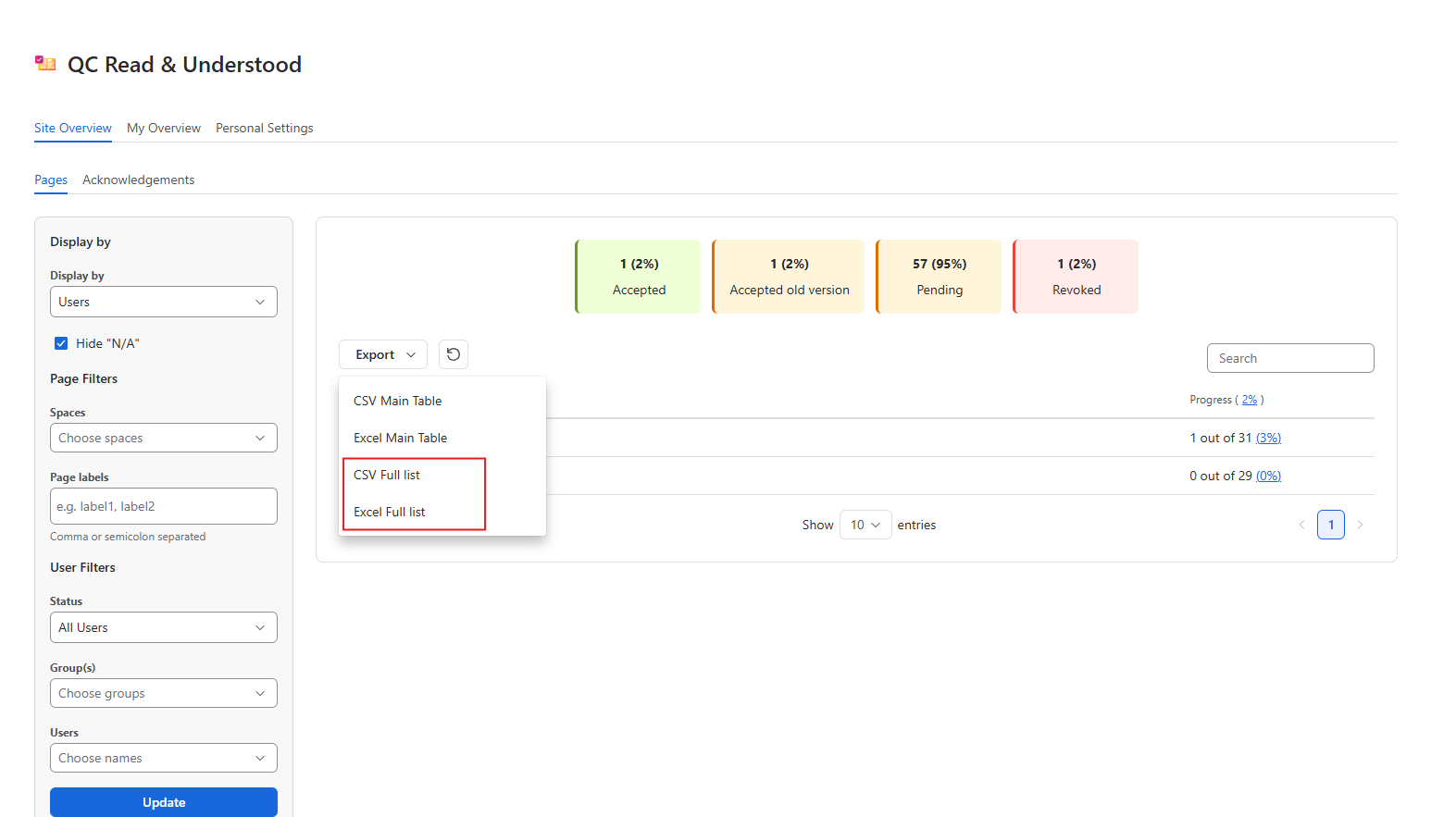
To export the complete site overview data, open the Export button and select CSV Full List or Excel Full List
-
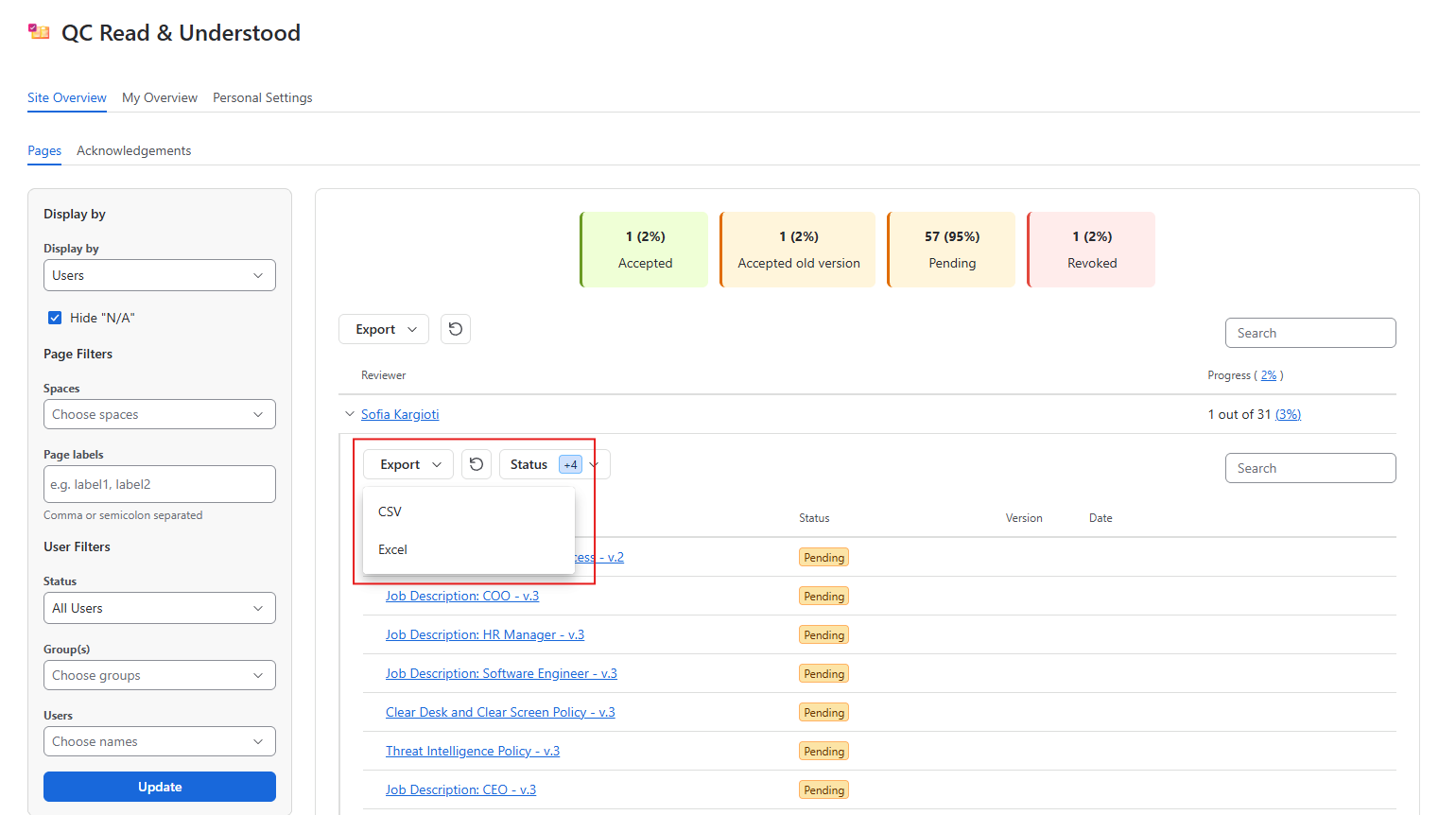
To export only a child table, open the child table that you want, click Export, and select the format you want (CSV or Excel).
-
Space level
-
Go to Space apps → QC R&U - Space Overview
-
Stay in the Space Overview tab, configure the table, and click Update
-
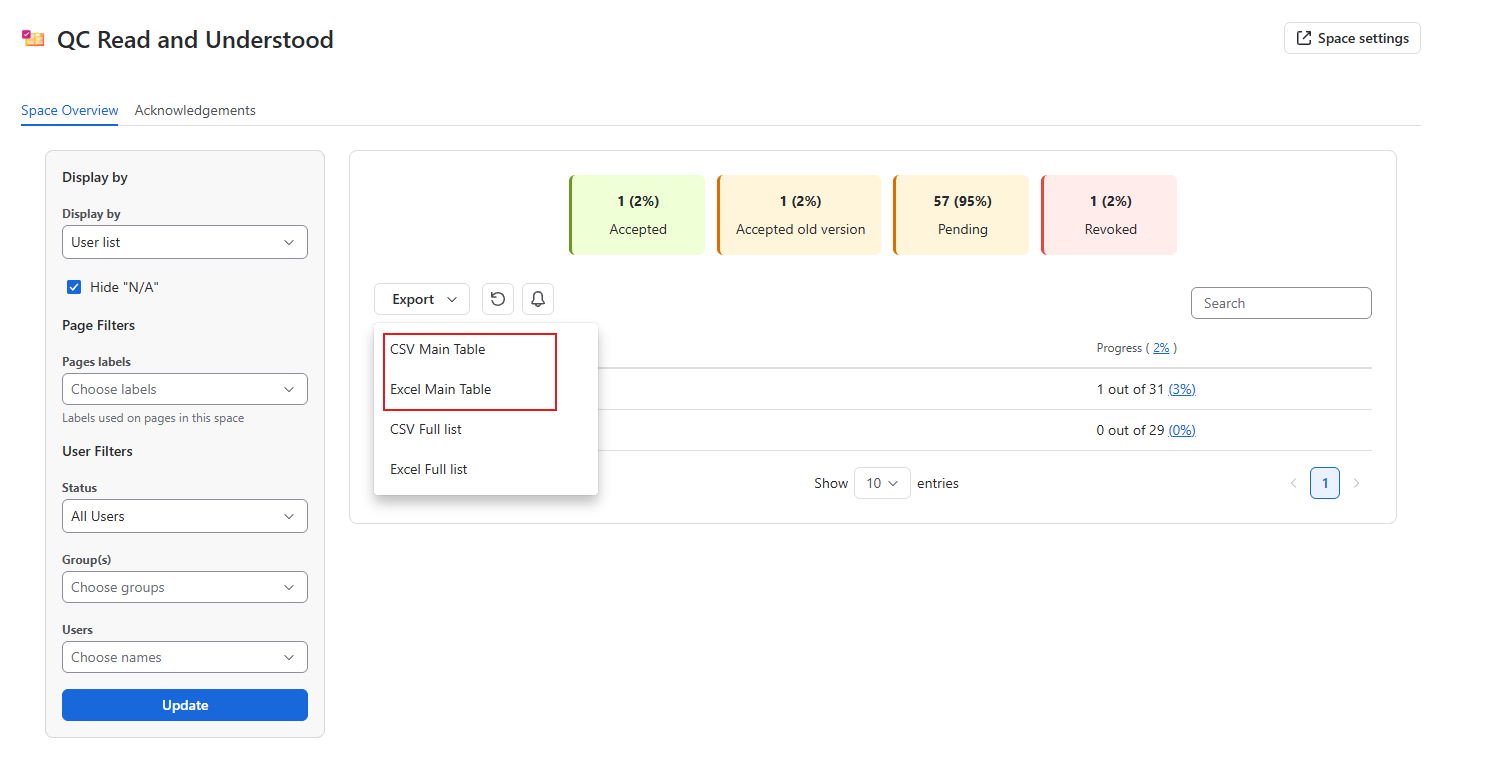
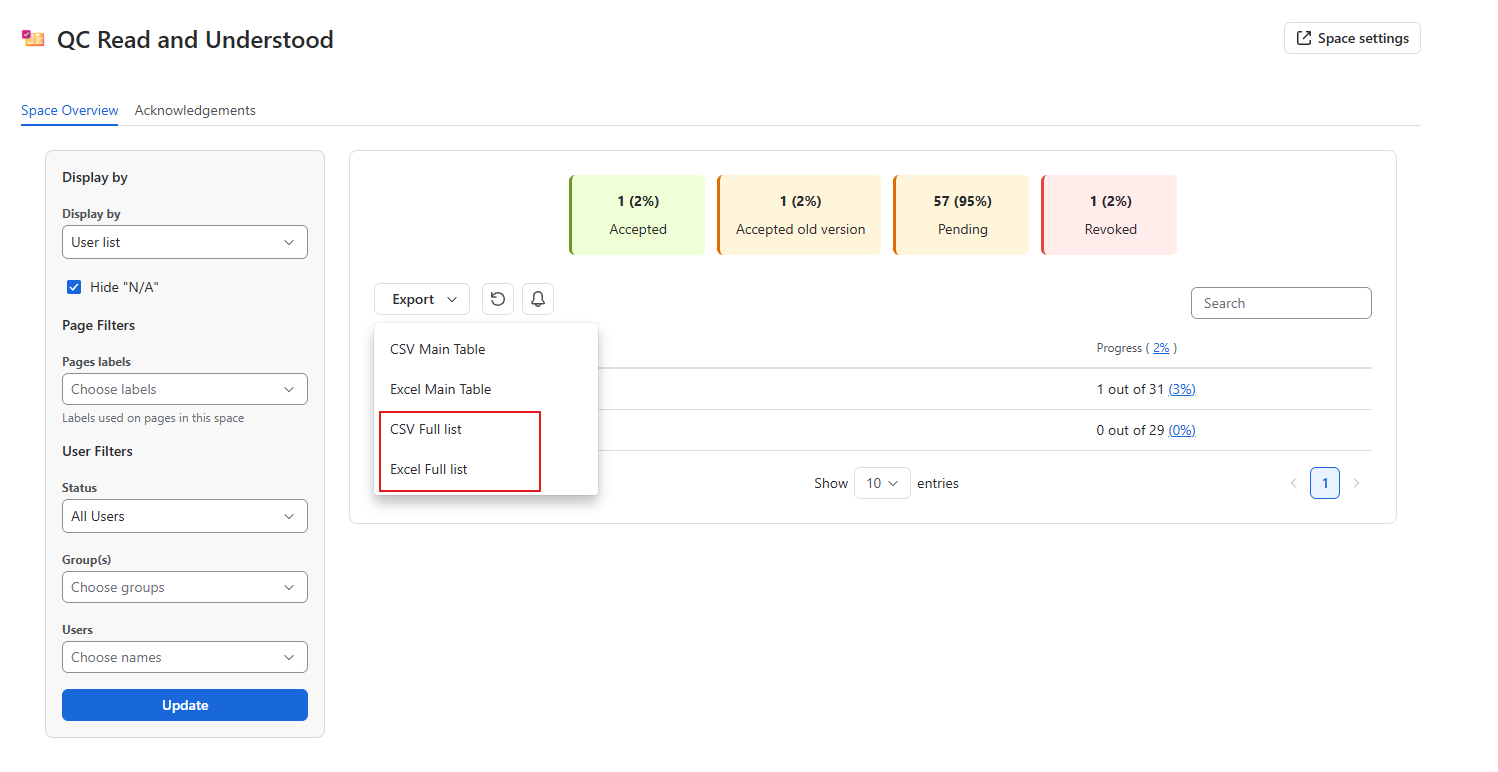
To export only the data displayed in the parent table, open the Export button and select CSV Main Table or Excel Main Table
-
To export the complete space overview data, open the Export button and select CSV Full List or Excel Full List
-
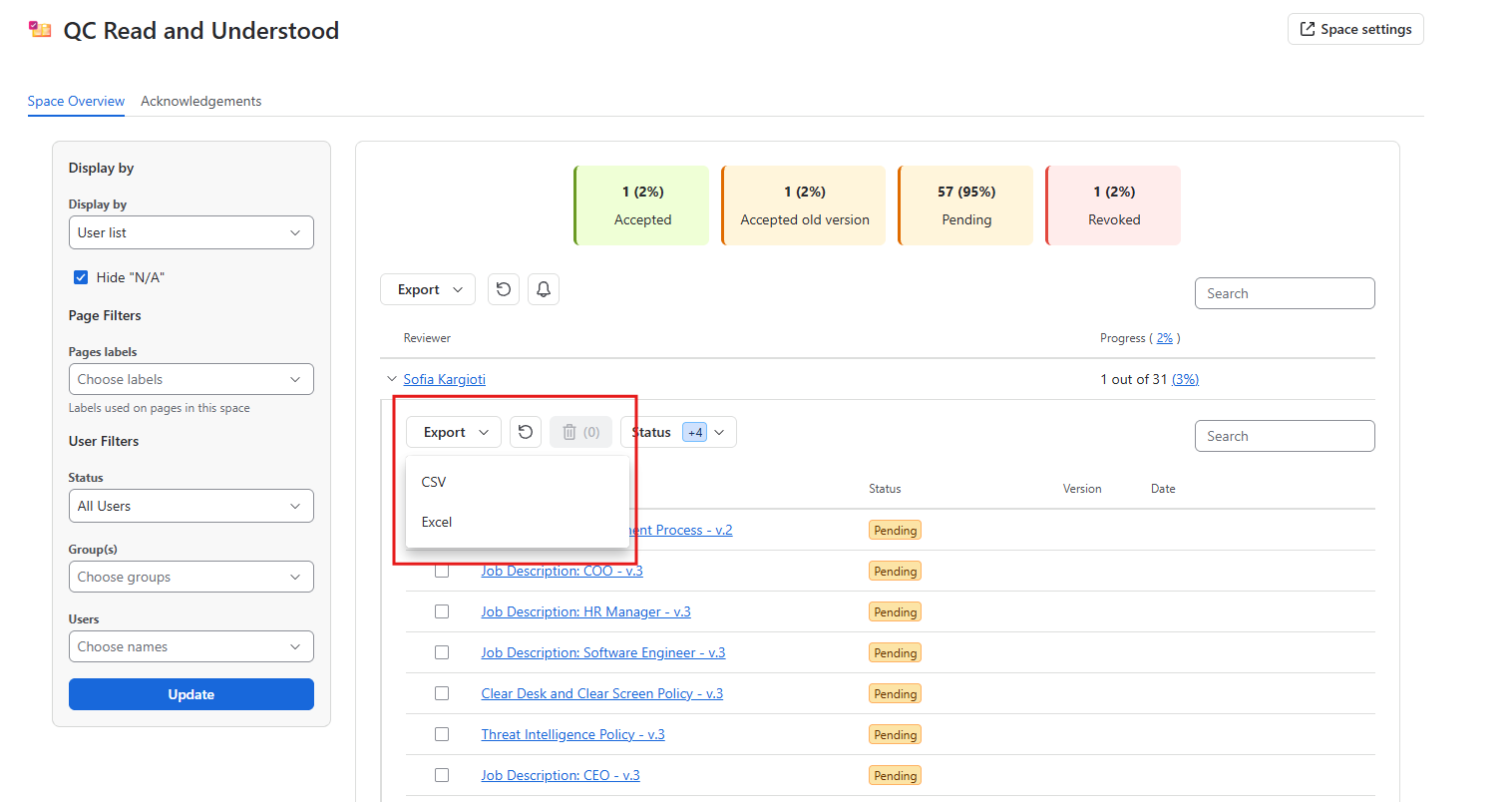
To export only a child table, open the child table that you want, click Export, and select the format you want (CSV or Excel).
-
Acknowledgements level
-
Go to Space apps → QC R&U - Space Overview
-
Navigate to the Acknowledgements tab
-
Find the Acknowledgement from the list and open it
-
Go to the Report tab, configure it by display, and click Export
-
Choose which file format you want to export:
-
CSV,
-
Excel.
-
Page level
-
Open a Confluence page and click the three dots in the upper right corner (More actions)
-
Find the Apps menu and select QC R&U - Page Overview
-
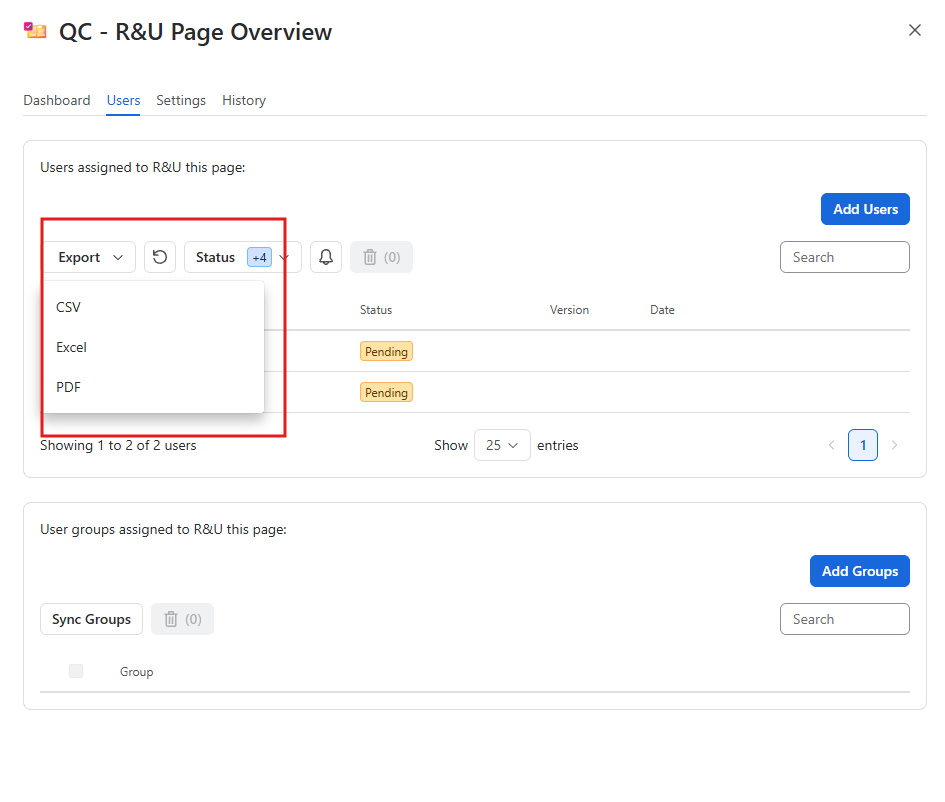
Navigate to the Users tab, open the Export button, and choose:
-
CSV,
-
Excel,
-
PDF.
-
User level
-
Go to Apps → QC R&U - Global
-
Navigate to the My Overview tab
-
Configure the table according to your needs and click Update
-
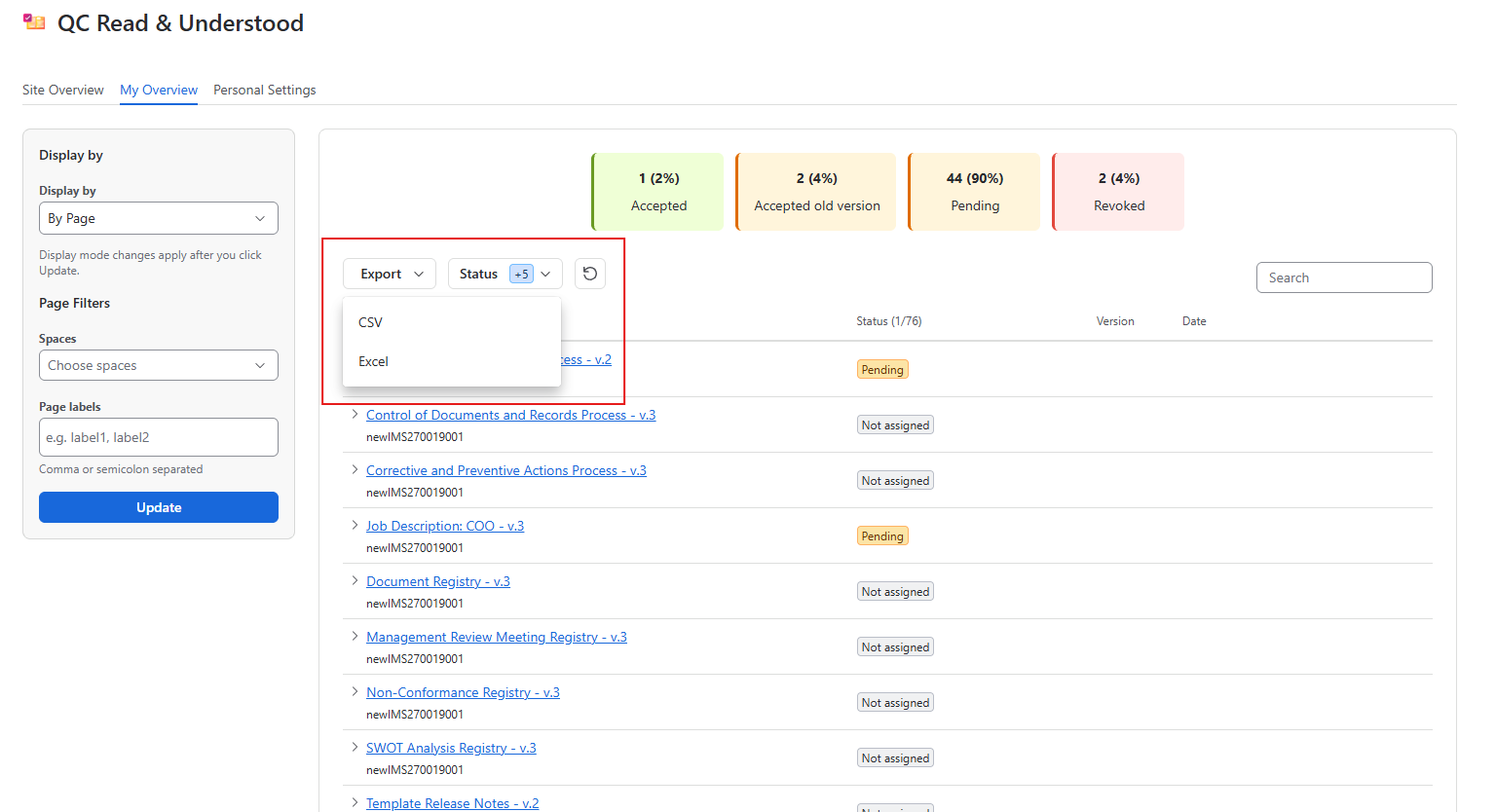
Open the Export button and choose:
-
CSV,
-
Excel
-
Macros
-
Find the page with the macro that you want,
-
Click Export
-
Choose which file format you want to export:
-
CSV,
-
Excel
-
For some macros, such as the QC R&U - Groups Overview, you will need to choose whether you want to export the full list or just the main table.