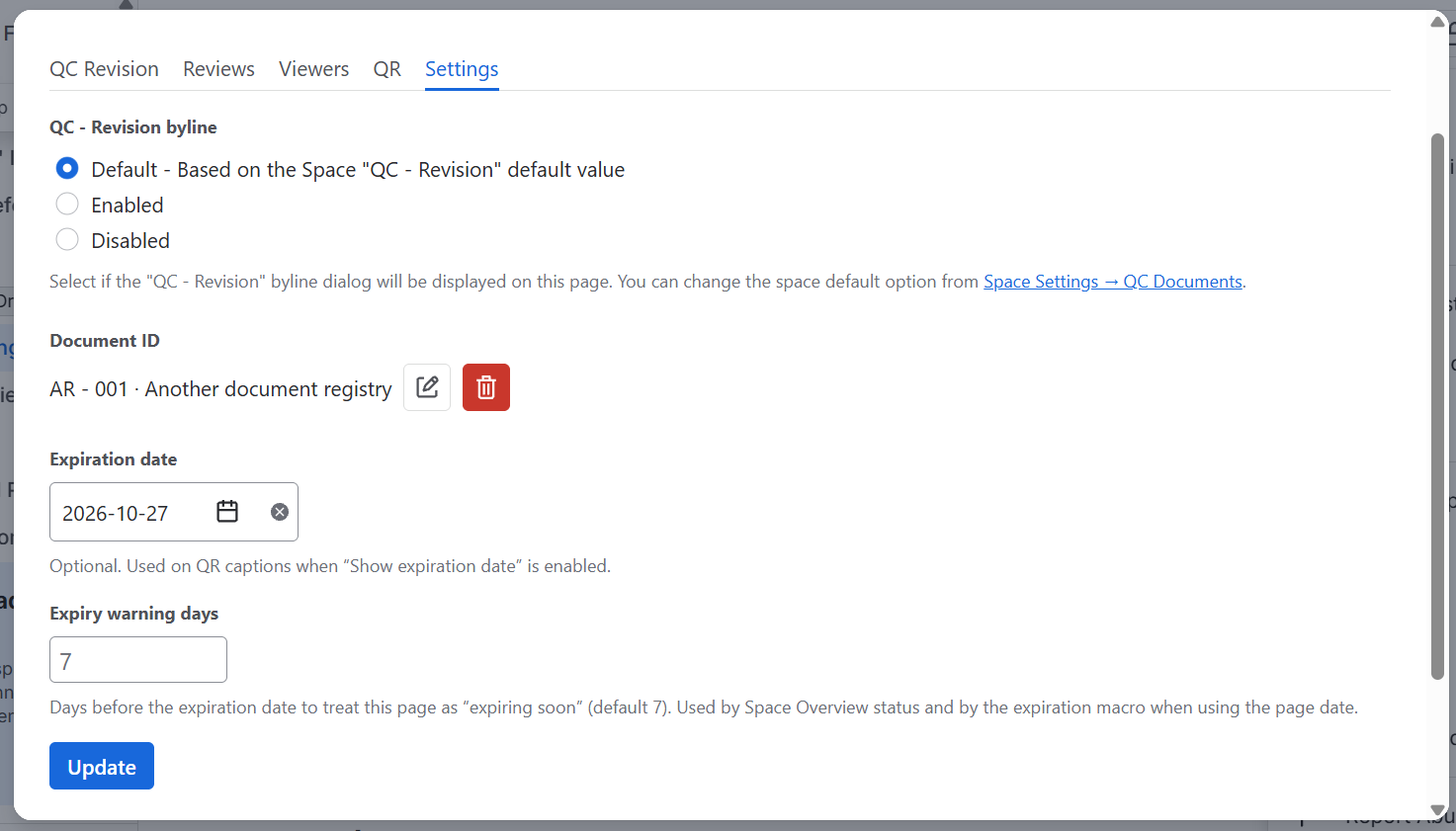
How to find QC Documents - Page Overview
-
Open a Confluence page
-
In the top-right corner, click
•••(More actions). -
From the Apps menu, select the QC Documents - Page Overview.
How to use QC Documents - Page Overview
Use the QC Documents Page Overview to:
-
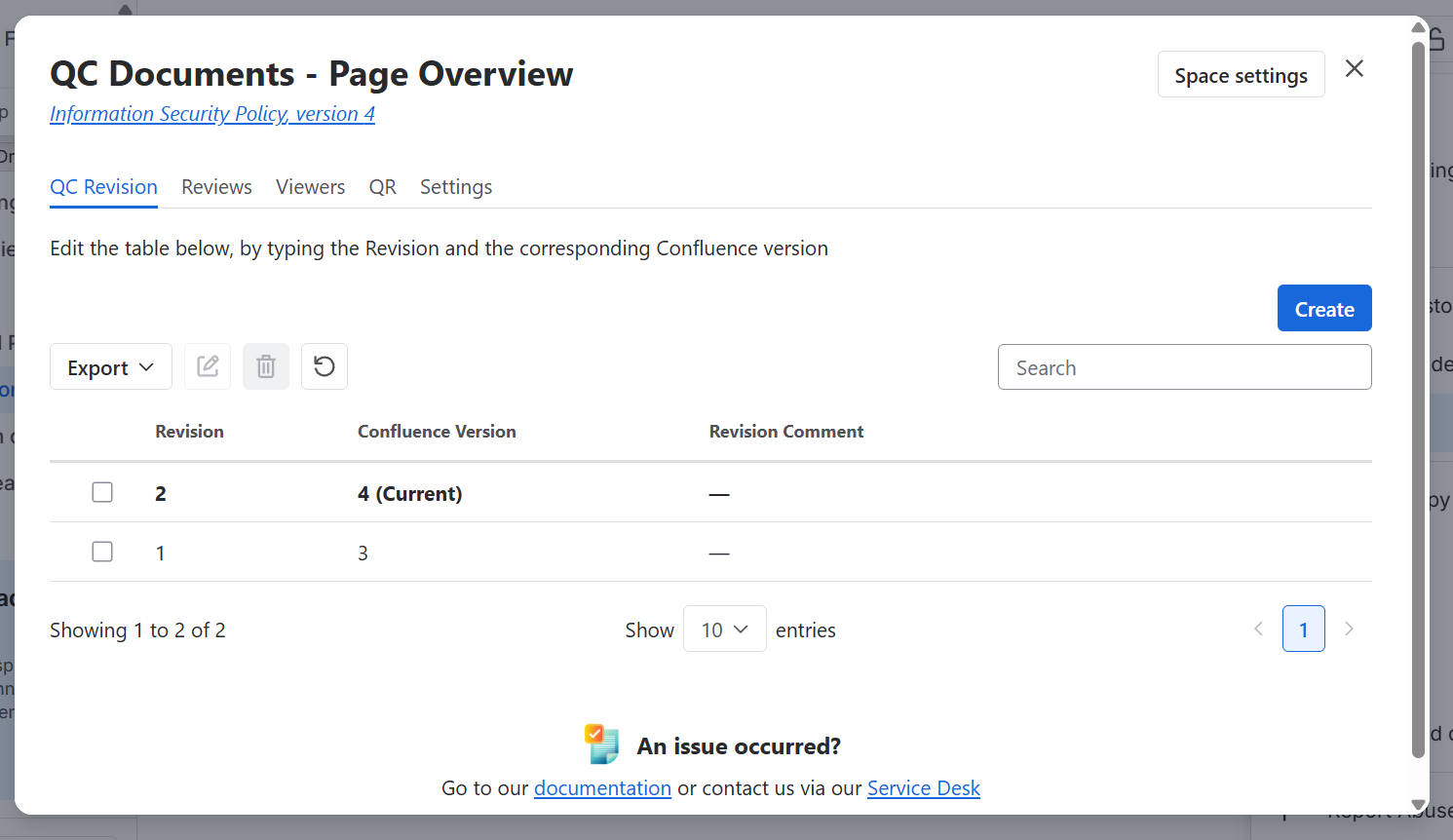
Assign QC Revision Value to Confluence versions
-
Review a page version
-
See viewers analytics
-
Configure how QC Documents should behave on that page
Assign QC Revision
-
Go to
•••(More actions) → Apps → QC Documents - Page Overview -
Click Create and type your Revision value, the Confluence version number, and optionally a revision comment
-
Click Save.
Page reviews
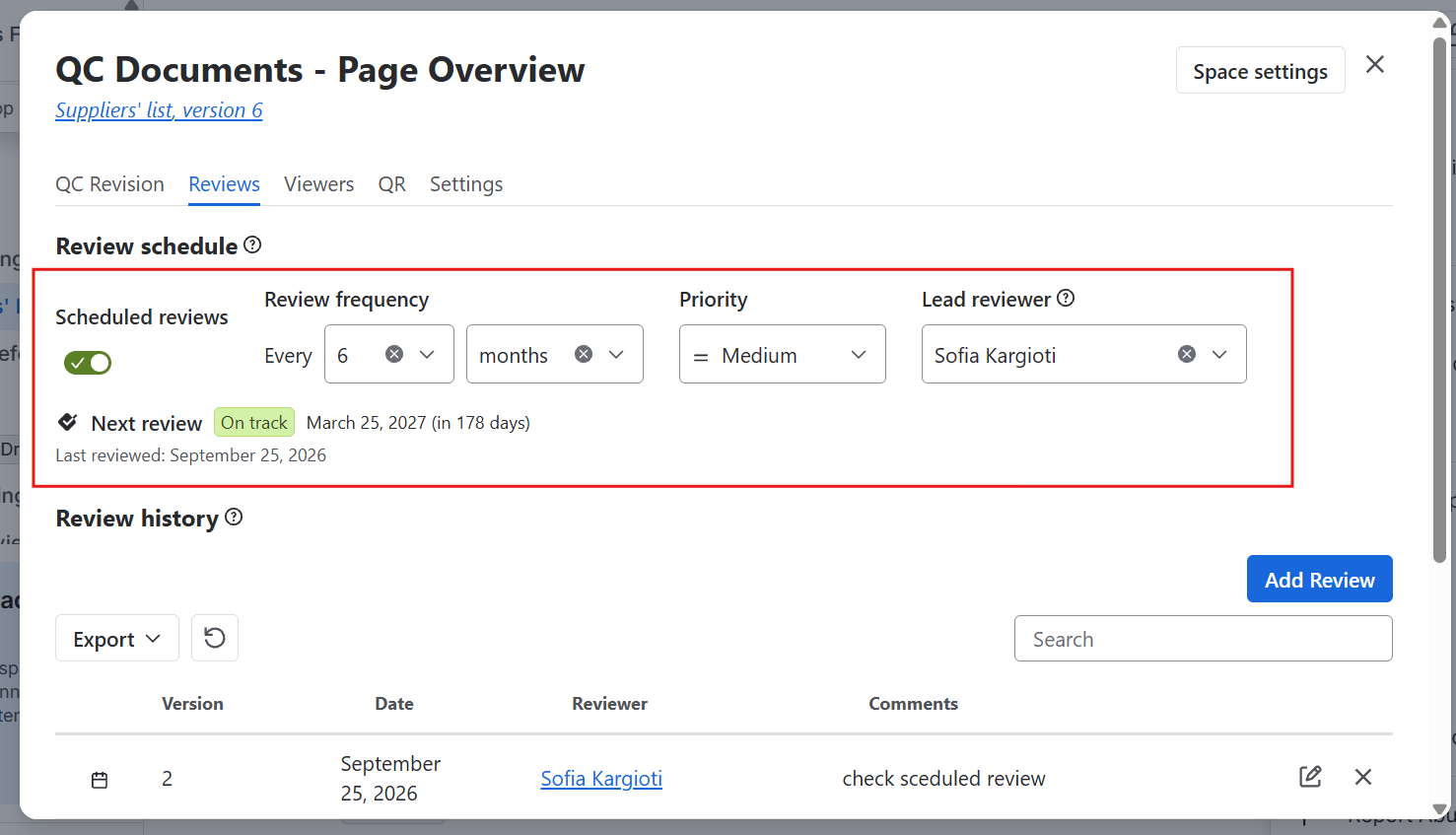
Set scheduled page reviews
-
Go to
•••(More actions) → Apps → QC Documents - Page Overview -
Enable page reviews by turning the toggle to “Enabled”
-
Set the review frequency
-
Set Priority and Lead reviewer
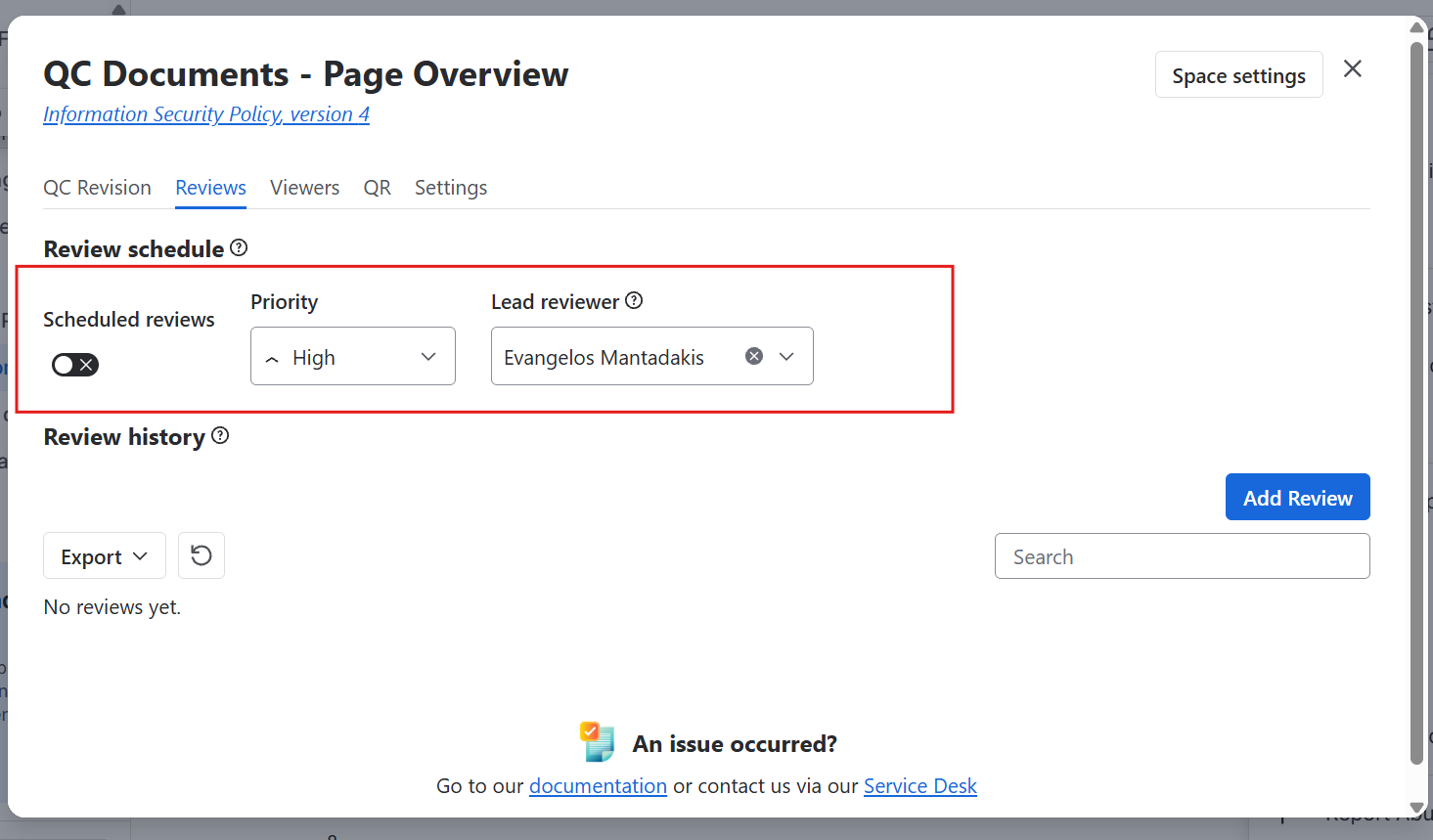
Set ad-hoc page reviews
-
Go to
•••(More actions) → Apps → QC Documents - Page Overview -
Set Priority and Lead reviewer
Review a page version
-
Go to
•••(More actions) → Apps → QC Documents - Page Overview -
Set Priority and Lead reviewer
-
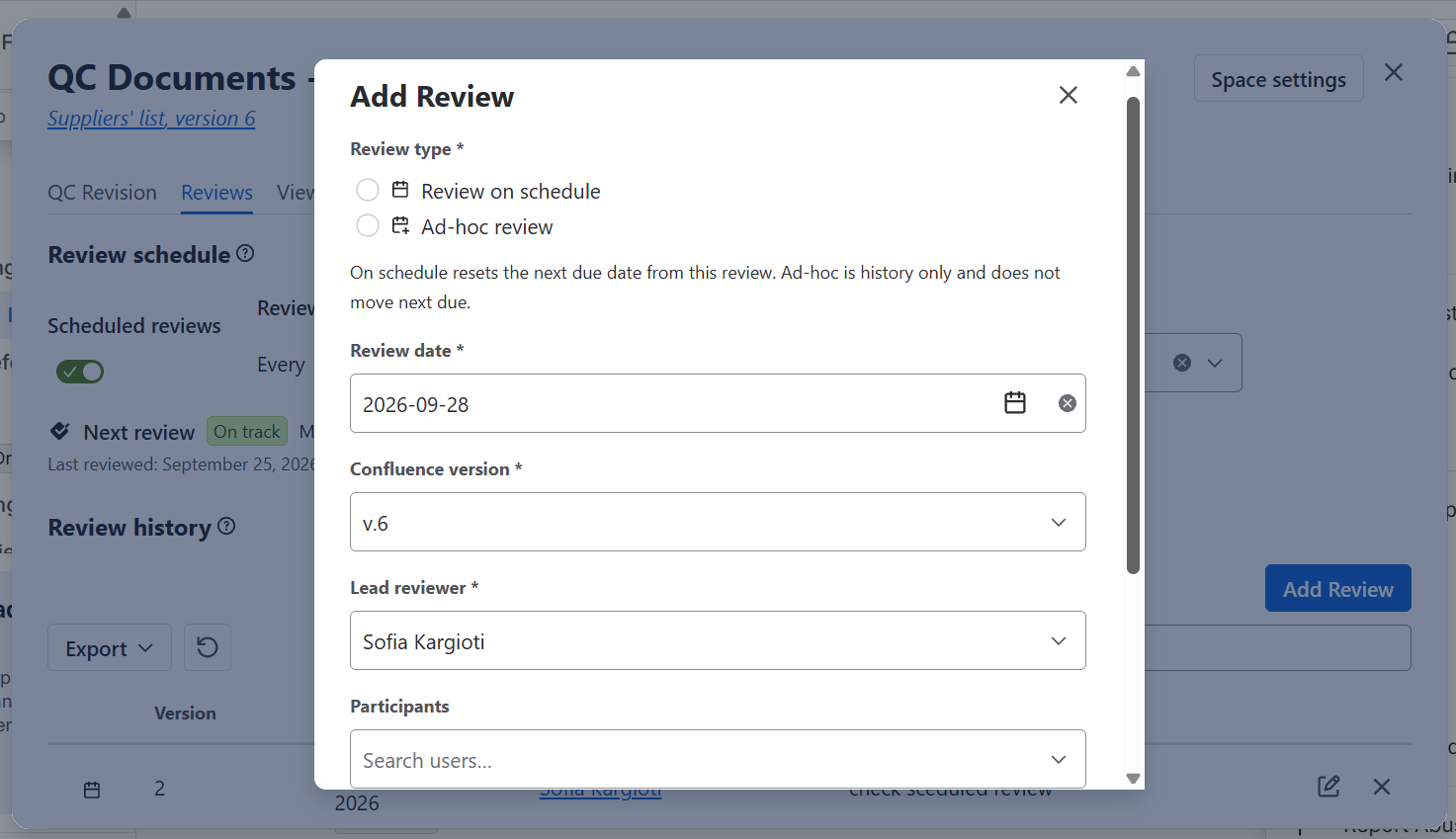
Click Add Review, select the date of review, the Confluence version, the lead reviewer, and the participants, and optionally add a comment.
-
Click Save.
Viewers
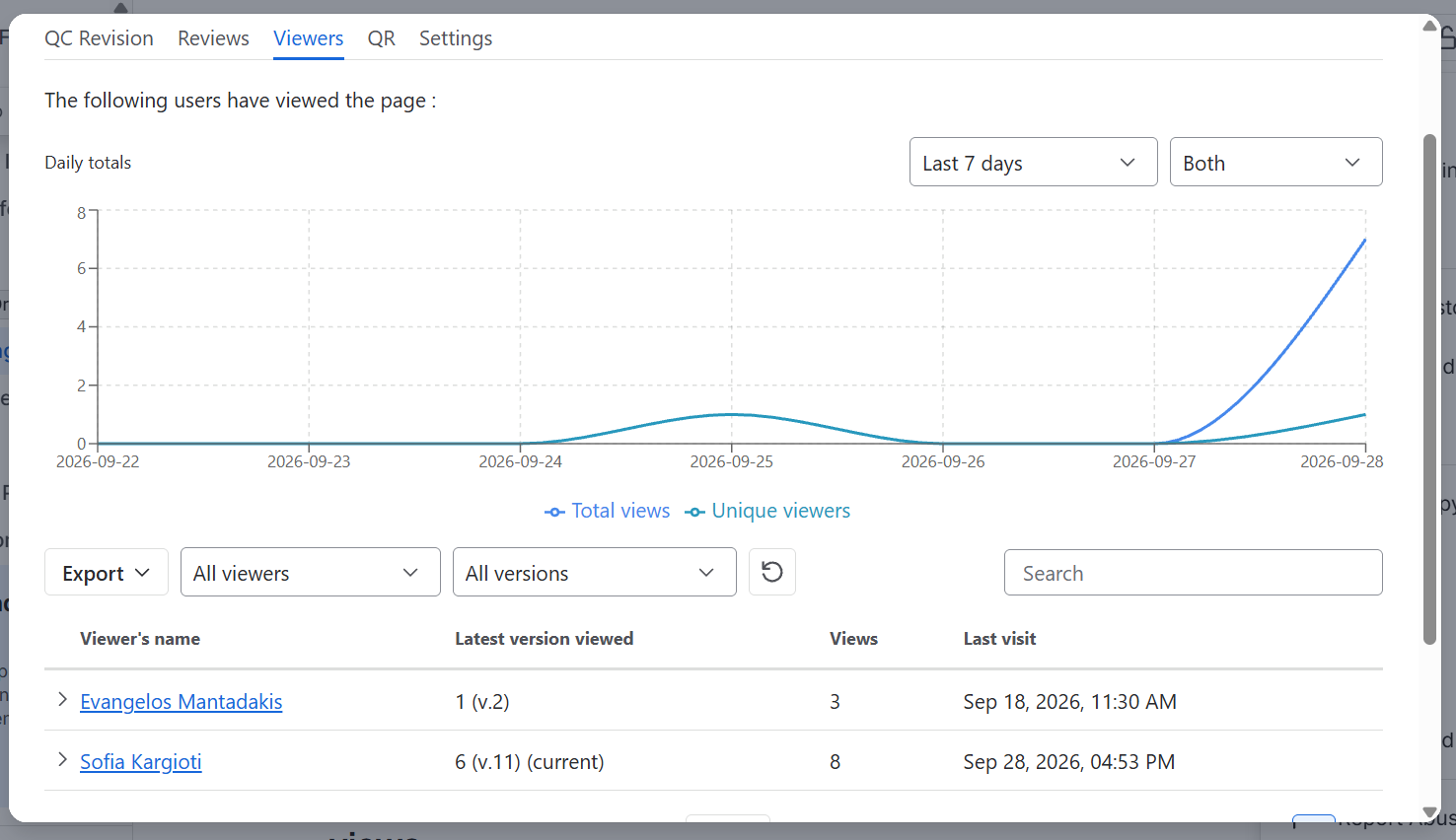
See analytical viewer statistics for each version of the page.
-
Go to
•••(More actions) → Apps → QC Documents - Page Overview -
Navigate to the Viewers tab.
QR Code
Generate and print a QR code for the page to share with others.
-
Go to
•••(More actions) → Apps → QC Documents - Page Overview -
Navigate to the QR tab.
.png?cb=a175e0f9f173ba8d0d25eb7e2f626bf3)
Settings
-
Go to
•••(More actions) → Apps → QC Documents - Page Overview -
Navigate to the Settings tab
Here you can:
-
Choose how you want the byline dialog to behave
-
Assign a document ID and registry
-
Set an expiration date and how many days before expiration to warn the users.