
How to add a macro
-
Open a Confluence page.
-
Click Edit (pencil, top right).
-
In the page body, type
/(forward slash). -
Type “qc documents”.
-
Choose a macro whose title starts with QC -.
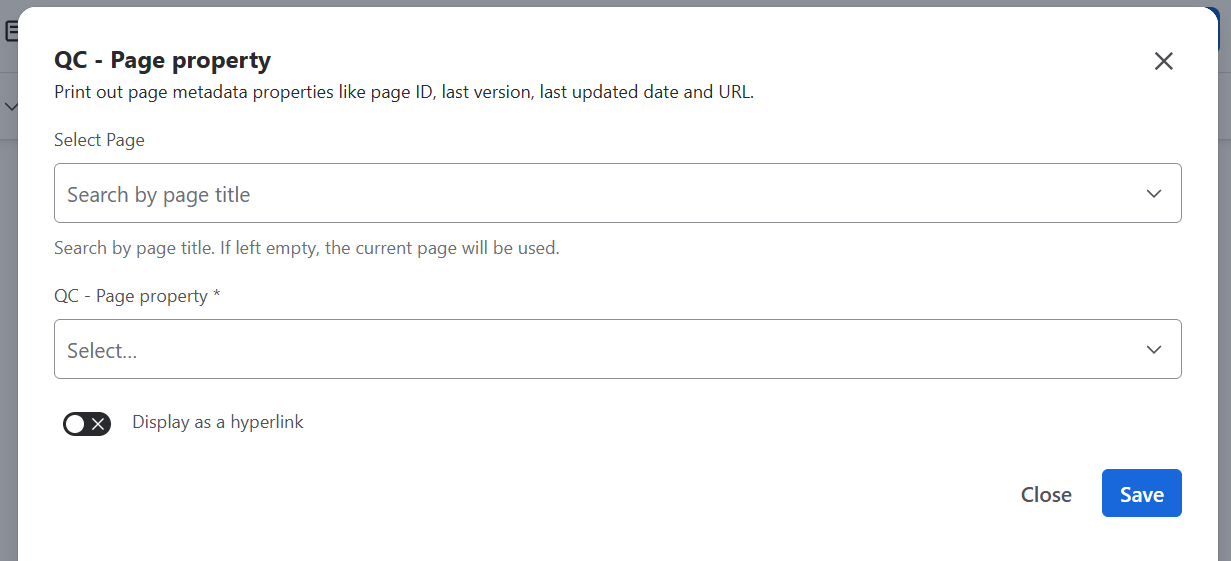
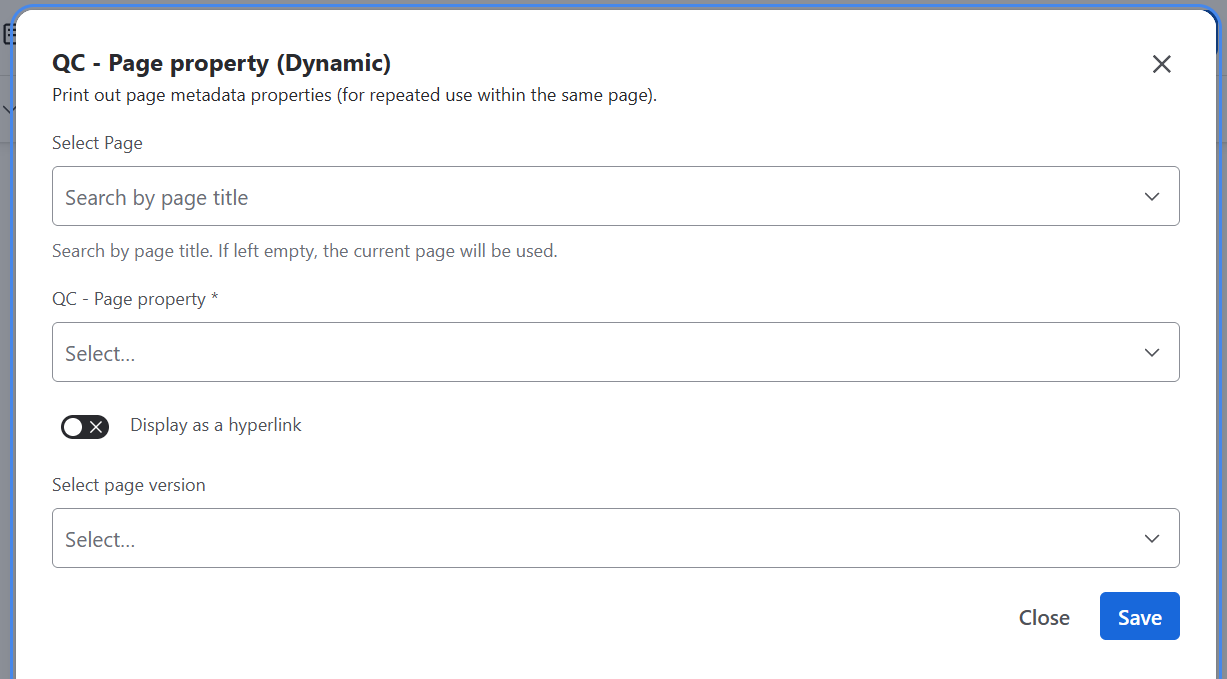
QC- Page Property/QC - Page Property Dynamic
It displays the following properties of a Confluence page:
-
ID: The unique Confluence ID that’s generated automatically (from Confluence). This can also be found in the page’s URL.
-
Document ID: A Document ID can optionally be assigned by the user as another way of identifying pages.
-
Title: How your page is called.
-
URL: The link you use to access the page and includes your company’s Confluence site, a space key, and the ID of the page.
-
Version: The latest Confluence version of the page.
-
Updated date: When the page was last updated.
-
Last updated by: Who updated the page last.
-
Space title: What’s the space where the page is called.
-
Created by: Who created the page (the first version of the page).
-
Created date: When the page was created (the first version of the page).
-
Page status: Displays the page’s status if set.
-
Page owner: Who owns the page.
-
[Title], v.[Version]: Shows the page title and the latest Confluence version. For example: Password Policy, v.5
-
[ID] - [Title], v.[Version]: Shows the page ID, the title, and the latest Confluence version. For example: 1234567890 - Password Policy, v.5
-
[Document ID] - [Title], v.[Version]: Shows the Document ID, the title, and the latest Confluence version. For example: InfoSec001 - Password Policy, v.5
-
[Space key] - [ID] - [Title], v.[Version]: Shows the space key, the page ID, the title, and the latest Confluence version. For example: BMS - 1234567890 - Password Policy, v.5
-
[Space key] - [Title], v.[Version]: Shows the space key, the page title, and the latest Confluence version. For example: BMS - Password Policy, v.5
QC - Page Property (Custom format)
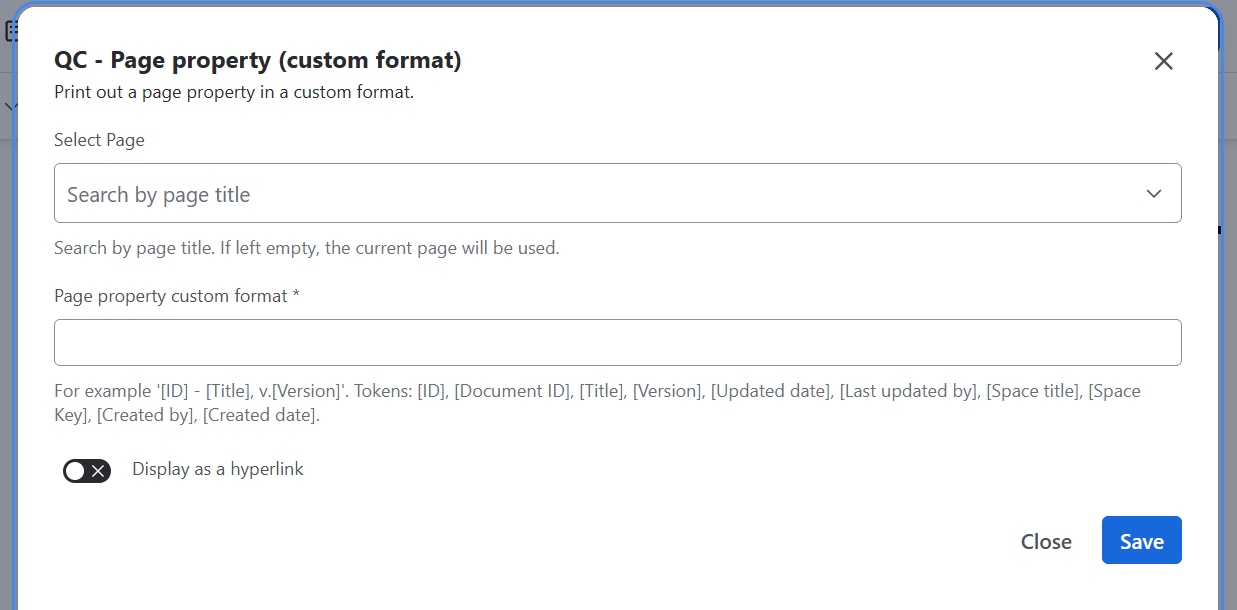
Returns the same properties as the QC - Page Property and QC - Page Property Dynamic macros. Use square brackets [] to define the properties you want to display. Supported properties are:
-
[ID],
-
[Document ID],
-
[Title],
-
[Version],
-
[Updated date],
-
[Last updated by],
-
[Space title],
-
[Space Key],
-
[Created by],
-
[Created date].
QC - Revision Value
Displays the QC Revision assigned to the current Confluence version, based on the QC Documents - Page Overview.
The macro does not require further configuration. Type /qc - revision value, select the macro, and add it to the page.
QC - Revision Table
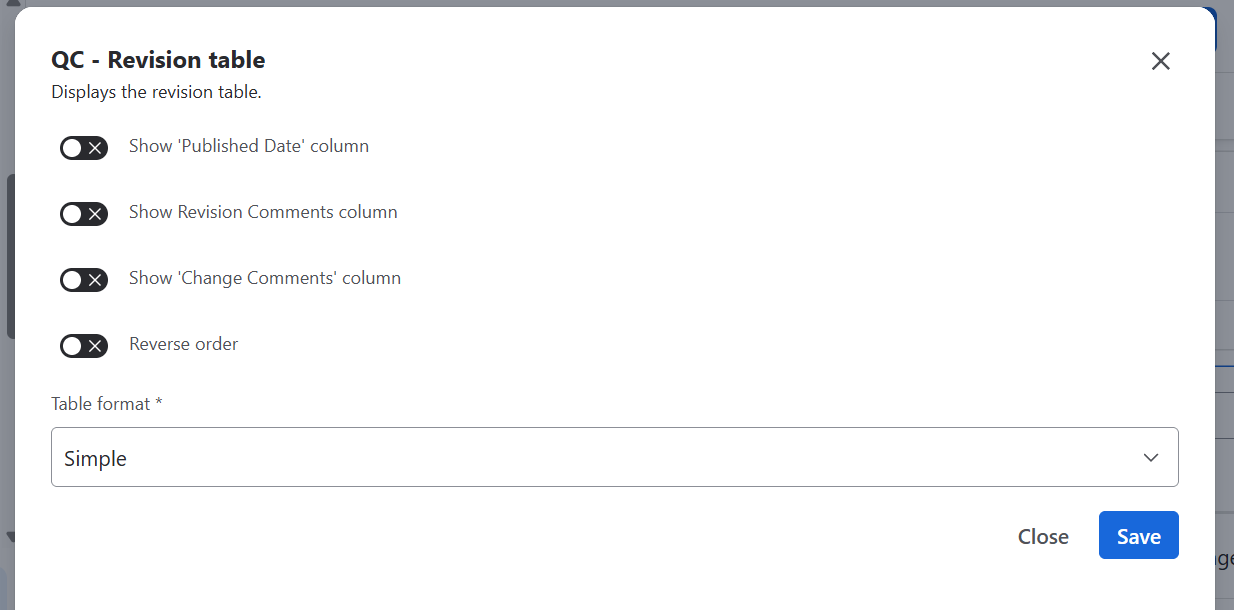
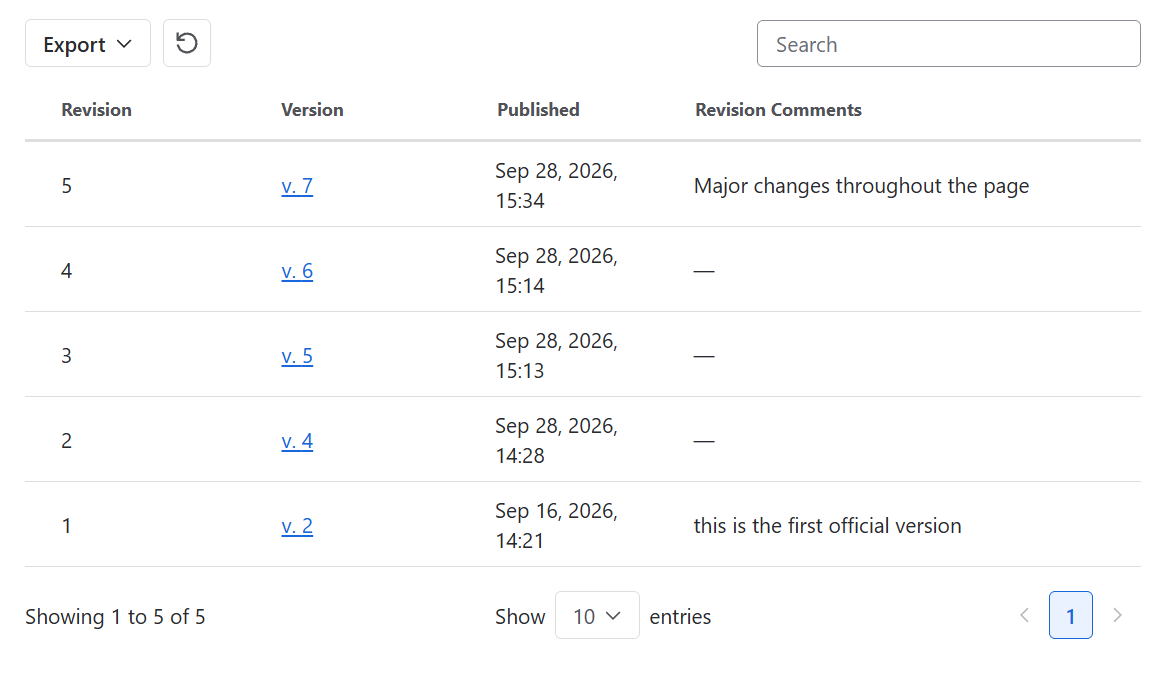
Shows the content from QC Documents - Page Overview → QC Revisions. This is a view-only table. To add new QC Revisions, go to More actions → QC Documents - Page Overview → QC Revisions
QC - Citation Table
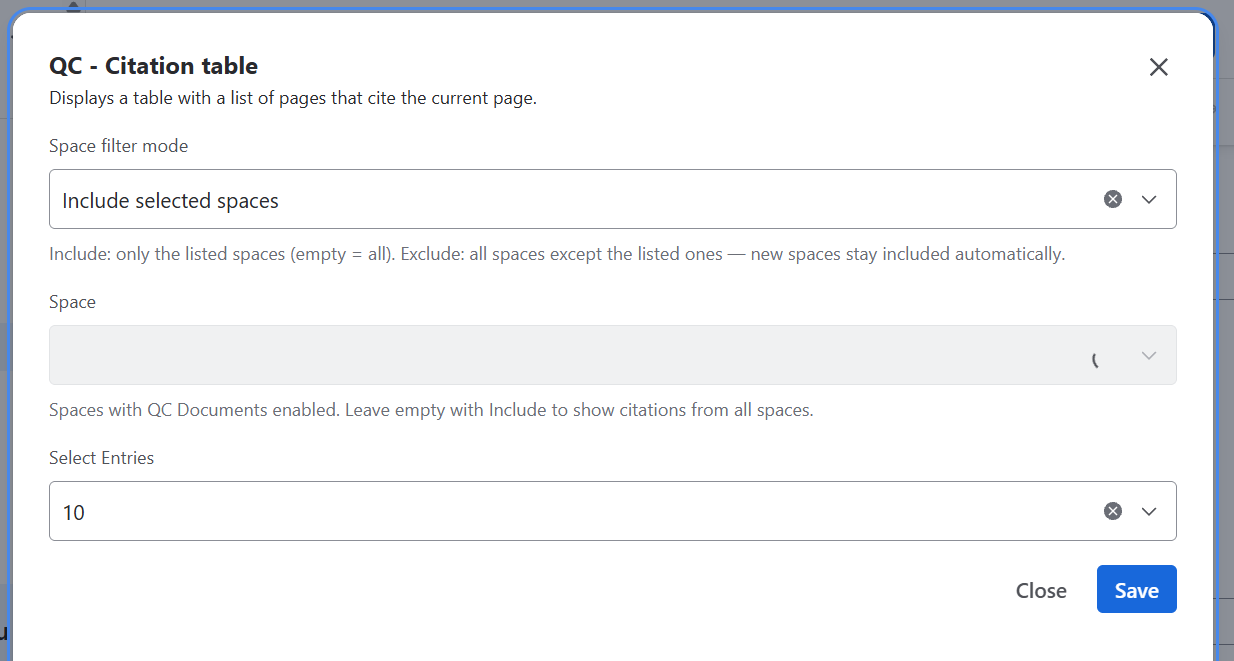
Returns a list of the pages that cite the current one. Use the “Include selected spaces” and “Exclude selected spaces” to narrow down the search.
QC - Internal Reference
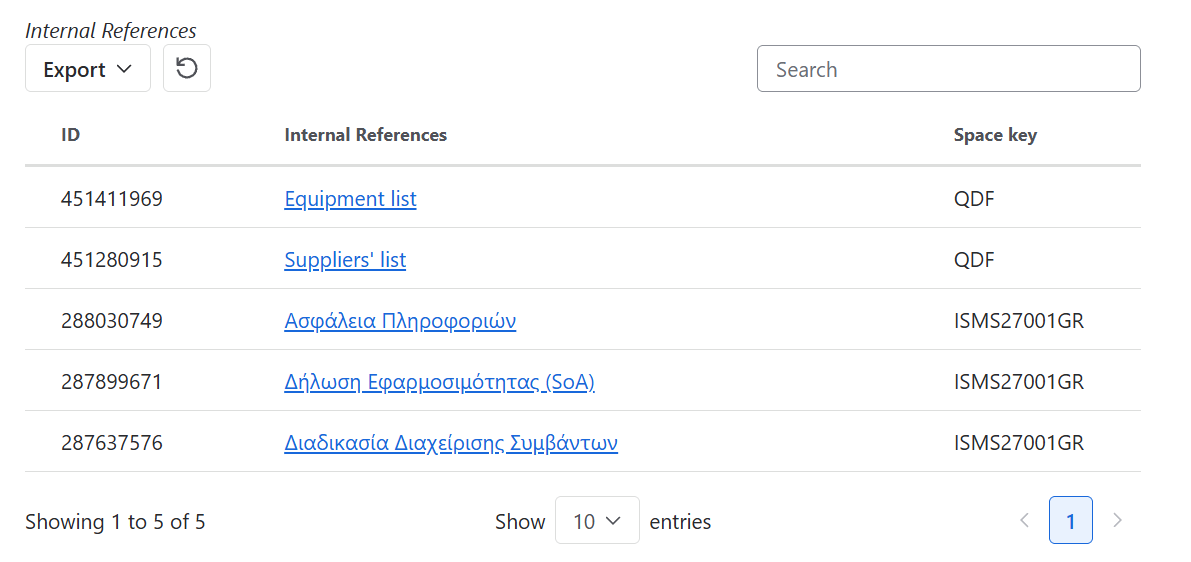
A table populated with all the pages that are referenced in the current page.
The macro does not require further configuration. Type /qc - internal reference, select the macro, and add it to the page.
QC - Page Listing
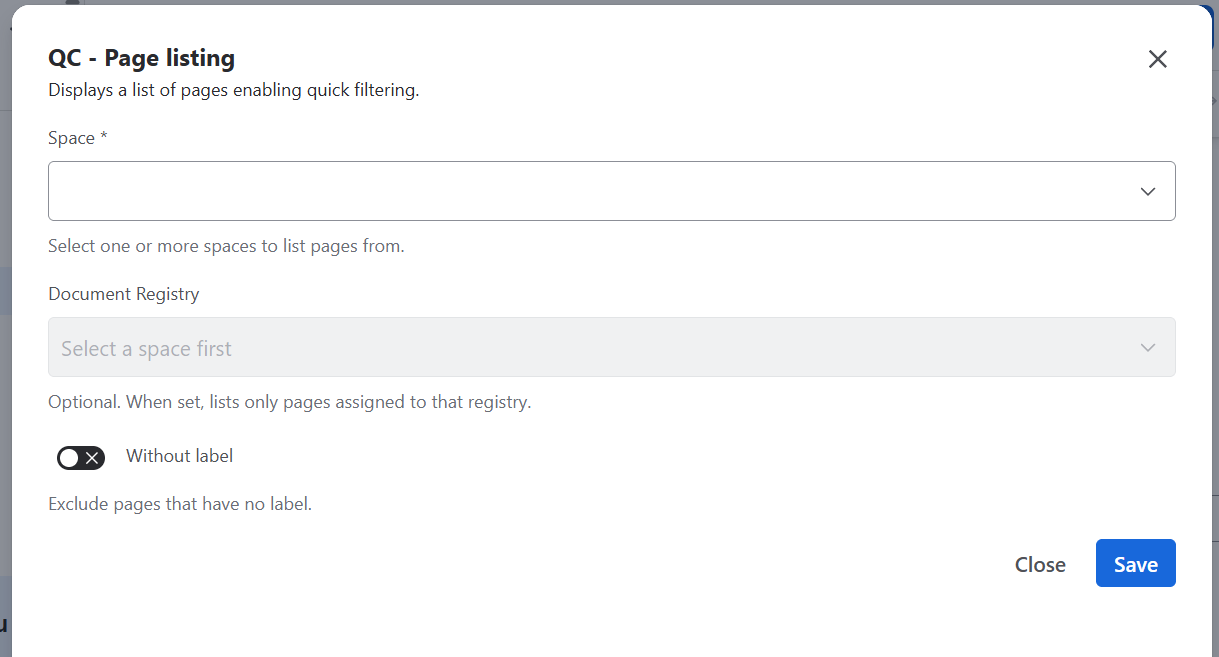
A table with all the pages from the selected space. Optionally, you can choose to show only pages from the selected space that belong to a certain Document Registry.
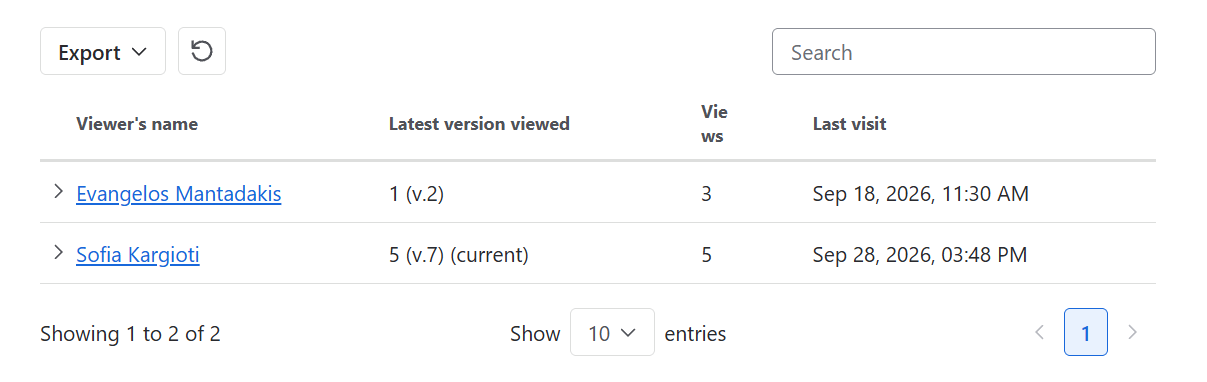
QC - Viewers Table
Displays a table with all the users who viewed the page and which version they saw.
The macro does not require further configuration. Simply type /qc - viewers table, select the macro and add it to the page you want to see its viewers.
QC - Views Stats
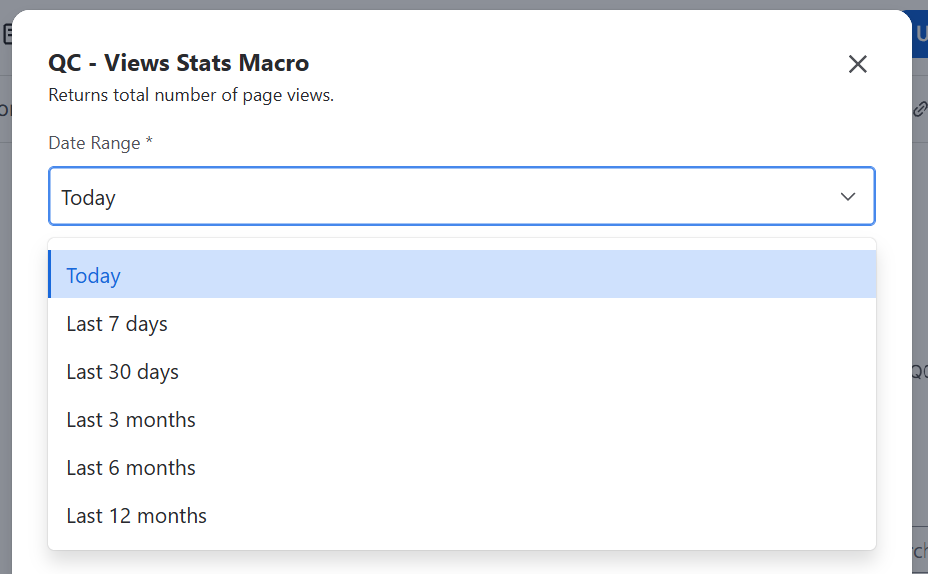
Returns the page view statistics for that page within a certain date range. The available date range options are:
-
Today,
-
Last 7 days,
-
Last 30 days,
-
Last 3 months,
-
Last 6 months,
-
Last 12 months.
QC - Average Views Stats
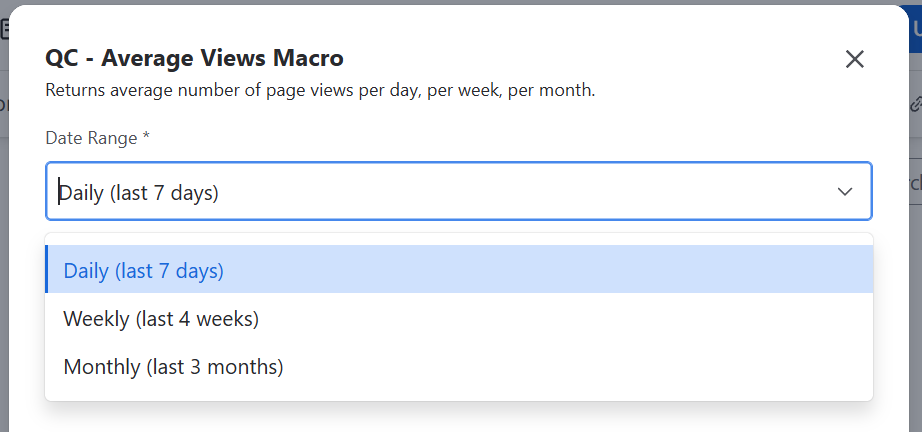
Returns the average number of page views within a certain date range. The available date range options are:
-
Daily (last 7 days): it calculates the average daily page views for the last 7 days,
-
Weekly (last 4 weeks): calculates the average views of the page per week for the last 4 weeks,
-
Monthly (last 3 months): calculates the overall monthly views of the page for the last 3 months.
QC - Expiration Date
Add the macro to a page to show its expiration date as set in QC Documents - Page Overview → Settings. The macro is view-only.
Expiration date colors and explanation
|
Color |
Explanation |
|---|---|
|
Red |
The document has expired and needs to be reviewed again. |
|
Orange |
The document is about to expire. By default, the style will change to a warning 7 days before the expiration date, unless set otherwise in QC Documents - Page Overview. |
|
Grey |
The document is active, and you still have many days to review. |
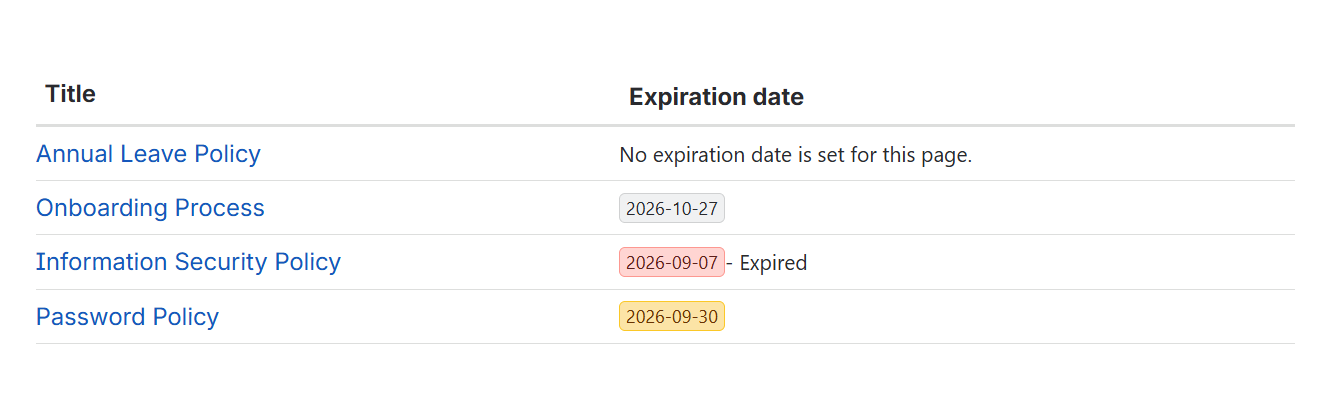
When there is no expiration date for the page, the macro shows a message: “No expiration date is set for this page.”
QC - Page QR Code
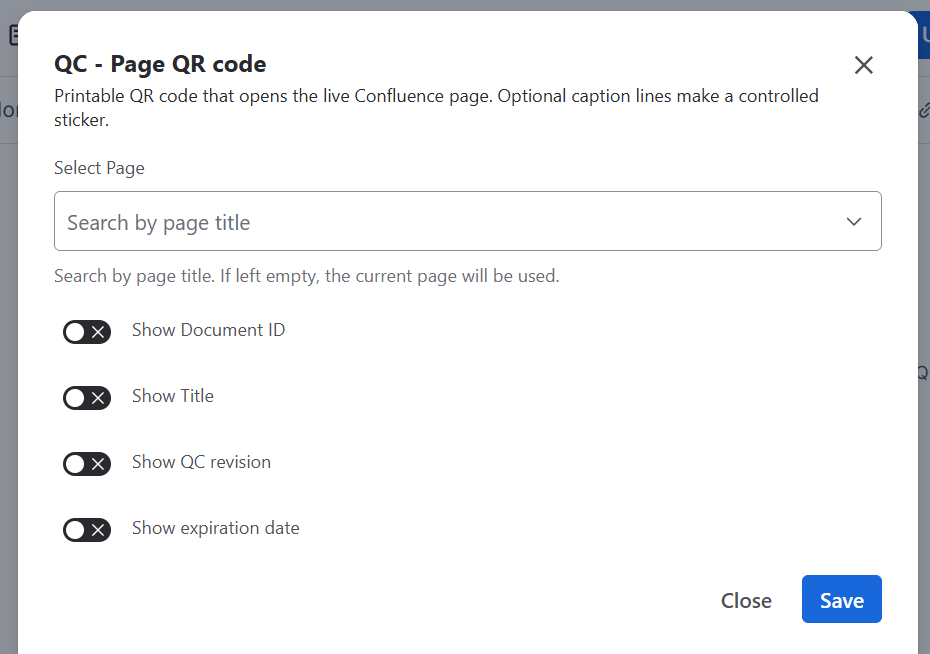
Prints a QR code you can share with others that will take them directly to the page. The printed macro can include:
-
Document ID as set in Document Registries,
-
Title of the page,
-
QC Revision Value as set in QC Documents - Page Overview → Revisions,
-
Expiration date as set in QC Documents - Page Overview → Settings.
-20260930-113042.png?cb=dce2c34d81b3bd9bebb7af9fbd2d0731)
To download the QR code or see the number of scans, go to More actions → QC Documents - Page Overview → QR.
QC - Mermaid Diagram
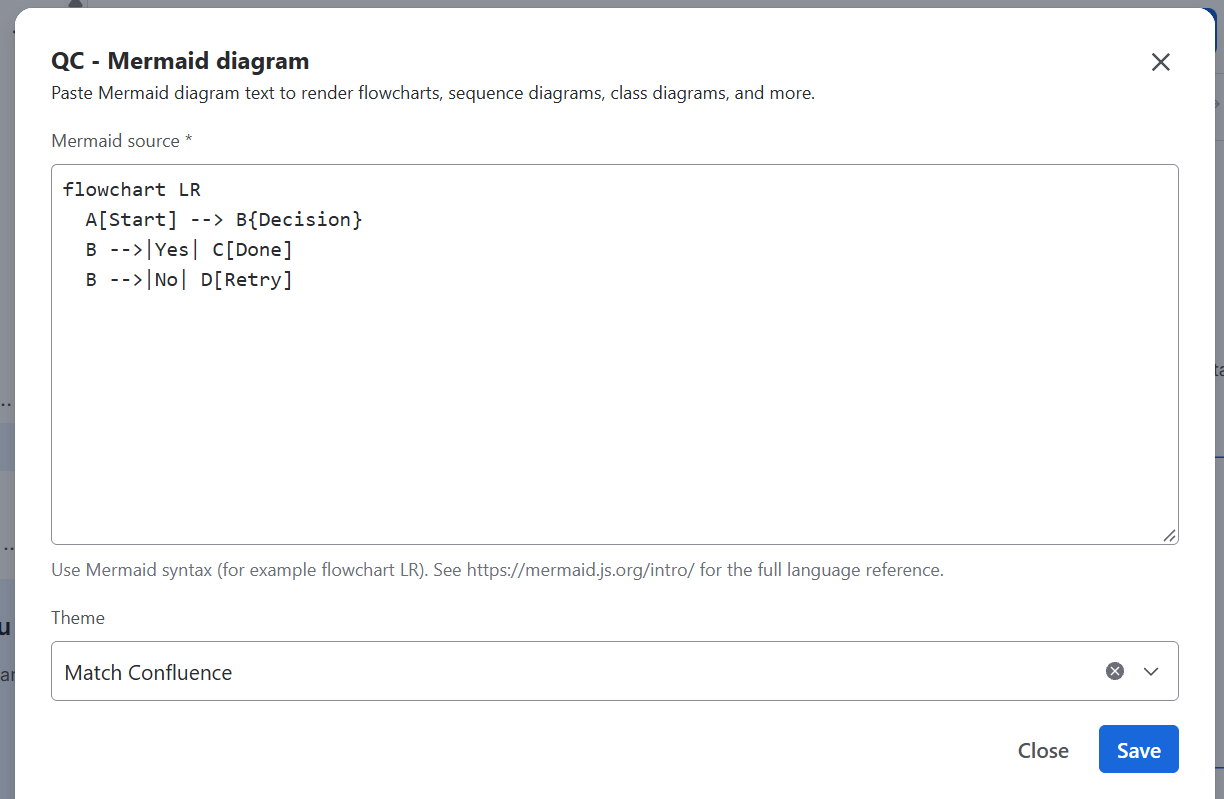
Use this macro to show flowcharts, diagrams, and more.
To use this macro, you must be familiar with Diagram Syntax.
Supported Diagrams
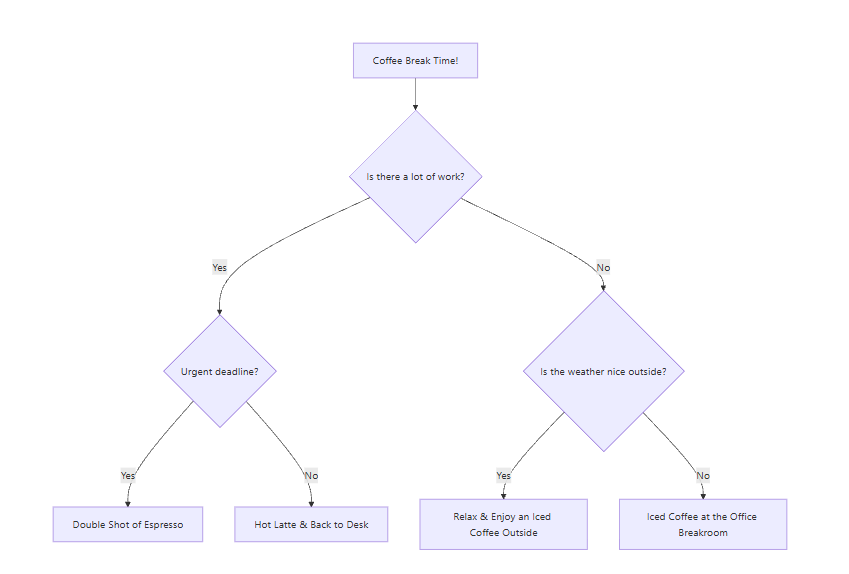
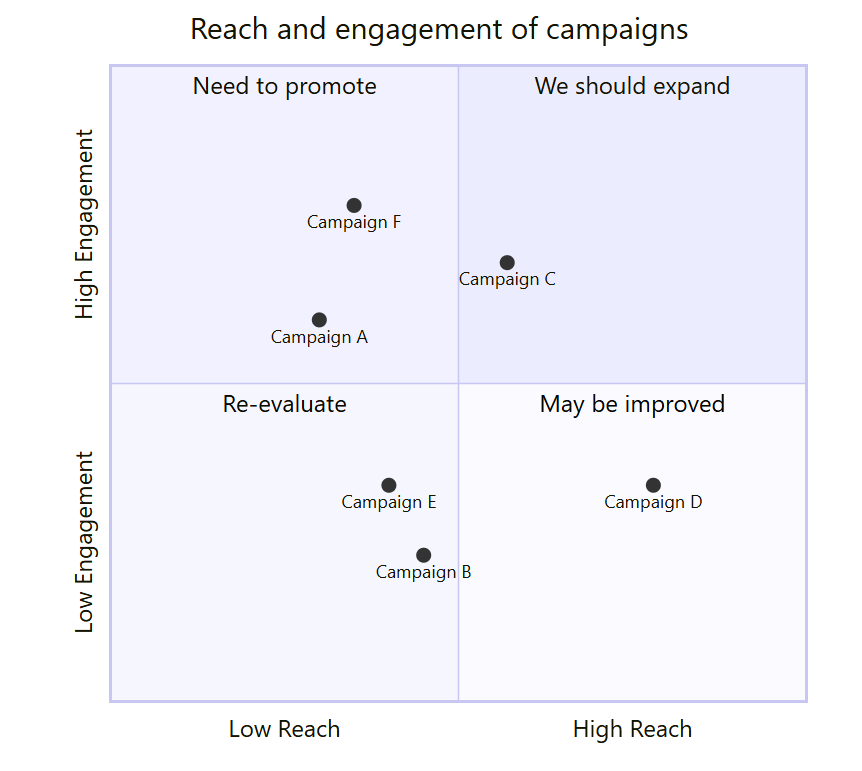
The QC - Mermaid Diagram macro supports the following types:
Unsupported Diagrams
The macro doesn’t currently support the following types:
Trying to configure an unsupported diagram, the macro will show an “Invalid Mermaid diagram” message.
