
Use this feature to add unique IDs to your Confluence pages.
How to find Document Registries
-
Go to the space where you’ll use the QC Documents app.
-
Click the three dots next to the space name and select Space settings.
-
In the left list, open the Integrations menu.
-
Click QC Documents.
-
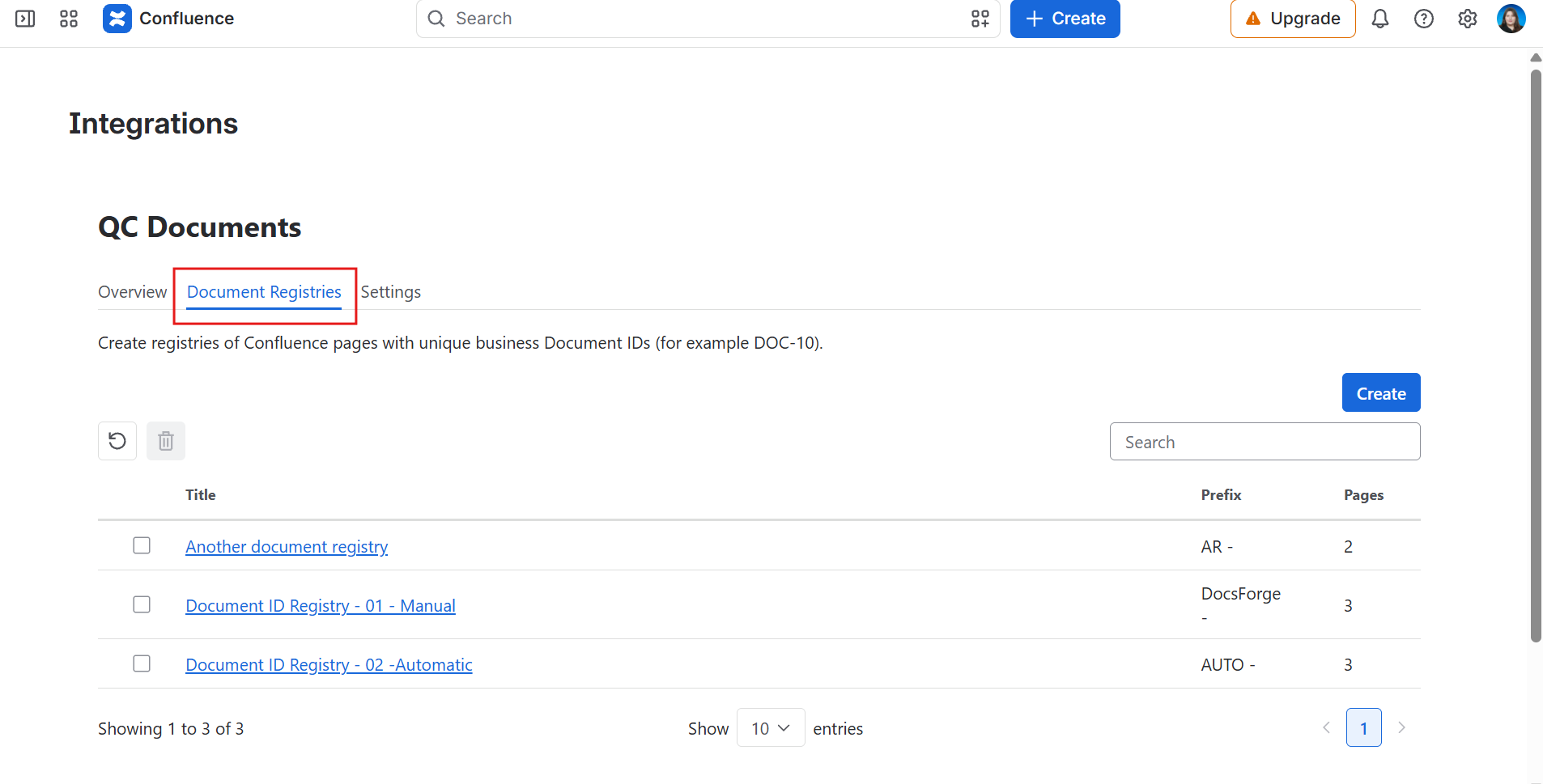
Navigate to the Document Registries tab.
How to use Document Registries
-
Click Create
-
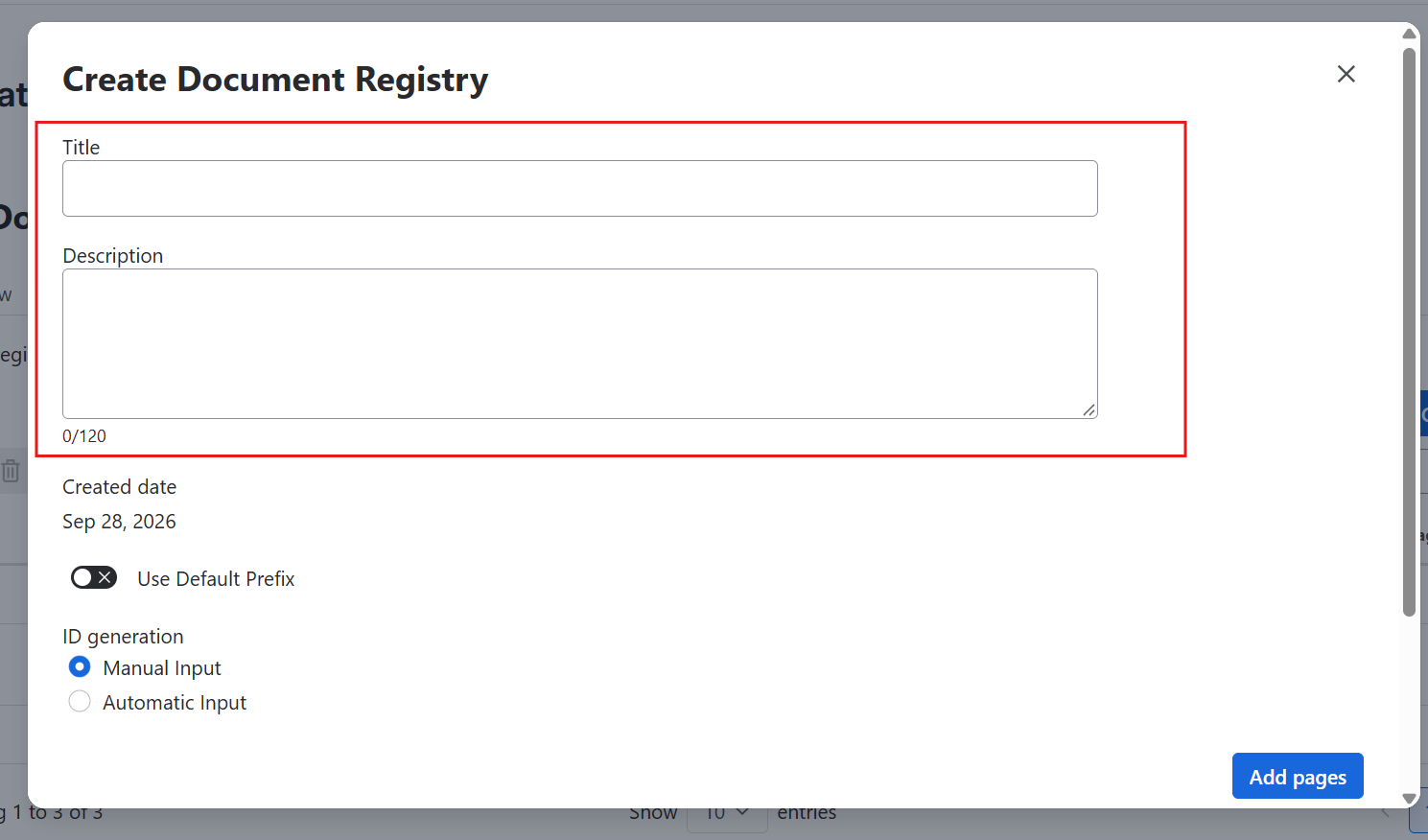
Give your registry a title and a short description
-
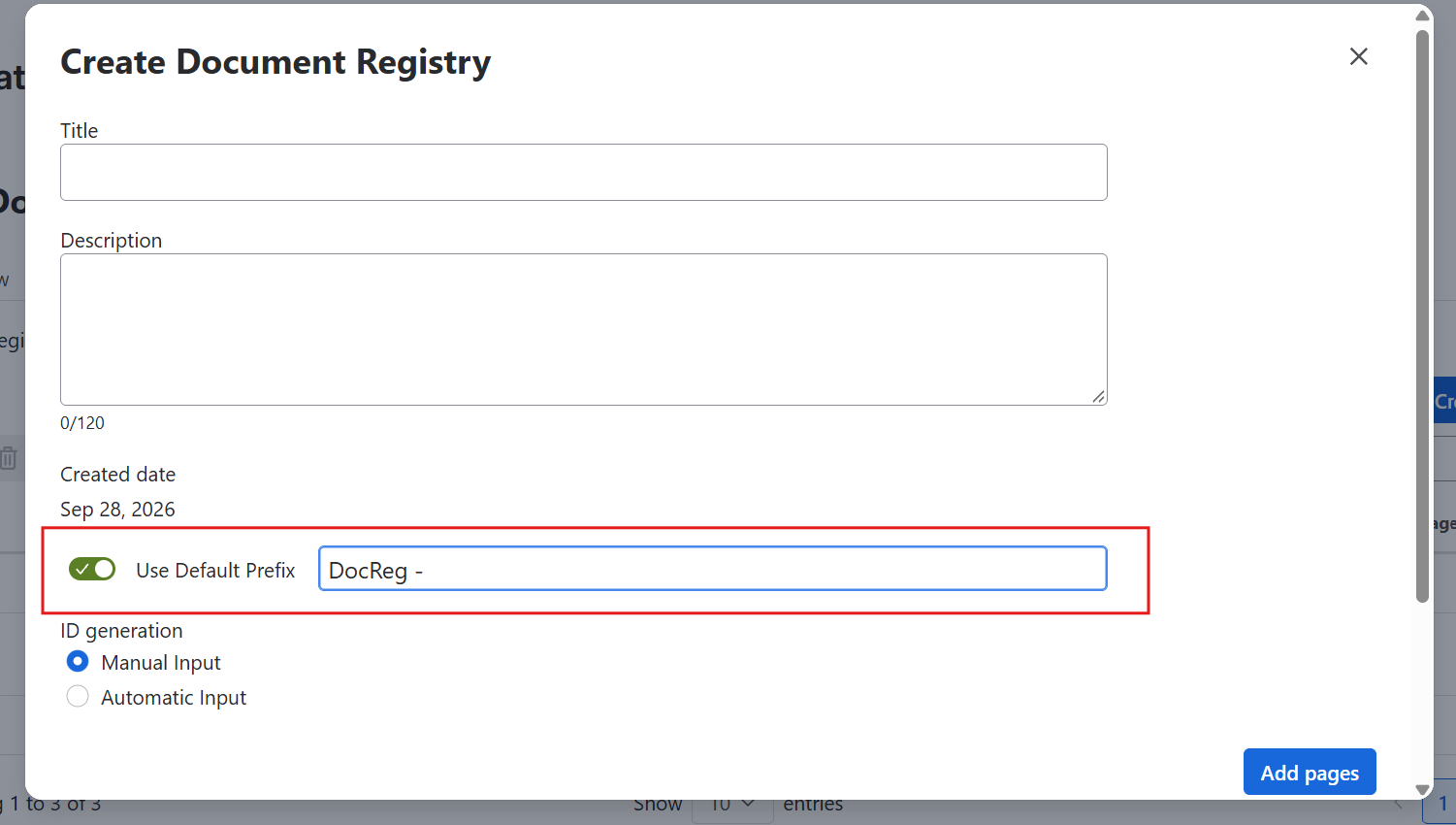
Optionally, set a default prefix that should be used for the document IDs of that registry
-
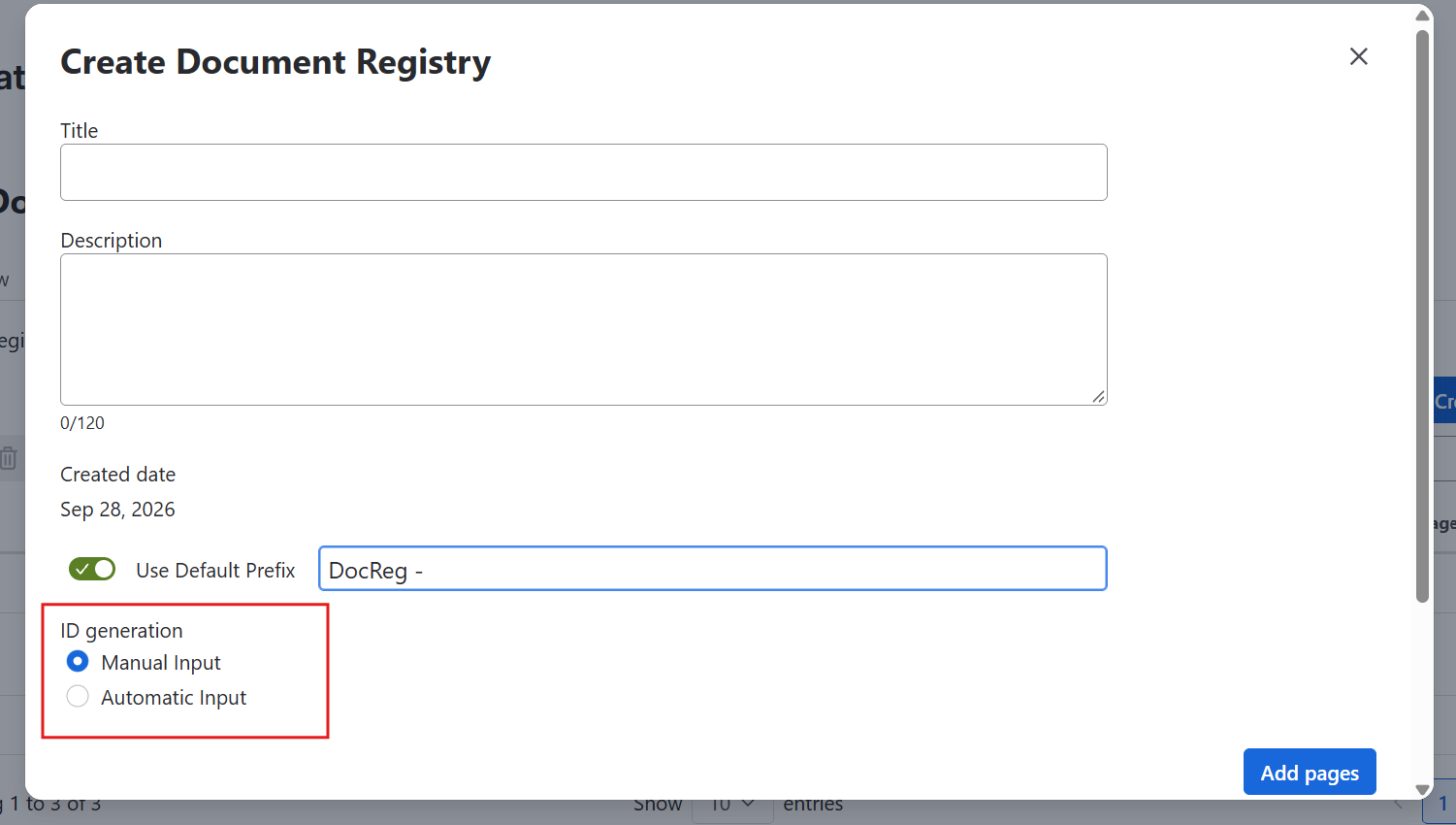
Choose whether you want to manually add the IDs or let QC Documents generate them automatically
-
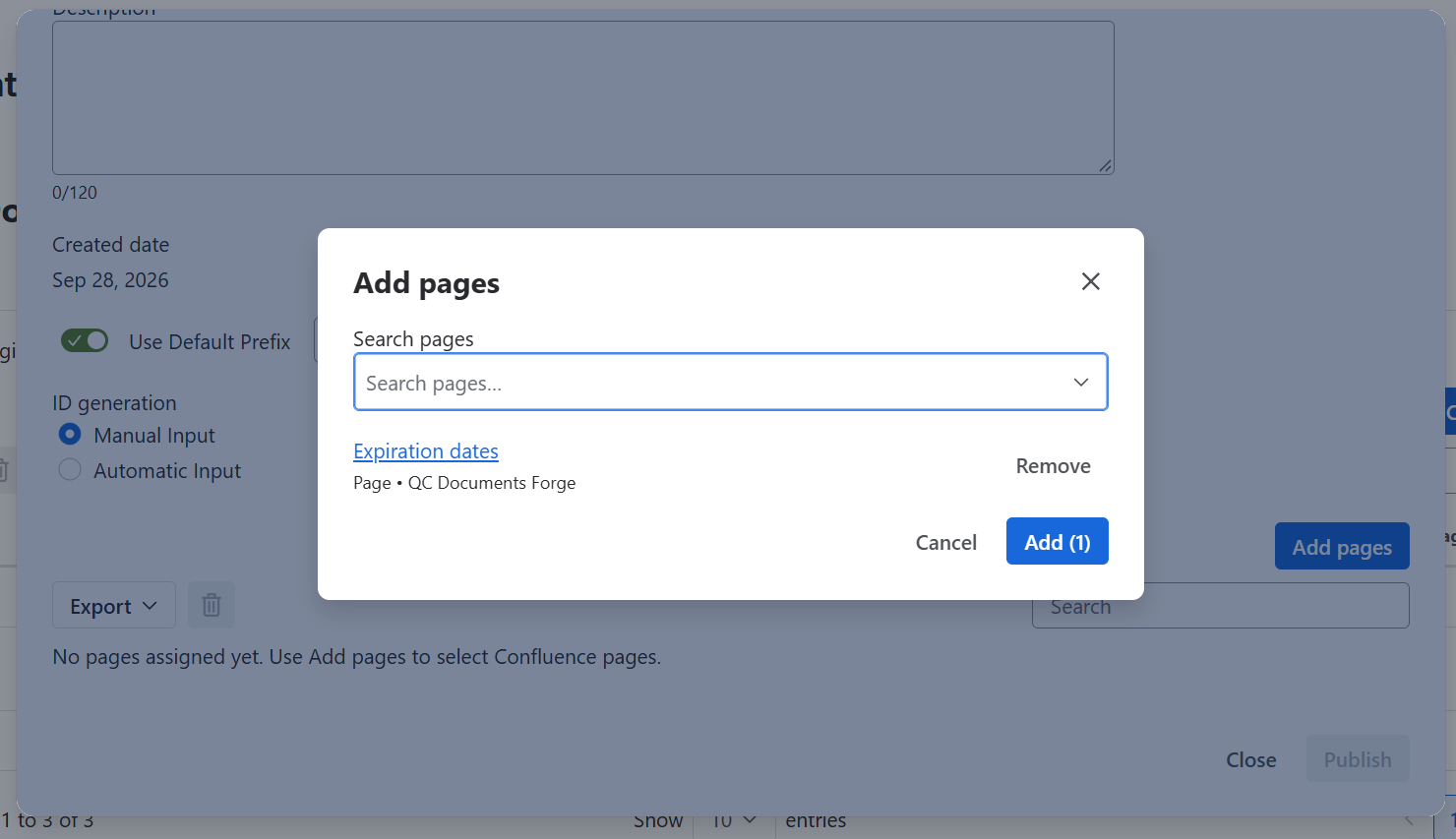
Select pages from the space and click Add
-
Depending on how you chose to generate the document IDs:
-
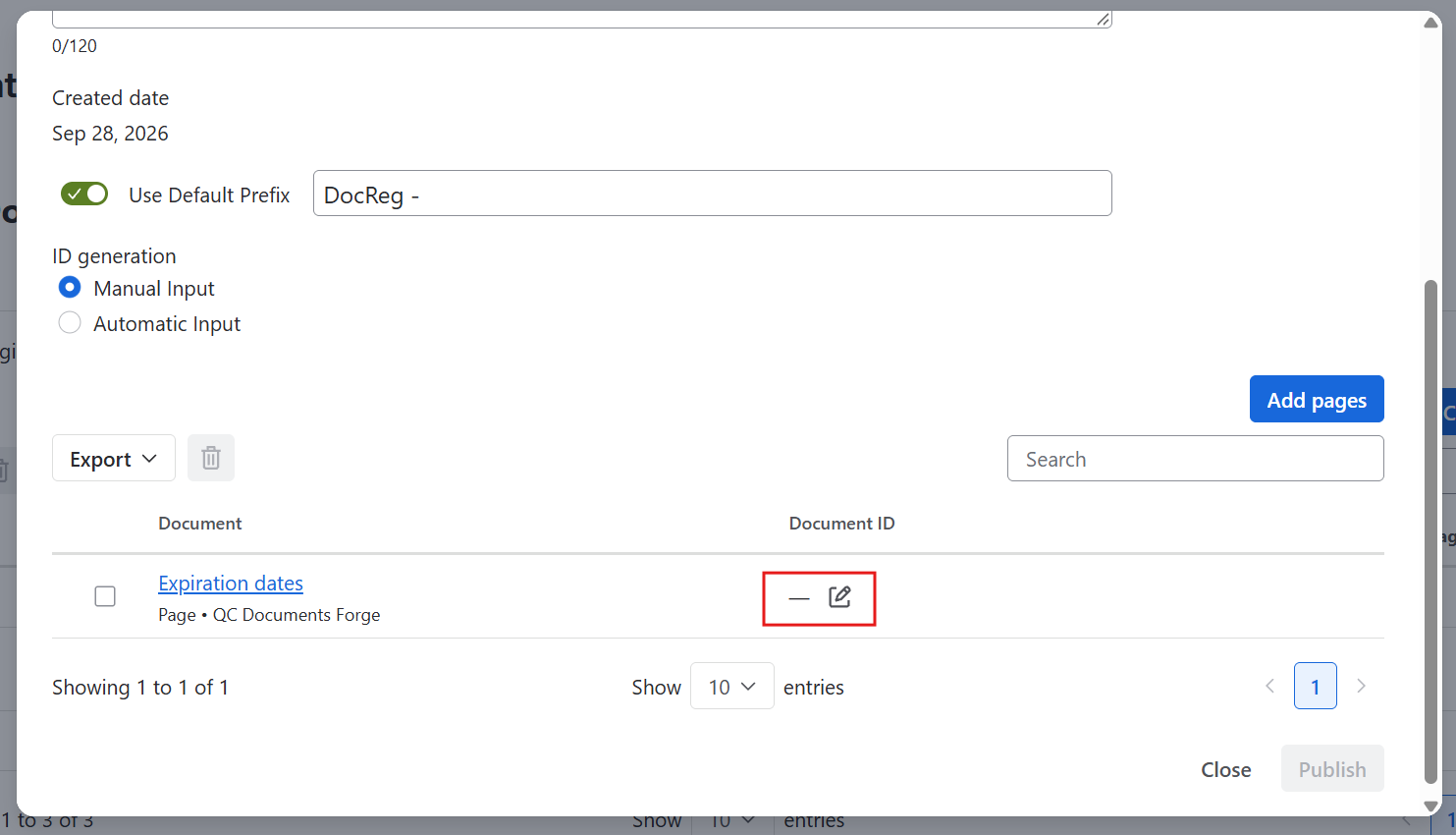
Manual input: Click the pencil icon under the Document ID column and type your preferred ID
-
Automatic input: Click Publish. The app will automatically generate a unique ID for each included page, starting from 001 and using the default prefix (if set).
-