
A macro is a Confluence building block (like a table of contents). QC Read & Understood adds several macros. Their titles in the picker start with QC R&U -.
Steps
-
Open the page.
-
Click Edit (pencil, top right).
-
Click in the page body where the block should appear.
-
Type
/on the keyboard. -
Type qc (or read).
-
Click the macro you want.
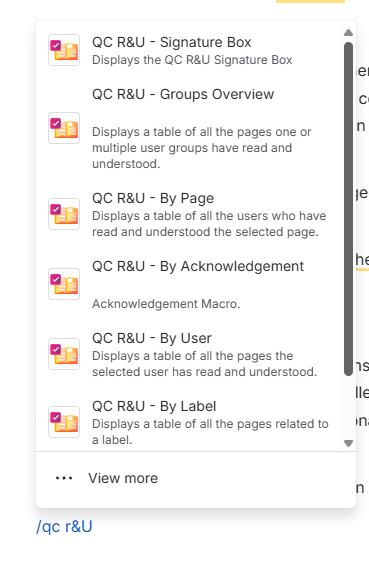
-
Fill in the configuration panel (space, user, labels, and so on).
-
Click Save or Insert on that panel.
-
Click Publish (or Update) on the Confluence page.
You should see: The macro on the published page. Table macros show rows after a few seconds. Signature Box shows Read and Understood.
If the picker is empty, the app may not be installed, or Global Settings may restrict reporting macros to certain groups. Signature Box is not restricted that way.
Which macro to pick
|
Macro |
What it shows |
|---|---|
|
QC R&U - Signature Box |
Confirm button on the page |
|
QC R&U - By Page |
Who confirmed this (or a chosen) page |
|
QC R&U - By User |
Pages one person confirmed |
|
QC R&U - Groups Overview |
Pages for one or more groups |
|
QC R&U - By Label |
Pages that have selected labels |
|
QC R&U - My Overview |
The viewer’s pages |
|
QC R&U - By Acknowledgement |
One acknowledgement’s progress |
These tables are reports, and you cannot use them to assign people to R&U. See how to assign people in https://support.qc-analytics.com/qc-read-and-understood-for-confluence-cloud/how-to-use-qc-r-u-page-overview or https://support.qc-analytics.com/qc-read-and-understood-for-confluence-cloud/how-to-use-qc-acknowledgements.