
Navigate to QC R&U Page Overview
-
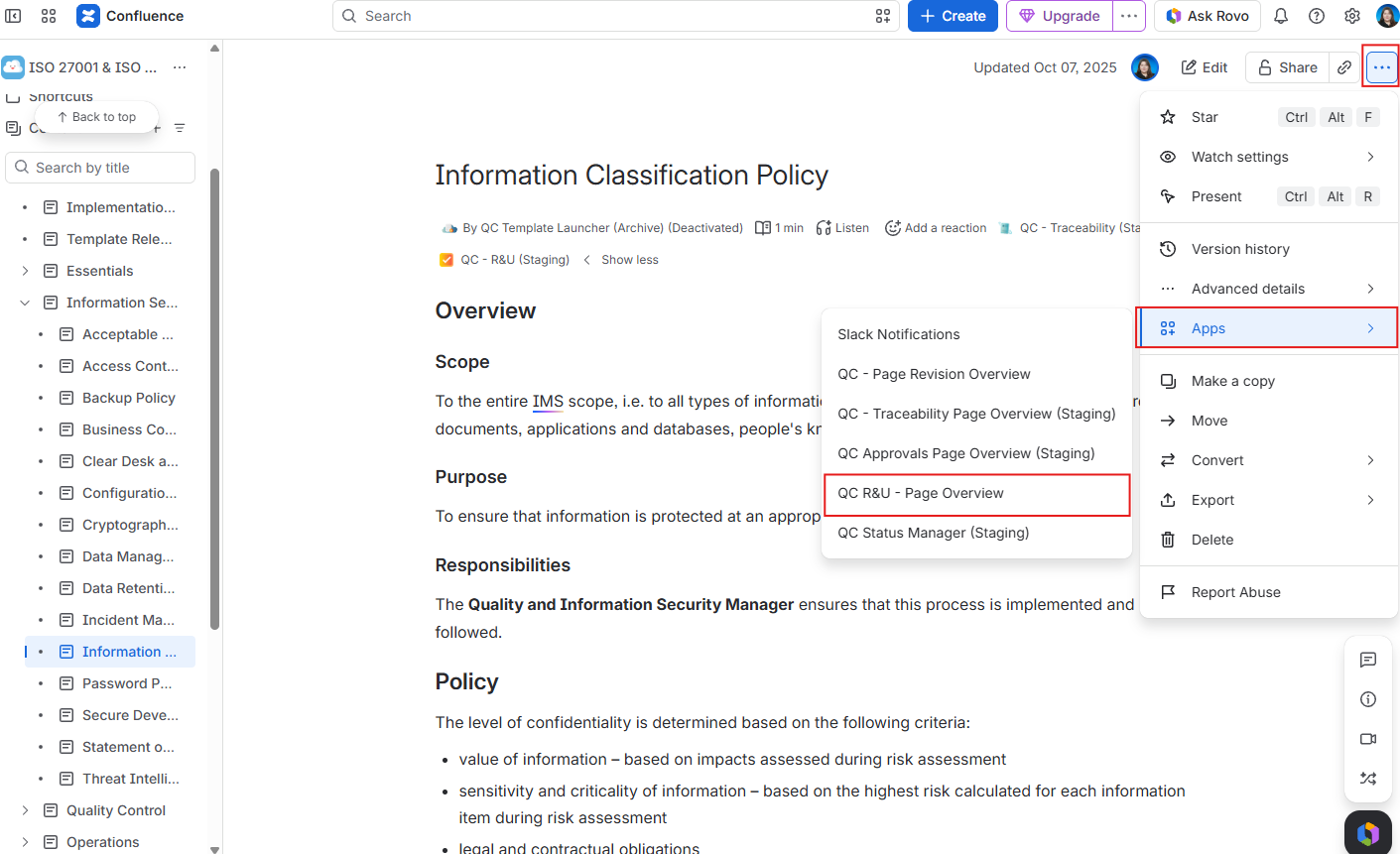
Open the Confluence page.
-
In the top-right, click
•••(More actions). -
Open the Apps menu and click QC R&U - Page Overview.
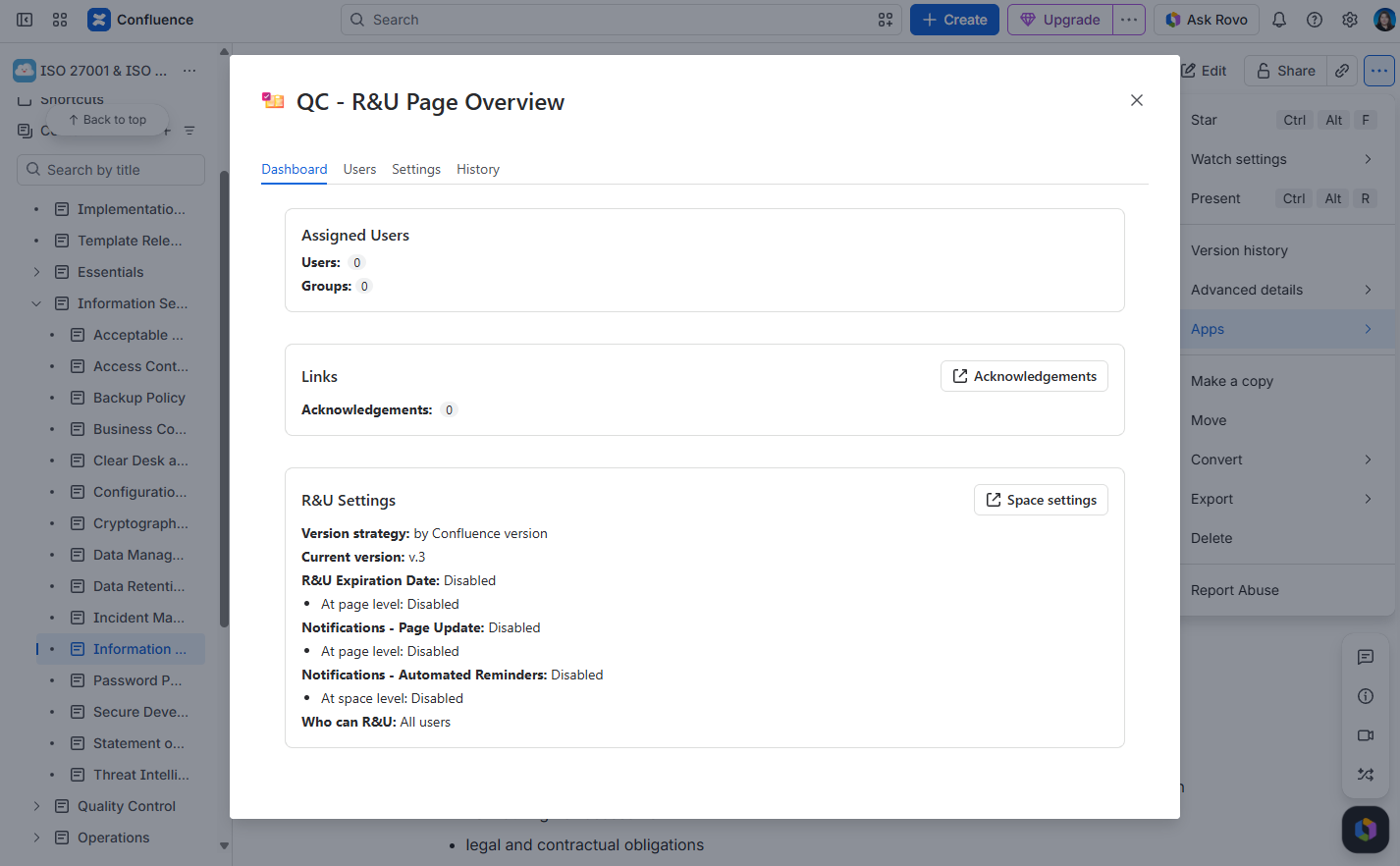
|
Tab |
What it is for |
|---|---|
|
Dashboard |
Counts, warnings, and a short summary of settings (see below). |
|
Users |
The people table and the groups table (add, remove, Sync Groups). |
|
Settings |
Byline on/off for this page, signature text, email on page change, expiration. |
|
History |
What happened on this page. |
Dashboard
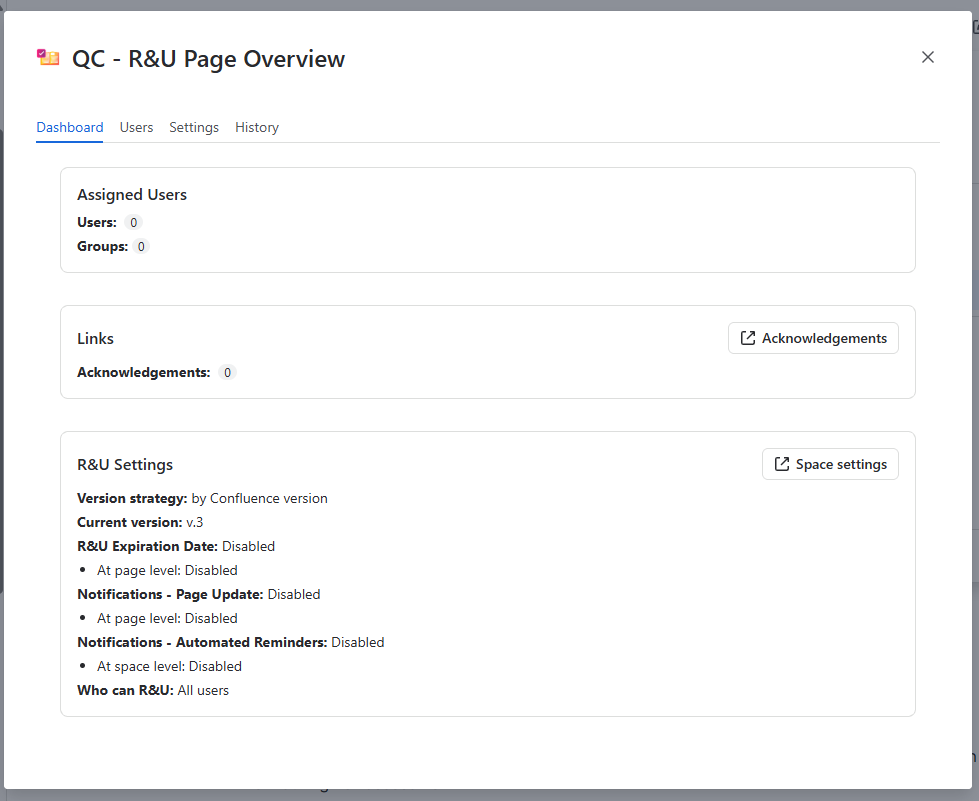
Click Dashboard. This tab does not assign people. It shows whether this page is in a healthy state.
|
Area |
What it means |
|---|---|
|
Assigned Users |
Users badge = how many people are assigned. Status = how many of those have accepted. Groups = how many groups are assigned. Open Users to change the lists. |
|
Links |
Acknowledgements badge = how many acknowledgements include this page. The Acknowledgements button opens the space list (new tab). |
|
R&U Settings |
Version strategy, Current version, expiration, page-update notifications, automated reminders, and Who can R&U. Open Space Settings jumps to the space form. |
Warnings on Dashboard
A yellow or red banner at the top is the thing to fix first.
|
Warning |
What to do |
|---|---|
|
Space R&U disabled |
A space admin must turn the app on: Turn Read & Understood on. Use Space settings → Integrations → QC R&U - Space Settings. (The banner text may still say App links; that path is the old app.) |
|
Version could not be detected |
The byline cannot store a version. See The app cannot detect the version. |
|
License not active |
The site license is not valid. Ask a site admin, or contact support. |
Page Settings
Navigate to page settings
-
Open the page →
•••→ Apps → QC R&U - Page Overview. -
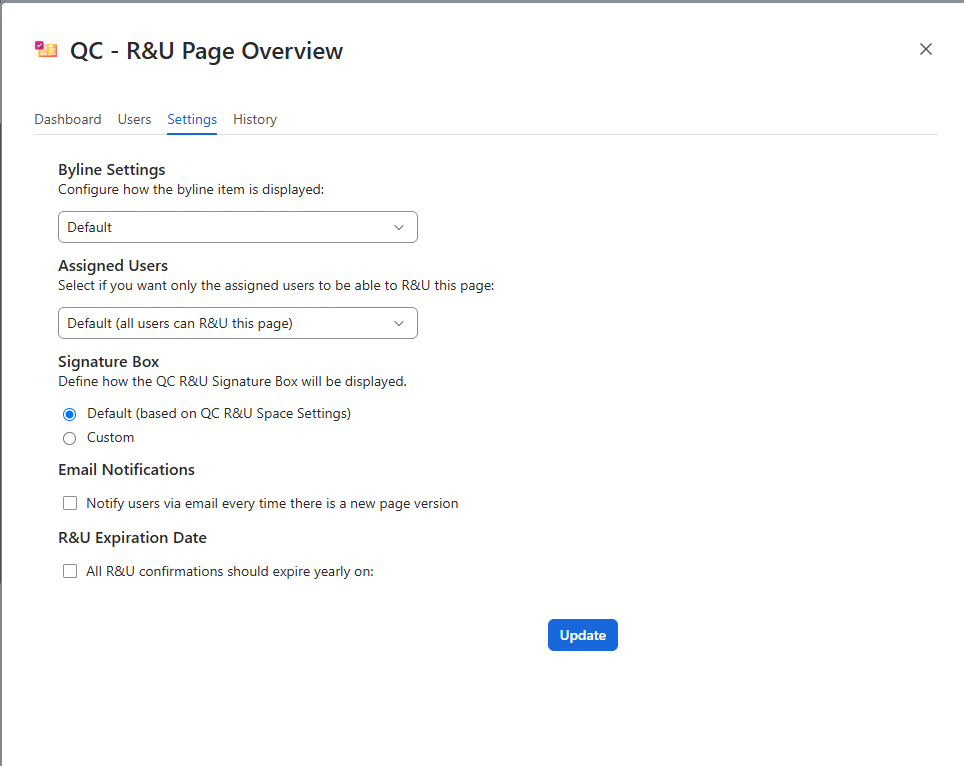
Click Settings.
-
Change the fields below.
-
Byline Settings: Choose whether QC - R&U appears in the byline for this page (Byline Display):
-
Default — follow the space’s Byline default value
-
Enabled — show it on this page
-
Disabled — hide it on this page (people can still use a Signature Box if you inserted one)
-
-
Assigned Users: Choose Default (all users can R&U this page) or Only assigned users can R&U this page. Default follows the space.
-
Signature Box: If the page contains a Signature Box, keep Default (based on QC R&U Space Settings) or type a Signature Box Title and Signature Box Text (the old “signature scope”).
-
Email Notifications: Tick “Notify users via email every time there is a new page version” if assigned people should get mail when the R&U version moves on. Then Update.
-
R&U Expiration: Tick “All R&U confirmations should expire yearly on:” and pick Month and Day if confirmations should return to Pending on a schedule. Then Update.
-
-
Click Update at the bottom.
You should see: A saved-settings confirmation. Open the byline or Signature Box to check the wording and whether QC - R&U is visible.
Page History
Navigate to page history
-
Open the page →
•••→ Apps → QC R&U - Page Overview. -
Click History.
-
Switch Display by between version and action if both are offered.
-
Use Only significant when you care about version-strategy versions, not every Confluence save.
-
Export CSV or Excel if you need a file of actions. There is no PDF export on this table.
You should see: Rows with the person, the action, and the time.
You can also find the space-wide history (who changed space settings) in Space settings → Integrations → QC R&U - Space Settings → History.