
If you see a message about page ID
The page has restrictions.
-
Open the page.
-
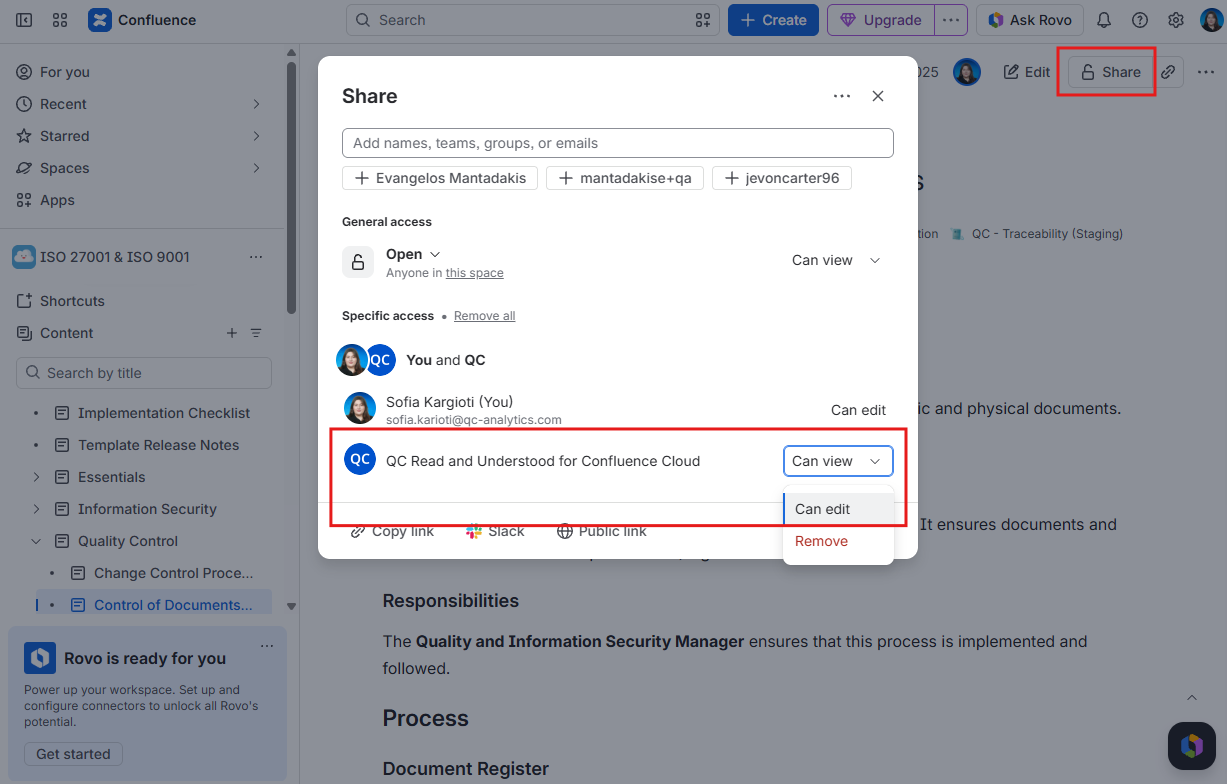
Click Share at the top of the page (Confluence shows a padlock or Share → restrictions).
-
In the dialog, search for QC Read and Understood.
-
Grant the app Can view or Can edit permissions.
-
Close the Share dialog, refresh the page, and open QC - R&U again.
If you see a message about space key
The app is missing from space permissions.
-
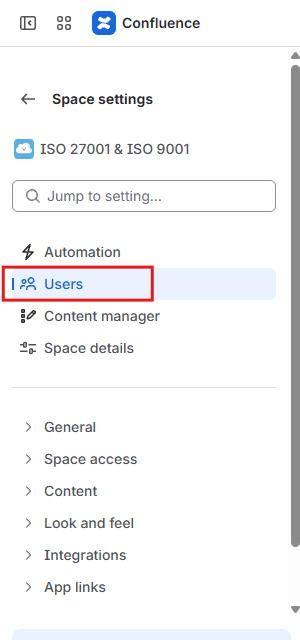
Open the space and click the three dots next to its name
-
Select Space settings, and from the left sidebar, click on Users
-
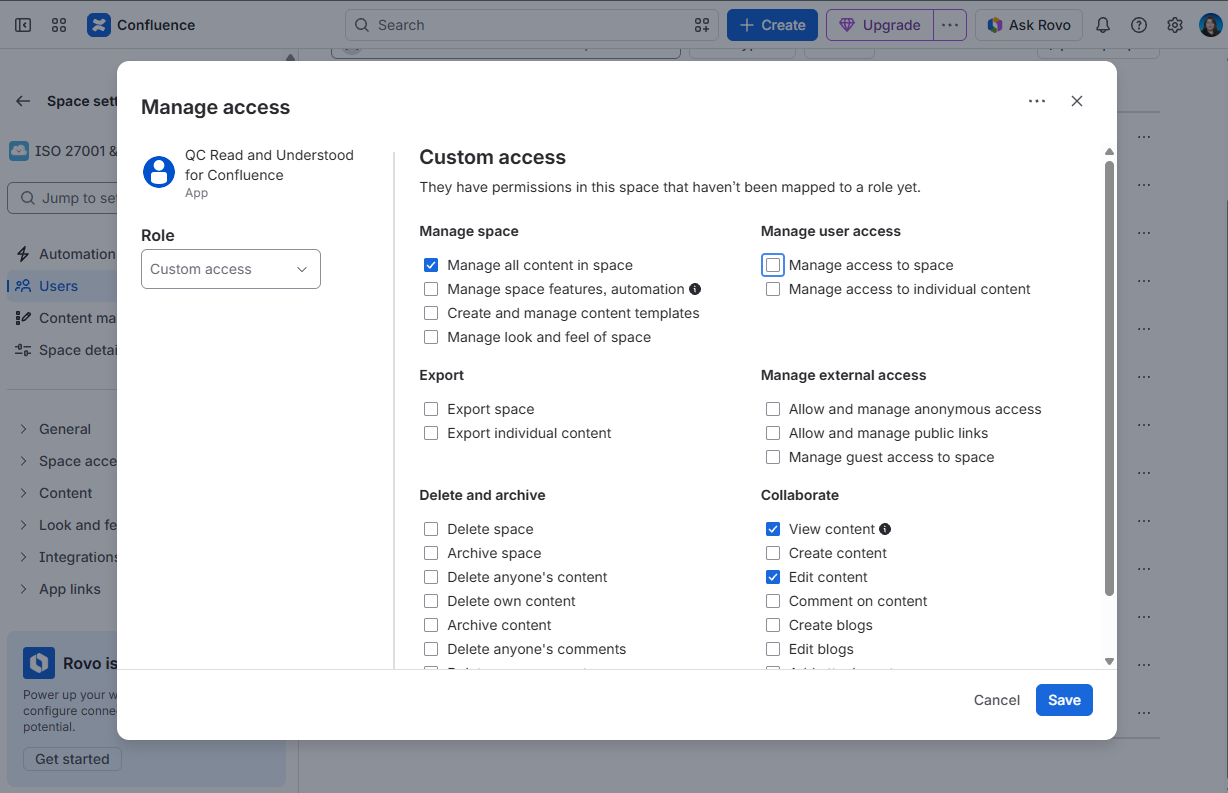
Find the QC Read & Understood app, click the three dots, and select Manage access
-
The QC Read & Understood app should have the following space permissions to work correctly:
-
Manage all content in space
-
View content
-
Edit content
-
-
Click Save.
Once you grant the app the necessary permissions, the byline and the QC R&U - Page Overview should load without any permission errors.