
Open QC R&U My Overview
-
In the Confluence left sidebar, click Apps.
-
Click QC R&U - Global and navigate to the My Overview tab.
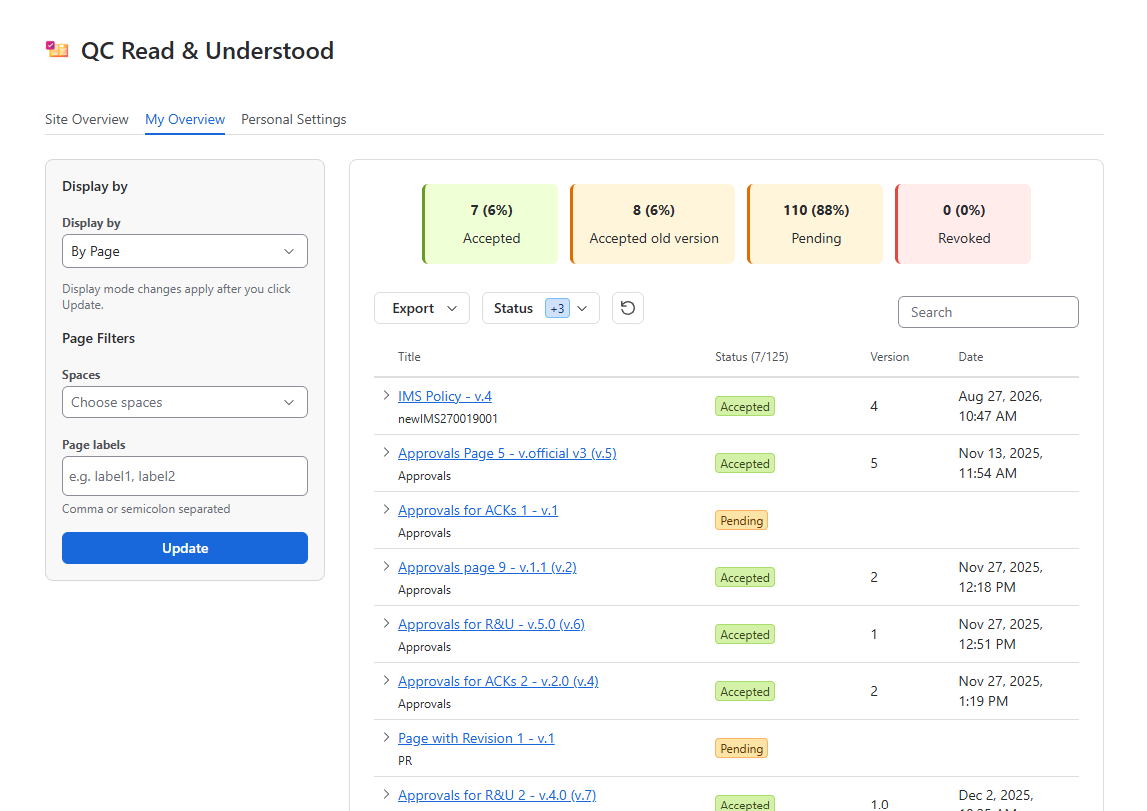
Note: In the older versions of the app, you’d have to look under your profile picture to find this table. In Forge, QC R&U - My Overview is moved to QC R&U - Global.
Read the list
-
On the left, Display by chooses By Page or By Acknowledgement.
-
Spaces limits the list to selected spaces. Leave it empty to include all spaces you can see.
-
Use Status above the table if you only want Pending (or another status).
-
Click a page title to open that page in Confluence. The version is shown next to the title.
Confirm an older version
You cannot confirm a historic version from Page history on the Confluence page.
-
Stay on the My Overview tab in QC R&U - Global
-
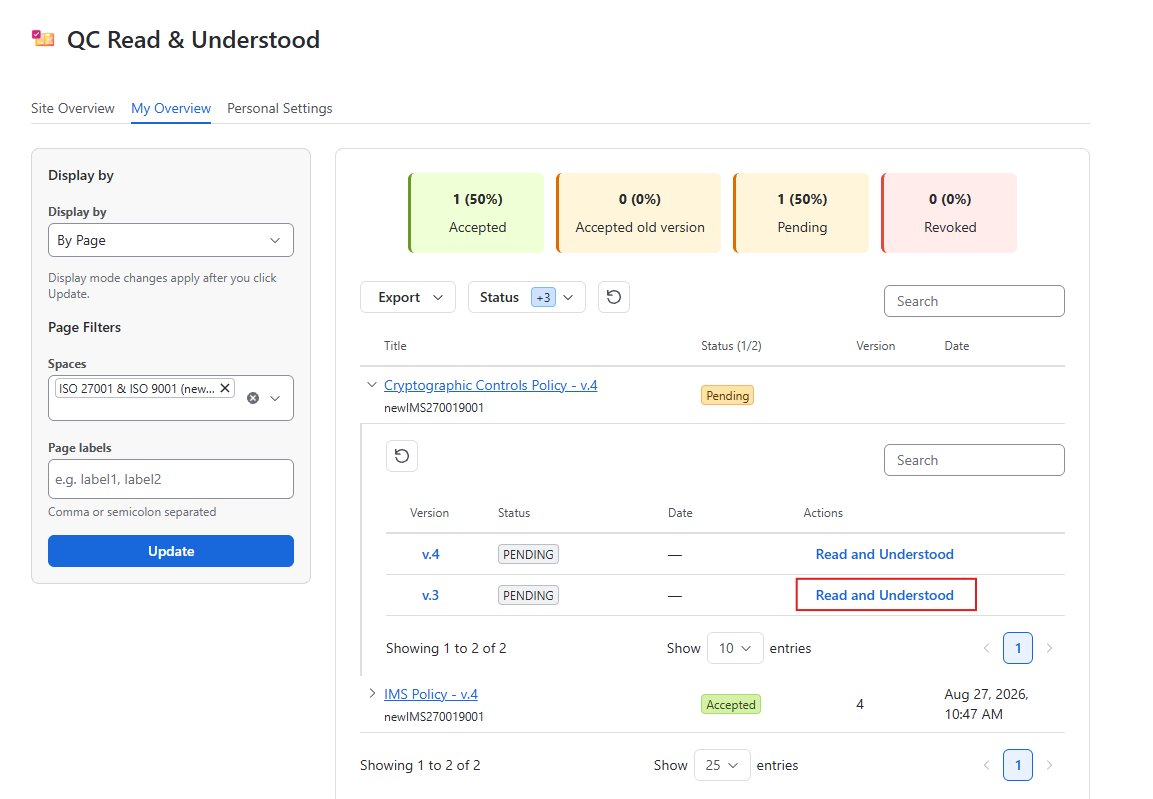
Find the page and click the arrow next to its title to open the child table; find the version you need.
-
Click Read and Understood for that version.
-
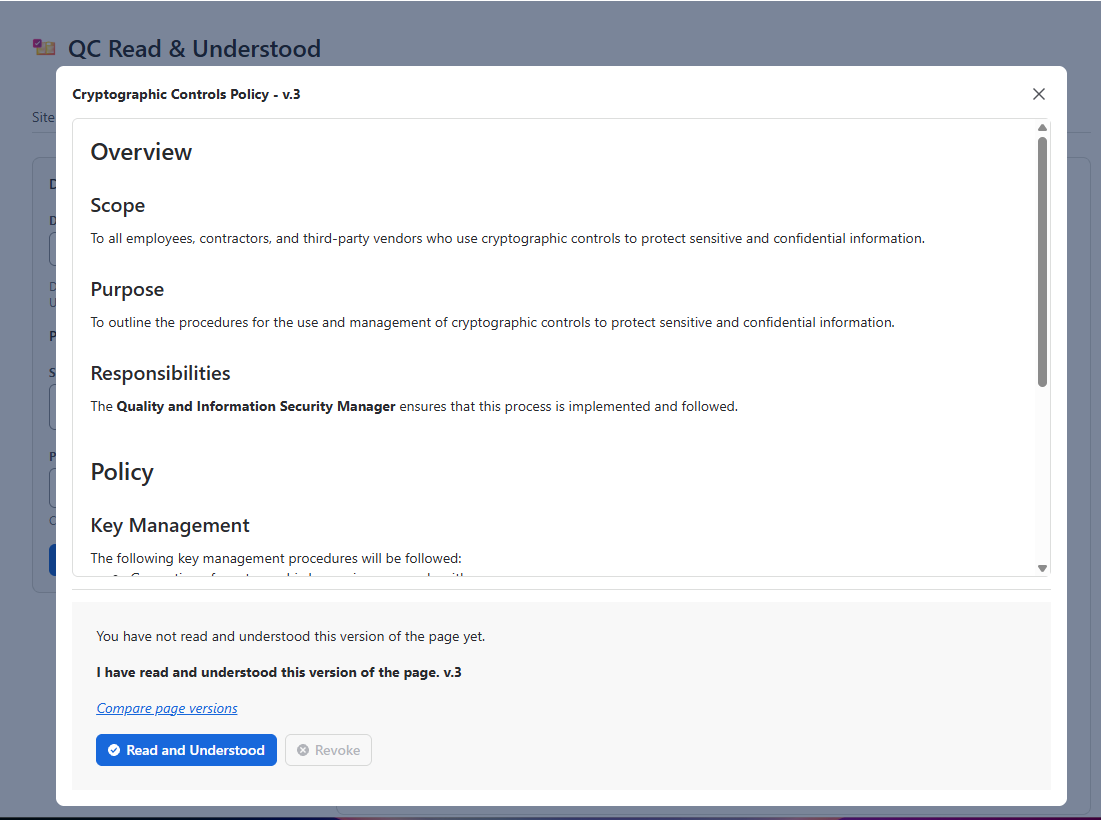
Read the page content and click Read and Understood at the bottom of the panel.
-
If the “Read and Understood” link button is missing from the version, you may have already accepted the current version, or you may not be assigned.
Export
Use Export above the table to download CSV or Excel of what you are looking at. There is no PDF download.
Site-wide reports are a different tab: https://support.qc-analytics.com/qc-read-and-understood-for-confluence-cloud/site-overview.