
QC Read & Understood can send the following email notifications:
-
a user assigned you to R&U a page
-
someone sent you a manual reminder
-
there is a new version of a page you’re assigned to R&U
-
automated reminders are scheduled to remind you of your pending R&U confirmations.
A site admin can turn all R&U email notifications off, or force all users to receive the notifications, regardless of their personal settings.
Types of emails I receive
|
Subject |
What it contains |
When do I get it |
|---|---|---|
|
[QC R&U] A user assigned you to Read & Understand a page |
|
|
|
[QC R&U] Pending to Read & Understand due to page update |
|
|
|
[QC R&U] You have some pending R&Us |
|
When a user sends a manual space reminder from QC R&U - Space Overview |
|
[QC R&U] Reminder |
|
Automatically, at a certain interval, set within QC R&U - Space Settings |
|
[QC R&U] You have some pages to review |
|
|
|
[QC R&U] A user added you to an Acknowledgement |
|
|
|
[QC R&U] Reminder |
|
Automatically, at a certain interval according to the Acknowledgement’s settings. |
How to open personal email settings
Within Confluence
-
In the Confluence left sidebar, open the Apps menu.
-
Click QC R&U - Global and navigate to the Personal Settings tab.
-
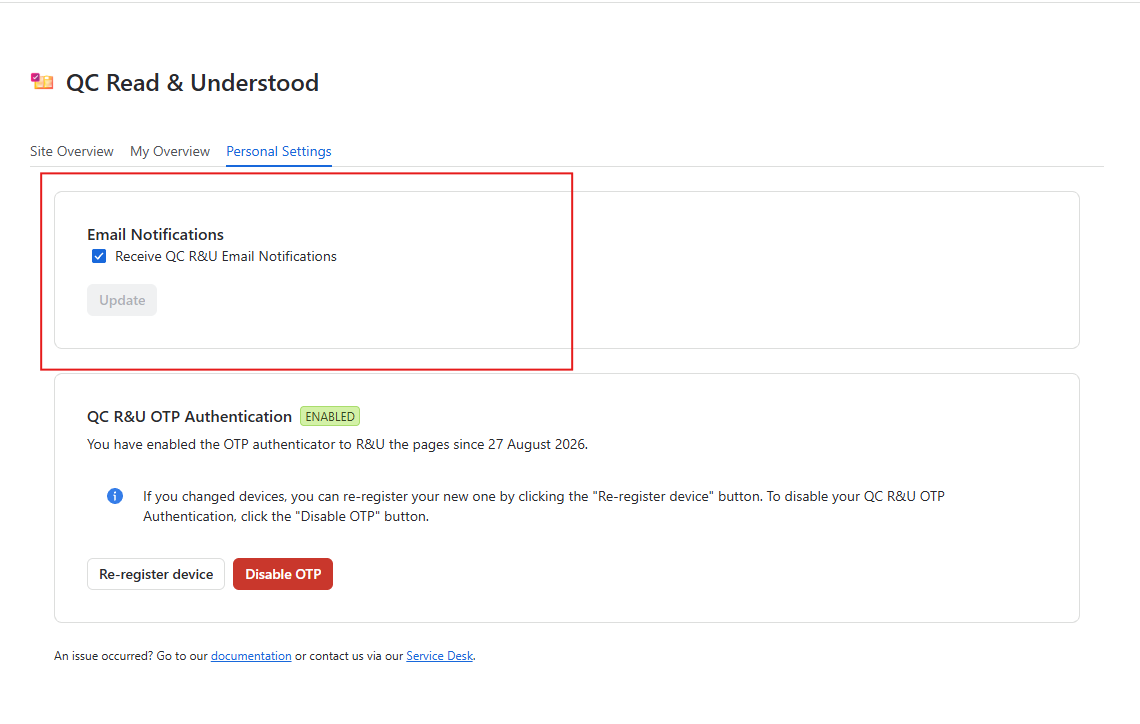
Find QC R&U Email Notifications.
-
Tick or clear Receive QC R&U Email Notifications.
-
Click Update.
At the bottom left corner of your page, you should see a message that your email settings were updated.
If the checkbox is locked, a site admin has enforced email notifications.
From an email received
QC R&U Email Notifications include a Personalize your email notifications link in the footer. That link opens the same Personal Settings tab.
If nobody is getting emails
That is not a personal setting. Point a site admin to Global Settings (Enable Email Notifications) and a space admin to reminders on Space Settings. Page owners send a one-off reminder from Page Overview.
Company logo and colours on the emails
That is a site-level add-on, not a Personal Settings checkbox. Your team may decide to use custom templates. In that case, a site admin follows https://support.qc-analytics.com/qc-read-and-understood-for-confluence-cloud/customize-r-u-email-branding.