
OTP requires two switches to be enabled. The space requires OTP to R&U, and you register a device. If the space requires it but you don’t enable it in your personal settings, you can’t R&U pages.
Step 1: Confirm the space requires OTP
Only space admins can enable OTP authentication, by going to Space settings → Integrations → QC R&U Space settings → Enable OTP authentication.
Step 2: Register your device
-
In the Confluence left sidebar, click Apps.
-
Click QC R&U - Global and navigate to the Personal Settings tab.
-
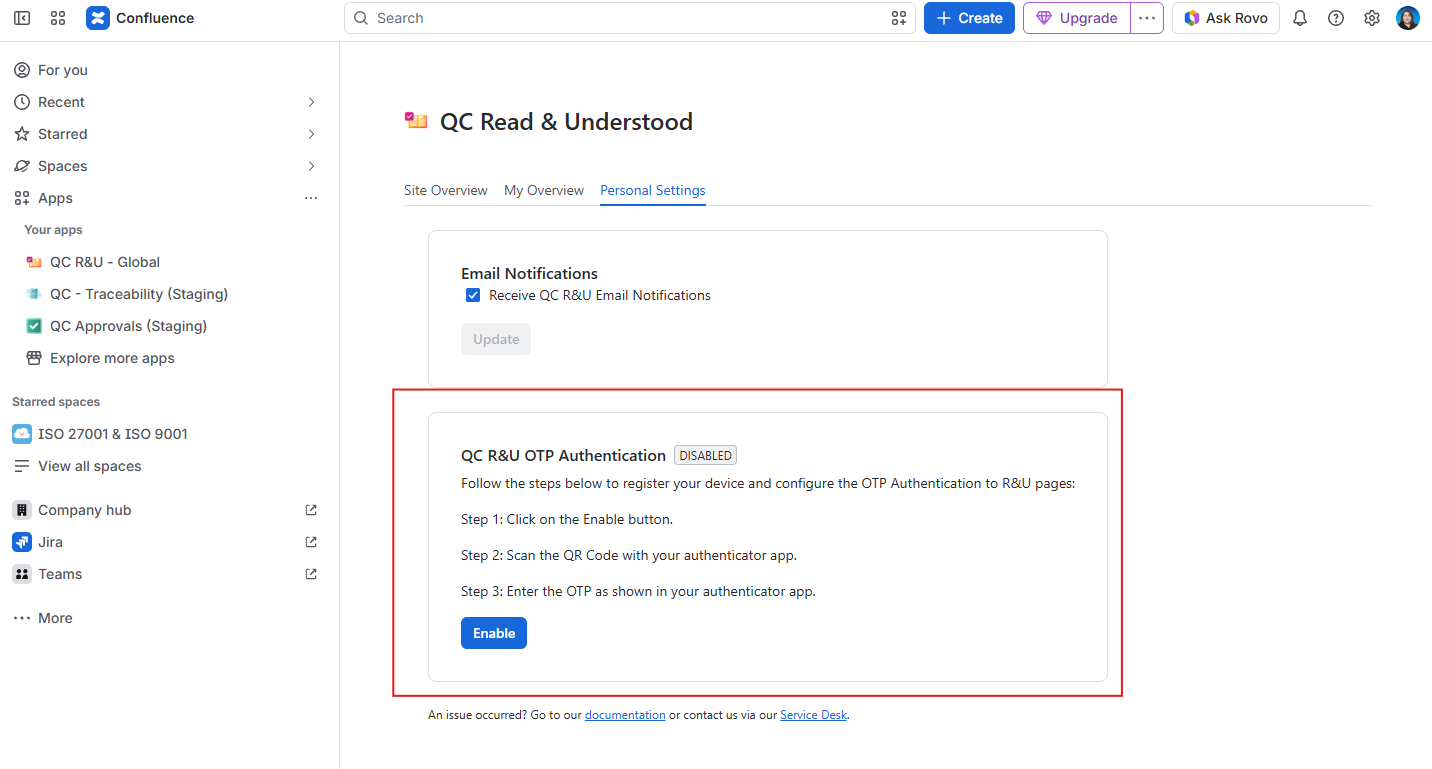
Find QC R&U OTP Authentication.
-
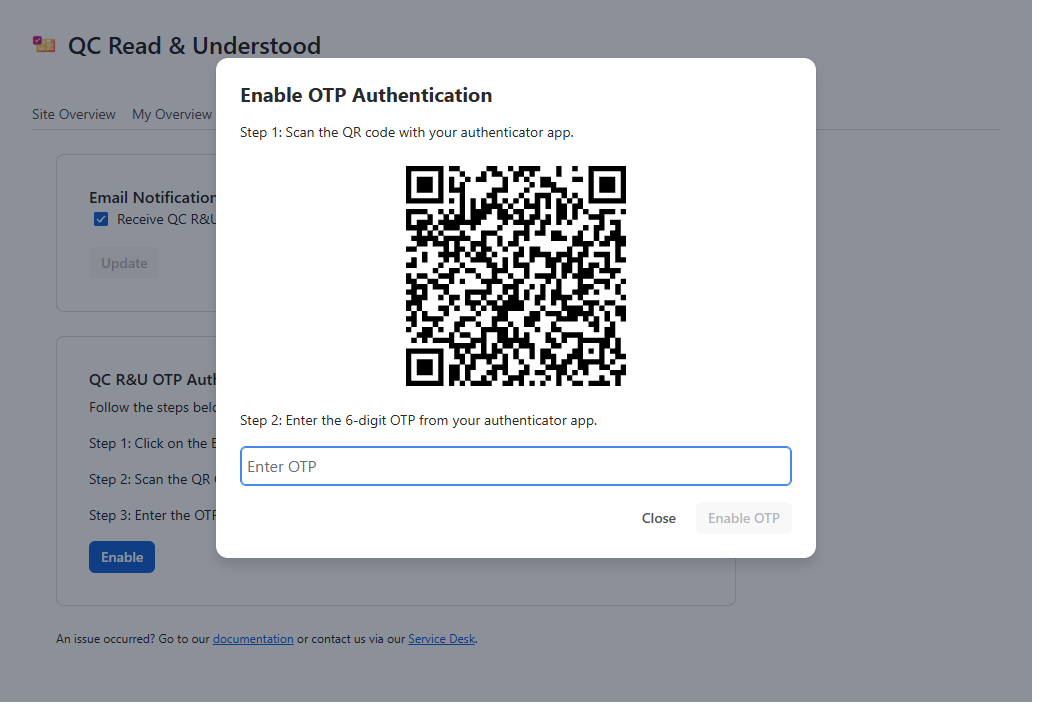
Click Enable. A panel titled Enable OTP Authentication opens.
-
Open your authenticator app and scan the QR code.
-
Type the 6-digit code into the field (placeholder Enter OTP).
-
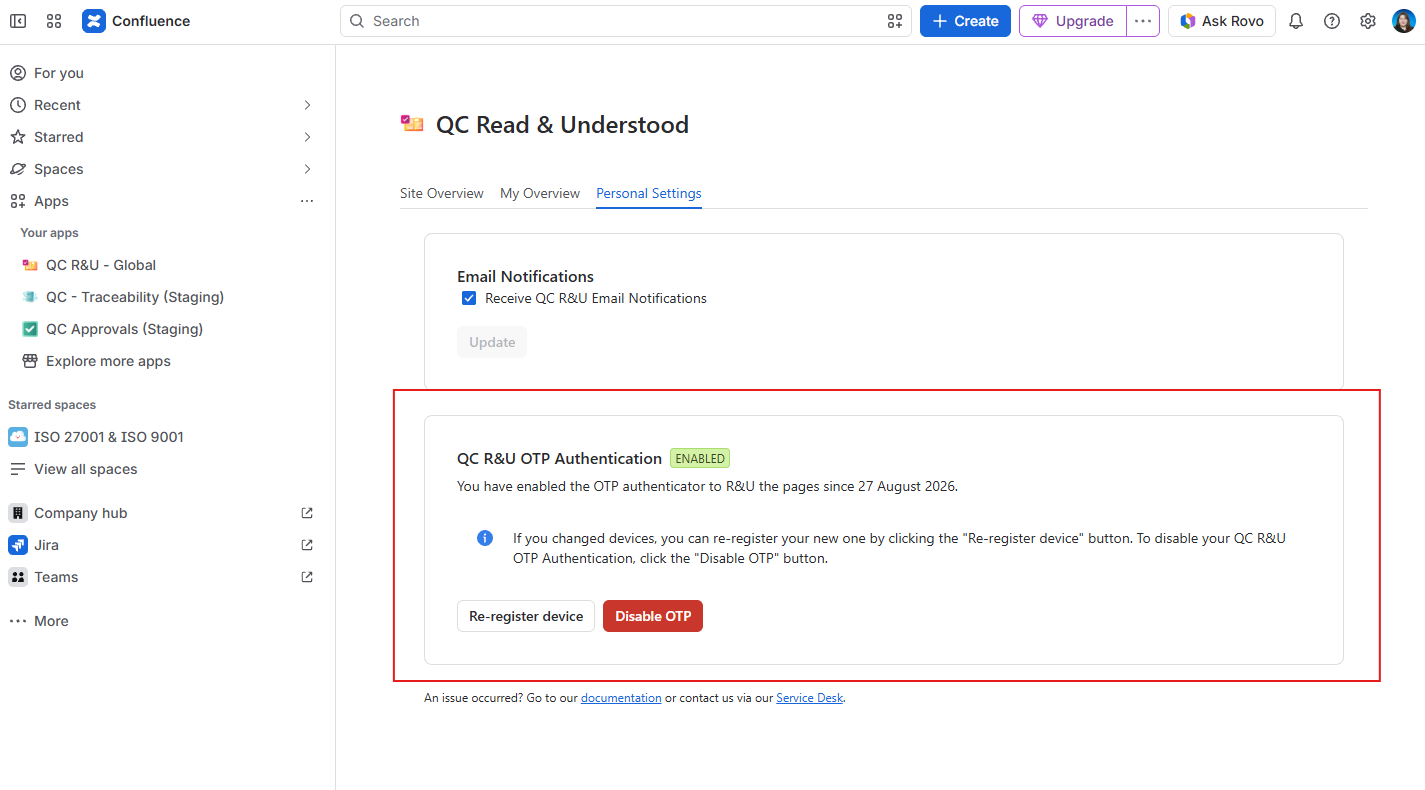
Click Enable OTP.
Step 3: Confirm a page with OTP
-
Open the page and click QC - R&U (or use the Signature Box).
-
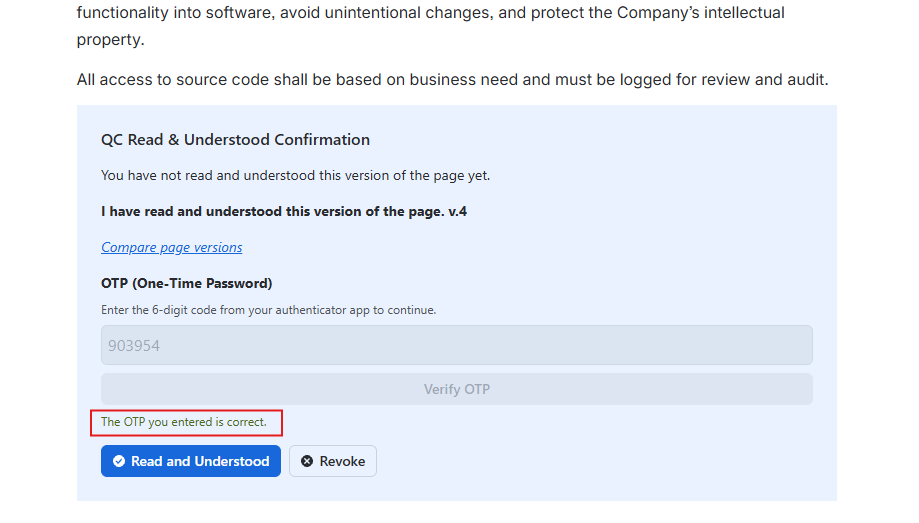
In OTP, type the current code from the authenticator app.
-
Click Verify OTP.
-
You should see: “The OTP you entered is correct.”
-
Click Read and Understood.
If you see “The OTP you entered is not correct.”, wait for the next code and click Verify OTP again. The buttons stay unavailable until a code is accepted.
Re-register or turn off OTP
In Personal Settings, use Re-register device (same QR panel as Enable) or Disable OTP. Disabling sends a Confirmation Code to your Confluence email.
Optional: 1Password
1Password can store the OTP for this app.
-
In 1Password, create a Login item.
-
Set the website to your Confluence site URL (the address you use every day, such as
<https://your-site.atlassian.net).> -
In Confluence, open Personal Settings and click Enable until the QR code is visible.
-
In the 1Password browser extension, scan that QR code into the item.
-
When you confirm a page, fill the OTP field from 1Password, then click Verify OTP.