
An SOP here is a Confluence page that tells someone how to do a job. The acknowledgment is the Read and Understood click on that page’s version — not a comment, and not a meeting attendance list.
Step 1: Open the SOP page
-
Open the space in the left sidebar.
-
Click the SOP in the page tree (or use Confluence search).
You should see: The SOP title and the procedure text.
Step 2: Put a Signature Box at the end of the text
People should finish the procedure, then confirm. That is how teams use the box on long pages and internal newsletters.
-
Click Edit (pencil, top right).
-
Click at the bottom of the page body, after the last step.
-
Type
/, then qc, then choose QC R&U - Signature Box. -
Click Publish.
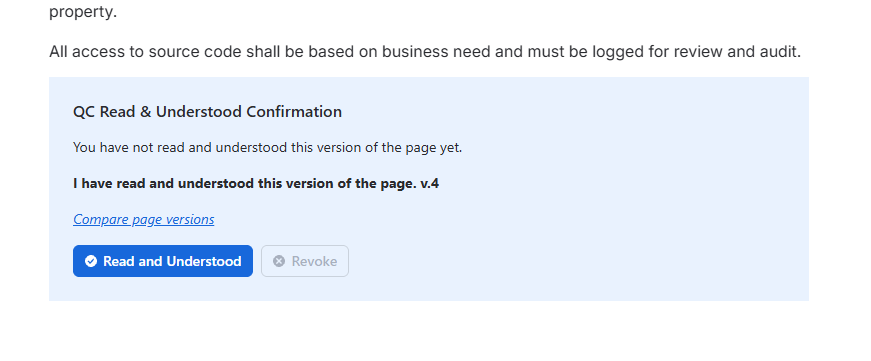
You should see: Read and Understood under the SOP, not only in the title row.
The byline QC - R&U can stay as well. If you need a reading-time wait, that wait exists on the Signature Box only. Details: Sign from the Signature Box.
Step 3: Assign the people who must follow this SOP
-
On the same page, click
•••→ Apps → QC R&U - Page Overview. -
On Users, add a group for that role (for example operators), then Sync Groups.
Steps: Add a group and Sync Groups.
For many SOPs that share a label such as sop, use Acknowledgements instead of visiting each page.
Step 4: Users confirm the SOP
-
They open the SOP.
-
They read it.
-
They click Read and Understood on the Signature Box (or the byline).
You should see: In Page Overview, their status Accepted with a version.
If the SOP uses Page properties for a document number, set that version strategy so the record matches the number on the SOP, not only Confluence’s v.12.