
This guide covers the first steps after you install QC Traceability for Confluence Cloud.
Why use QC Traceability
Confluence is made for writing and sharing pages. It does not give you requirements traceability: you cannot show that every design input is realized in design output and tests, or find broken links before a review.
Use this app for work such as:
|
When |
Why |
|---|---|
|
Regulated product development |
You need vertical traceability through the lifecycle: design input → design output → implementation → verification, so every high-level requirement is fully realized. |
|
Quality systems (for example IEC 62304, GAMP 5, ISO 13485, ISO 14971) |
You must verify and document overall traceability, not only store the documents. |
|
Gap analysis of traces |
You need to see which required (must-have) links are missing or broken before a review or audit. |
|
Specs in Confluence and work in Jira |
Design items and tickets should stay in the same traceability chain. |
Why Confluence on its own is not enough:
|
In Confluence |
With QC Traceability |
|---|---|
|
A link is only a hyperlink. It does not say how two things relate, or in which direction. |
A trace has a direction (upstream / downstream) and a relationship (for example verified by). It can be required or optional. |
|
Folders and labels group pages. They are not traceability rules between design input and design output. |
A project defines how collections of items must connect. Missing required traces are flagged on the page. |
|
You cannot produce a traceability matrix or check whether the rules are obeyed. |
Reports (including the Traceability Matrix) and Statistics show coverage and broken links. |
|
A Jira URL pasted on a page is not part of the matrix. |
Jira work items join the same traces, diagrams, and reports. |
What you will set up
You use the app in Confluence (Apps → QC - Traceability). There is no QC Traceability screen in Jira. Jira is optional: paste a work item URL, or connect Jira to search by name.
|
Term |
Explanation |
|---|---|
|
Item |
A Confluence page, or a Jira work item or other URL. |
|
Collection |
A named group of items (for example User Requirements). |
|
Project |
A traceability project for one product or release — for example the V-diagram of a medical product (needs and design on one side, implementation at the bottom, verification and tests on the other). |
|
Link |
An upstream or downstream connection from a page to another item. |
You can skip Settings at first. The app already includes default relationship types (for example: tests, verifies, validates, fulfills, implements, and their downstream forms). Add custom types later if you need them.

Installation
The app is available for Confluence Cloud only.
From the Atlassian Marketplace
-
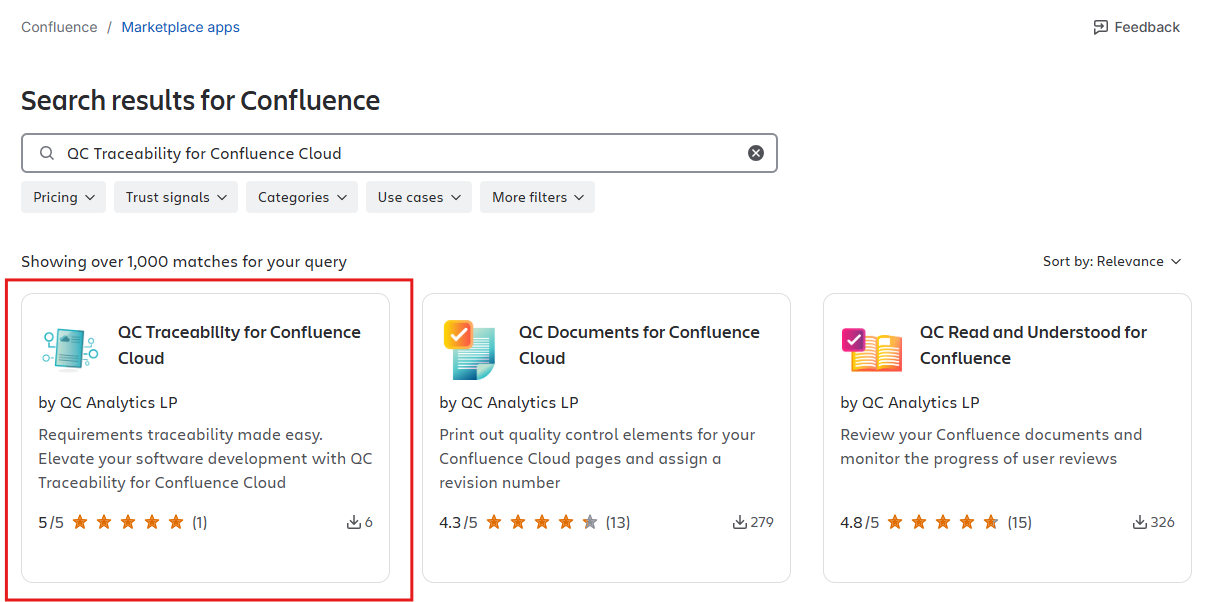
Log in to the Atlassian Marketplace with your account and search for the QC Traceability app.
-
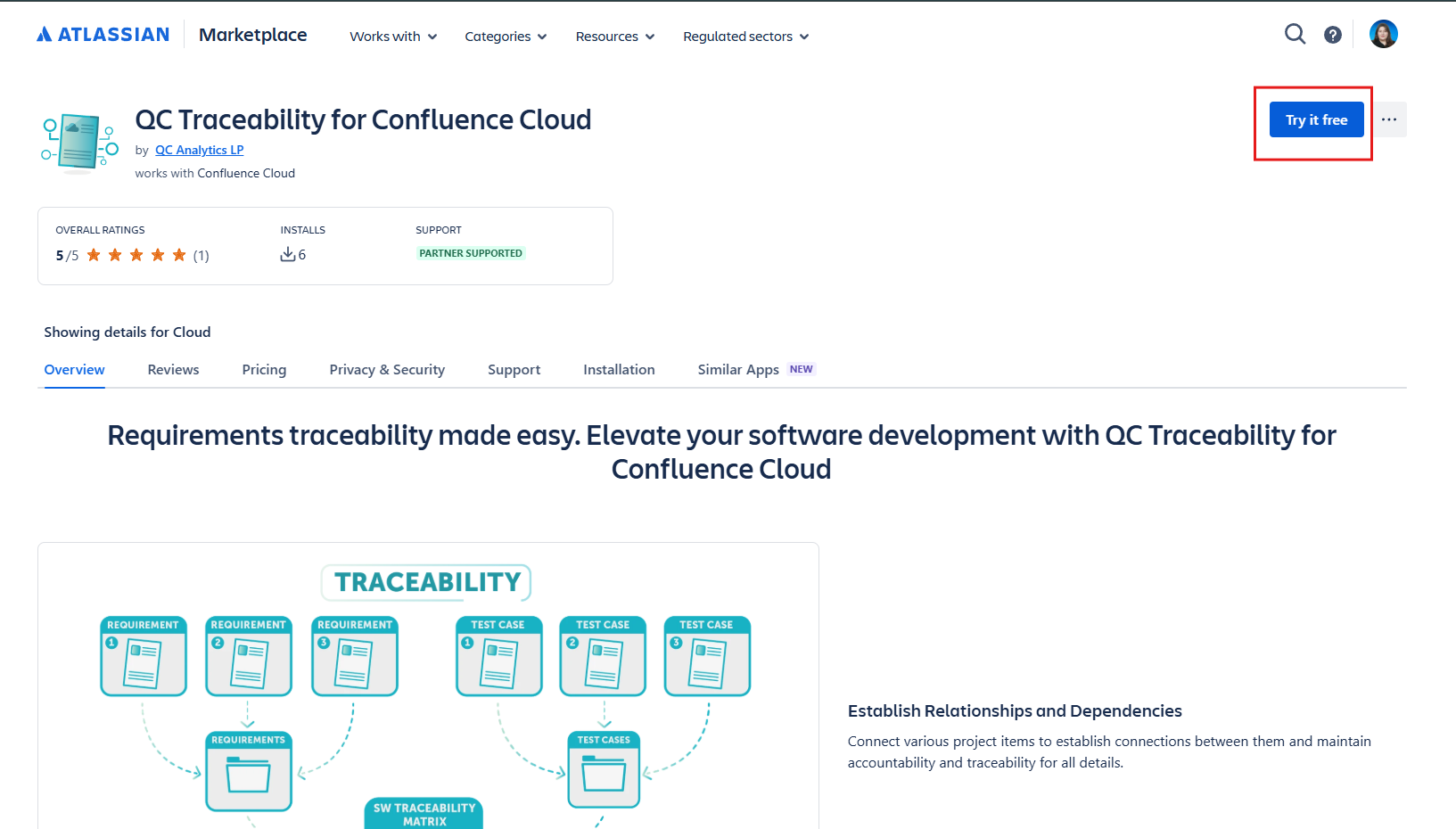
Open the QC Traceability listing and click Try it free.
-
Select your Confluence site, and click Review.
-
Once the app is installed, you will be notified by Atlassian.
From Confluence
-
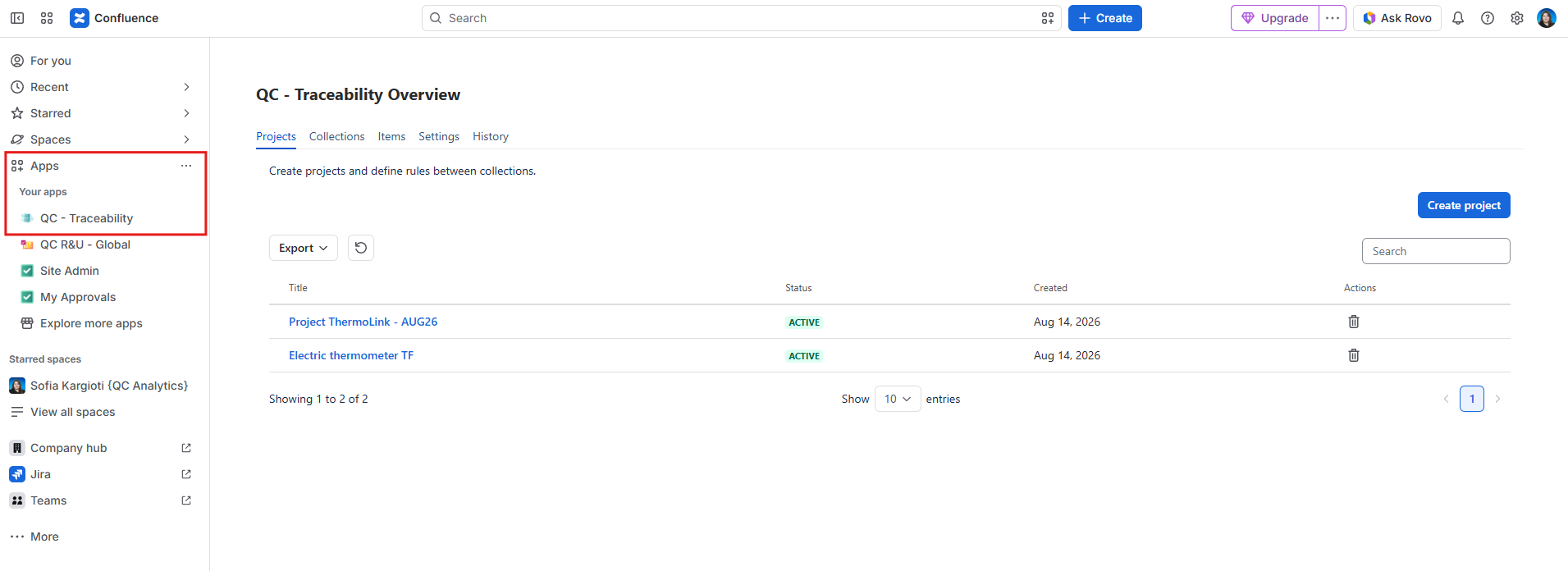
Open Apps in the Confluence sidebar.
-
Select Explore more apps.
-
Search for QC Traceability.
-
Click Try it free to install.
After installation, open the app from Apps → QC - Traceability. This will land you in the QC Traceability Overview.
Connect Jira (optional)
An Atlassian admin does this once per site. Everyone else can still paste Jira URLs as link items.
Connect Jira when you want to search Jira work items while adding links (Page Overview → Jira / web link).
-
In Confluence, open Apps → Manage apps.
-
If Confluence shows the move notice, click Take me there to open Connected apps in Atlassian Administration.
-
Search for QC Traceability for Confluence Cloud and click View app details.
-
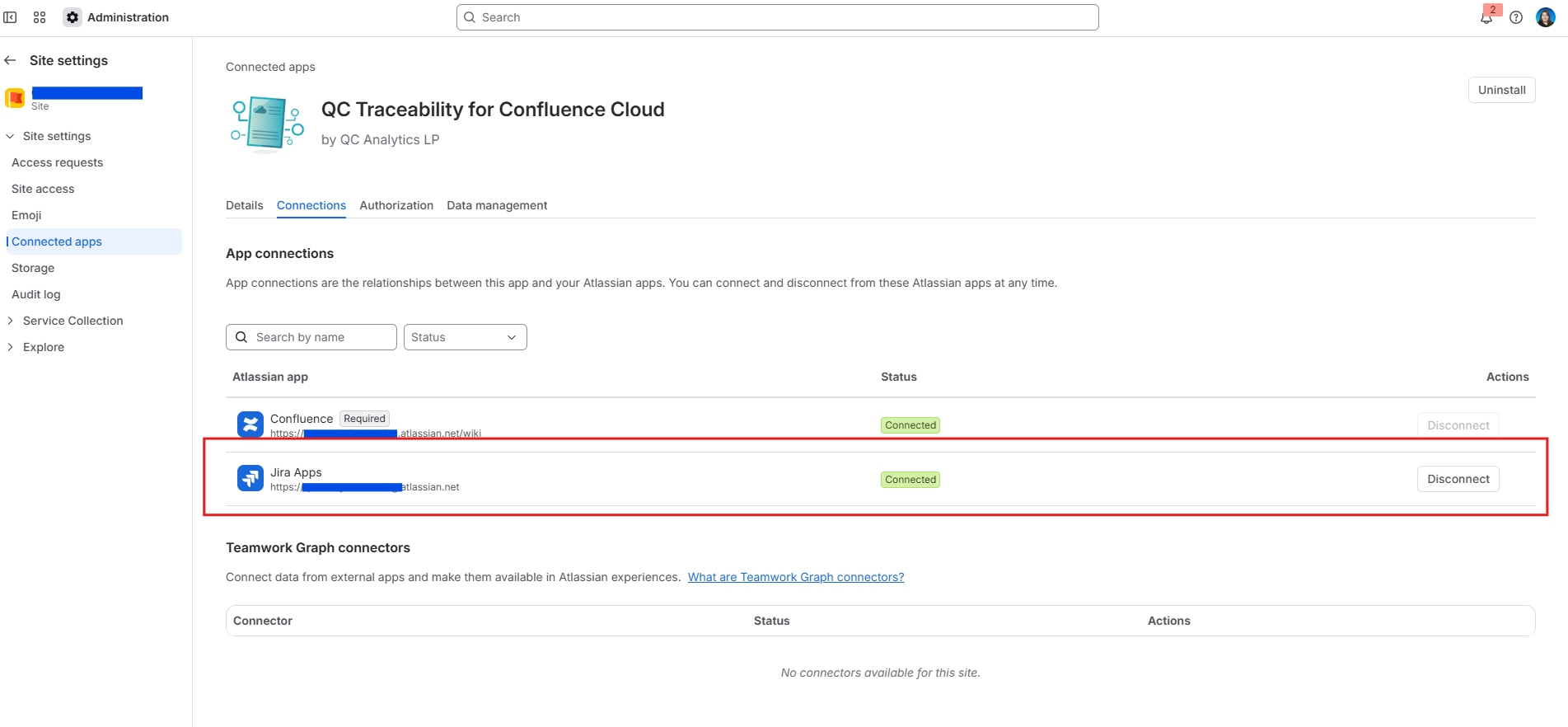
Open the Connections tab.
-
Confirm Jira Apps is Connected
Until Jira is connected, searching work items in Page Overview returns no results. Jira URLs you already pasted as link items still work.
Usage
Do this in order: Items / Collections → Project and rules → Page Overview links → Reports.
The app is often used for lifecycle traceability. A typical chain is requirements → design → tests.
You can use the same steps for other chains, including work that follows ISO 62304 or GAMP 5.
The same model works for any upstream/downstream chain you define.
Step 1 — Set up your projects
1.1 Create link items (Jira and other URLs)
Confluence pages do not need to be created by hand. When you add a page to a collection (or link it from Page Overview), QC Traceability creates the page item automatically.
For Jira work items and other URLs:
-
Open Apps → QC - Traceability → Items.
-
Click Create link item.
-
Enter a title and the URL (for Jira, use the browse URL, for example
<https://mysite.atlassian.net/browse/DB-1530).> -
Optionally set severity and status (Active by default).
-
Click Add.
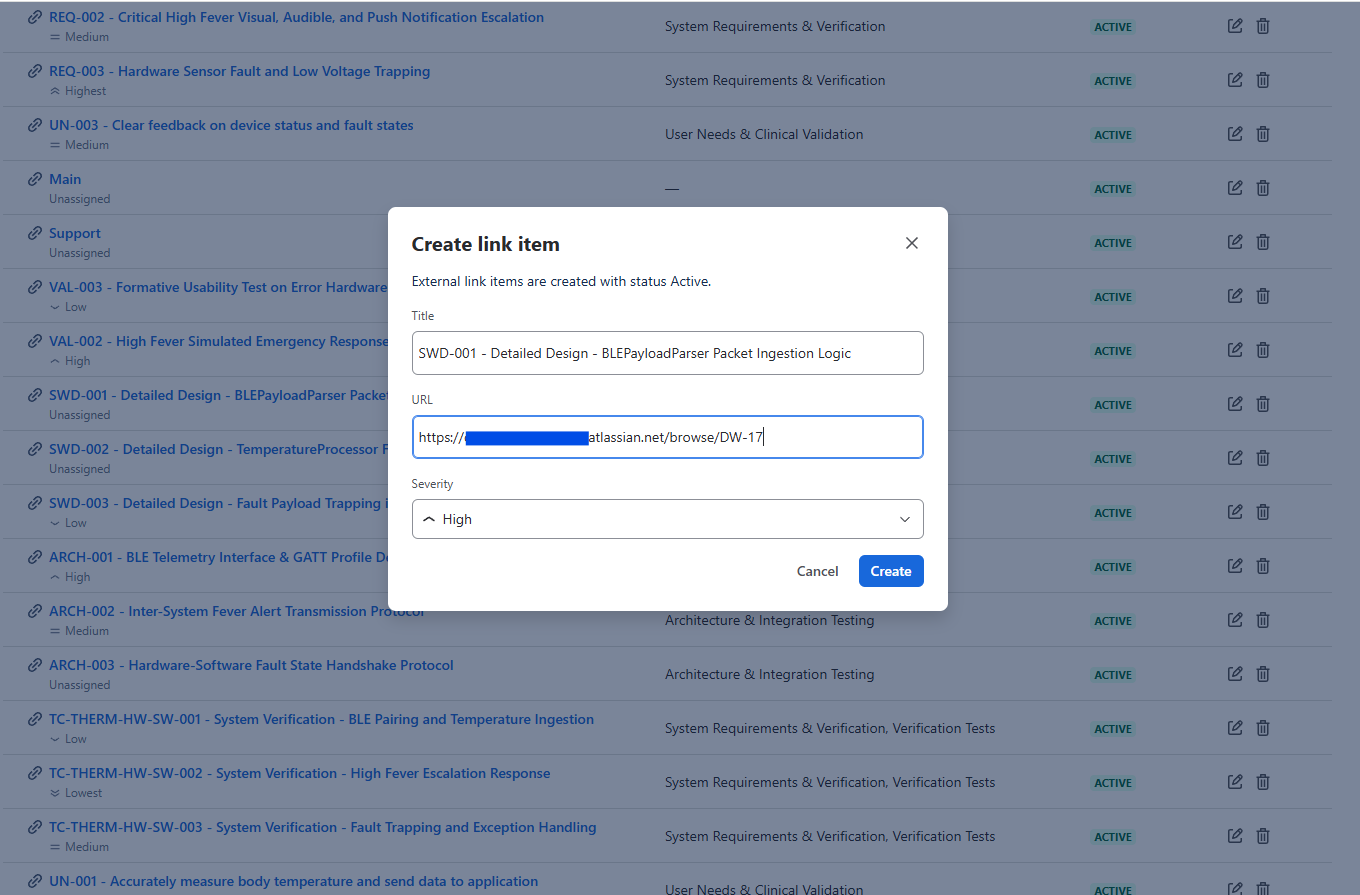
You can also create a Jira link later from Page Overview by searching work items (requires Connect Jira).
1.2 Add items to collections
-
Open Collections and click Create, or open an existing collection.
-
Enter a unique title. An abbreviation is suggested from the title (for example Test Cases →
TC); you can edit it. Add a short description if useful. -
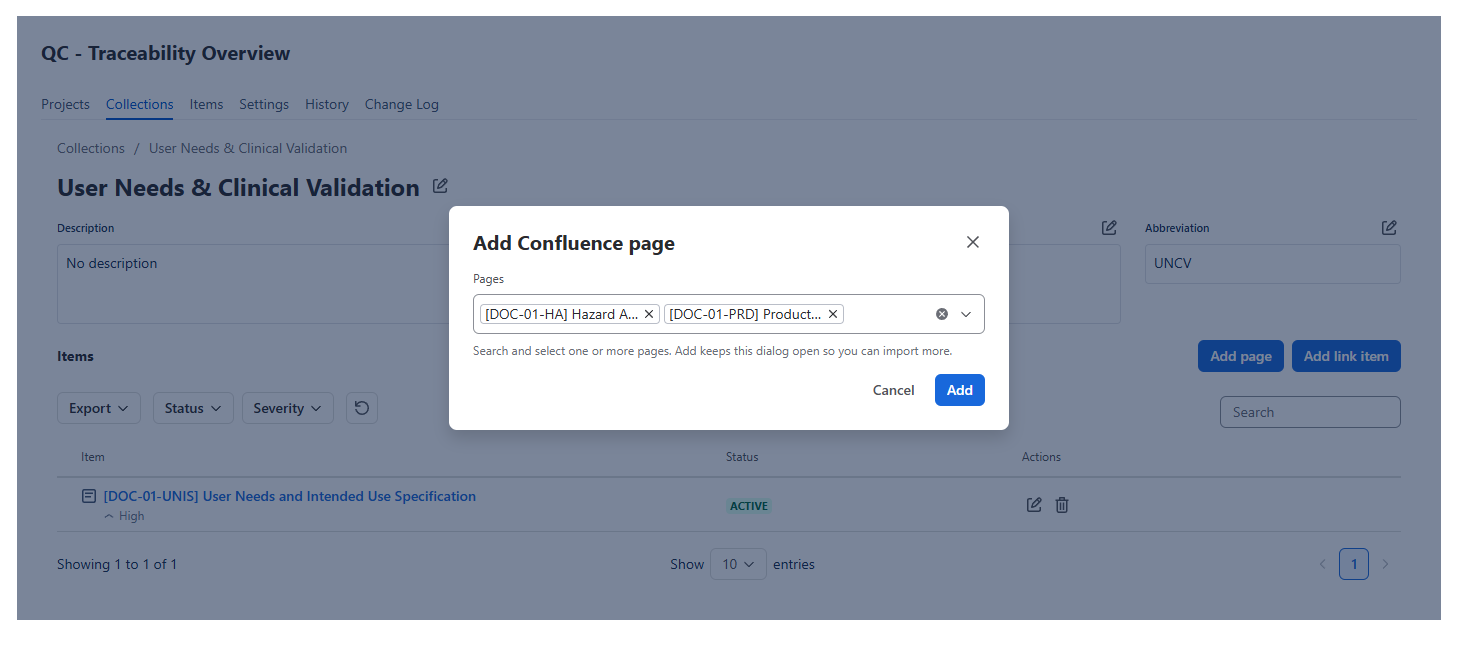
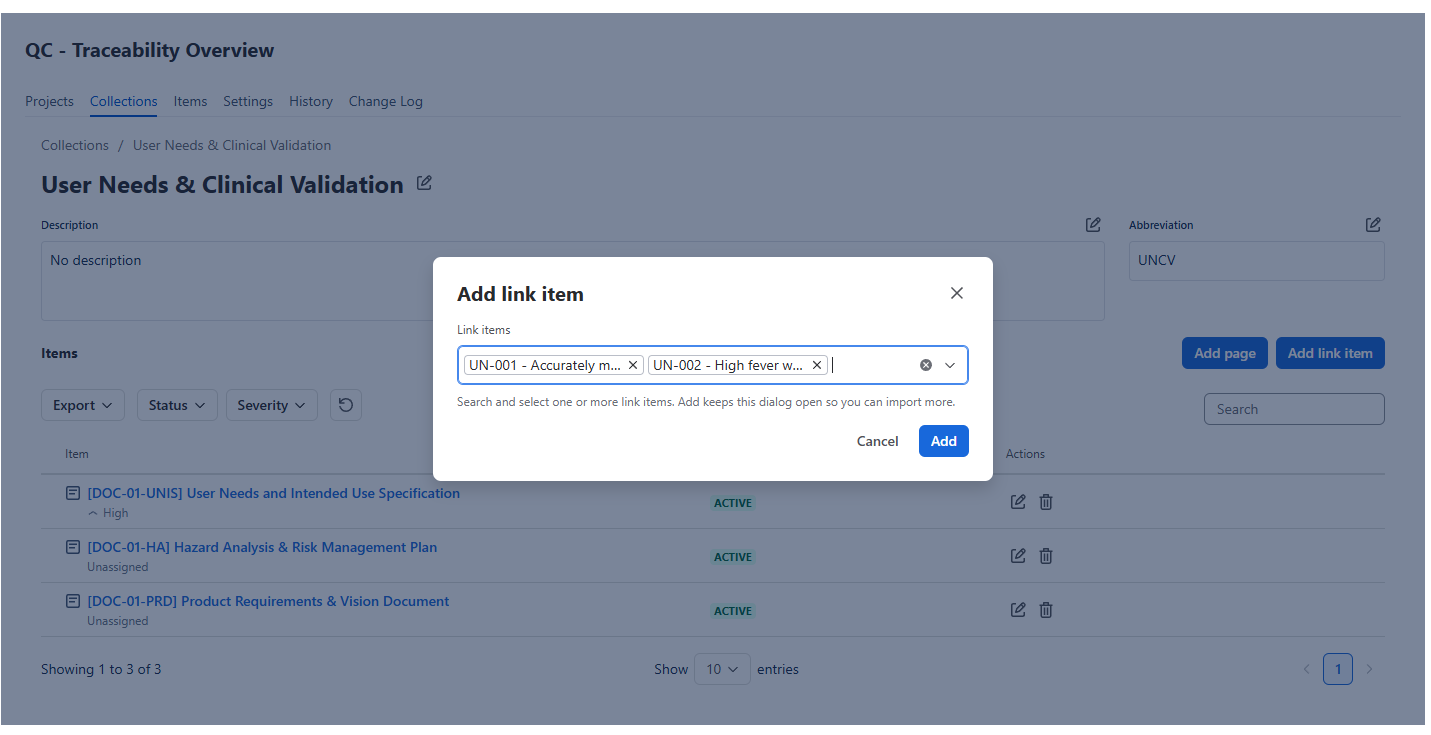
On the collection, use Add page to import Confluence pages, or Add link item to import Jira/web links you already created.
-
Select one or more items, click Add. The dialog stays open so you can import more.
Removing an item from a collection does not delete it from Items.
1.3 Create a project and define rules
-
Open Projects and click Create.
-
Enter a unique title and optional description. Status defaults to Active.
-
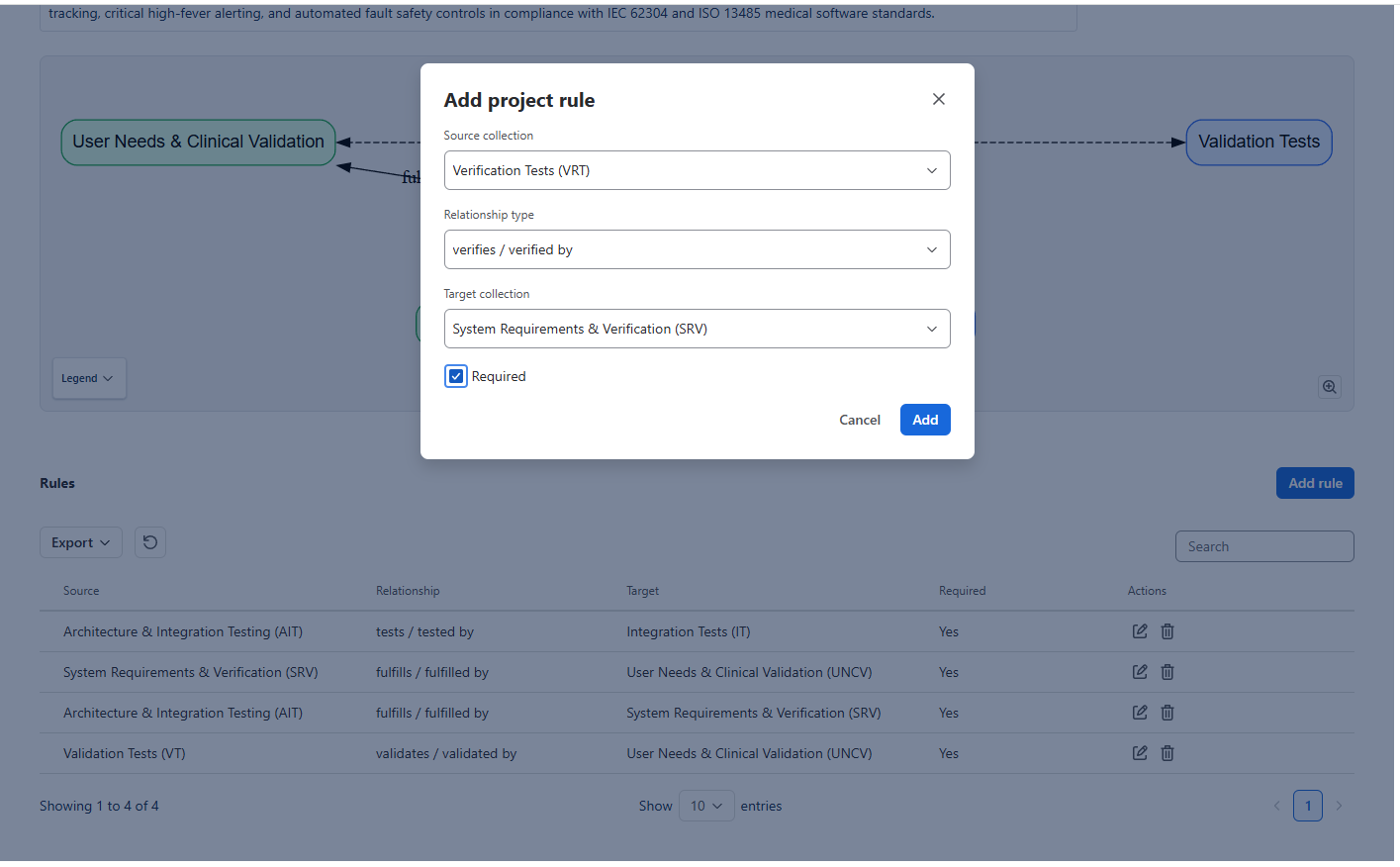
Open the project. On Details, click Create under Rules.
-
Choose source collection, relationship (for example
satisfies / satisfied by), target collection, and whether the rule is Required. -
Click Add.
Required rules later show a warning on Page Overview until the page has a matching link.
Step 2 — Configure Page Overview
Page Overview is where you record upstream and downstream links for a Confluence page.
2.1 Open Page Overview
-
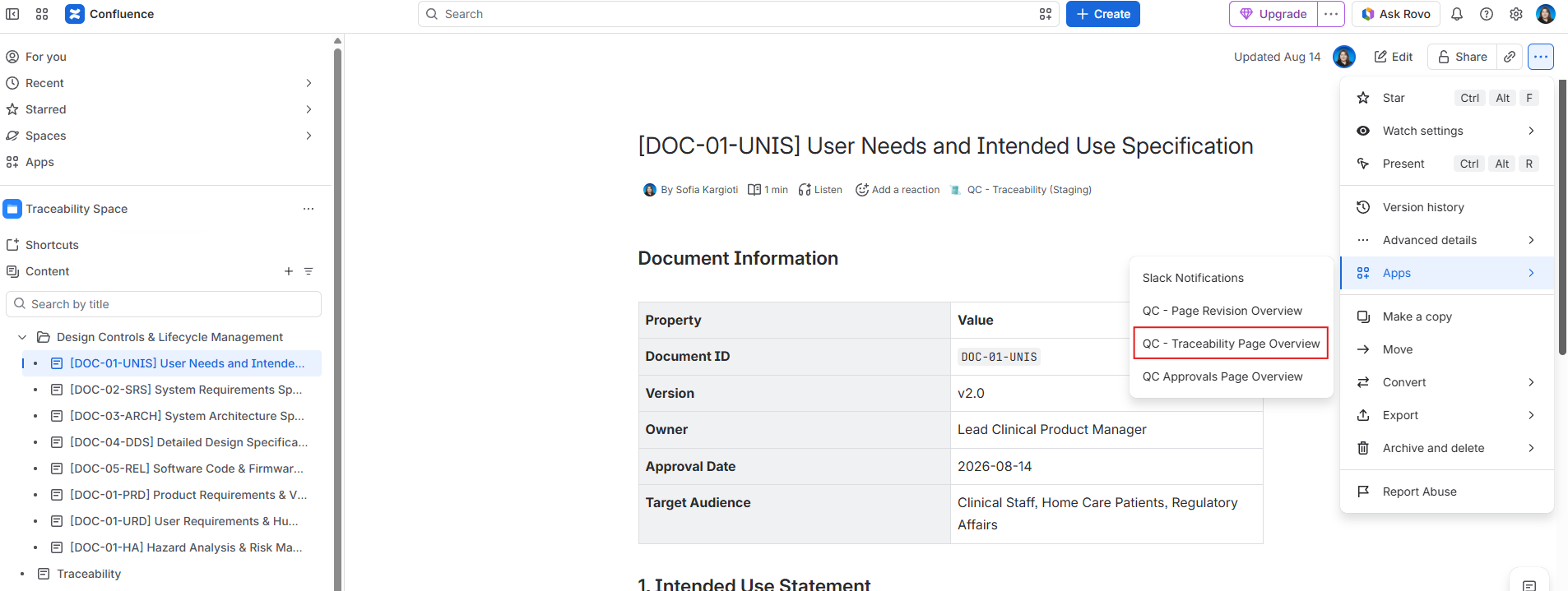
Open the Confluence page.
-
Click ••• (more actions) in the upper right corner.
-
Select QC - Traceability Page Overview.
2.2 Add upstream and downstream items
-
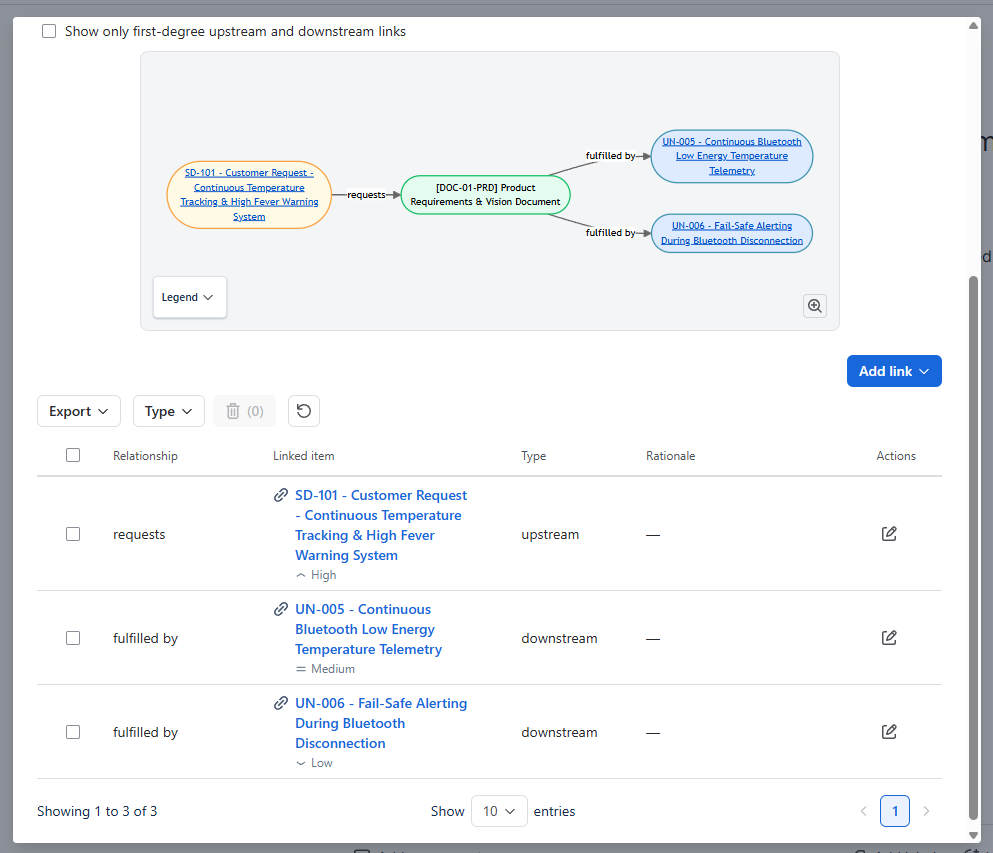
Click Add Upstream to link something this page comes from (shown orange on the diagram).
-
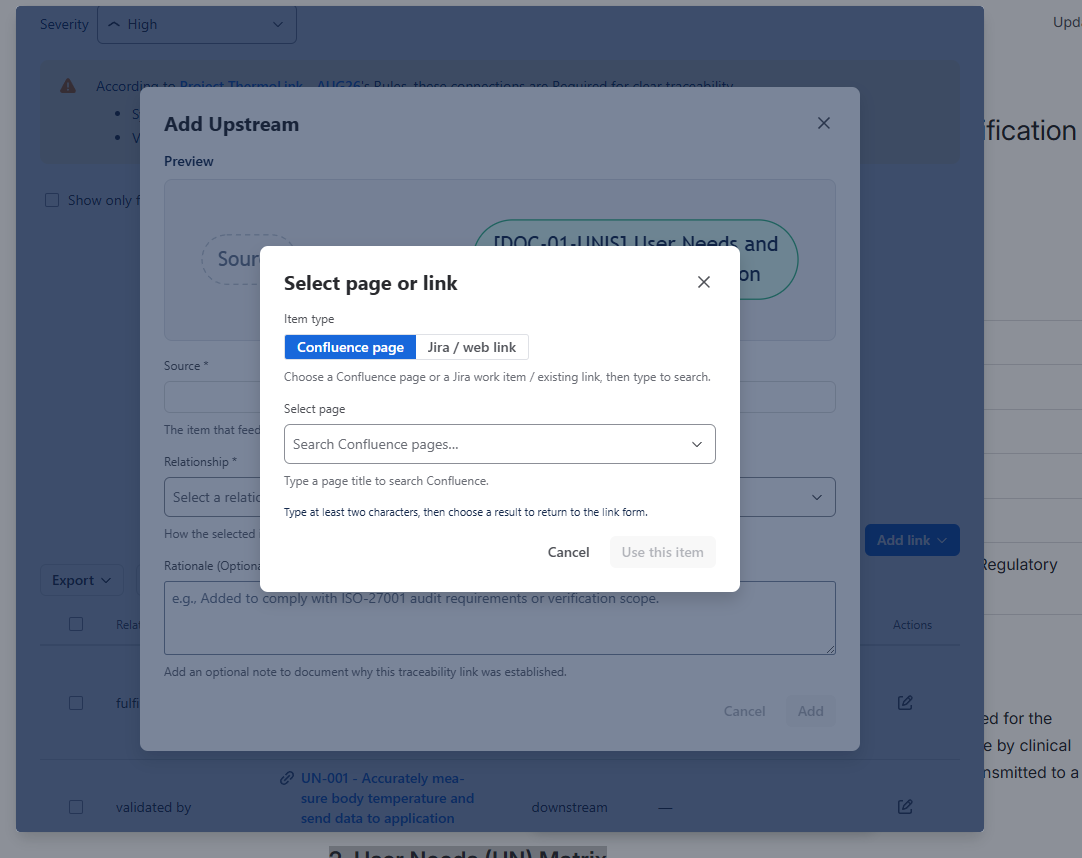
Choose a relationship, then Search page or Jira work item….
-
In the nested picker, choose Confluence page or Jira / web link, search, and confirm.
-
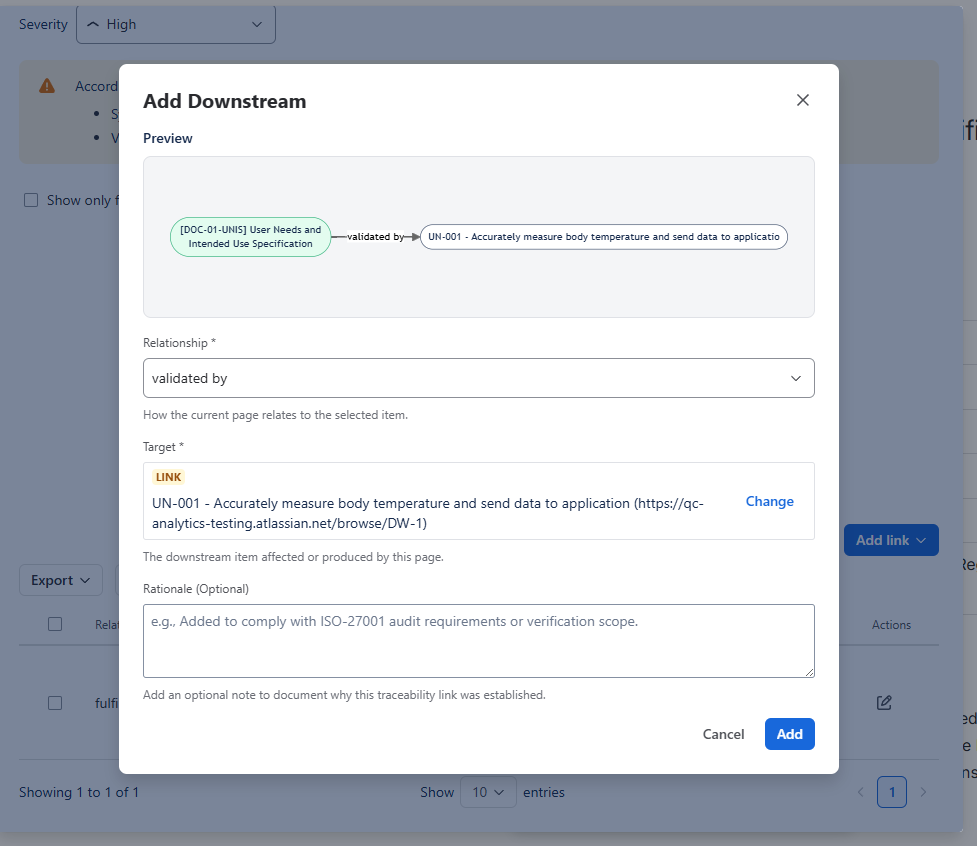
Optionally add a rationale. Use the live Preview to check source → relationship → target.
-
Click Add.
-
Repeat with Add Downstream for what this page leads to (shown blue on the diagram). The current page is green.
You can also add this page to collections from Page Overview Details.
Step 3 — Generate reports
3.1 Project report
-
Open Apps → QC - Traceability → Projects and open the project.
-
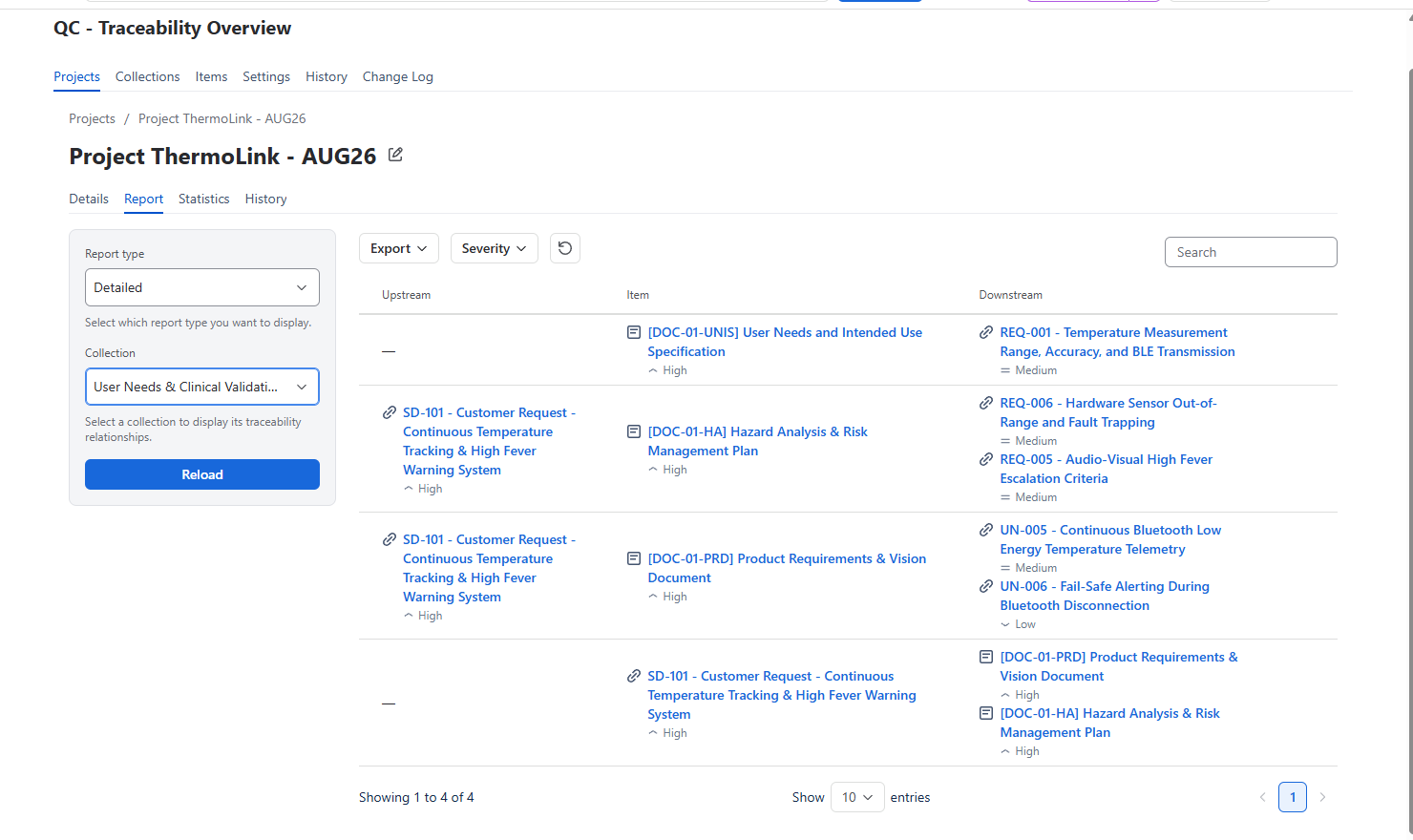
Open the Report tab.
-
Set Report type to Detailed and pick a collection. You should see each item with its upstream and downstream links.
-
Use Export on the table toolbar for CSV, Excel, PDF, or Word.
Two-Collection, Traceability Matrix, and Statistics are on the same project. See the user guide when you need those.
3.2 Page Overview report
-
Open the Confluence page.
-
Open QC - Traceability Page Overview.
-
Use the diagram and the links table. Export the table from the toolbar (CSV, Excel, PDF, Word).
What you can do next
On a Confluence page, you can also open the QC - Traceability byline under the page title for a quick diagram, or insert the QC Traceability Macro to embed a table. For full-screen examples, please see here: https://support.qc-analytics.com/qc-traceability-for-confluence-cloud/documentation-for-qc-traceability#QC-Traceability-macro
Tips
-
Use a small, consistent set of relationship types so reports stay easy to read.
-
Keep items, collections, and projects up to date as the work changes.
-
Use reports to see the overall picture and to spot gaps in the chain.