
QC Traceability tracks and manages relationships between Confluence pages, Jira work items, and other URLs on your Confluence Cloud site.
This is the full feature guide. For install and the first steps after that, see https://support.qc-analytics.com/qc-traceability-for-confluence-cloud/getting-started-with-qc-traceability.
How Confluence and Jira work together
The app runs in Confluence. Jira is an optional source of work items.
|
Confluence (required) |
Jira (optional) |
|---|---|
|
Install QC Traceability |
Connect in Atlassian Admin |
|
Site Overview, Page Overview, byline, macro |
Work items appear in Traceability as “link items” (browse URL + summary) |
On Confluence you:
-
Organize items into collections and projects.
-
Draw rules between collections (relationship types).
-
Add page links (upstream / downstream) on a Confluence page.
-
View diagrams, reports, statistics, history, and exports.
On Jira you:
-
Do not look for a QC Traceability project tab or Jira issue panel from this app.
-
Create and update work items as usual in Jira.
-
After connecting Jira, search those work items from Page Overview when adding a link.
-
You can always paste a Jira browse URL under Items → Create link item even if Jira is not connected.
If Jira search returns nothing, the usual cause is that Connections → Jira Apps is not Connected for this app.
Concepts
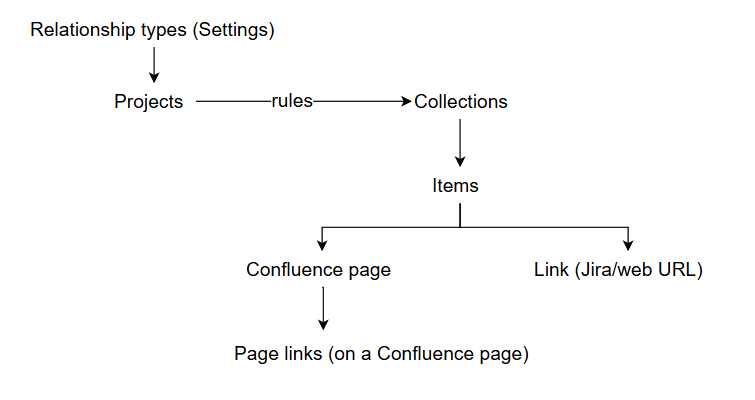
|
Term |
Meaning |
|---|---|
|
Item |
A traceable thing: a page or a link (Jira issue or other URL). |
|
Collection |
Named group of items (title + abbreviation). |
|
Project |
Named set of rules plus reports, statistics, diagram, and history. |
|
Rule |
Source collection + relationship type + target collection. May be Required. |
|
Relationship type |
Pair of labels: upstream / downstream (for example implements / implemented by). |
|
Severity |
Optional site-wide level on an item (for example Highest → Lowest). |
|
Page link |
A recorded link from the current Confluence page to another item, with optional rationale. |
|
Upstream |
Where this page comes from (diagram: orange). |
|
Downstream |
What this page leads to (diagram: blue). The current page is green. |
Entry points in Confluence
|
Where |
What you see |
|---|---|
|
Apps → QC - Traceability |
QC - Traceability Overview:
|
|
Page → ••• (More actions) → QC - Traceability Page Overview |
Overview and history for that page. |
|
Byline → QC - Traceability |
Page traceability diagram (read-only). |
|
Insert → QC Traceability Macro |
Page or project table on the Confluence page, optional diagram. |
You only see pages you are allowed to view in Confluence. External/Jira titles are stored on the item.
Settings
Open Apps → QC - Traceability → Settings.
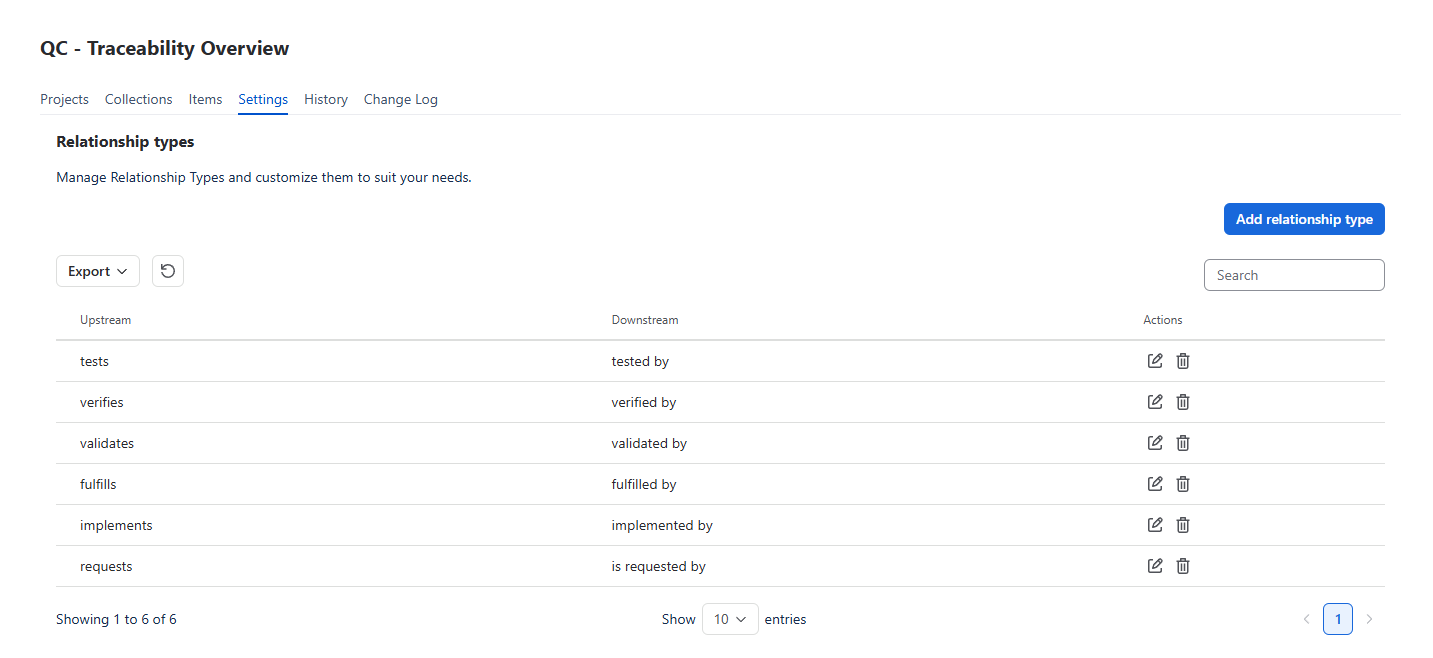
Relationship types
Relationship types are the vocabulary of your traceability structure. Each type has an upstream name and a downstream name.
Default types typically include:
|
Upstream |
Downstream |
|---|---|
|
tests |
tested by |
|
verifies |
verified by |
|
validates |
validated by |
|
fulfills |
fulfilled by |
|
implements |
implemented by |
Create relationship types
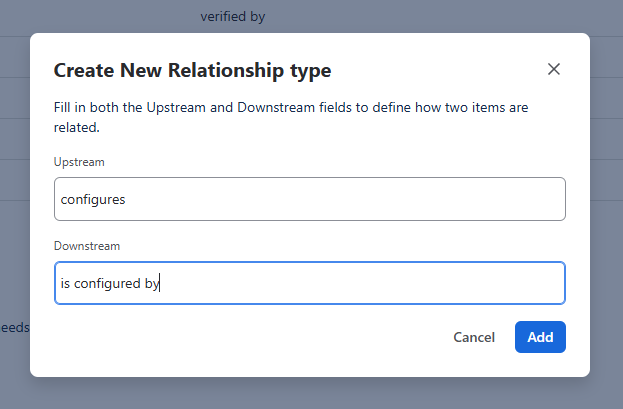
-
Click Create.
-
Enter upstream and downstream labels.
-
Click Add.
Edit relationship types
To edit relationship types, use the edit action on the row, change labels, and click Save.
Delete relationship types
To delete relationship types, use the delete action on the row.
A type that is already used in a project cannot be deleted.
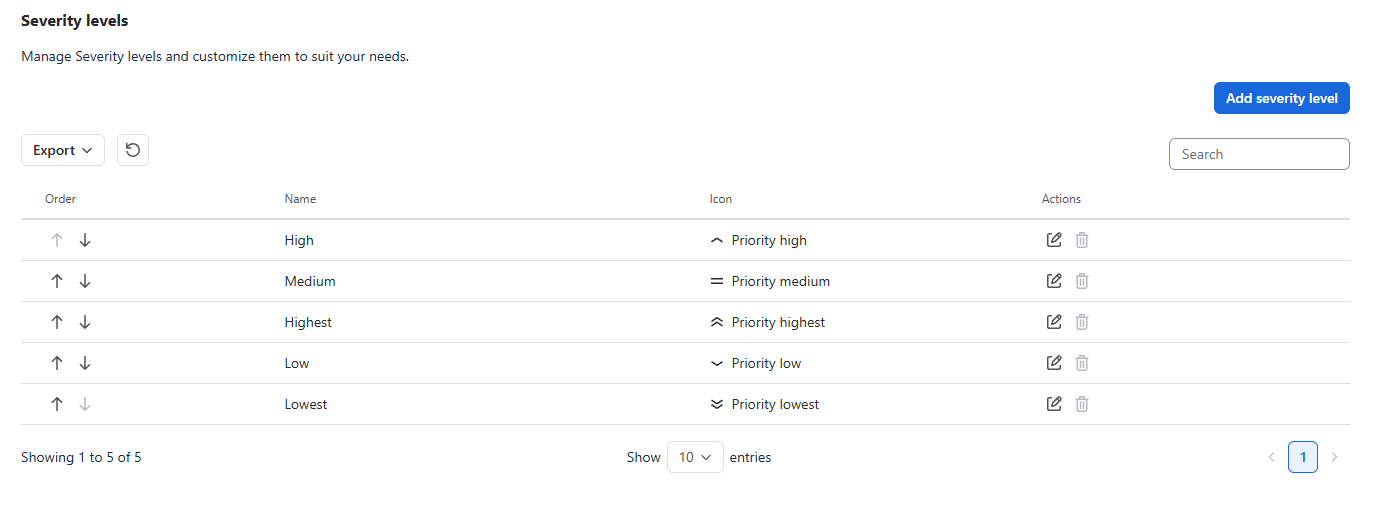
Severity levels
Severity is a site catalogue assigned on items (optional; Unassigned is allowed). Levels are seeded on first use. Each level has a name, an Atlassian priority icon, and an order (highest to lowest).
-
Create, edit, or delete levels from the table.
-
Reorder with Move up / Move down.
-
A level that is in use on items cannot be deleted.
Items
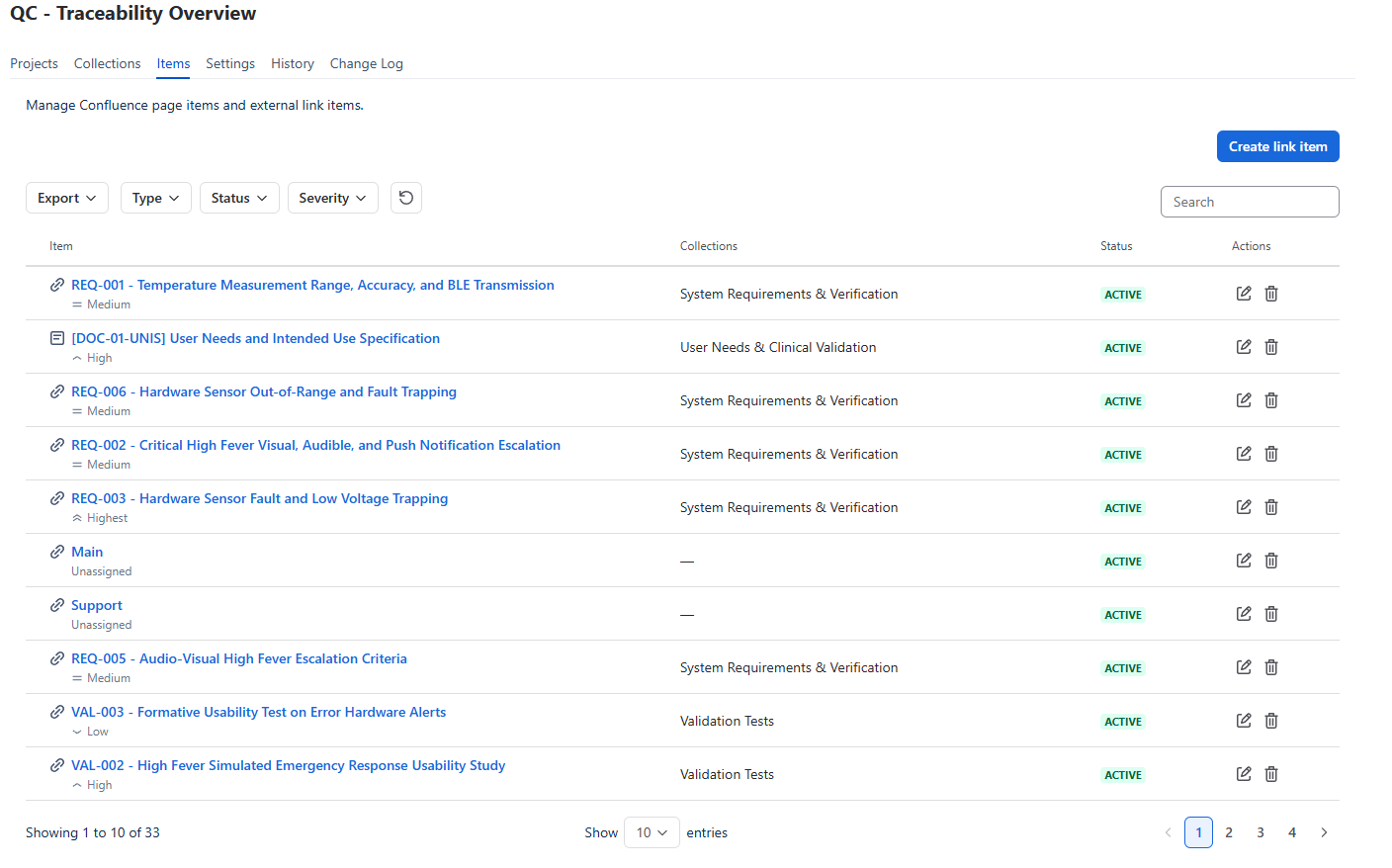
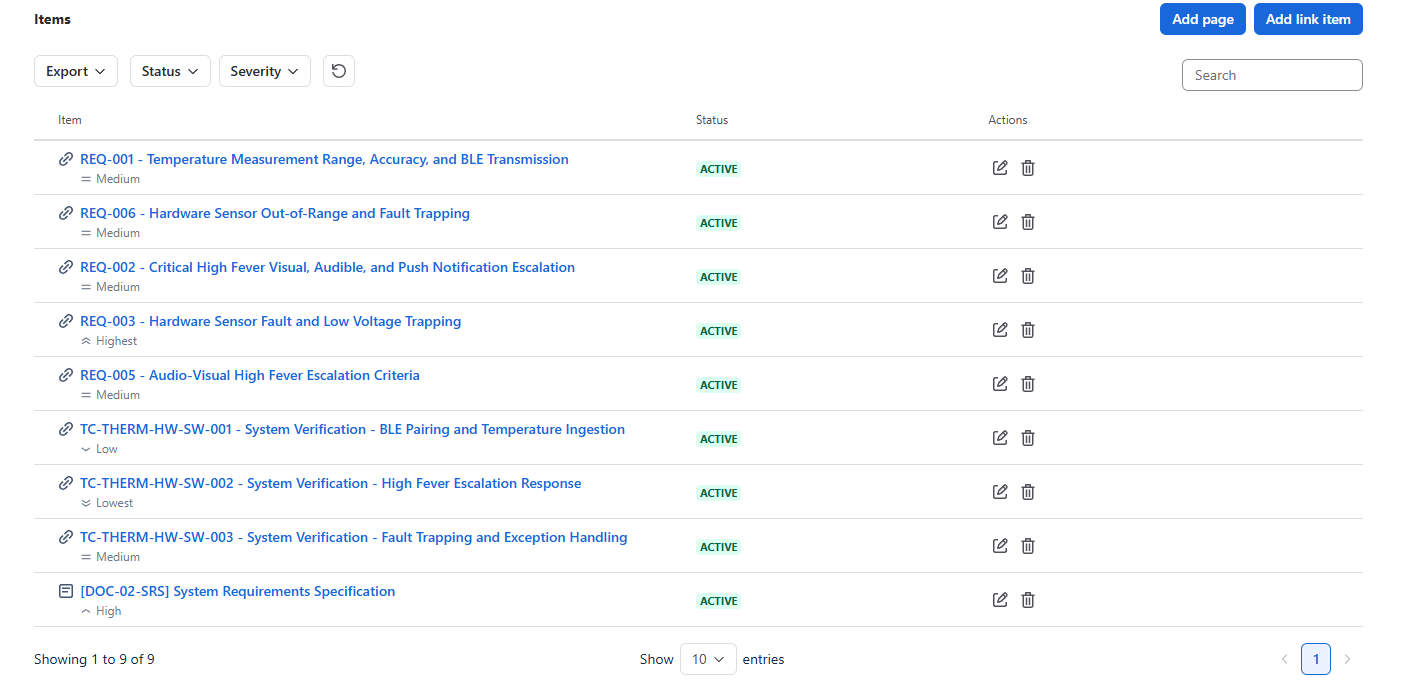
Open Items. This is the site-wide list of page items and link items.
Columns: Item (icon, title, grey severity icon + name under the title, or Unassigned), Collections, Status, Actions.
Toolbar filters: Type (Page / Link), Status, Severity (multi-select; empty = all). Search and Export (CSV, Excel, PDF, Word).
Create a link item (including Jira)
You create link items here. You do not need to create Confluence page items by hand: adding a page to a collection or linking it from Page Overview adds it to Items automatically.
-
Click Create link item.
-
Paste the URL (Jira:
<https://yoursite.atlassian.net/browse/KEY-123)> and a unique title. -
Optionally set severity and status.
-
Click Add.
Edit an item
Link item: title, URL, severity, and status (while Active).
Page item: page title is read-only (Confluence is the source). Severity and status are editable while Active.
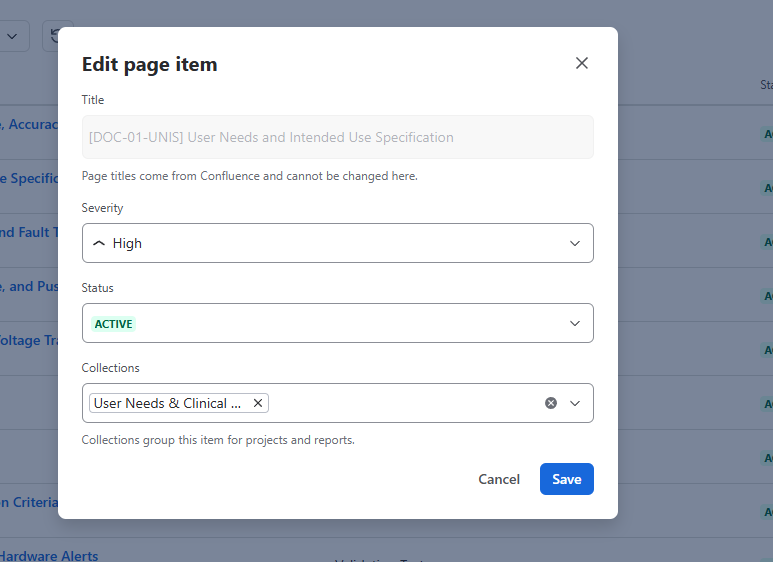
Archived items cannot be edited, added to collections, or chosen as a new Page Overview link. Delete and remove-from-collection remain available. There is no un-archive control on the current edit dialog.
Delete an item
Use Delete on the row. If the item belongs to collections, you confirm that it will be removed from those collections (and from reports, Page Overview, and add-link pickers), then deleted.
Collections
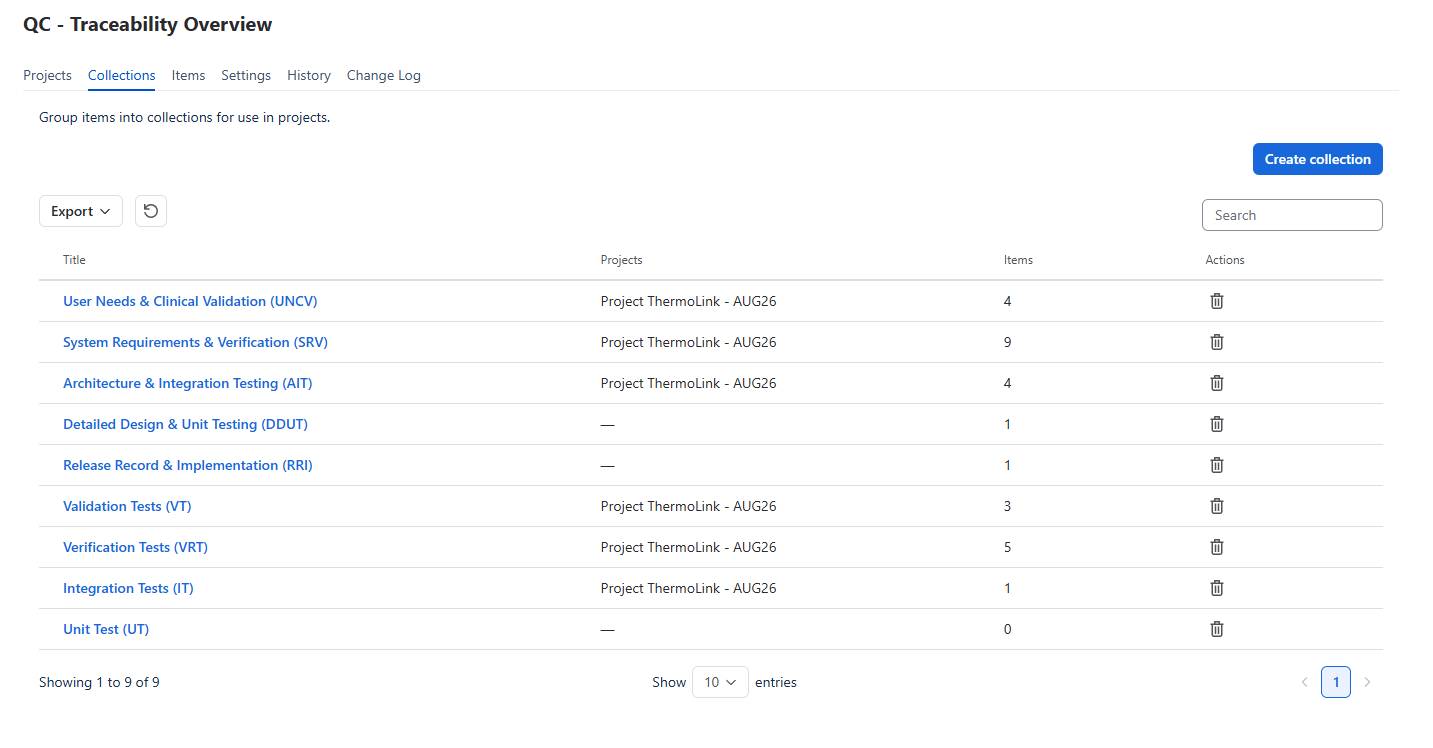
Open Collections. Organize items so projects and reports can group them.
List columns: Title, Projects, Items (count), Actions.
Create a collection
-
Click Create.
-
Enter a unique title. An abbreviation is suggested from word initials until you edit it.
-
Add a short description if useful.
Collection details
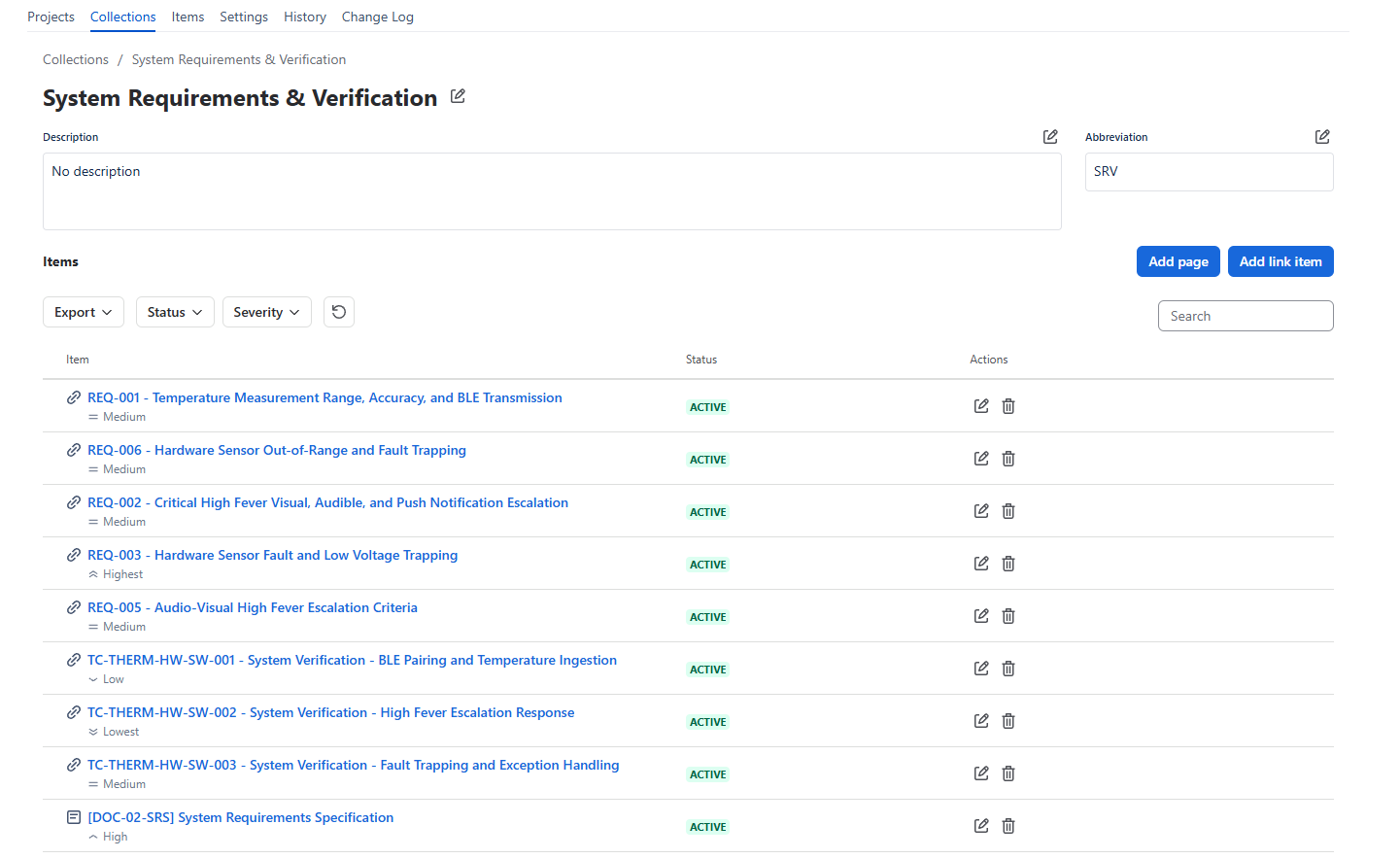
Breadcrumb: Collections / {title}.
Heading with Edit title.
Description (edit dialog) on the left, abbreviation on the right. Edit title and Edit abbreviation open the same dialog.
Add items
-
Add page — search Confluence pages (multi-select). Add imports and keeps the dialog open. Pages already in the collection are omitted. Archived pages are omitted.
-
Add link item — search existing link items (Jira/web URLs already in Items). Same multi-select / keep-open behaviour.
Imported Confluence pages appear in Items automatically.
Collection item table
Item title with grey severity icon + name underneath.
Change severity in Actions (disabled when archived).
Toolbar Severity filter.
“Delete” button on a row removes the item from this collection only; the item stays in Items.
Delete a collection
If the collection is used by projects, you confirm it will be removed from those projects (source and target rules). Items themselves are not deleted.
Projects
Open Projects. List columns: Title, Status, Created, Actions.
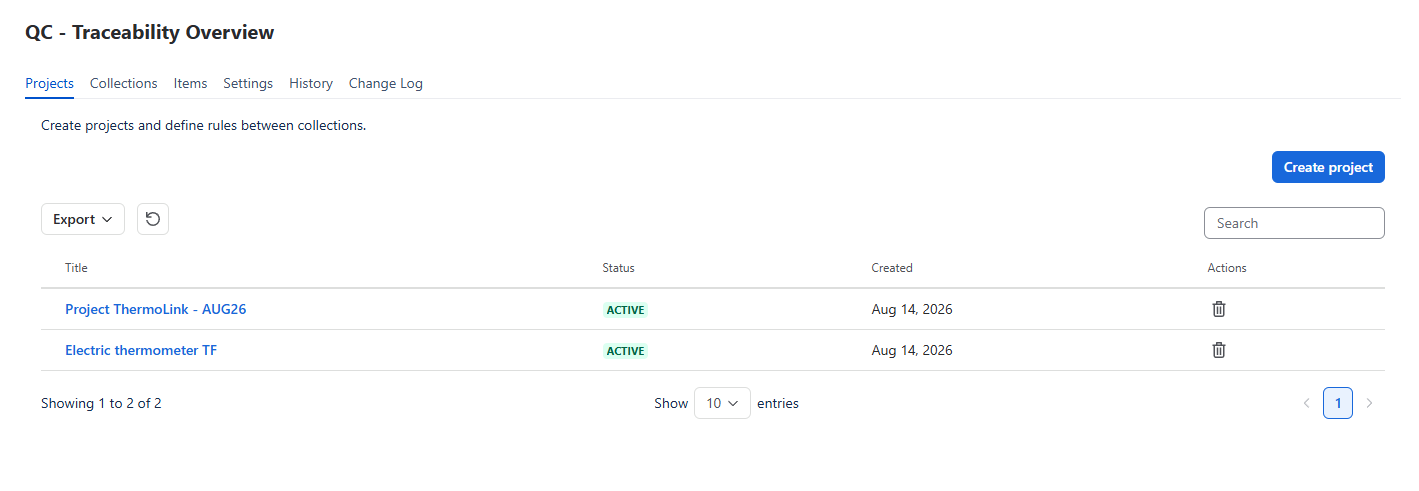
Create a project
-
Click Create.
-
Add a unique title and optional description.
-
Open the project to add rules (required for a meaningful diagram and reports).
-
Status: Active or Archived. Changing status saves immediately. Archived projects are ignored for Page Overview required-rule warnings.
Project details
Breadcrumb: Projects / {title}. Heading with Edit title. Tabs: Details, Report, Statistics, History.
Details
Description, Status, V-diagram, Rules
Description is a read view with Edit description. Status is on the right and saves when it changes.
The project V-diagram sits above the rules table.
-
Until at least one collection has Level and Side, the diagram is a left-to-right fallback. Use Place collections on the V.
-
After placement: Legend and V-model placement. “N not placed” appears if some collections have no cell.
-
Click a collection node to open Report → Detailed for that collection.
-
Empty state: add rules to see the diagram.
V-model placement (separate from report column order):
|
Side |
Meaning |
|---|---|
|
Left |
Design |
|
Right |
Verification |
|
Bottom |
Implementation |
Level is an integer >= 1. Several collections may share the same cell. Save happens when both level and side are set.
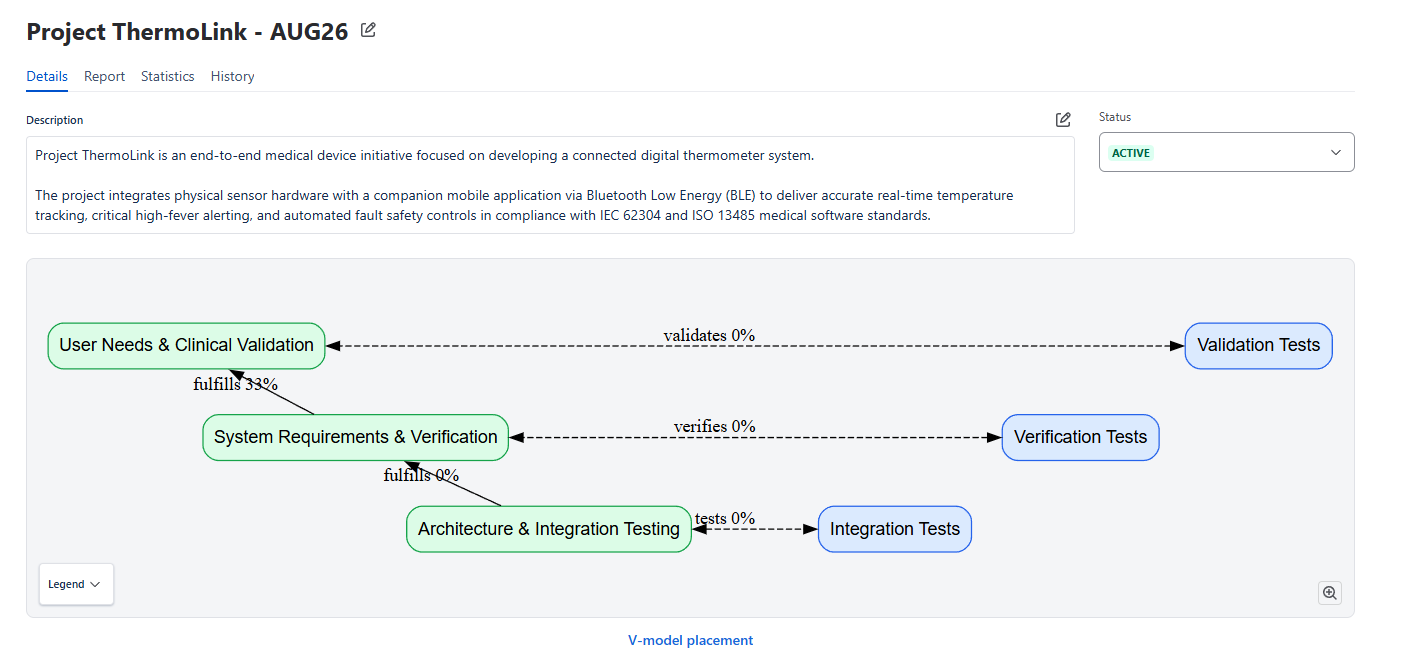
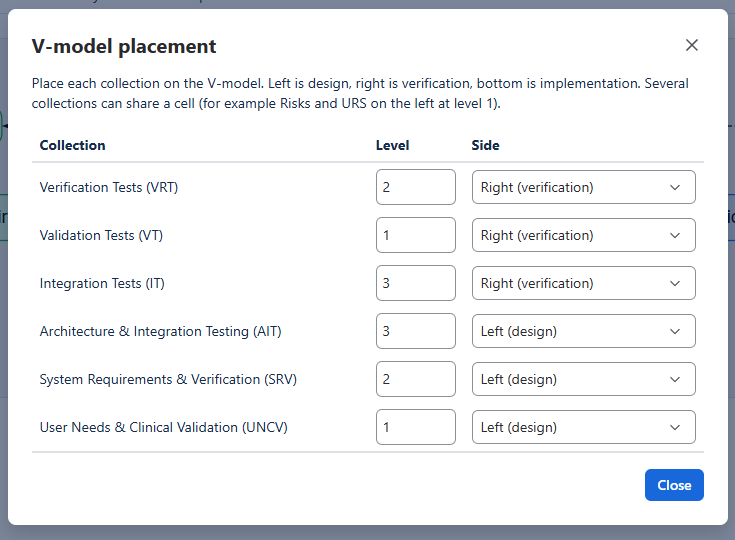
Legend explanation (V-diagram)
|
Colour/line |
Meaning |
|---|---|
|
Green |
Left (design) |
|
Blue |
Right (verification) |
|
Amber |
Implementation |
|
Grey |
Not placed |
|
Solid line |
Vertical/other rule |
|
Dashed line |
Same-level opposite sides (verifies) |
|
Dotted line |
Same-level same side (peers) |
Rules
Columns: Source, Relationship (both labels, for example fulfills / fulfilled by), Target, Required, Actions.
Create or edit with the same form: source collection, relationship, target collection, required. Delete removes the rule.
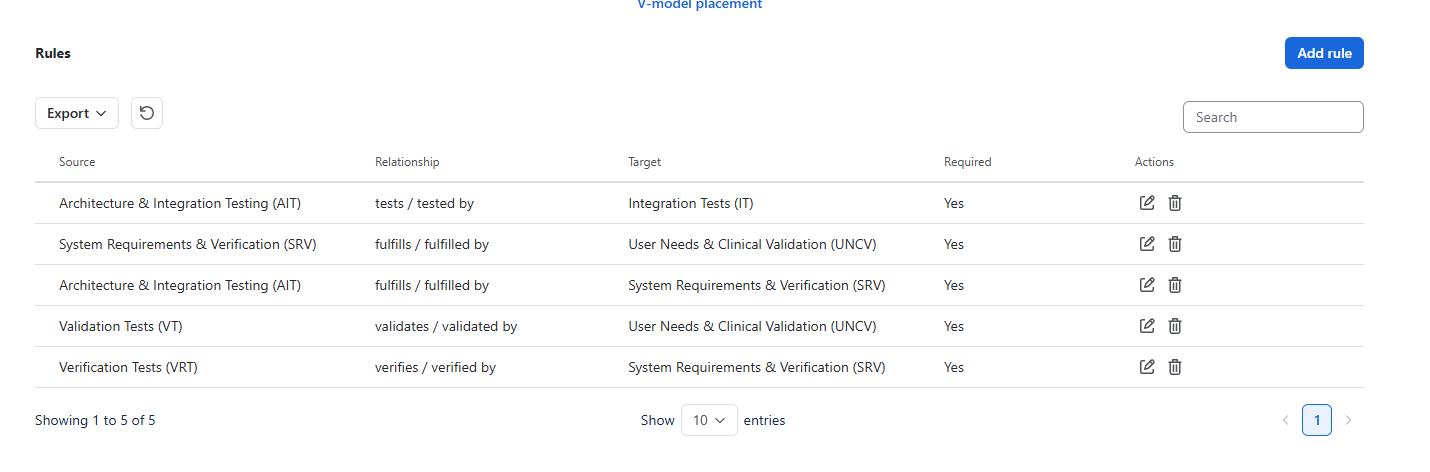
If a rule is Required, Page Overview warns on items in that collection that still lack the matching connection.
Report
Sidebar: report type, then the extra controls for that type. Tables support search, show entries, pagination, severity filter (Detailed and Traceability Matrix), and Export.
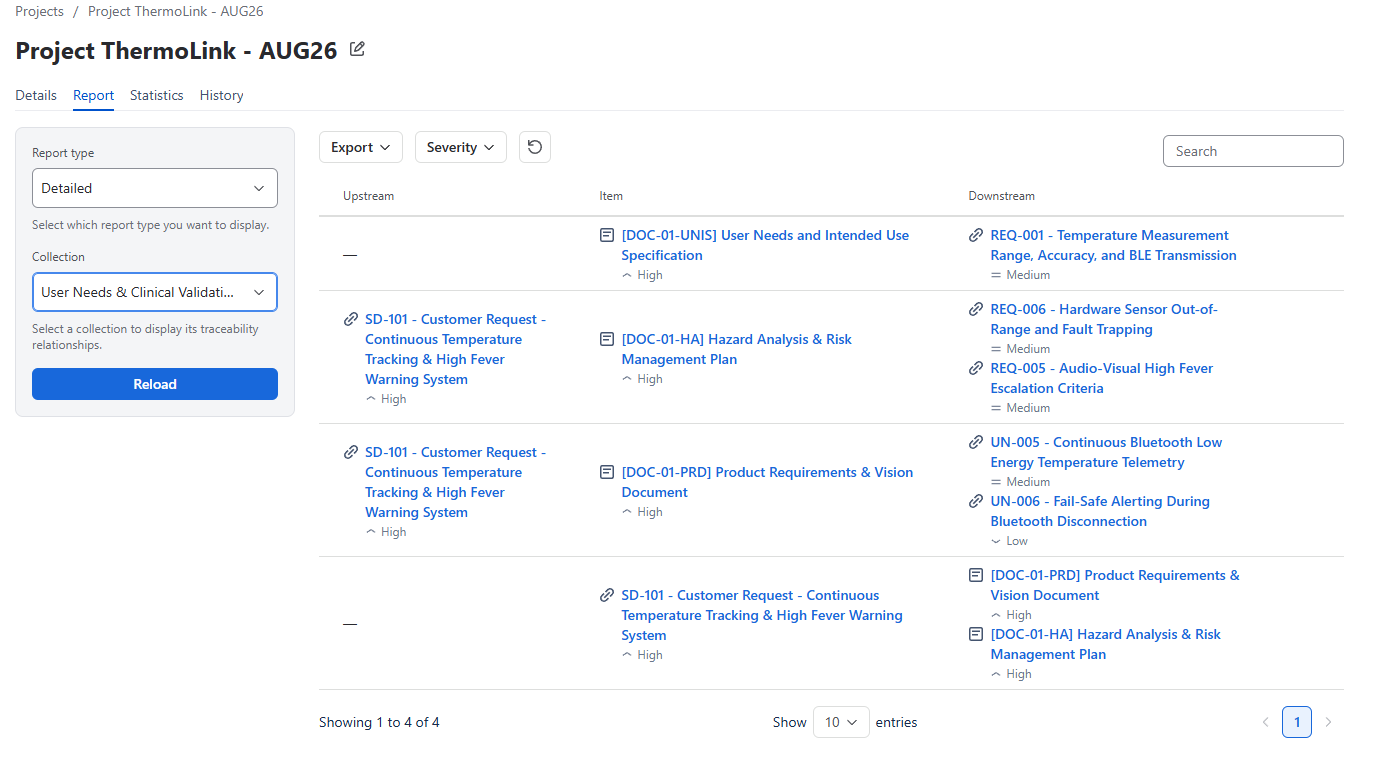
Detailed report
-
Choose one collection.
-
Columns: Upstream · Item · Severity · Downstream.
-
Item titles are links (Confluence page or URL) with grey severity icon + name under the title.
-
Empty cells mean no link on that side.
Two-Collection
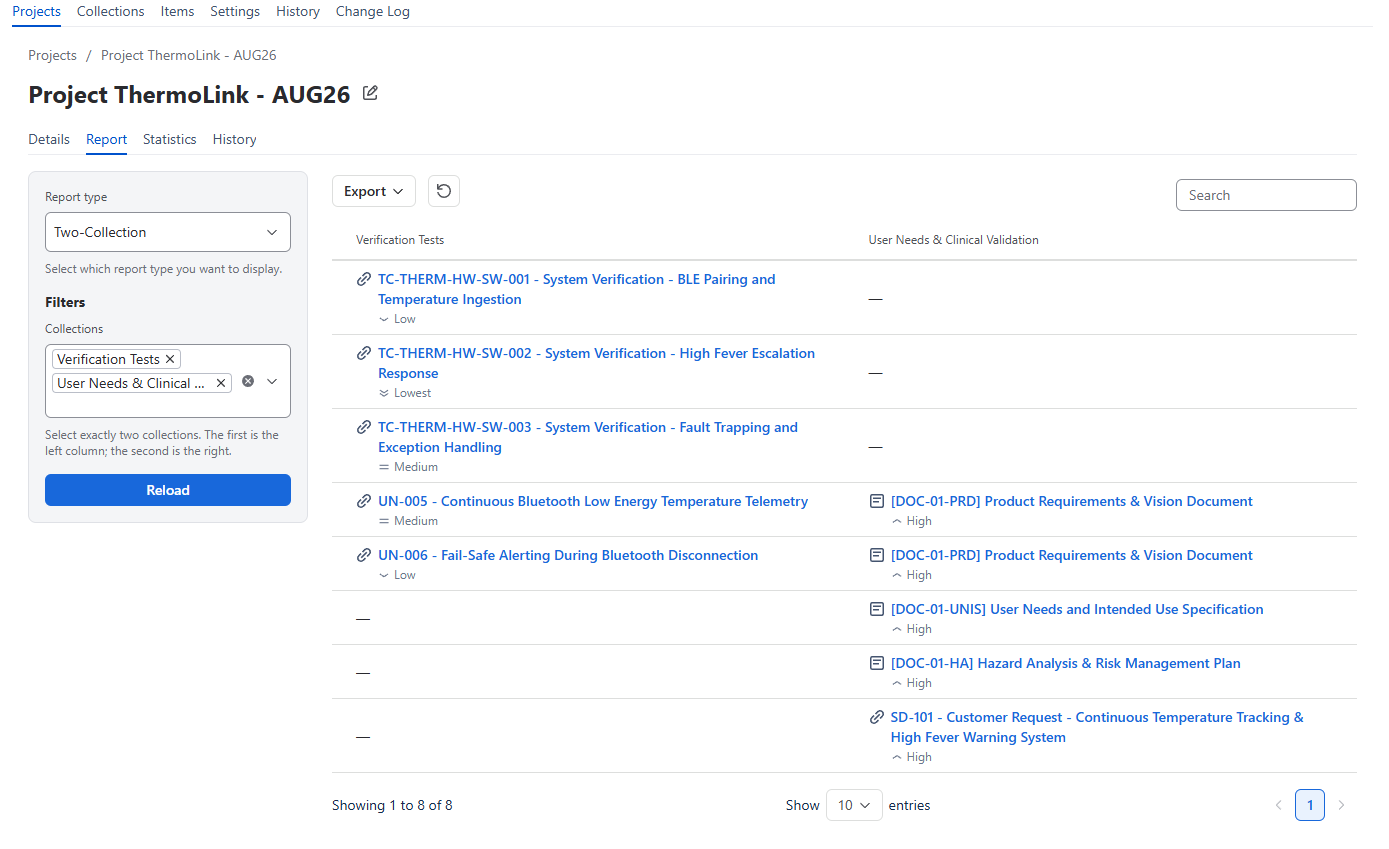
-
Choose exactly two collections (first = left, second = right).
-
Unlinked side shows
—. One-to-many links are one row per pair. -
Search matches title or description on either side.
Traceability Matrix
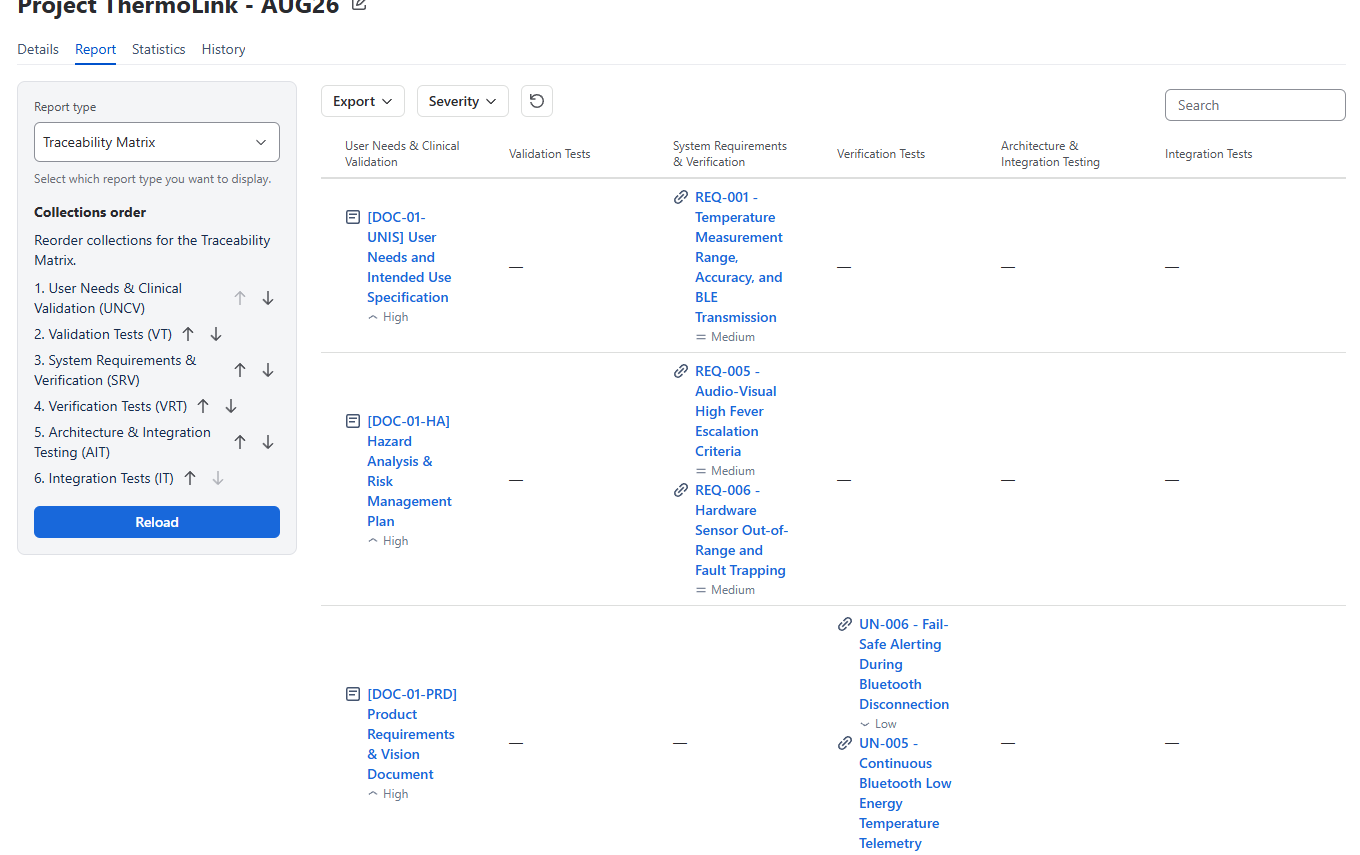
-
One column per project collection.
-
Reorder collections with Move up / Move down in the sidebar (saved on the project).
-
A cell lists linked items in that collection; empty means no trace through that column.
Statistics
One row per project rule:
|
Column |
Meaning |
|---|---|
|
Source Collection |
Left side of the rule |
|
Target Collection |
Right side of the rule |
|
Relationship |
Relationship type |
|
Forward Coverage (%) / Count |
Source items that have a matching link toward the target |
|
Backward Coverage (%) / Count |
Target items that have a matching link toward the source |
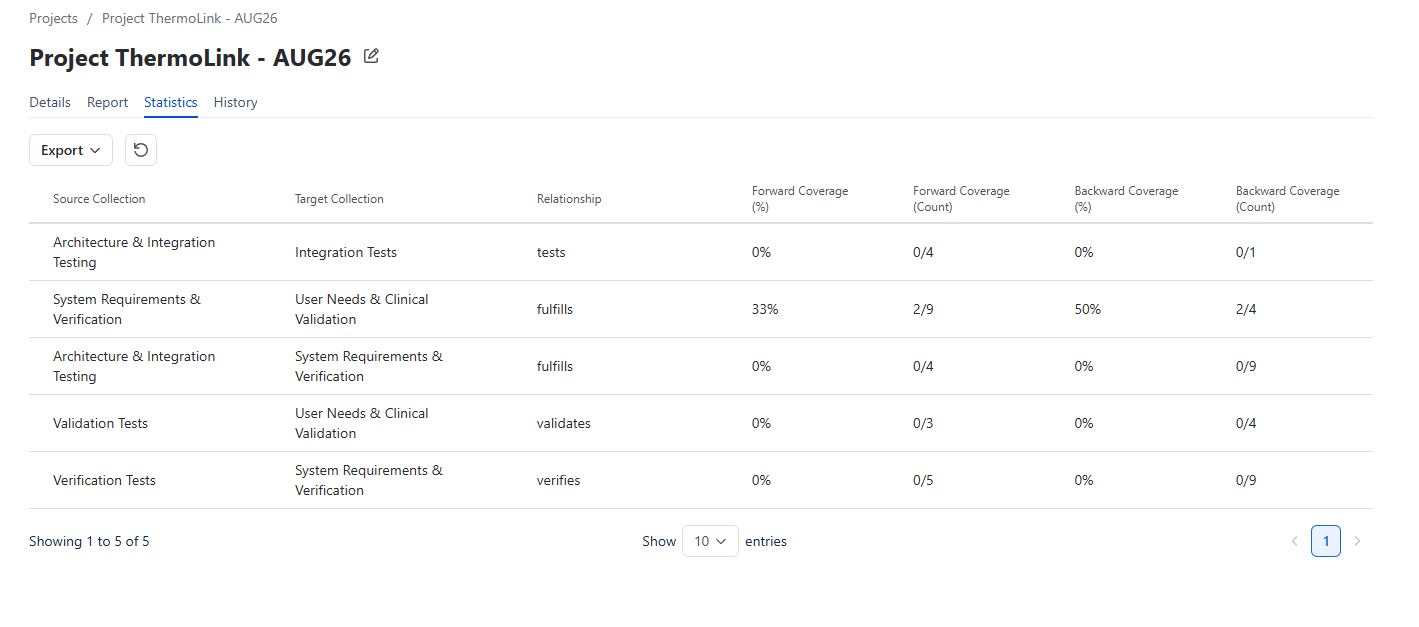
Use empty report cells and coverage % to find gaps, then add links on Page Overview.
History (Project)
Includes data for project creation, update events, and deletion.
Newest entries are displayed first.
The table also includes Search and export functionalities.
Delete a project
Use Delete on the project. This removes the project from the QC Traceability (collections and items remain).
History (Site)
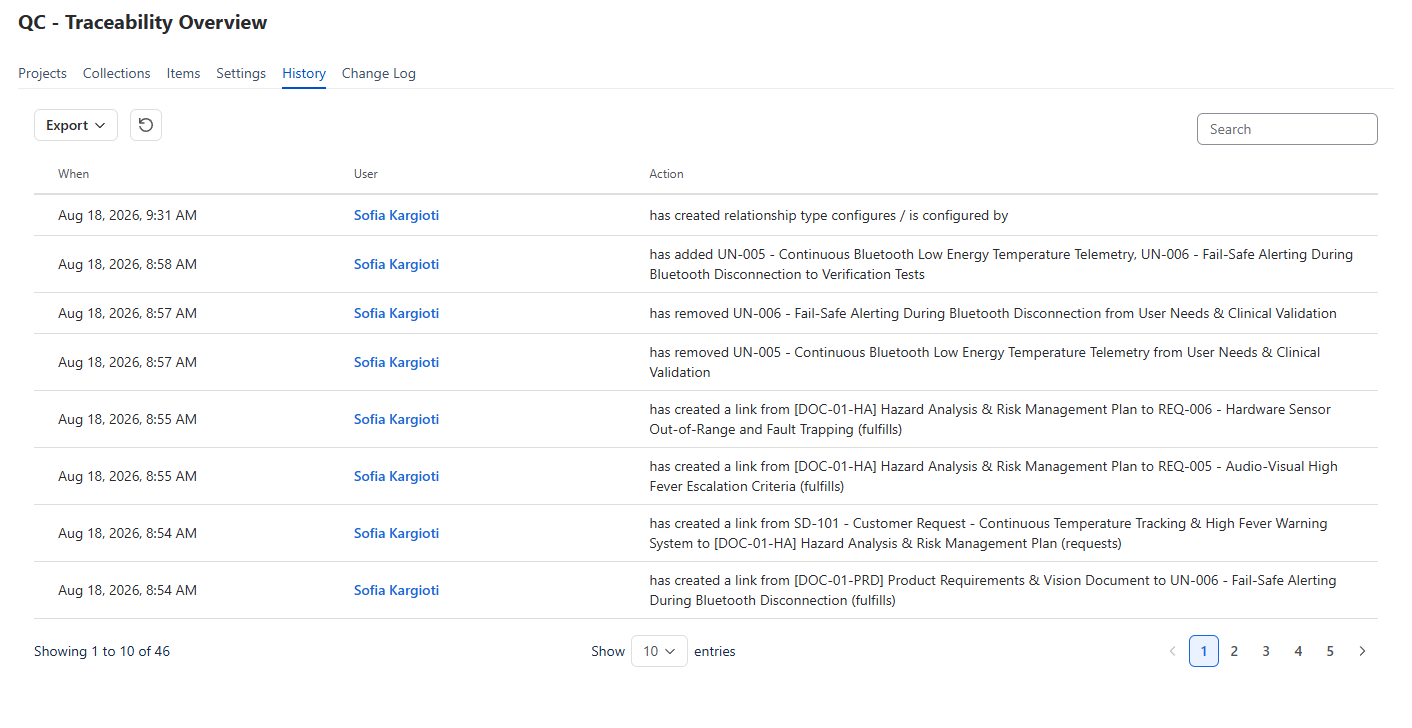
Open History on Site Overview for a site-wide audit log: links, projects, collection membership, relationship types, severity levels.
Columns: When, User (Confluence display name, or Unknown), Action. Newest first. Search and export.
This is the same kind of table as project history and Page Overview history, with a wider filter.
Page Overview
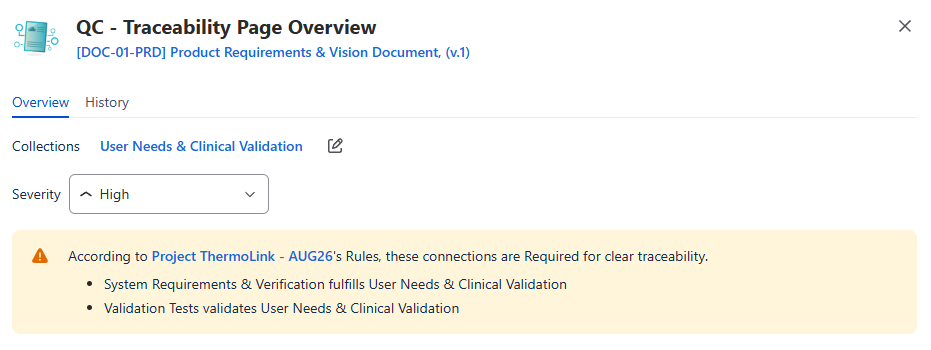
Open a Confluence page → ••• → QC - Traceability Page Overview.
Header: page title (opens the Confluence page; version when available). Tabs Overview and History.
Overview tab
-
Collections — up to three names as links to Site Overview (then
+N). Empty: Not in any collection + Add to collection. Edit / Add to collection opens a multi-select of site collections. Saving membership does not change page links. Create collections on Site Overview → Collections. -
Severity — saves as soon as you change it. Unassigned is allowed.
-
Required warnings: According to {project}’s Rules, these connections are Required for clear traceability. plus the missing source → relationship → target connections. The warning for a connection disappears when this page has a matching link (downstream to the target collection when this item is the source; upstream from the source collection when it is the target), using that rule’s relationship type. Optional rules and archived projects are ignored.
-
If this page’s item is archived, Page Overview is read-only (no add/delete/edit links, no severity or collection edits). Collection name links still open Site Overview. A banner explains that the item is archived.
Diagram
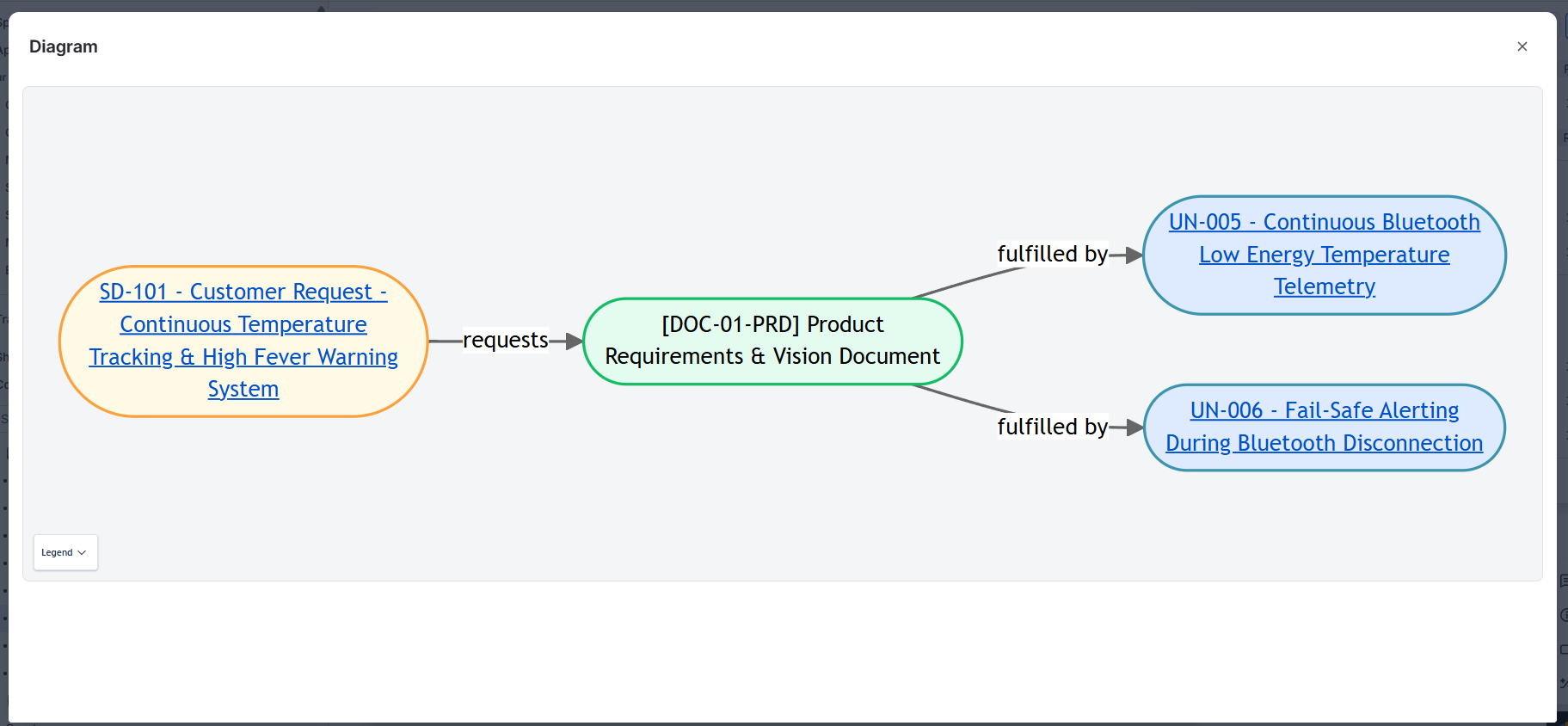
-
Mermaid diagram of this page and linked items.
-
Optional: Show only first-degree upstream and downstream links.
-
Neighbours that share a collection are grouped in a labeled rectangle. Upstream and downstream stay in separate boxes even when they share a collection. A single neighbour in a collection stays ungrouped. The current page is not grouped with its neighbours.
-
Legend: green = this page, orange = upstream, blue = downstream.
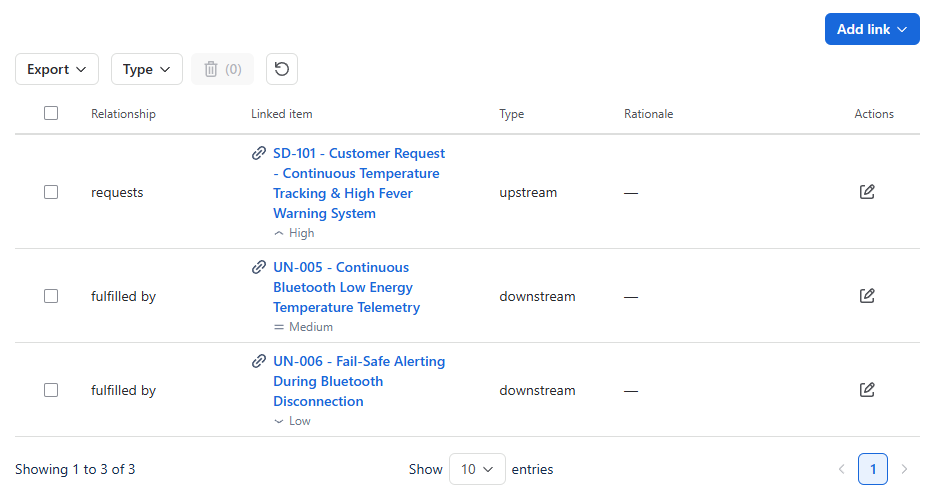
Table
Columns include relationship, linked item (grey severity icon + name under the title), type (upstream / downstream), rationale. Filter by Type. Search, pagination, export.
Add link (right of the links table, above the toolbar) opens Add upstream or Add downstream — separate dialogs (not a direction toggle). Each is a sentence builder:
-
Live Preview of source → (relationship) → target. The current page is only in the preview (blue node), not a form field. Until the other item is picked, that side is a dashed Source (upstream) or Target (downstream).
-
Choose relationship.
-
Search page or Jira work item… opens a nested dialog: Confluence page or Jira / web link, then typeahead. Confirm returns a chip to the main form.
-
Optional Rationale.
-
Add.
Items already linked on this page, the current page itself, and archived items are omitted from the picker.
Jira / web link live issue search needs Jira Connected. Existing Trace web links can still match without that.
Edit on a row edits rationale. Delete uses row checkboxes plus confirm (one or many).
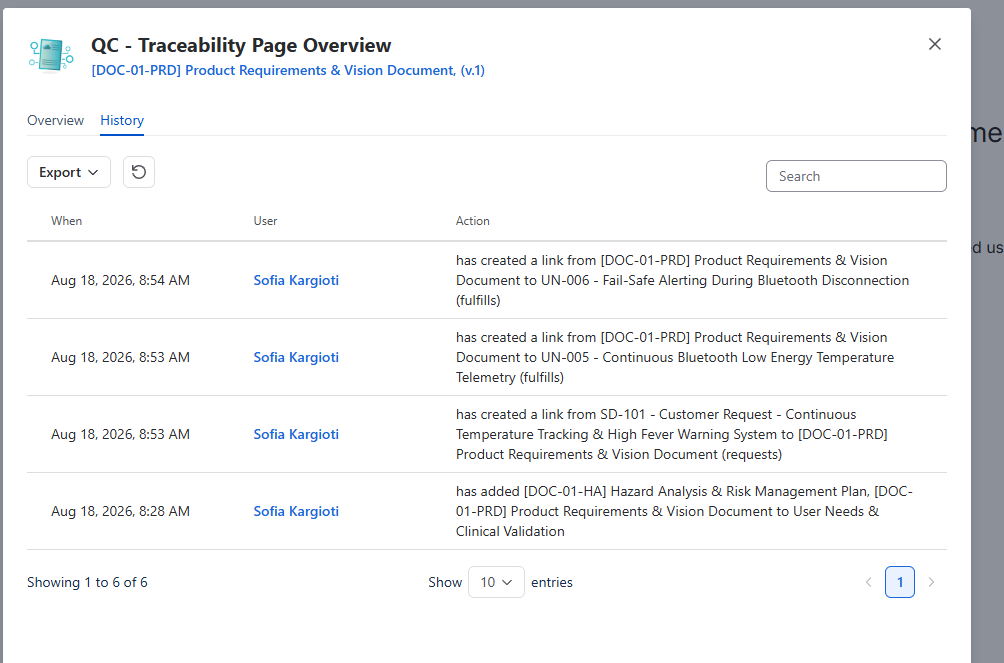
History (Page)
Link create/update/delete and collection add/remove for this page’s item. Newest first. Search and export.
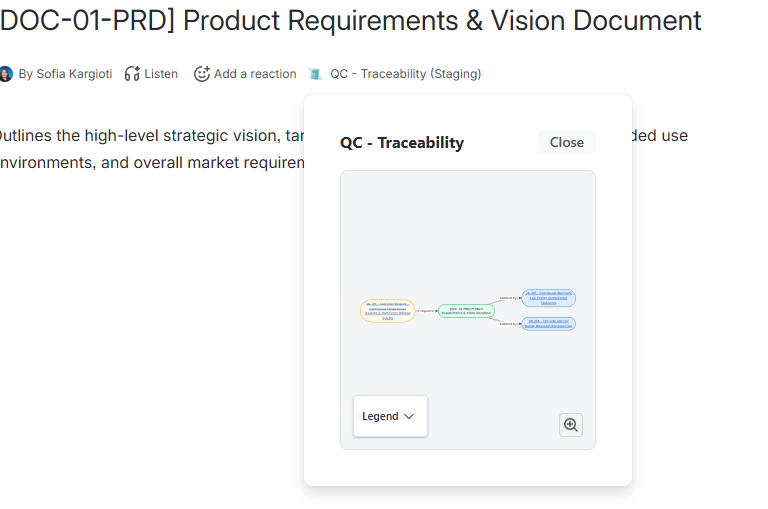
Byline Diagram
On a Confluence page, the content byline QC - Traceability opens an inline dialog with the Page Traceability Diagram for that page. Close dismisses it. This is visualization only — add and edit links in Page Overview.
QC Traceability macro
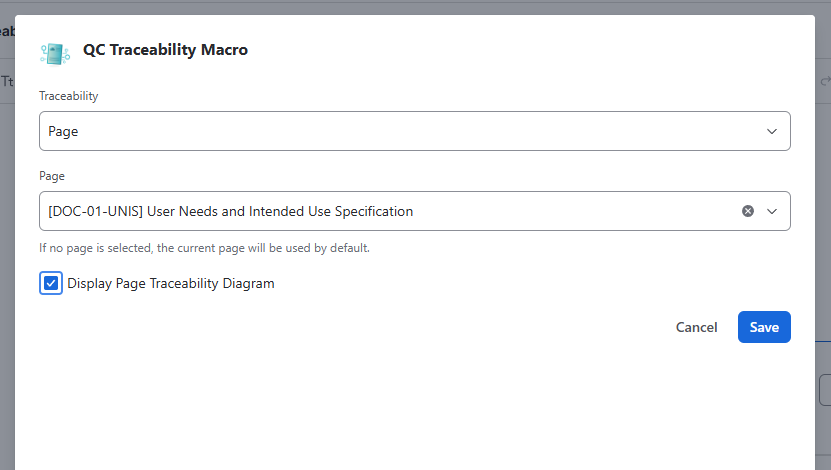
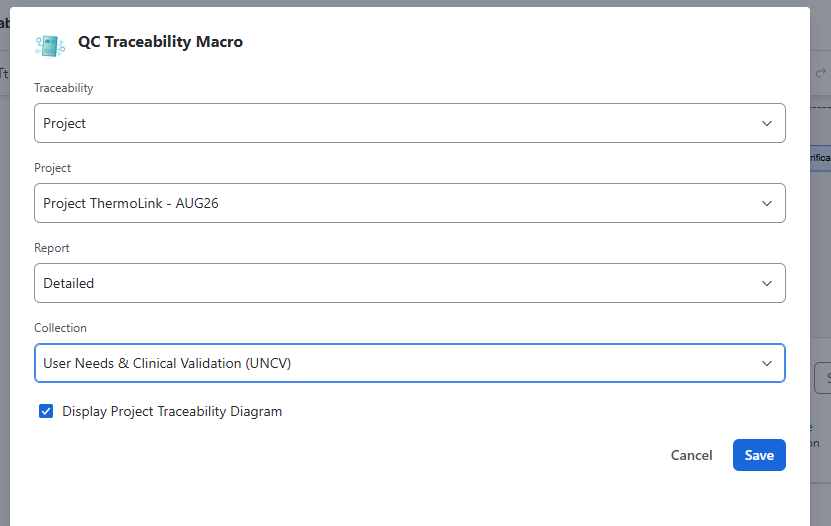
Insert QC Traceability Macro on a Confluence page (editor: Insert). Config opens on insert.
Traceability is Page or Project. Insert uses Add / Cancel; edit uses Save / Cancel.
Saved values are stored on the page. After publish, every reader sees the same type, selected page or project, report, collection, collection order, and diagram checkbox. Toolbar state at view time (Overview / Upstream / Downstream, Search, pagination) is not saved.
Page mode
Optionally pick one Confluence page (if none, the current page is used).
Checkbox Display Page Traceability Diagram.
Runtime table: Relationship, Item (severity under the title), Collection, Type, Rationale.
Toolbar: Overview / Upstream / Downstream, show entries, Search.
Project mode
Pick a Trace project. Report: Overview, Detailed, or Traceability Matrix.
|
Report |
Config |
Runtime |
|---|---|---|
|
Overview |
Optional Display Project Traceability Diagram |
Optional diagram + collection-column table |
|
Detailed |
Collection + optional diagram |
Optional diagram + detailed report |
|
Traceability Matrix |
Collections Order in the macro only (does not change the project’s stored order). No diagram checkbox. |
Matrix table |
Project runtime export is the same table toolbar (CSV, Excel, PDF, Word).
Export
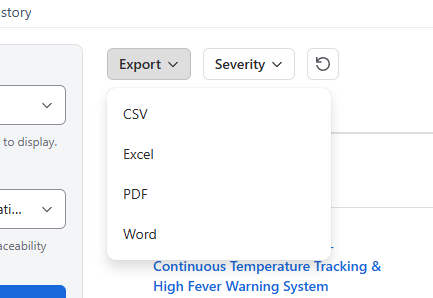
On list and report tables, open Export and choose CSV, Excel, PDF, or Word.
The file contains the rows that match the current filters and search (all pages of the table, not only the page on screen).
Progress can show on the button (for example Export 42%).
PDF and Word include a document title and page numbers. Traceability Matrix PDF/Word uses landscape.
Page Sync
When a Confluence page item exists in QC Traceability:
|
What happens in Confluence |
What QC Traceability does |
|---|---|
|
Page title is updated |
Page item title is updated |
|
Page is trashed, archived, or deleted |
Corresponding page item is removed |
Link items (Jira/web URLs) are not updated from Jira automatically; edit the item if the summary or URL changes.
Tips and best practices
-
Keep relationship types few and consistent so reports stay readable.
-
Use Required rules for connections that must exist; fix warnings on Page Overview.
-
Put Jira-backed work in link items and group them in collections the same way as pages.
-
Connect Jira so authors can search issues instead of copying URLs.
-
Use Statistics and empty report cells to find gaps, then add links on the page.
-
Do not archive items you still need to edit or newly link.
-
Embed the macro on working pages so readers see the same table without opening Site Overview.
Support
If a diagram or table fails to load, please contact our Support.