
What are Guests in Confluence Cloud?
In Confluence Cloud, guest users are external collaborators (for example, partners, contractors, clients) who can access content only in specific spaces you assign them to, without needing a full paid Confluence license. This is useful for sharing documentation, reviews, or content with people outside your organization while keeping broader access restricted to internal users.
Rules and limits for Guests
-
Guests are free of charge.
-
You can invite up to 5 guests per paid Confluence user.
-
A guest can access only one space at a time.
-
Without being assigned to a space, a guest cannot access Confluence at all.
-
Guests have limited permissions compared to regular licensed users.
How to invite a Guest
Only organization admins or site admins can invite guests.
-
Go to your organization admin at admin.atlassian.com.
-
Select Directory -> Users and choose Invite users.
-
Enter the guest’s email and assign the role Guest for Confluence (ensure the regular “User” role is not selected).
-
Send the invite.
Grant space access
Option 1 - From Confluence Administration
-
Go to Confluence Settings
-
Open Global permissions → Guests
-
Select the guest
-
Assign the space they should access
-
Save
Option 2 - From the Space
-
Go to the target space
-
Open Space Settings → Space Access
-
Search for the guest
-
Add them to the space
-
Save
Once assigned, the guest can access that space only.
For more information about guest users in Confluence Cloud, see Atlassian’s documentation at https://support.atlassian.com/confluence-cloud/docs/invite-guests-for-external-collaboration/.
Guests in QC Read & Understood
Guest users have limited access compared to regular licensed users. Their permissions depend on Confluence settings and certain space-level configurations. The table below provides a simple overview of the features available to guest users and any important limitations.
|
Feature |
Guest Access |
Notes / Limitations |
|---|---|---|
|
Can R&U |
Yes |
— |
|
Can R&U older versions |
Yes |
— |
|
Can see macros |
Yes |
If macros are restricted, guests cannot see them (as expected). |
|
Can see macros set for a different space |
No |
Guest users see a “No data available in table” message. |
|
Can be assigned as individual users |
No |
QC R&U cannot find the guest when adding individual users. |
|
Can be assigned via group membership |
Yes |
Only if “Allow all site groups to be assigned into Pages” is enabled in Space Settings. |
|
Access QC R&U Page Overview |
No |
They do not see the option. If they use a direct link, they receive a permission error. 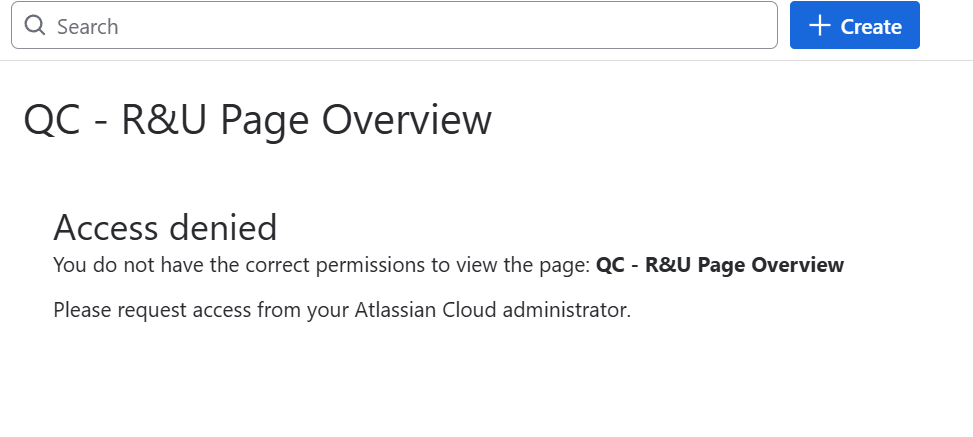
|
|
Access QC R&U Space Settings (Space Settings, Space Overview, Analytics, History) |
No |
Not accessible to guest users. |
|
Access QC Acknowledgements |
Yes |
Only if not restricted to space admins. |
|
Create / Edit an Acknowledgement (ACK) |
Yes |
— |
|
Be added to an ACK |
No |
Guests cannot be selected individually. Group assignment does not apply to ACKs. |
|
Receive R&U notifications |
Yes |
— |
|
Access QC R&U Site Overview |
No |
Not visible. Direct links show a permission error. 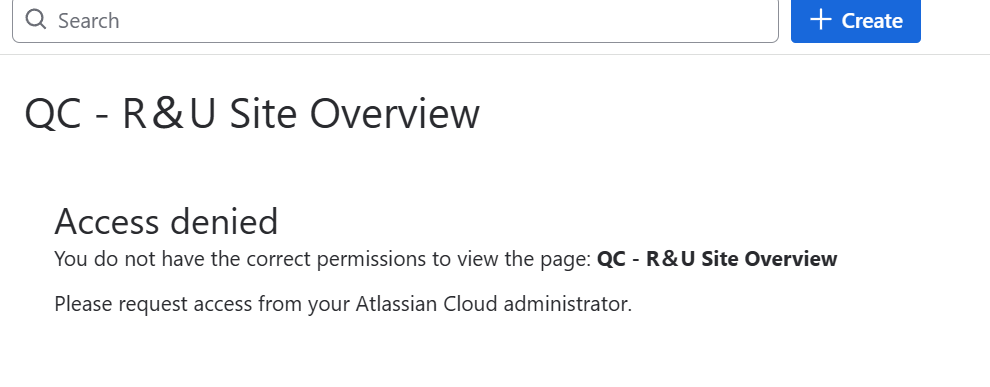
|
|
Access QC R&U My Overview |
No |
Not visible. Direct links show a permission error. 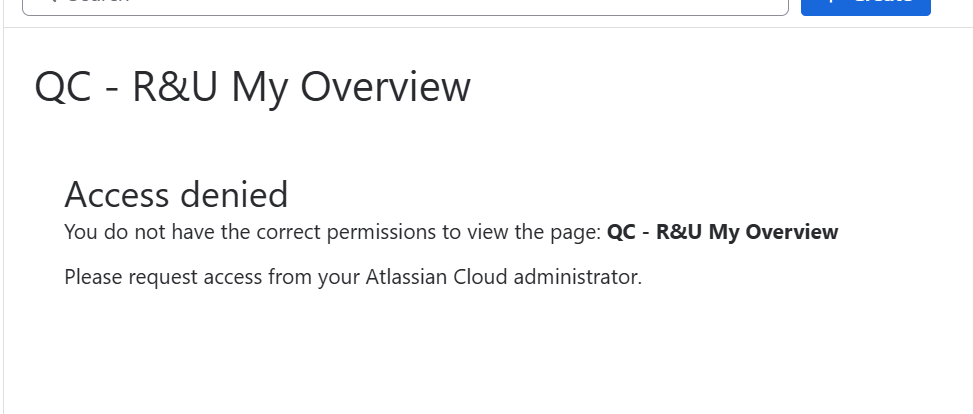
|
|
Access personal settings |
Yes |
Can register OTP device and enable/disable email notifications (if not enforced). |
|
Search guest by name (macros, Site Overview, Space Overview filters) |
No |
Guest appears in tables but not in the “User” filter. |