
We are upgrading the underlying platform of our QC Read & Understood app from Atlassian Connect to Atlassian Forge. This update ensures better data security, compliance with Atlassian Cloud standards, and improved reliability.
Why We’re Making This Update
We are migrating our QC Read & Understood app’s framework because Atlassian has officially announced the End of Support for Atlassian Connect. As Atlassian transitions all Cloud apps to Forge to enhance native security and infrastructure standards, Connect apps will no longer receive any new feature additions or long-term maintenance. By completing this migration to Atlassian Forge, we ensure our app remains fully supported, compliant, and continuously updated according to Atlassian’s latest platform changes.
Most importantly, this migration guarantees that we can keep helping and providing the support that you need when using the QC Read & Understood app. Rest assured, your data stays completely safe, and everything is still working fine.
What We Changed
While most of the functionality remains identical, this update introduces one major change to align with native Forge interactions and several new features that improve the app. Please note that no data will be lost during this transition. To complete the upgrade, site admins will need to perform a manual update by following the steps in the “How to Complete the Upgrade” paragraph at the end of this article.
Feature Continuity & Enhancements
We want to reassure our users that no existing features have been removed in this update. Every functionality you rely on in the current version remains fully available. We have simply made minor changes to align specific workflows with Atlassian’s native Forge interactions, while also introducing brand-new features to enhance usability and overall app performance.
Major Changes
|
Feature/Area |
Previous versions (Connect) |
New version (Forge) |
|---|---|---|
|
Read & Understood (R&U) for Older Versions |
Users could R&U an older version directly from the page via: |
Discontinued from the Version History menu due to platform limitations. Users must navigate to the QC R&U My Overview page, find the older version of the page they want, and click “Read and Understood”. 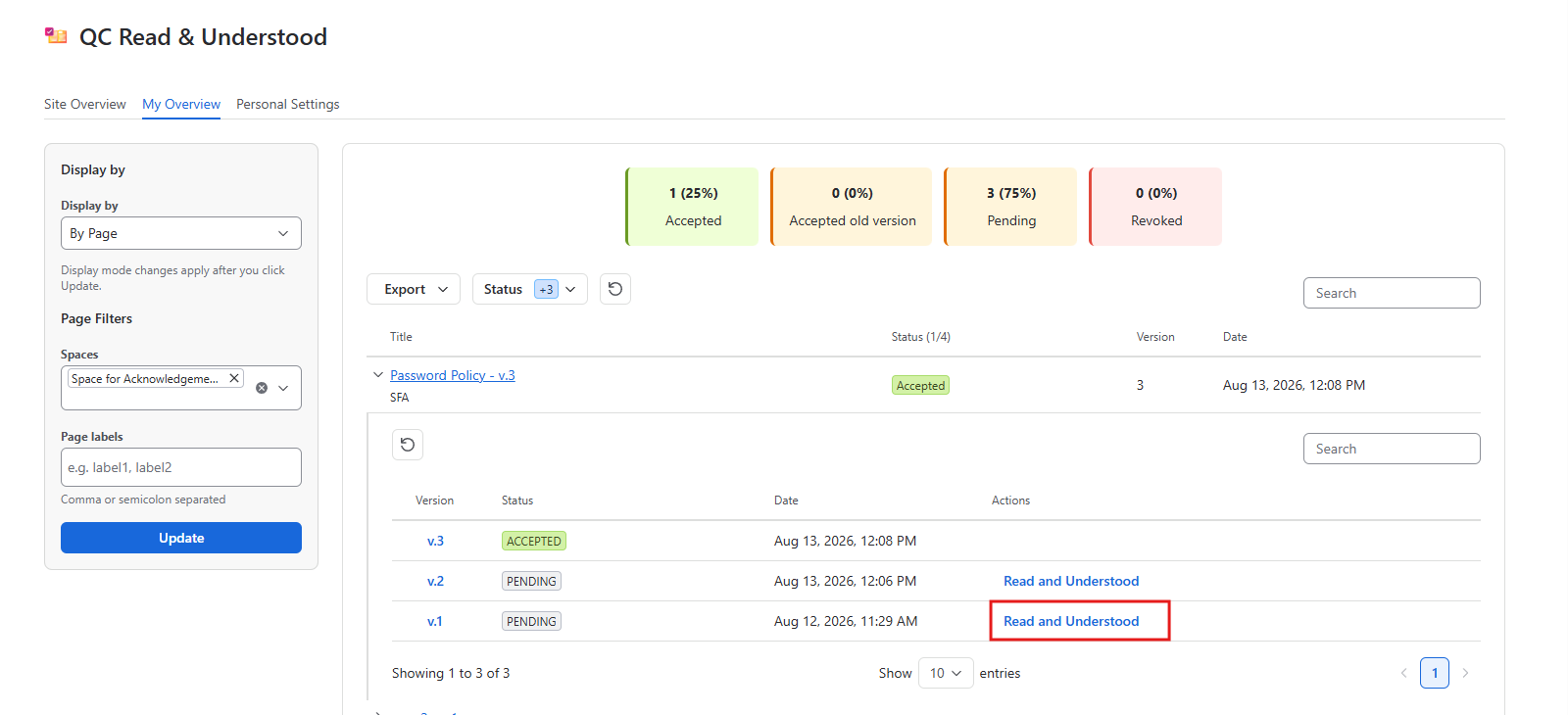
|
Minor Changes
|
Feature/Area |
Previous versions (Connect) |
New version (Forge) |
|---|---|---|
|
Location change of QC R&U Space Overview |
Users had to navigate to: Space settings → App links → QC Read & Understood → Overview 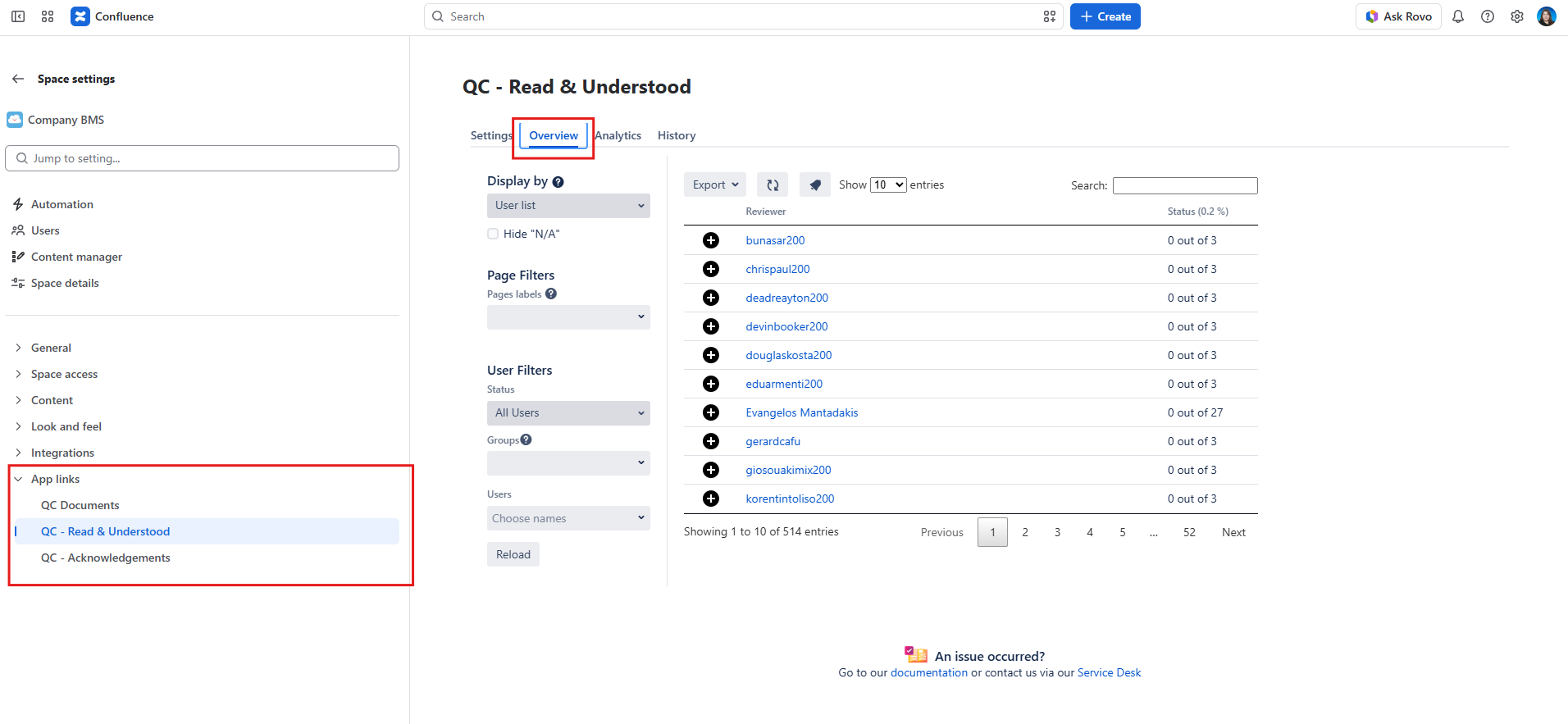
|
Now users will have to go to: Space Apps (left sidebar) → QC R&U Space Overview → Overview 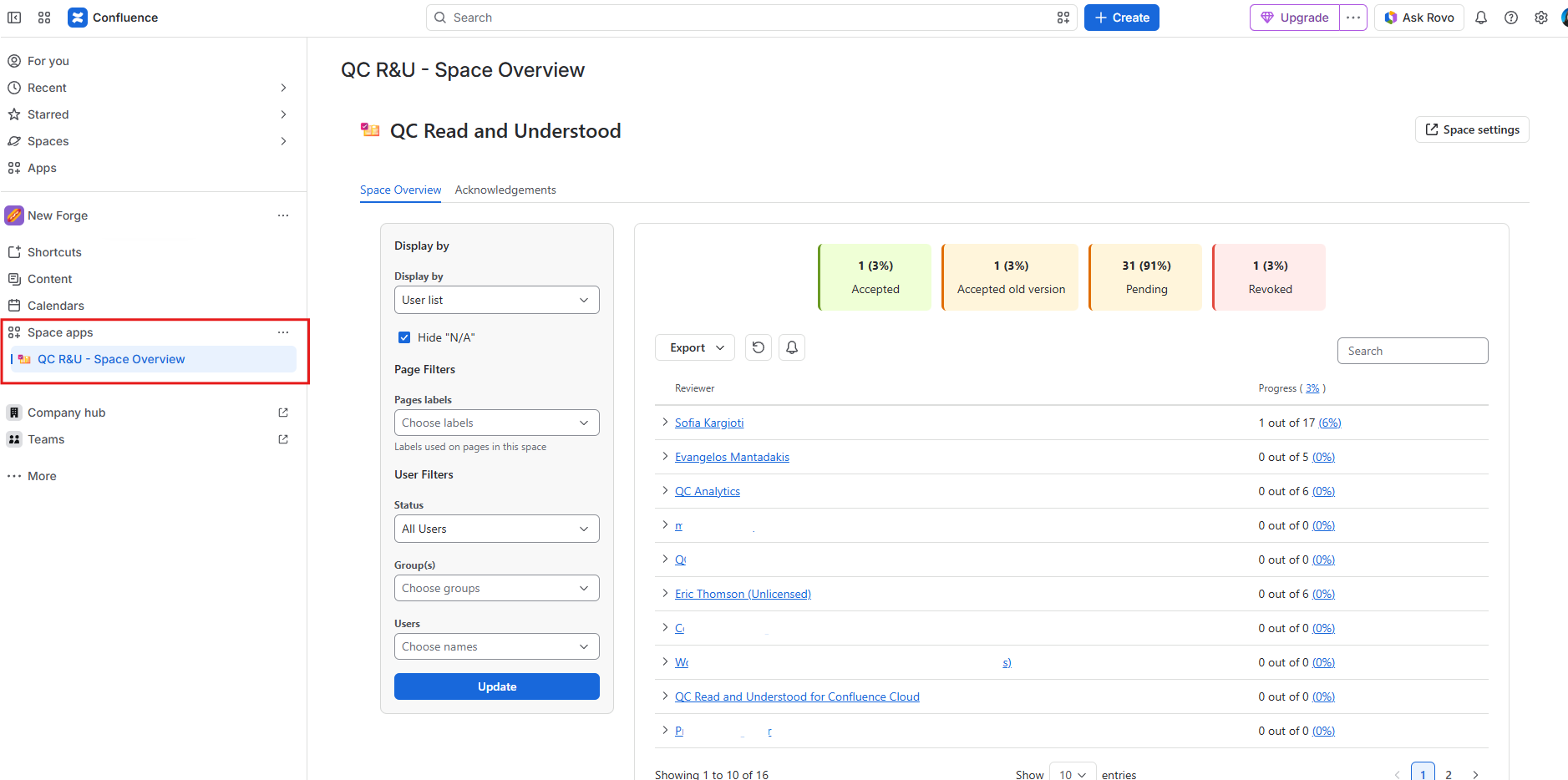
|
|
Location change of QC Acknowledgements |
Users had to navigate to: Space settings → App links → QC Acknowledgements 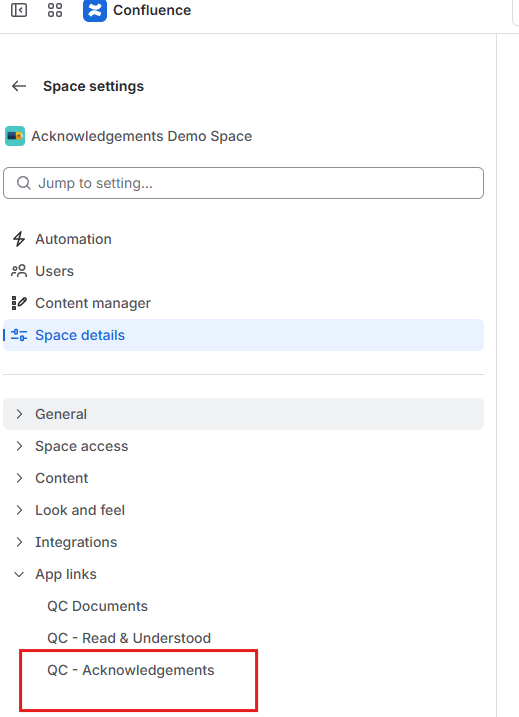
|
Now users will have to go to: Space Apps (left sidebar) → QC R&U Space Overview → Acknowledgements 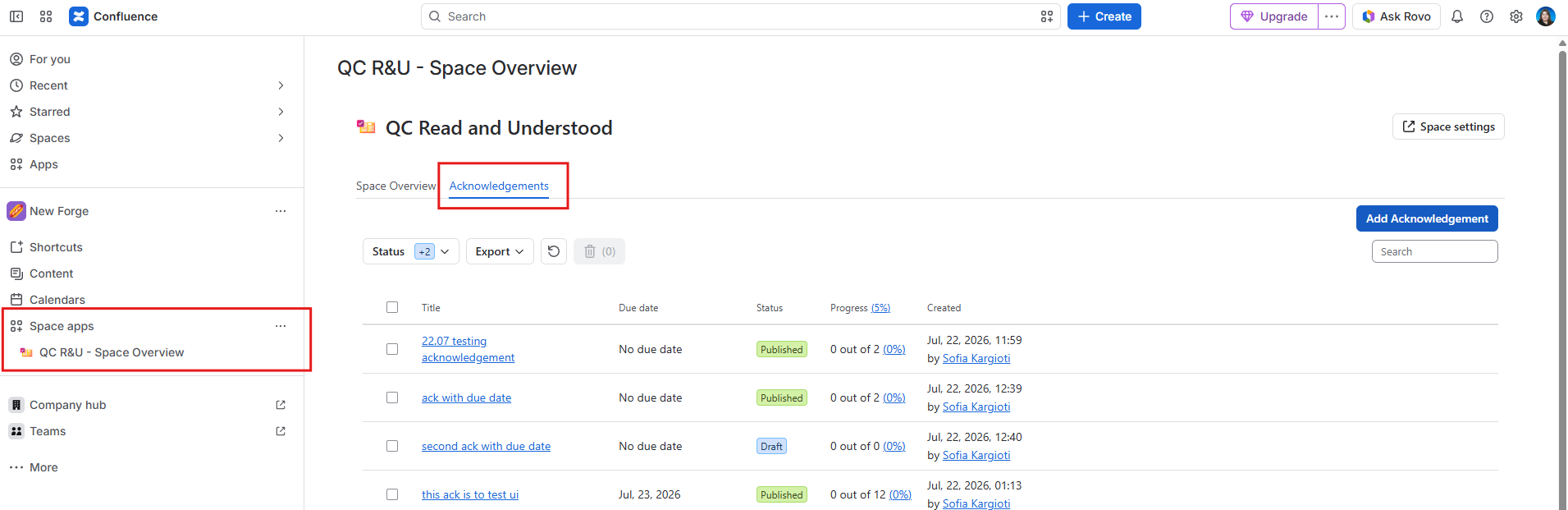
|
|
Location change of QC R&U Space Settings |
Users had to navigate to: Space settings → App links → QC Read & Understood → Settings 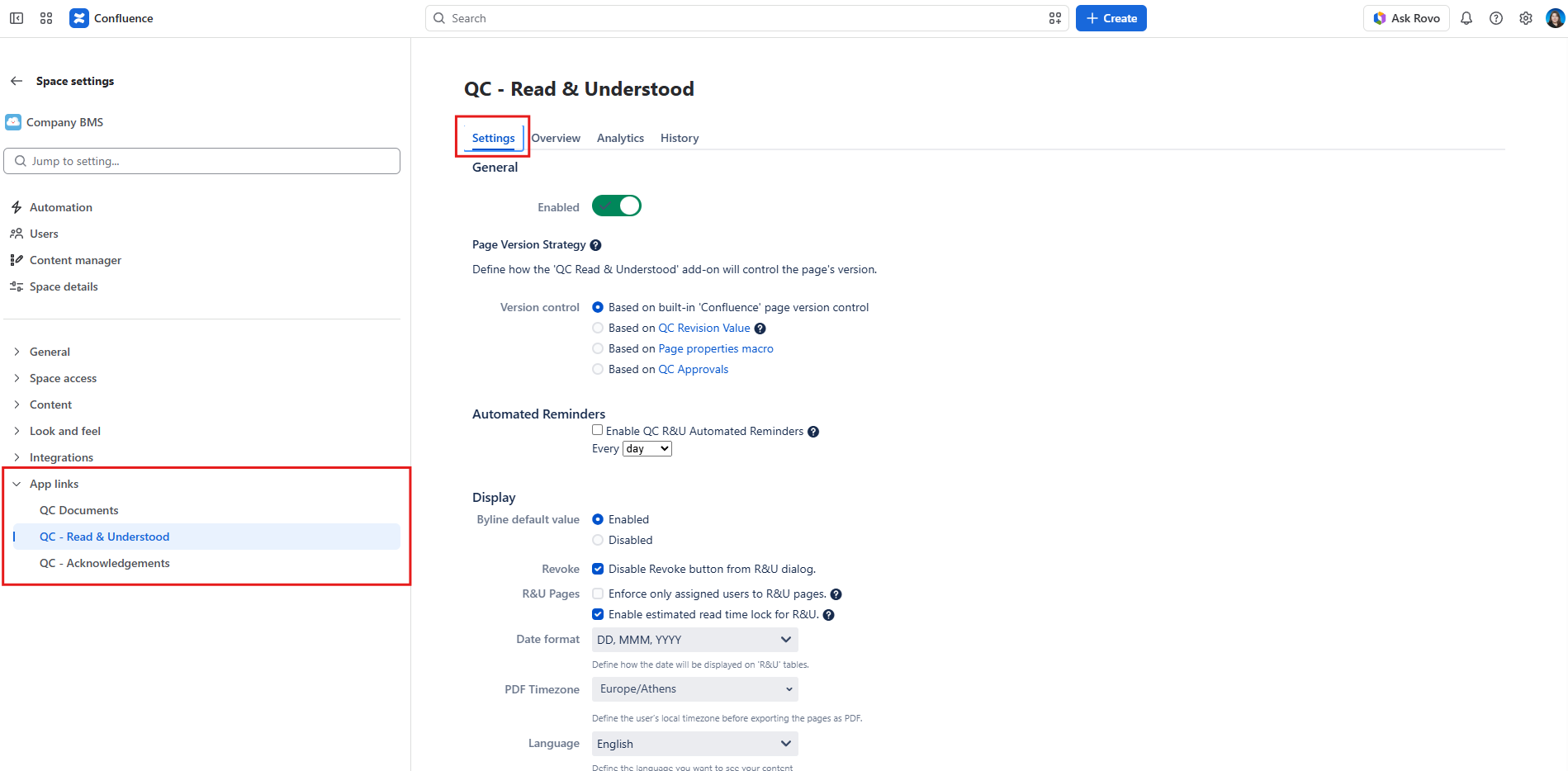
|
Users will have to navigate to: Space settings → Integrations→ QC Read & Understood → Settings 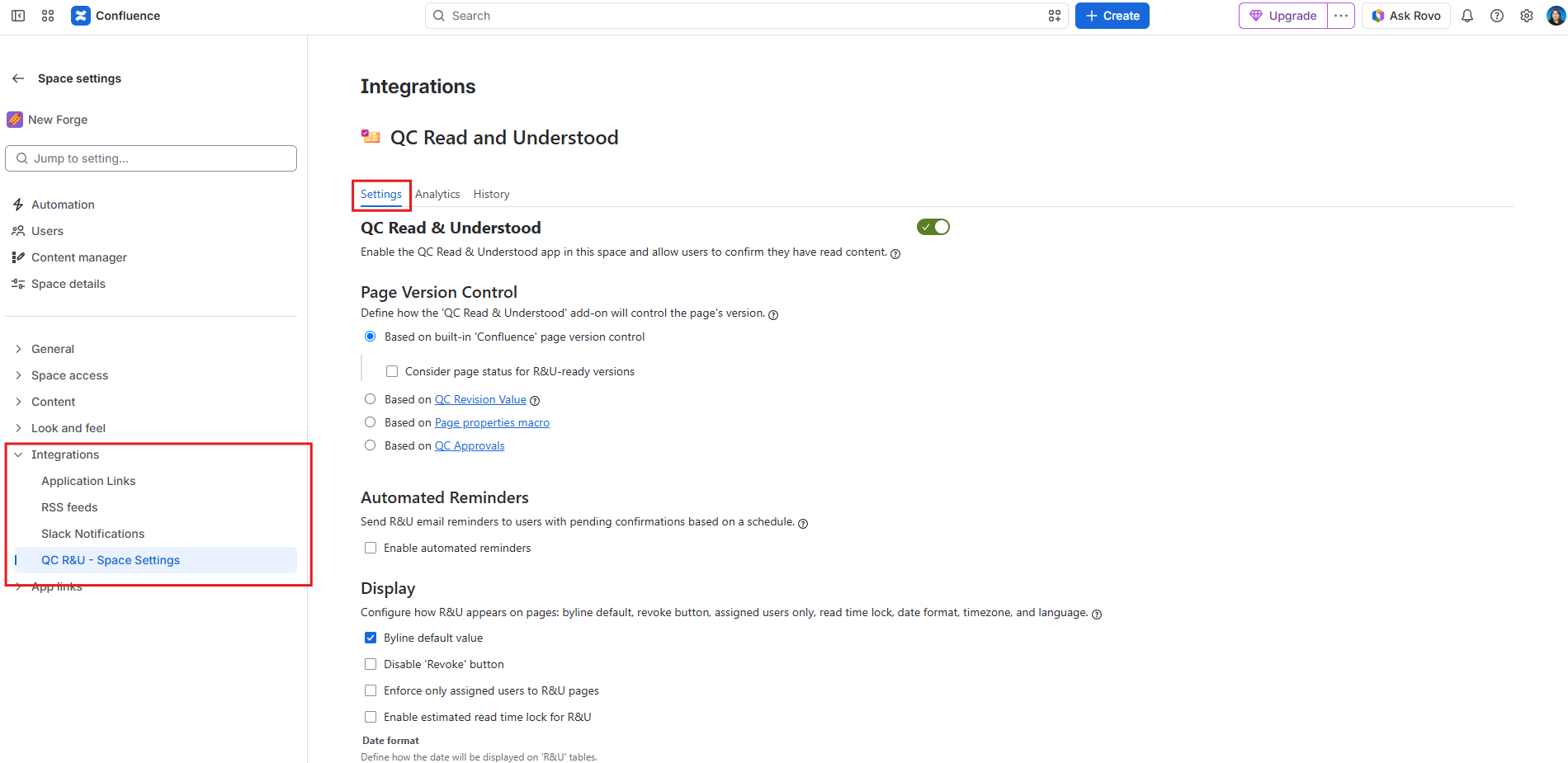
|
|
Location change of QC R&U Analytics |
Users had to navigate to: Space settings → App links → QC Read & Understood → Analytics 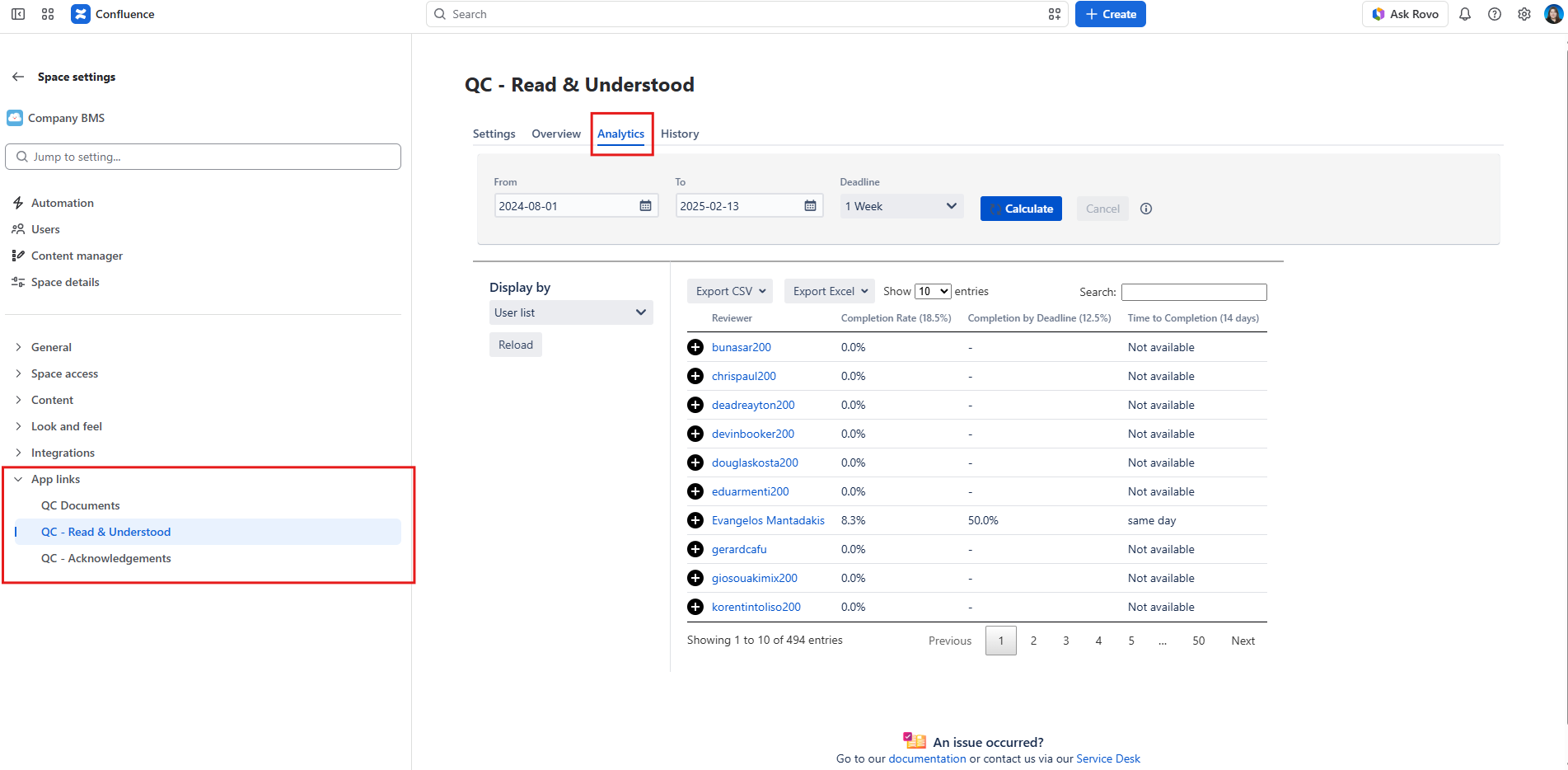
|
Users will have to navigate to: Space settings → Integrations → QC Read & Understood → Analytics 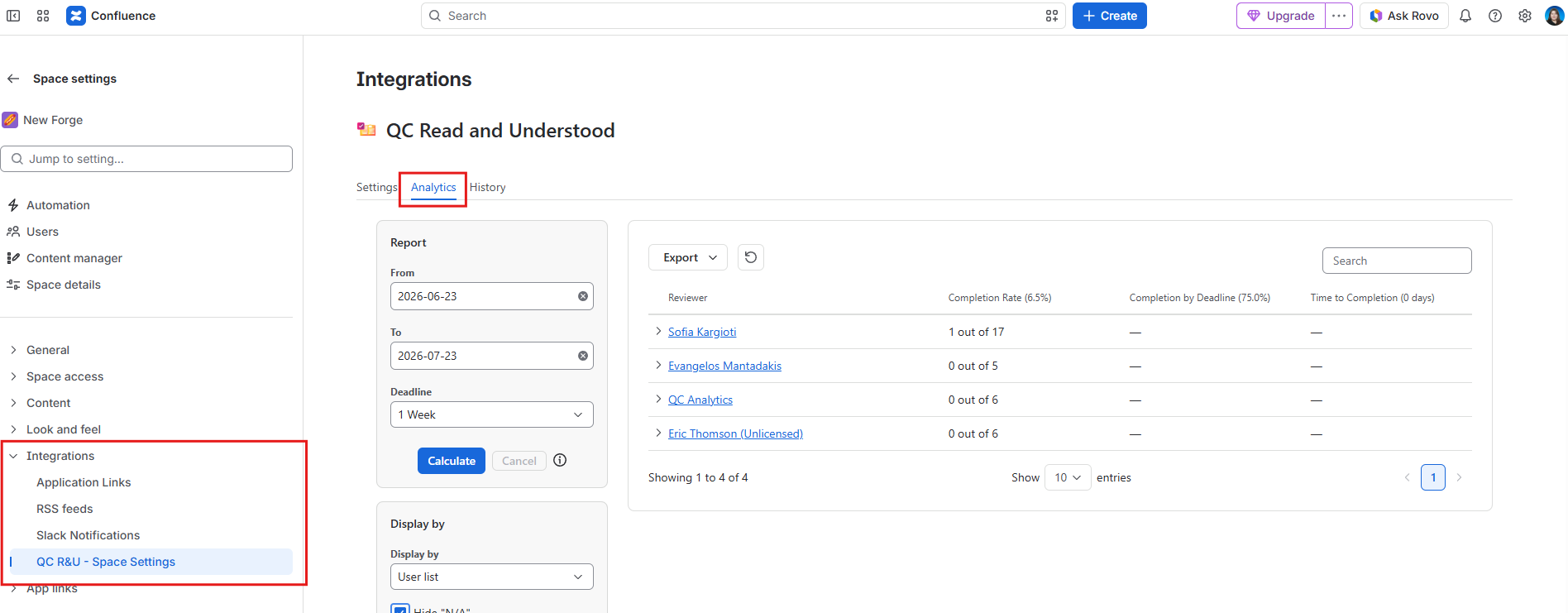
|
|
Location change of QC R&U Space History |
Users had to navigate to: Space settings → App links → QC Read & Understood → History 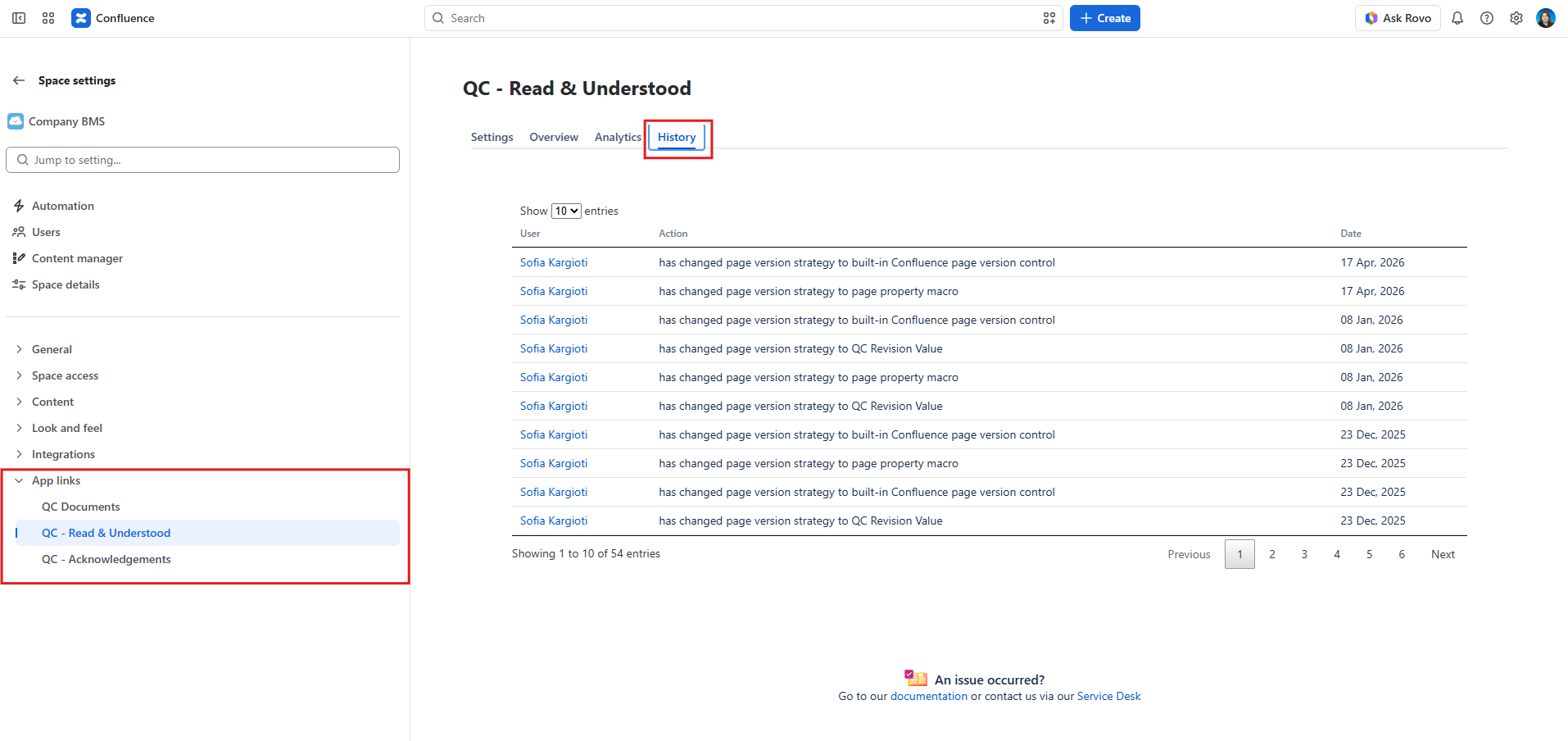
|
Users will have to navigate to: Space settings → Integrations → QC Read & Understood → History 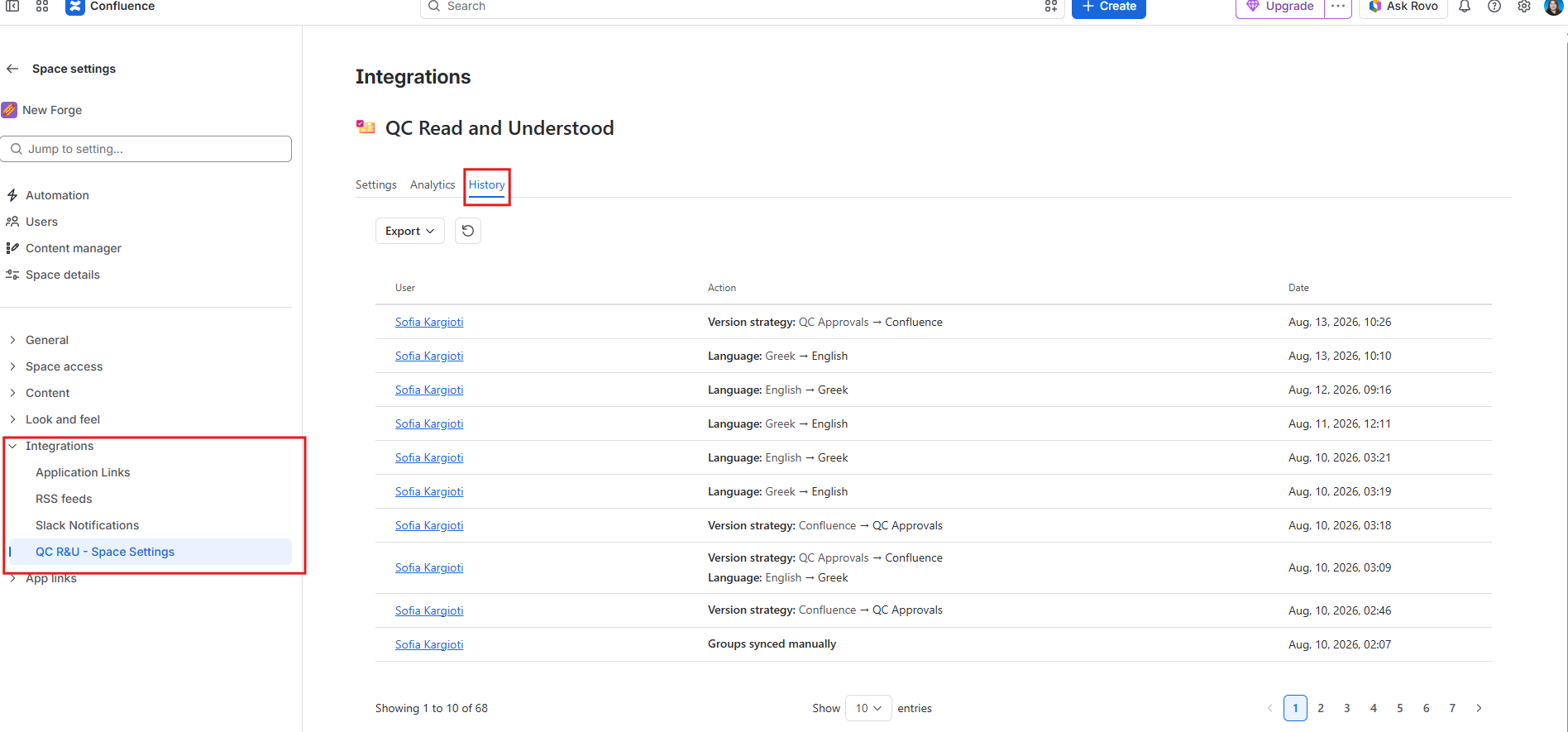
|
|
Location change of QC R&U My Overview |
Users had to click on their profile icon and select the QC R&U My Overview option 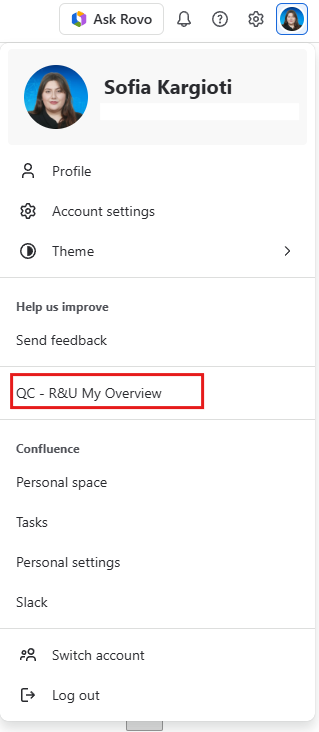
|
Now users will have to go to: Apps → QC R&U Global → My Overview 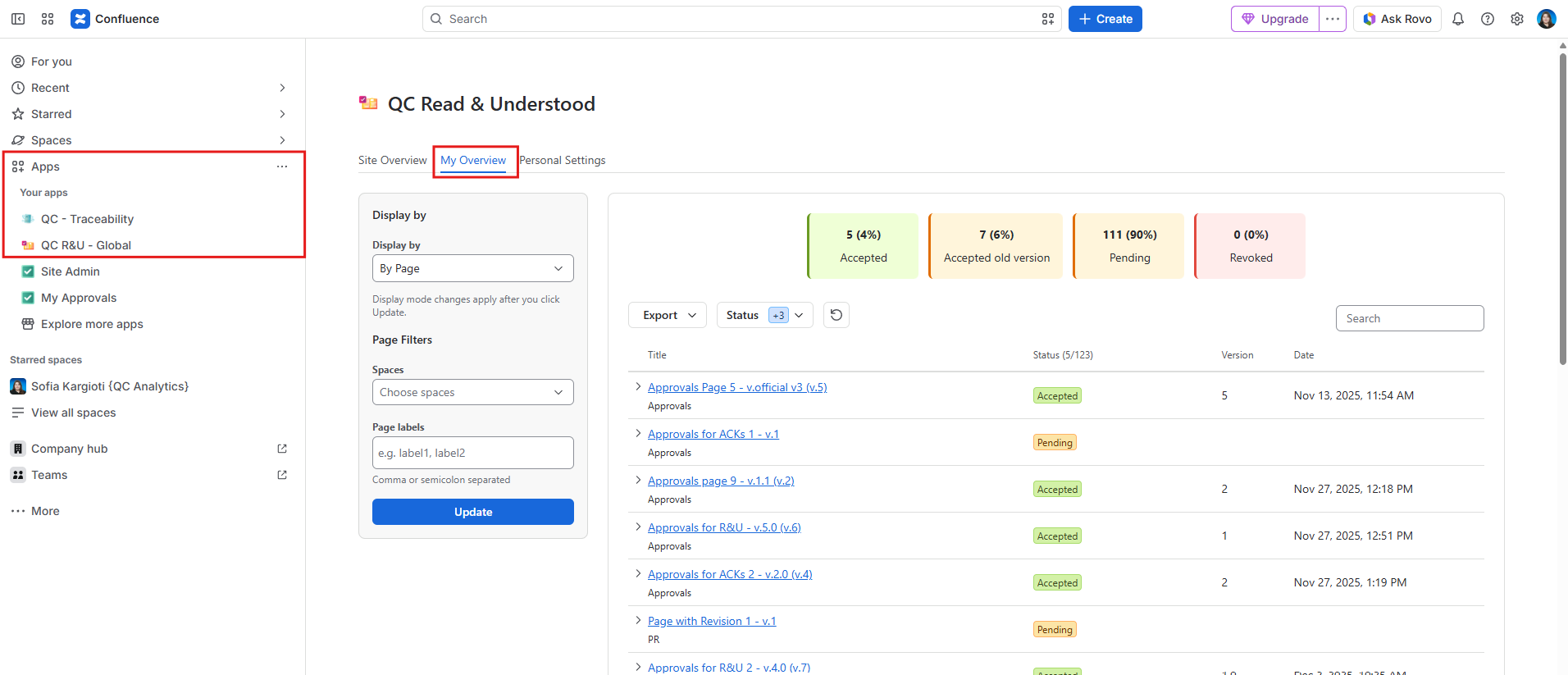
|
|
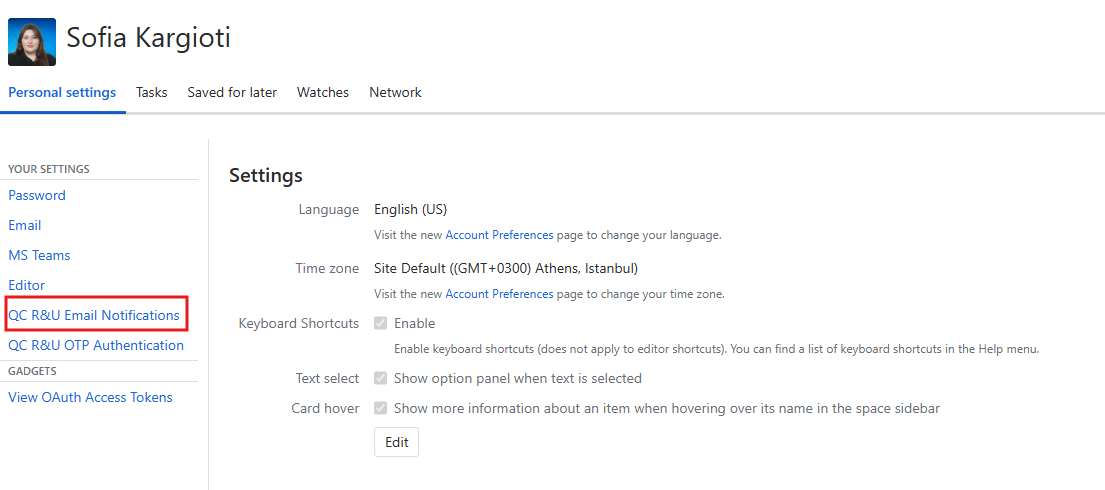
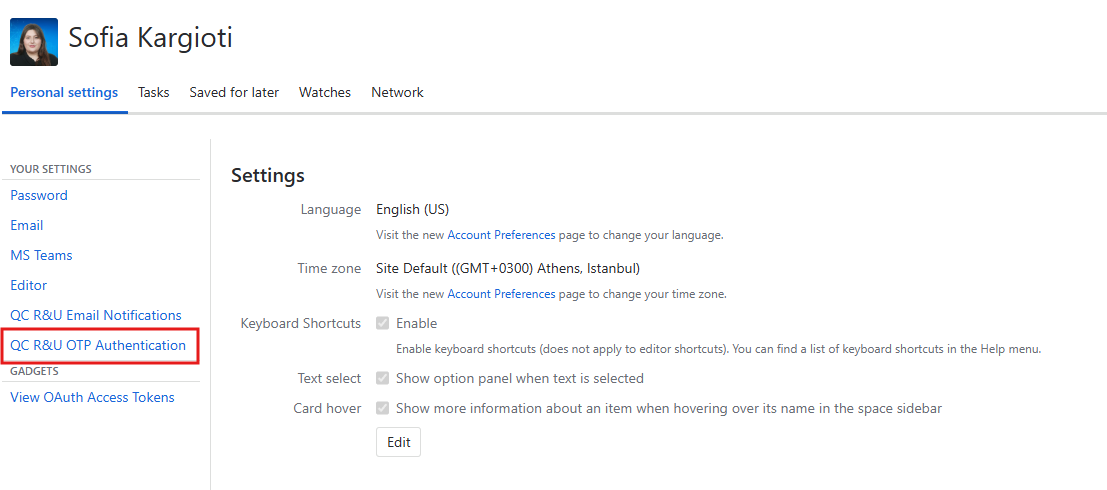
Location change of Personal settings |
|
Now users will have to go to: Apps → QC R&U Global → Personal Settings 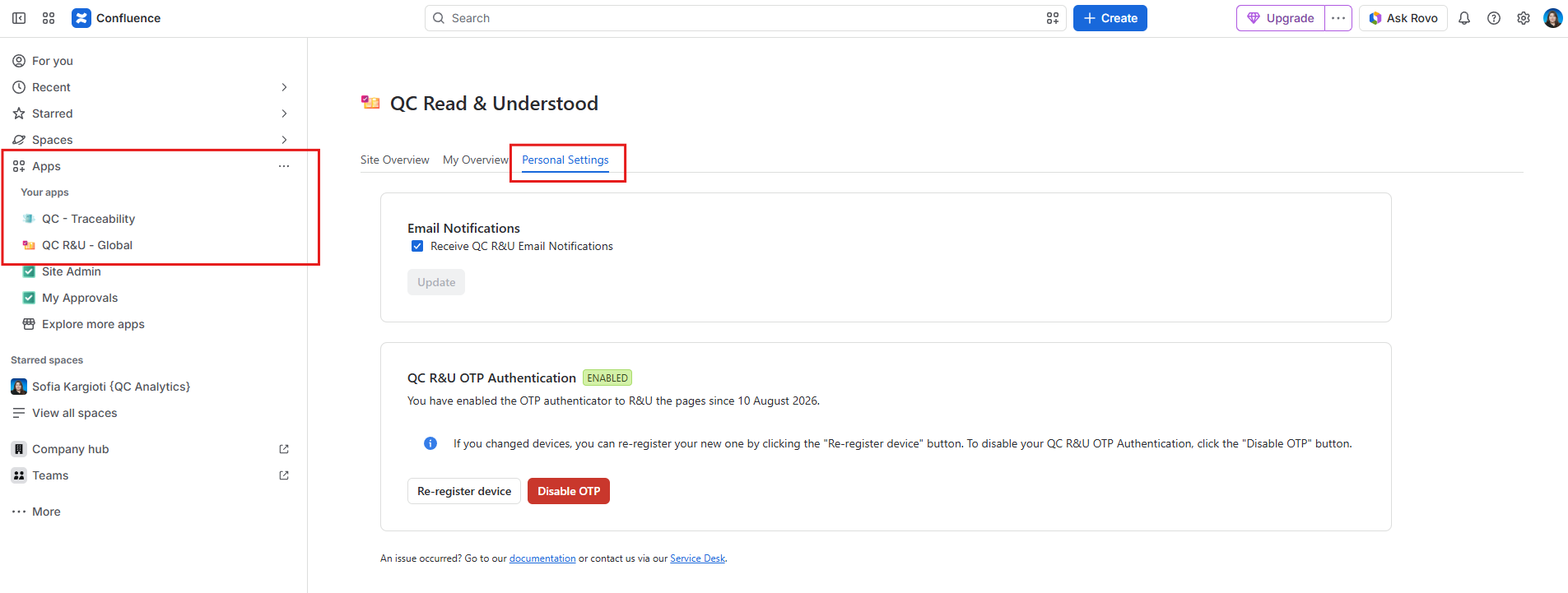
|
|
Location change of QC R&U Site Overview |
Users had to navigate to Apps → QC R&U Site Overview 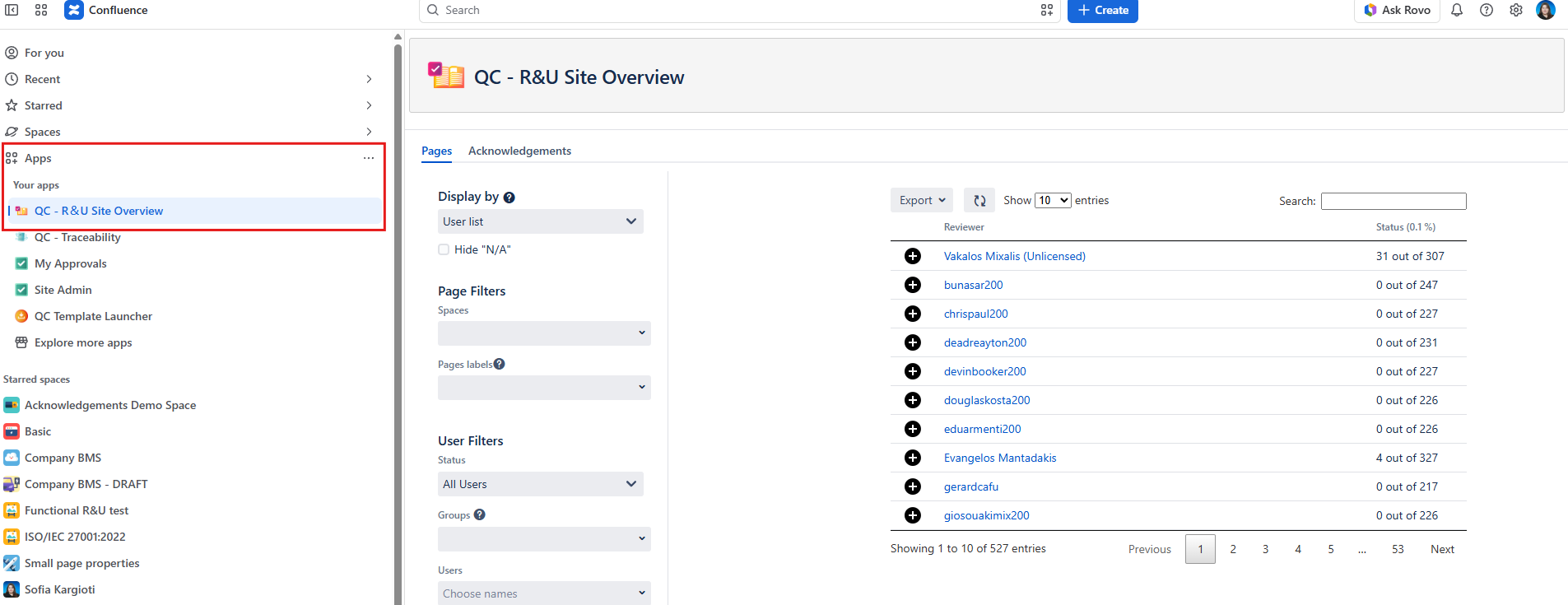
|
Now users will have to go to: Apps → QC R&U Global → Site Overview. 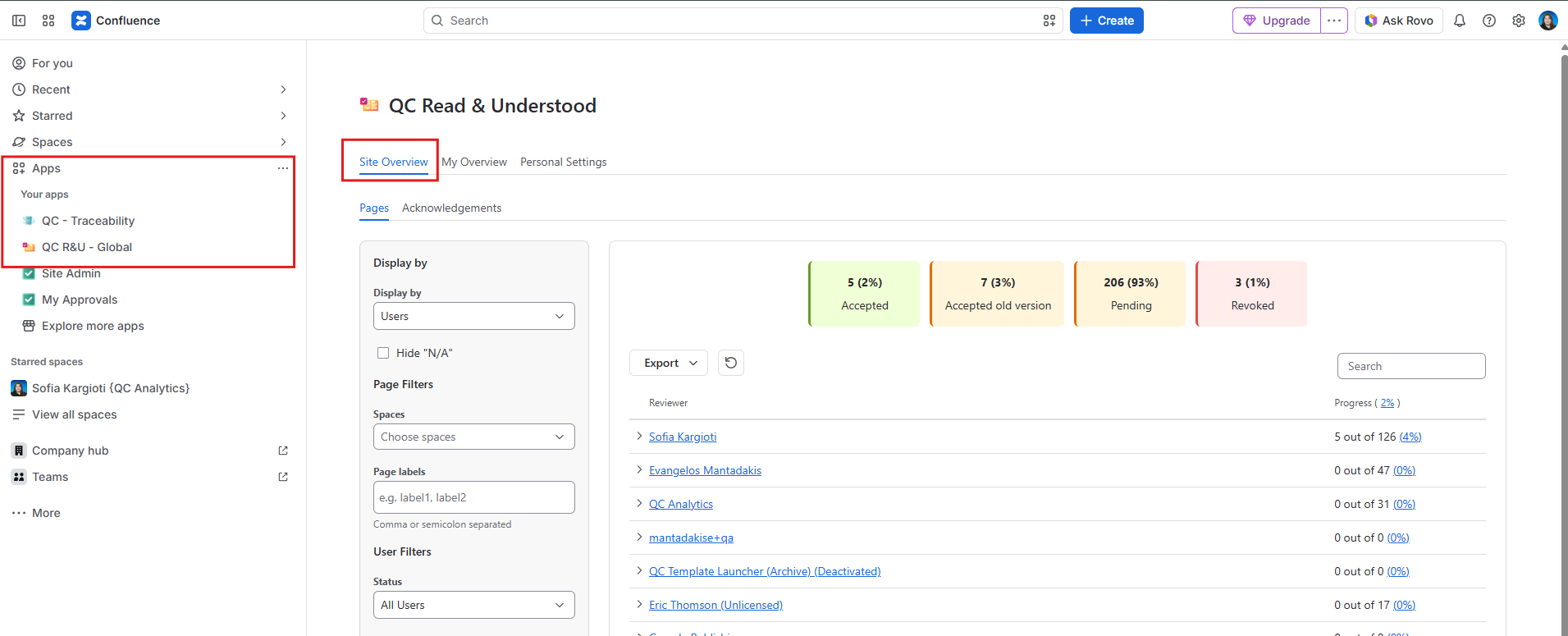
|
|
Location change of QC R&U Site Admin |
Users had to navigate to Confluence administration → Configuration → QC R&U Site Admin 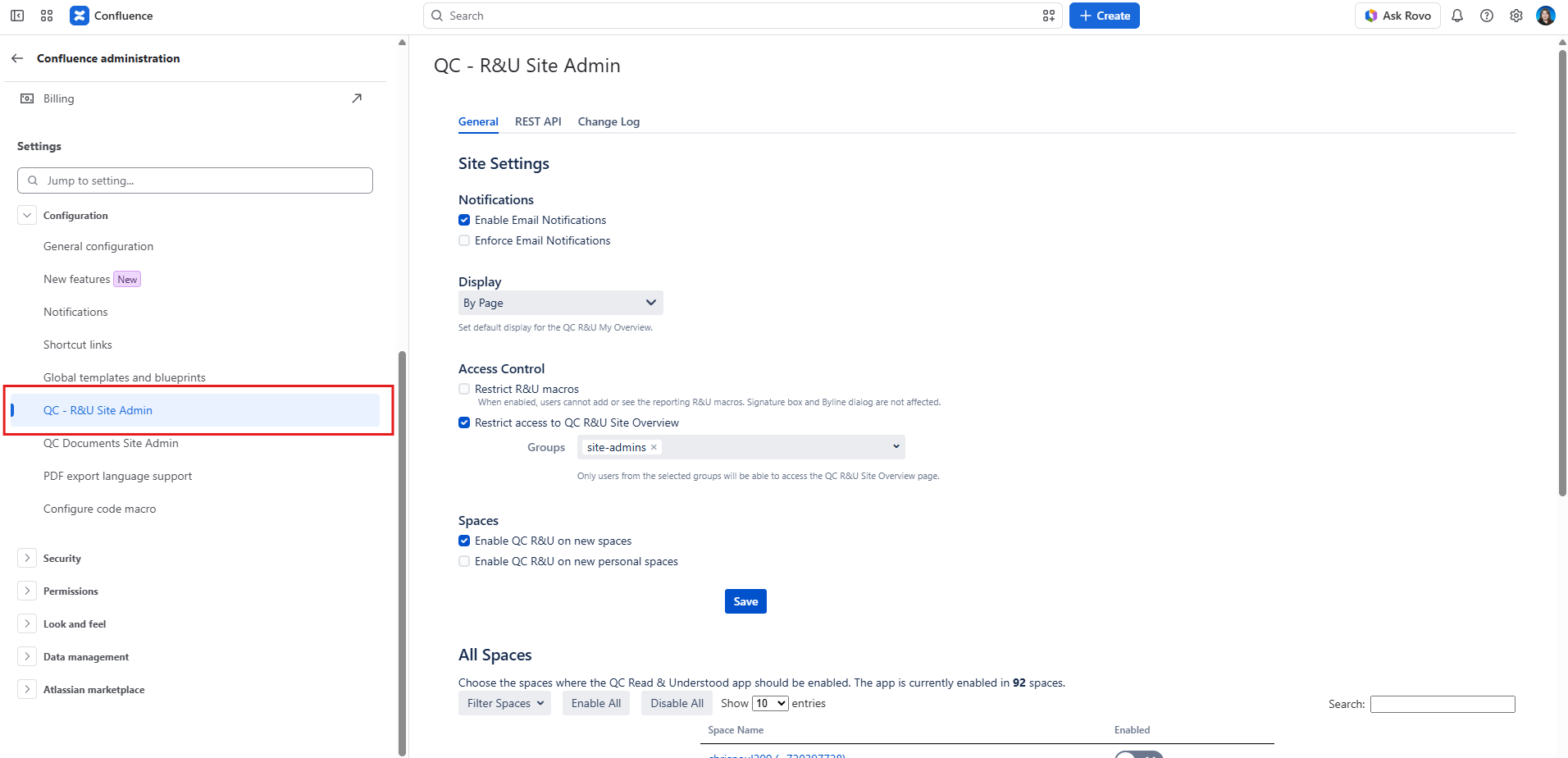
|
Now users will have to go to: Confluence administration → Apps → QC R&U Global Settings 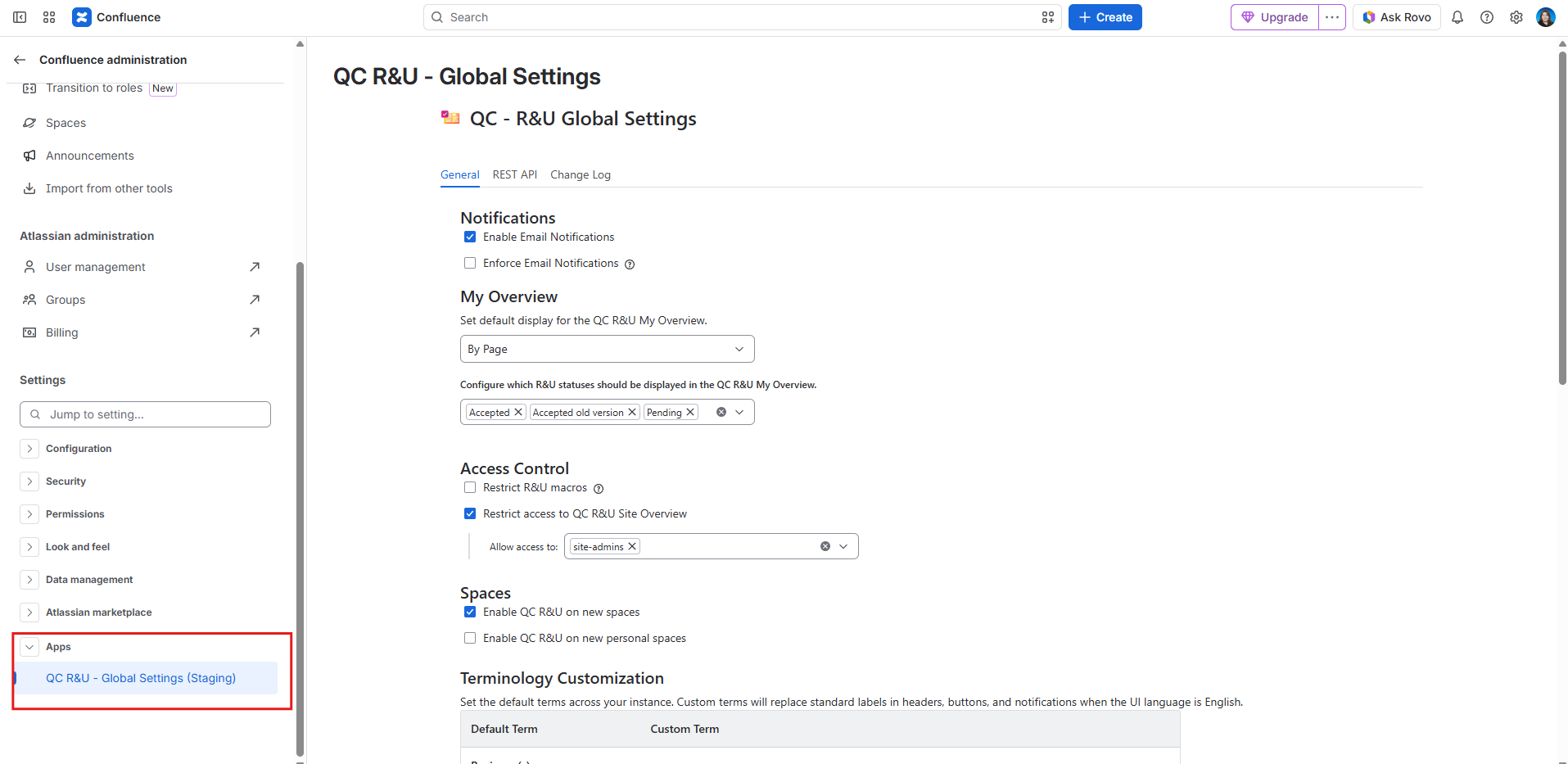
|
New Features
|
Feature |
Description |
|---|---|
|
Disable OTP Authentication on user level |
Users will be able to disable OTP Authentication on a personal level. In previous versions, if someone wanted to disable OTP, they’d have to click “Re-register device” and not complete the action. 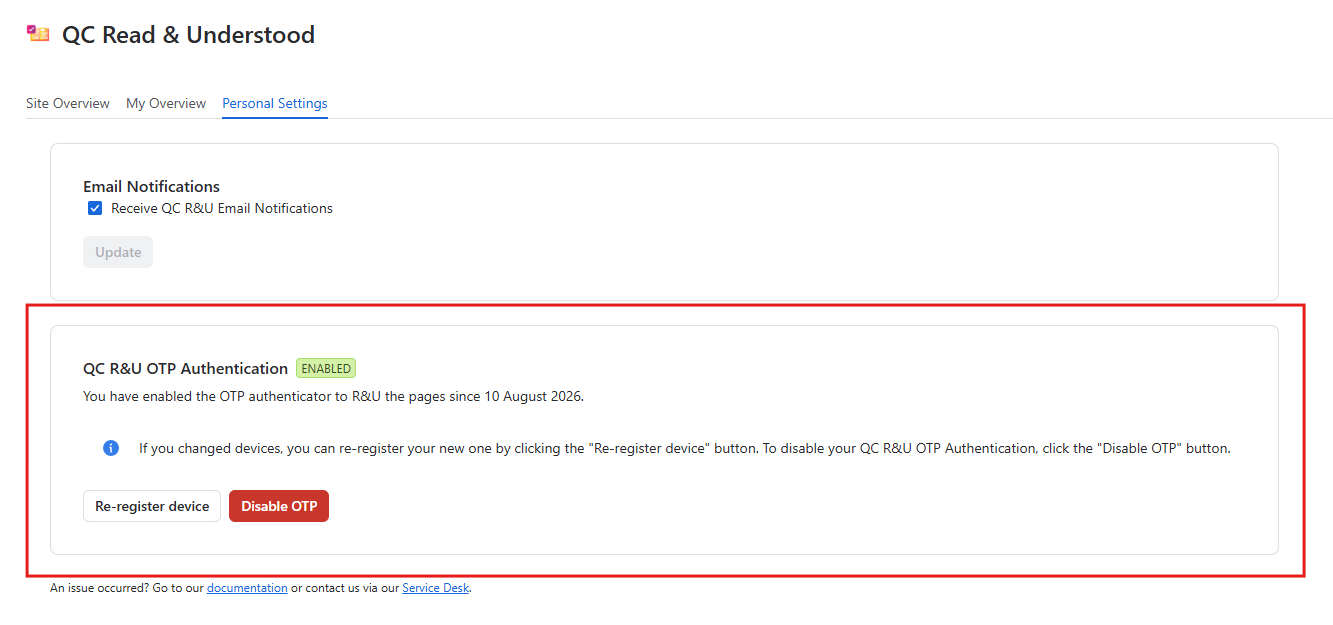
|
|
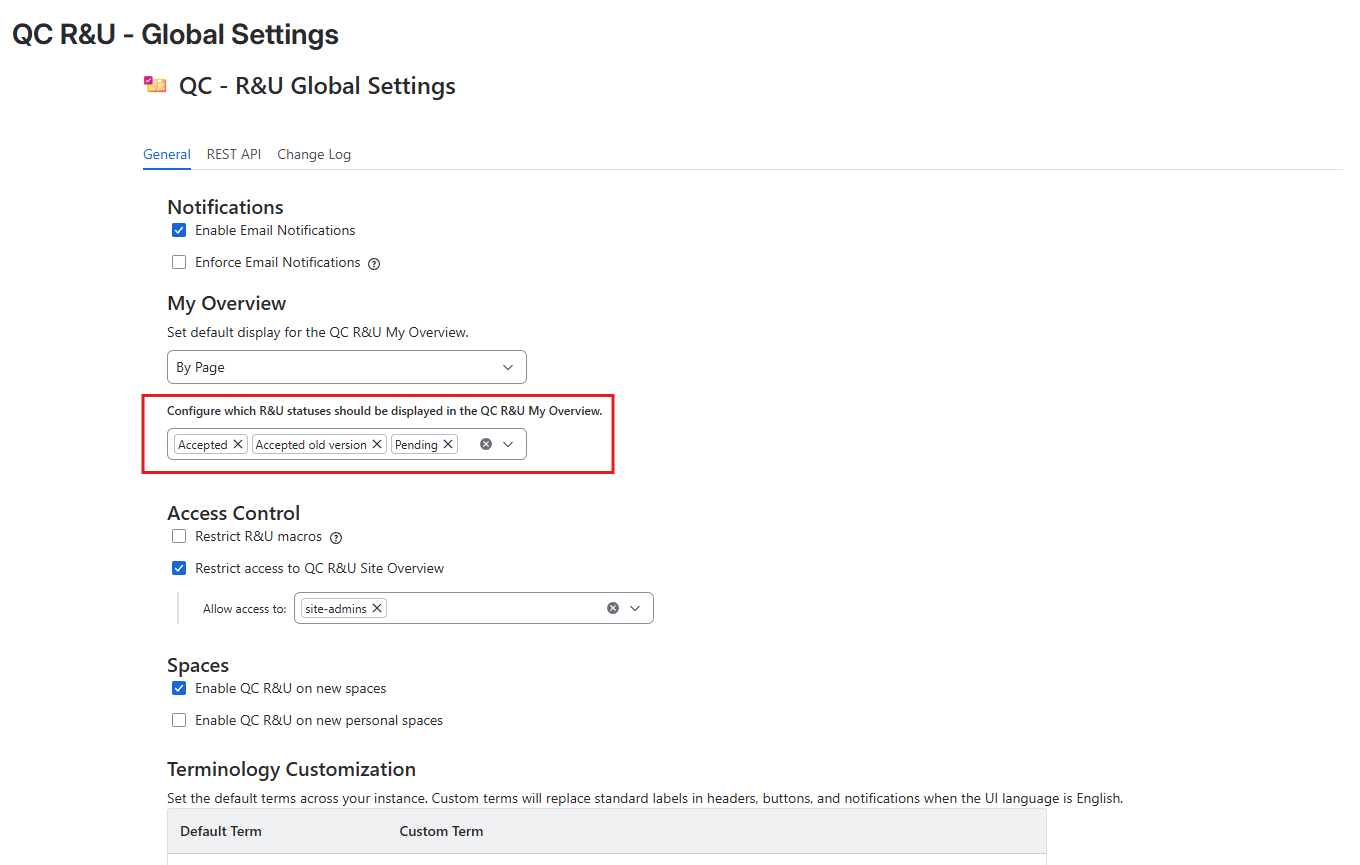
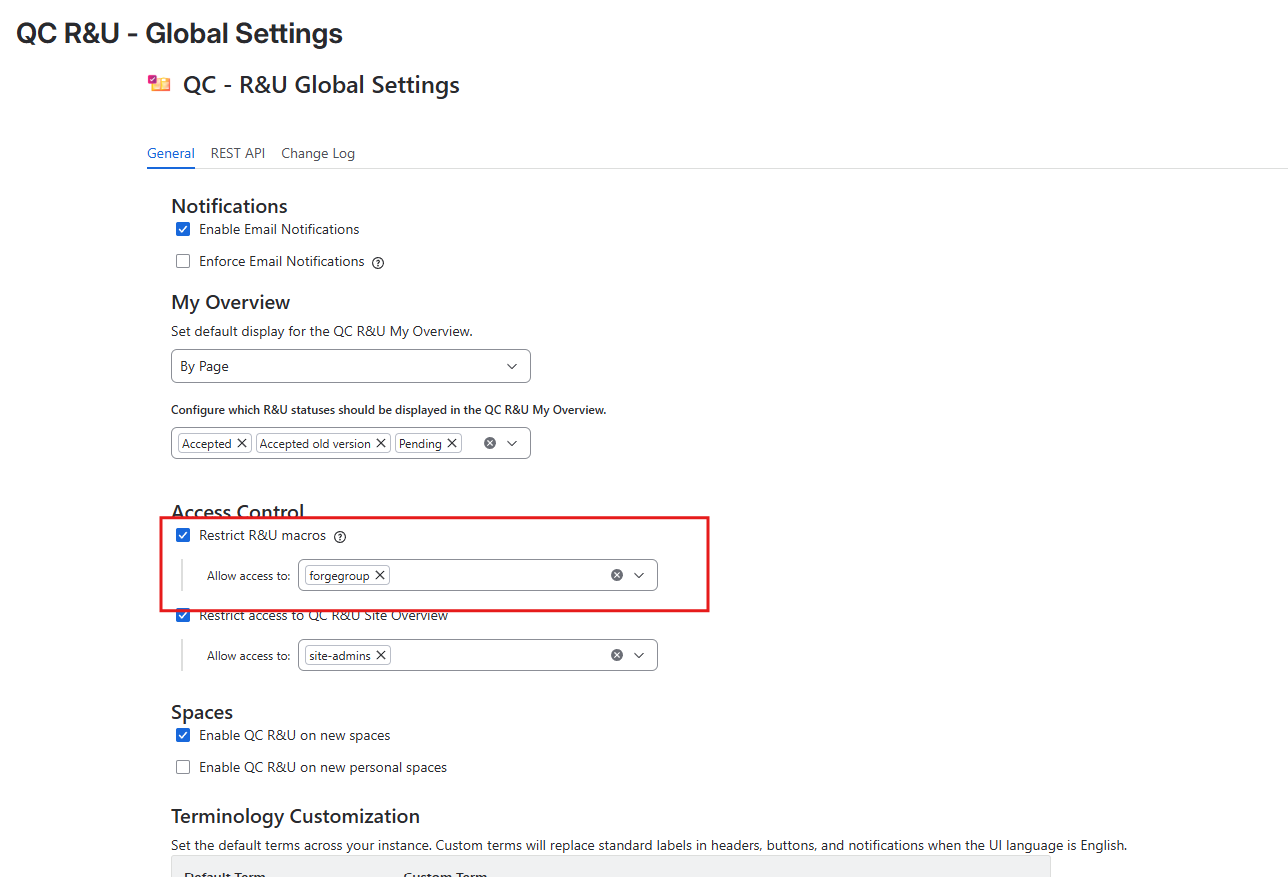
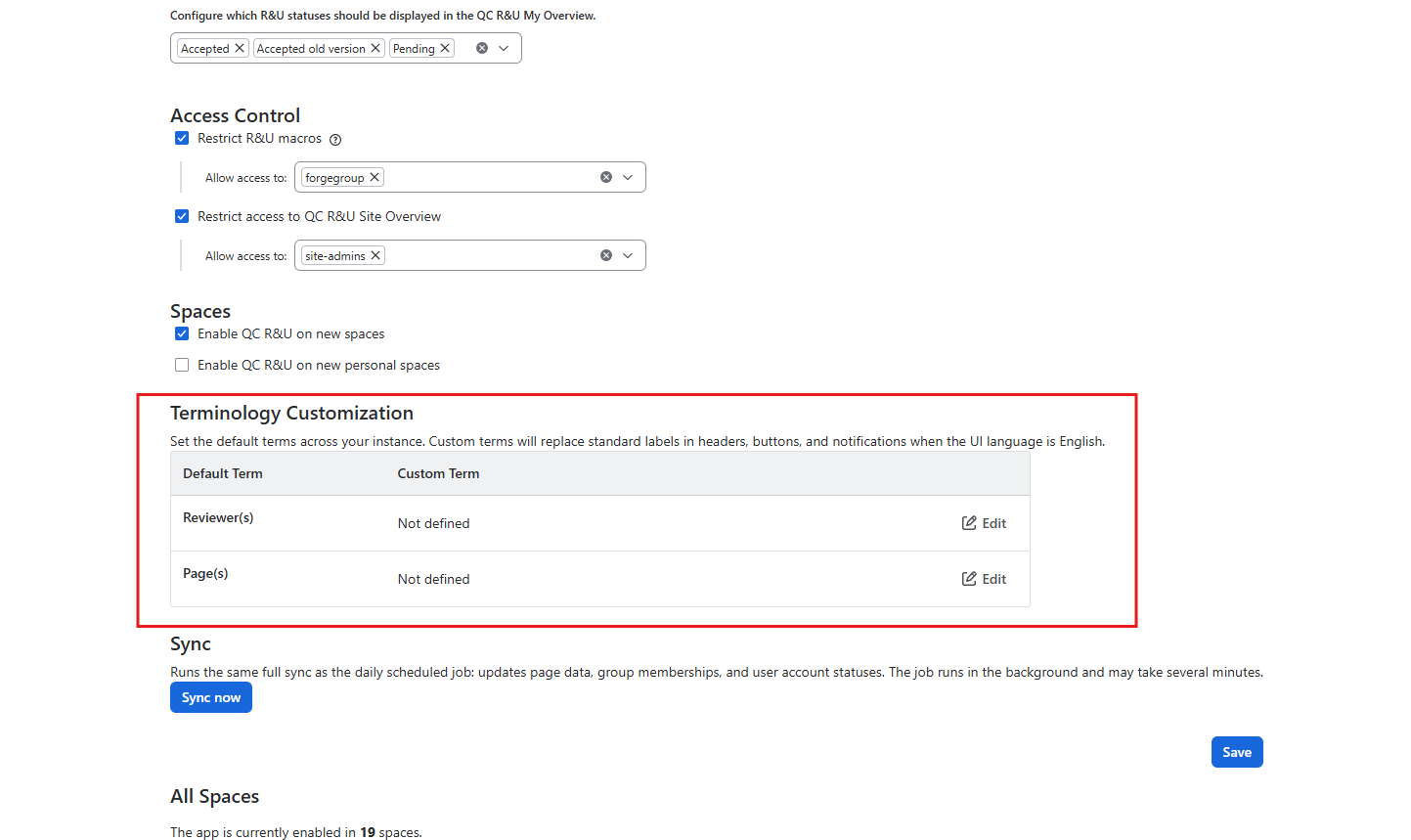
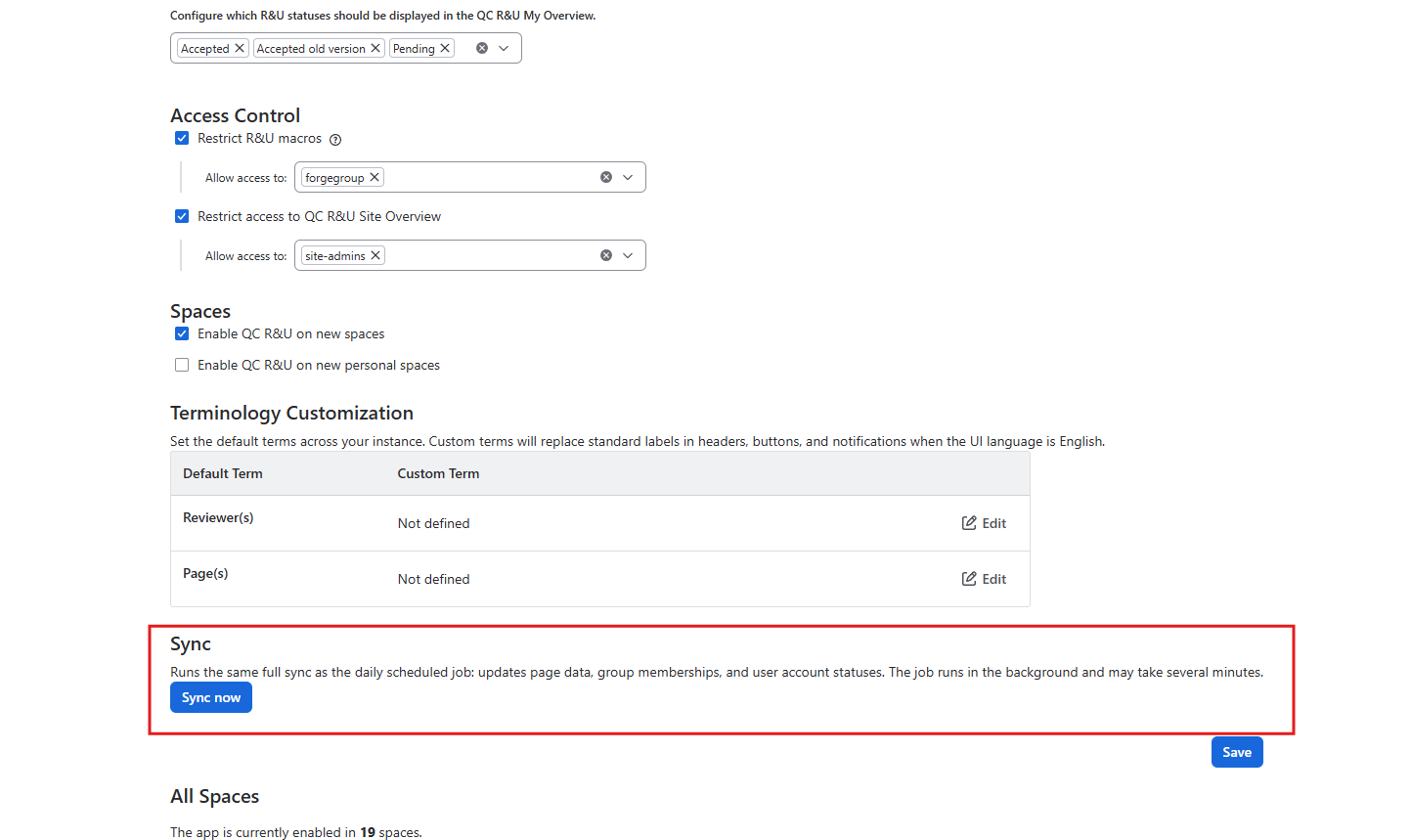
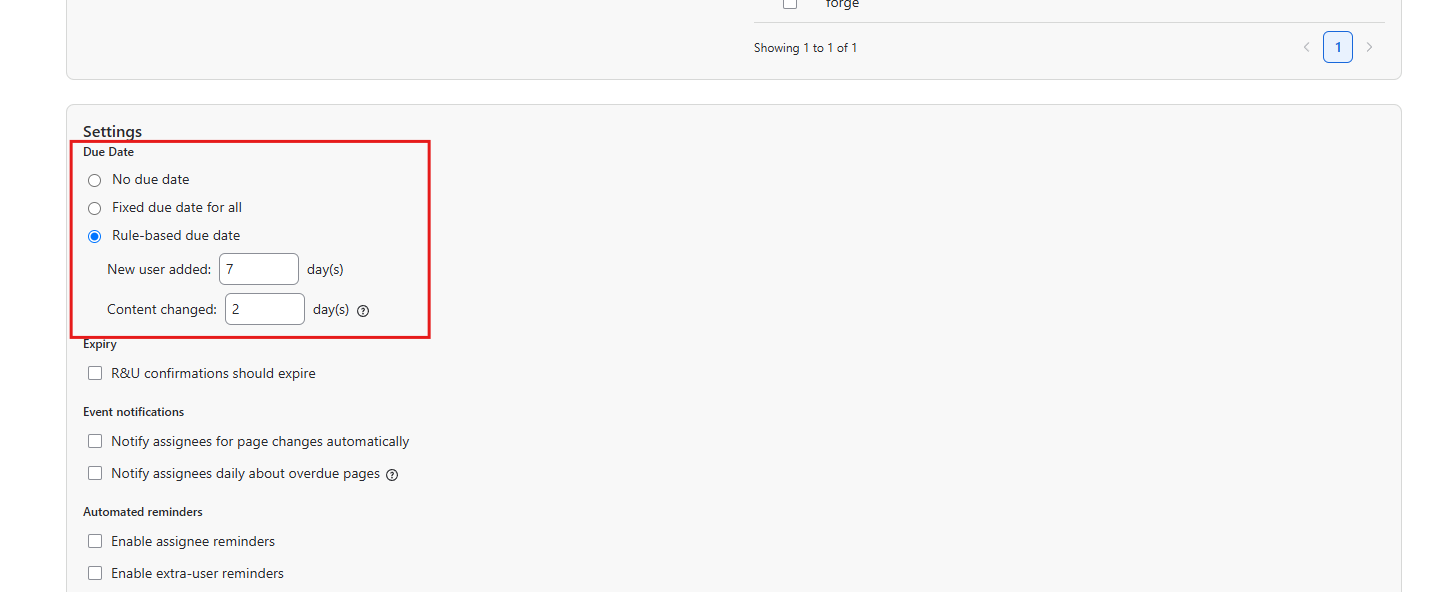
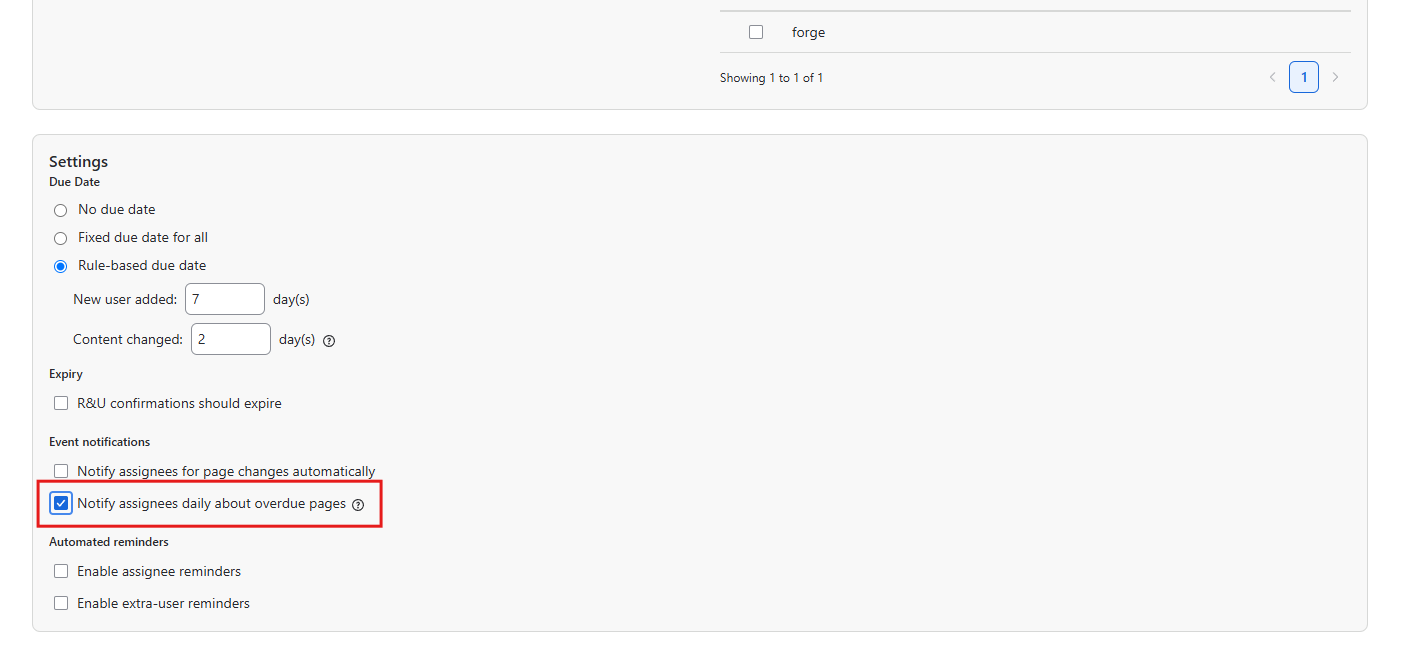
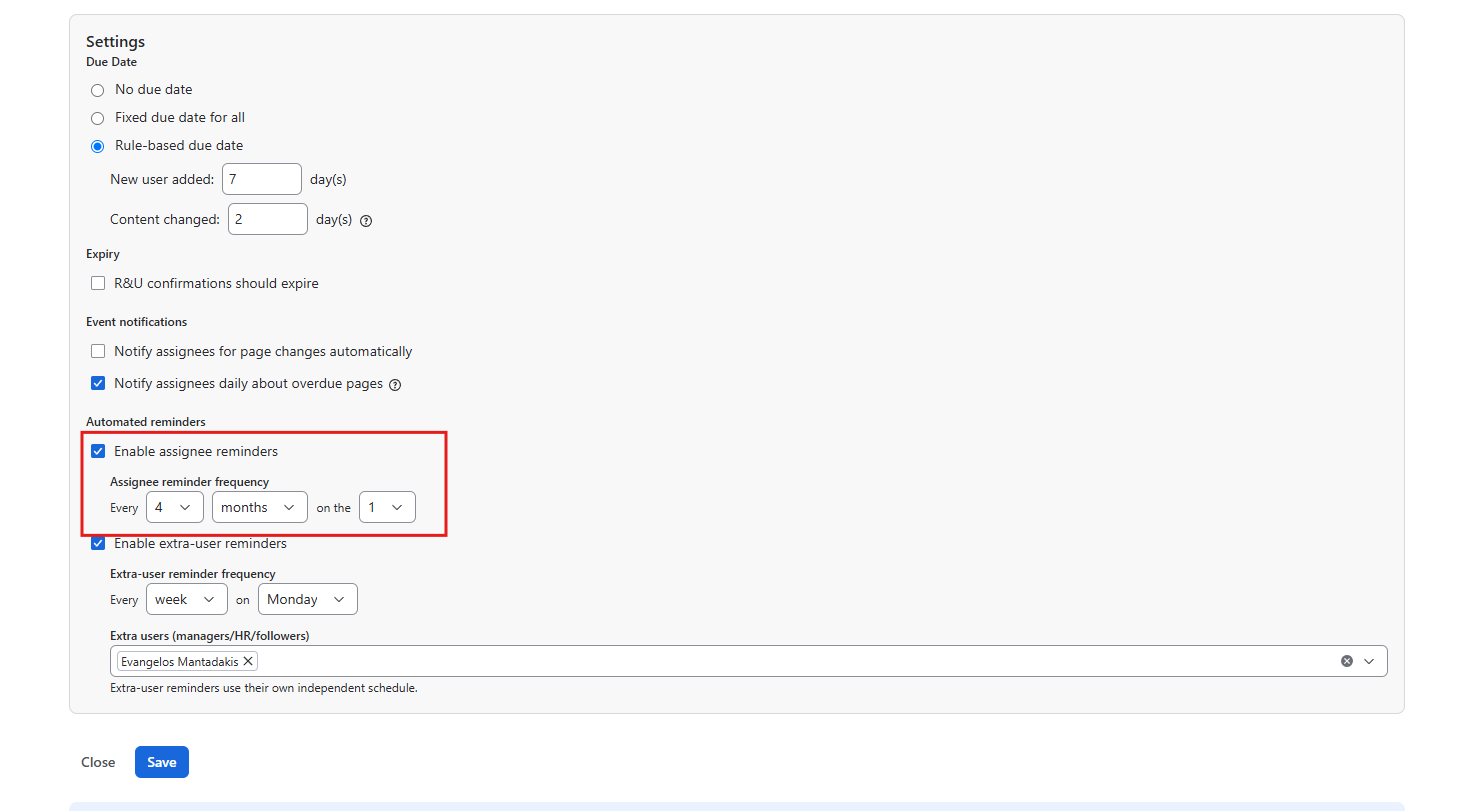
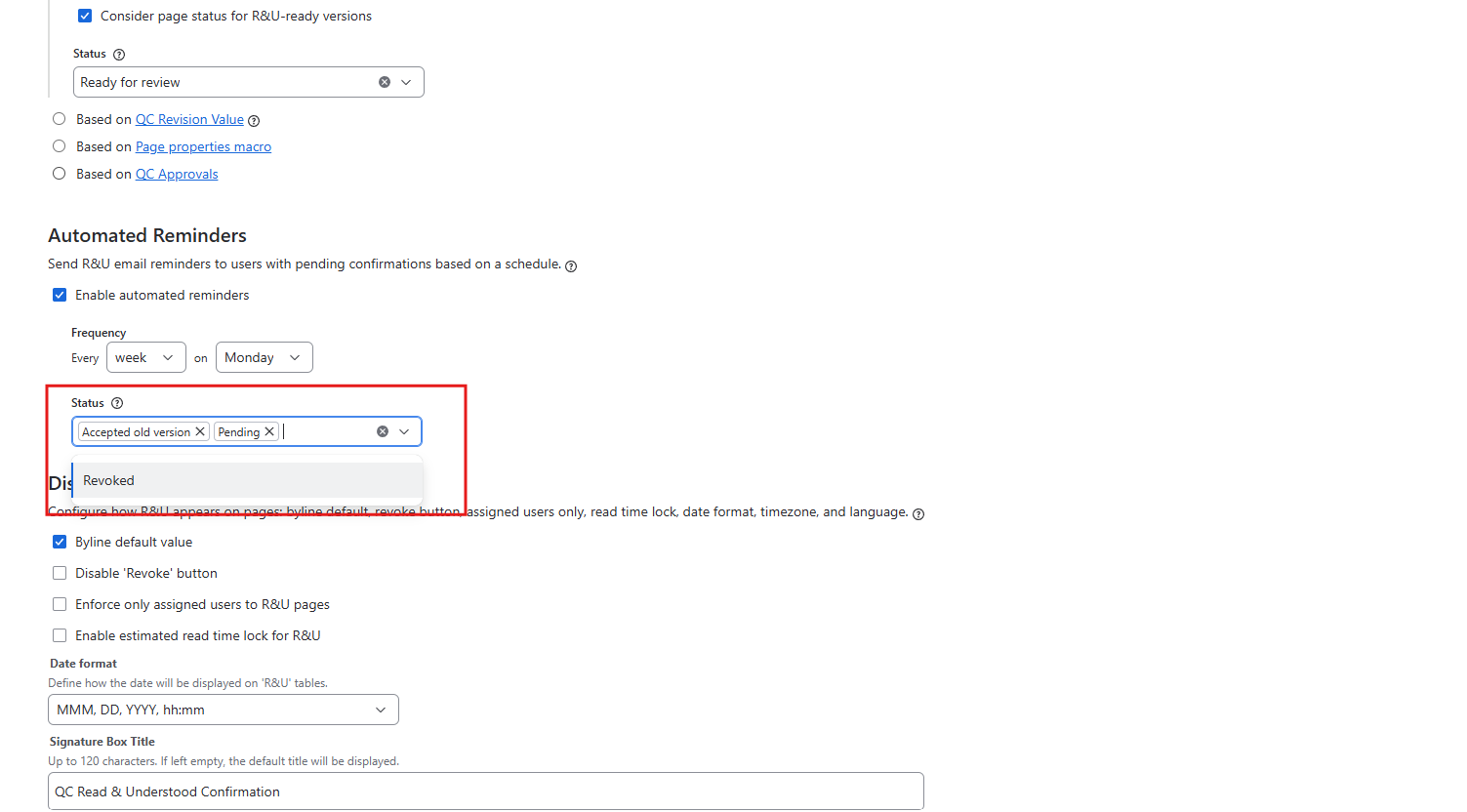
Extended Site Admin settings: |
|
|
Acknowledgement improvements |
Simple improvements to the QC Acknowledgements feature include:
|
|
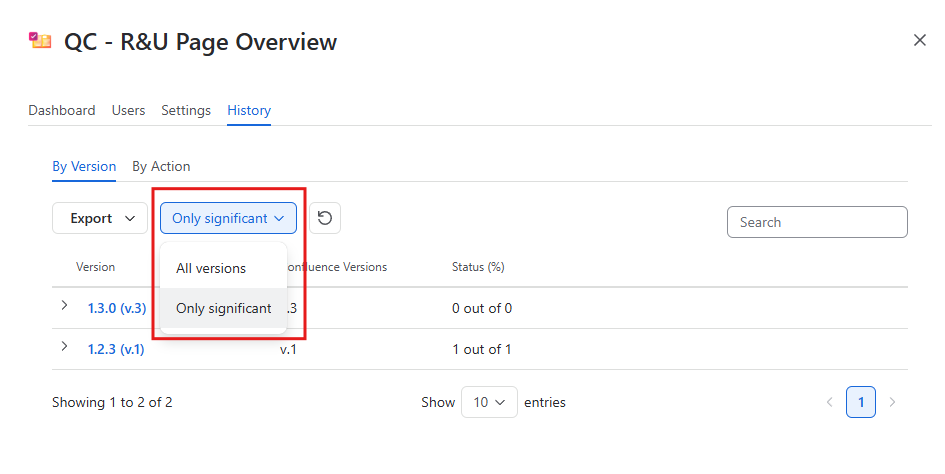
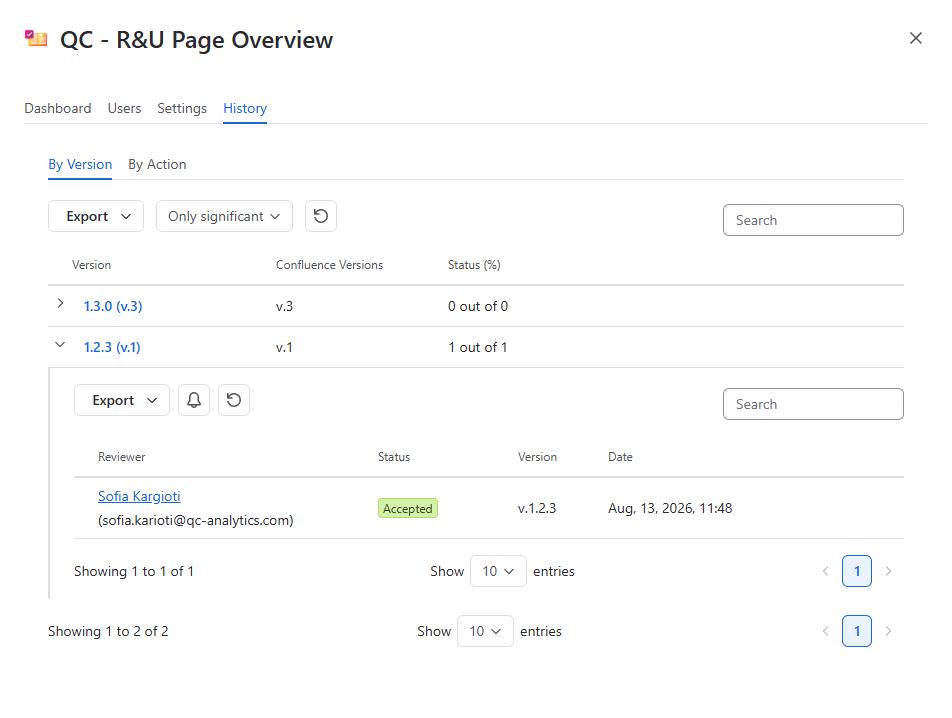
Space and Page History Log improvements |
|
|
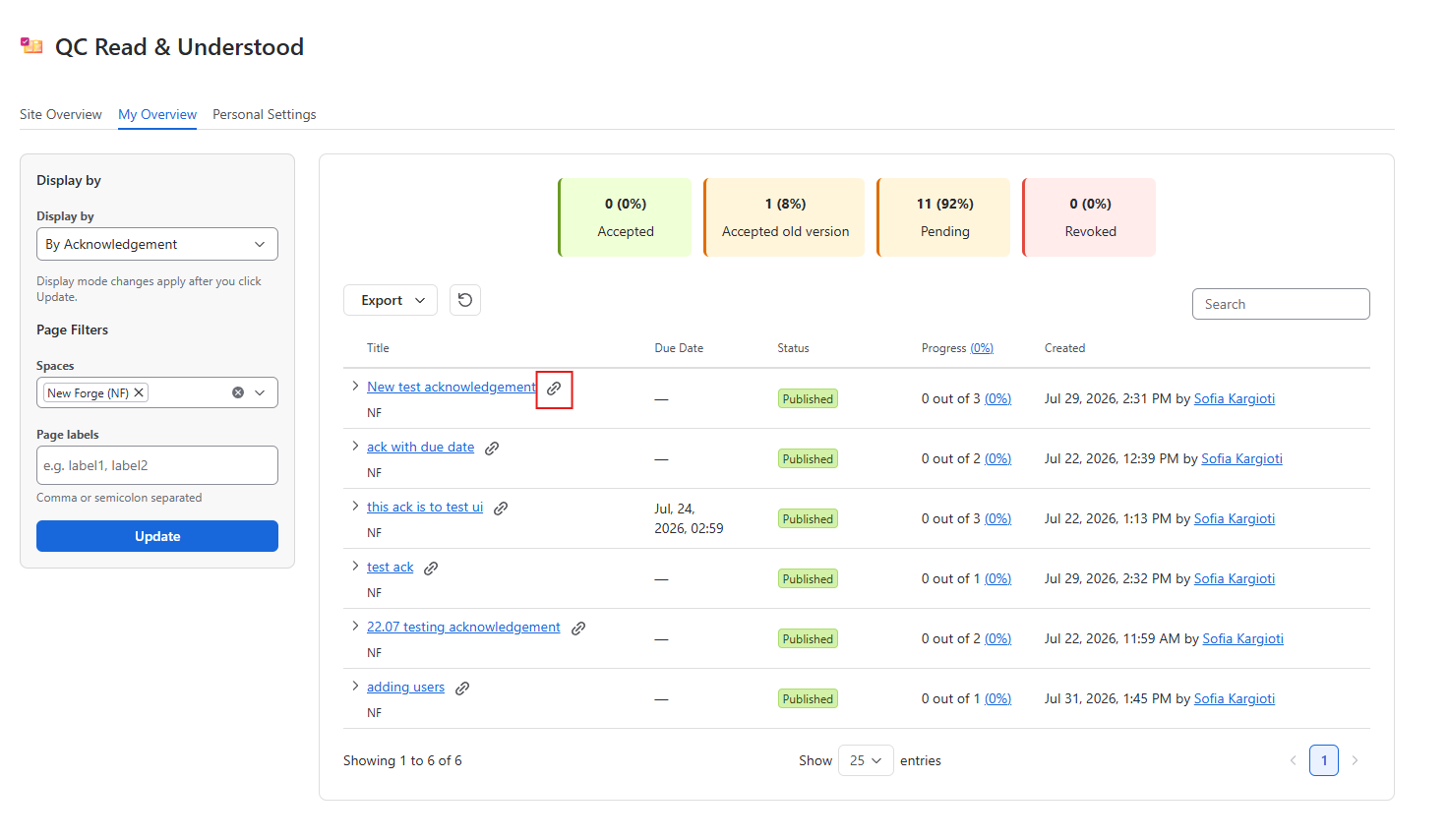
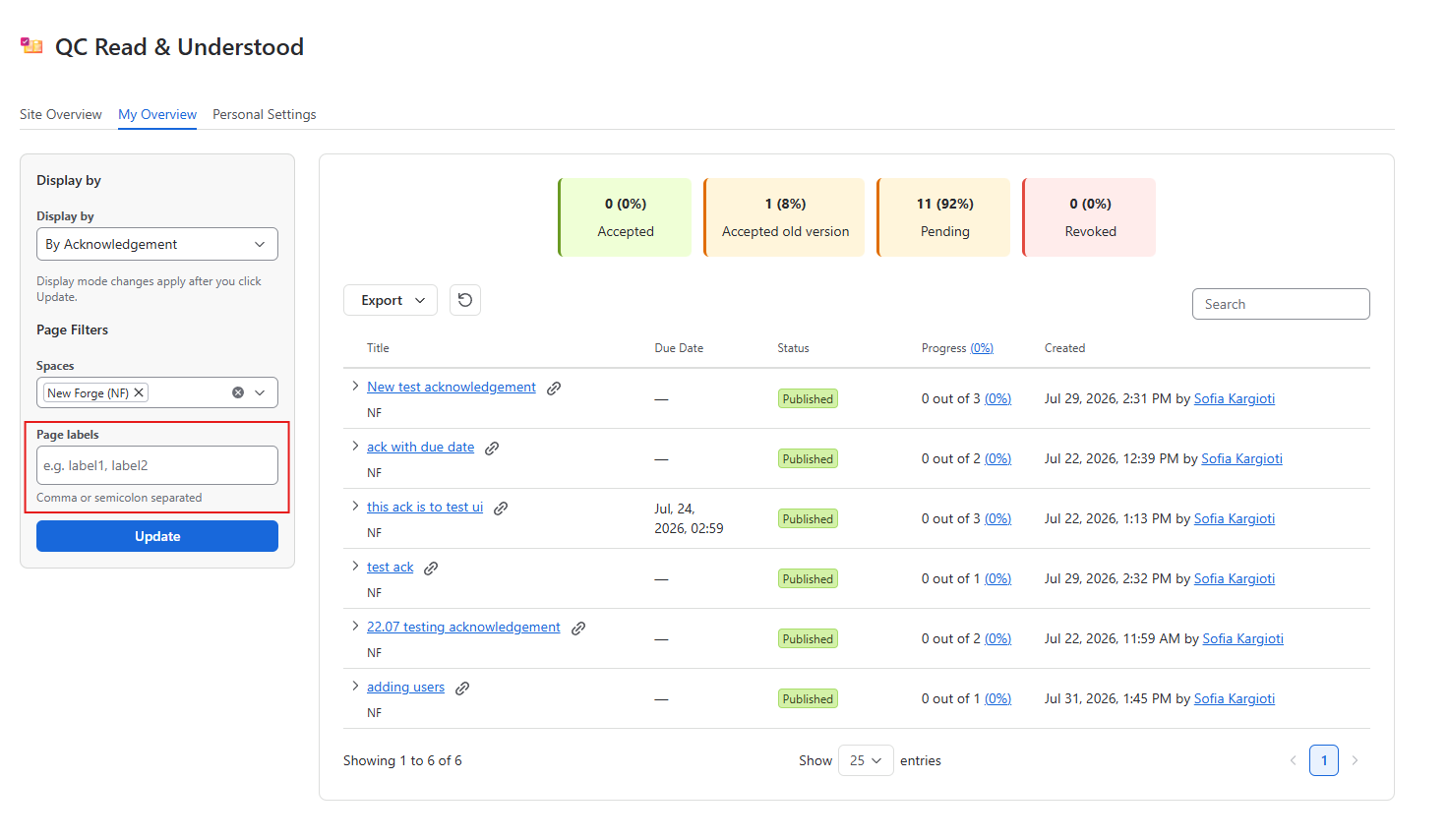
QC R&U My Overview → Display by Acknowledgements improvements |
|
|
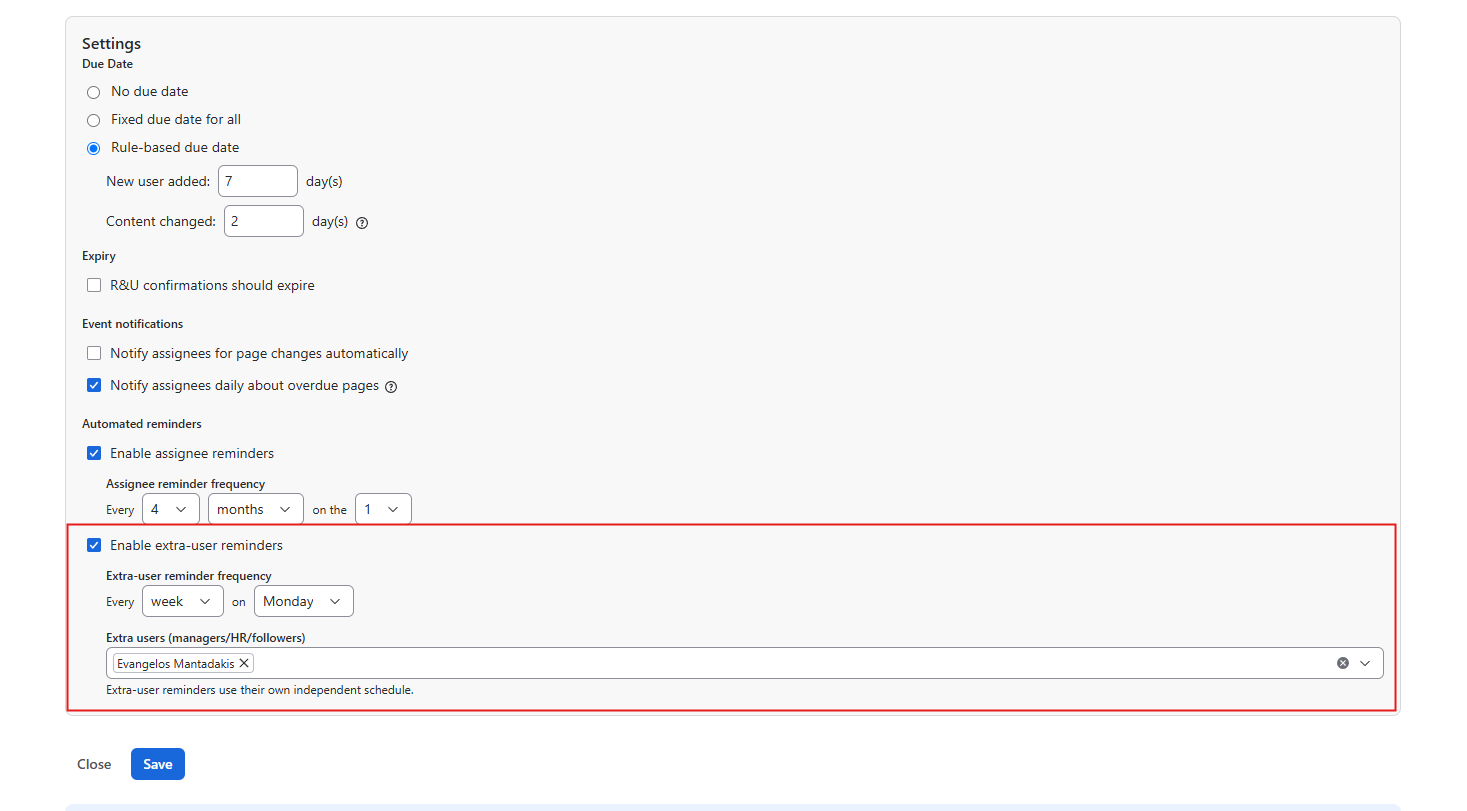
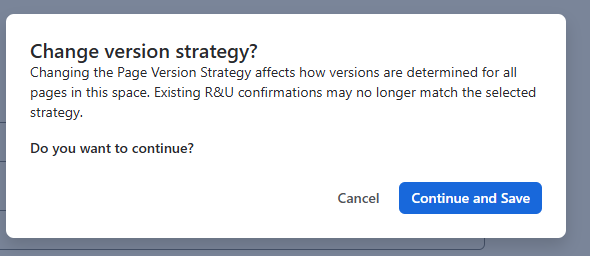
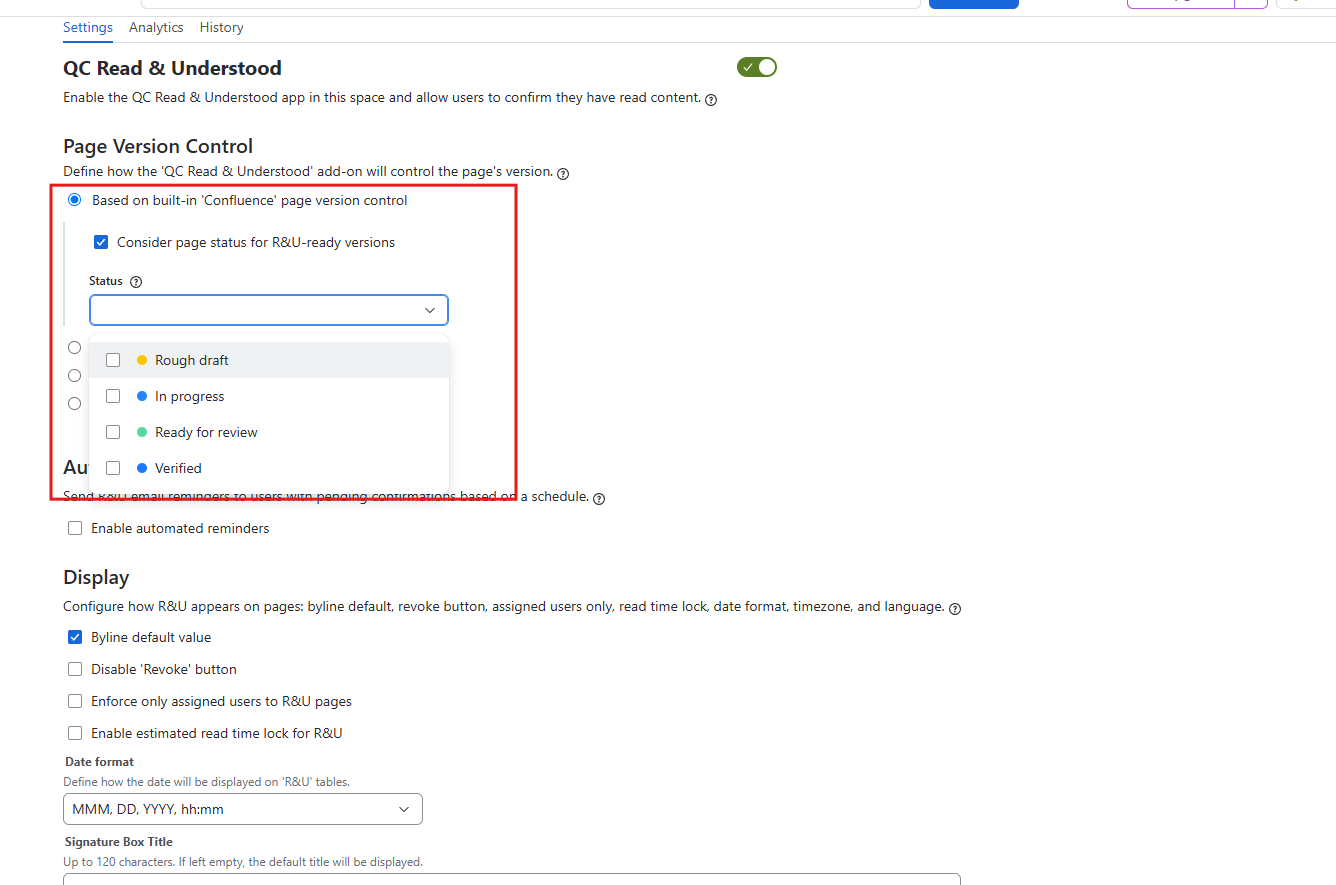
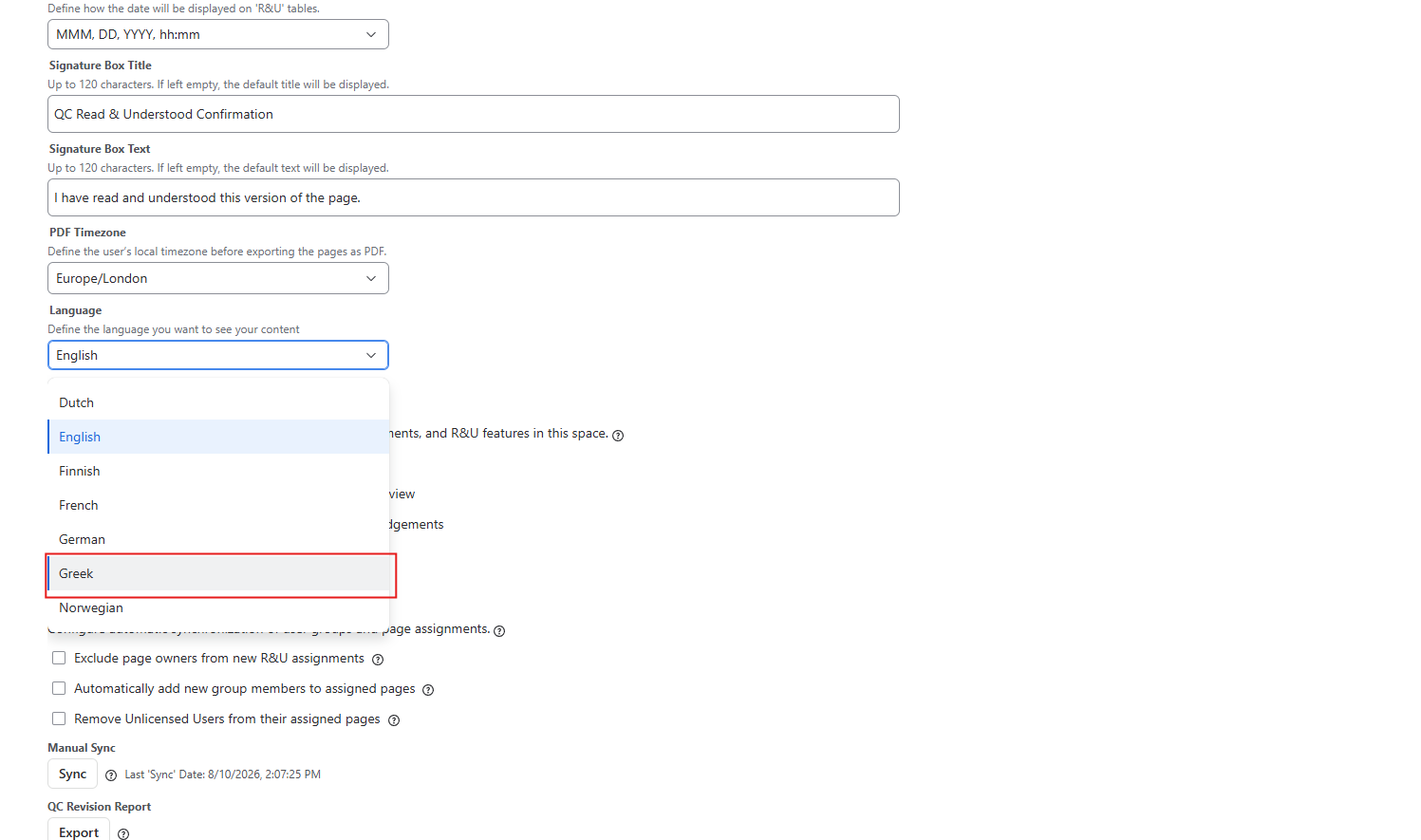
Space settings Improvements |
|
|
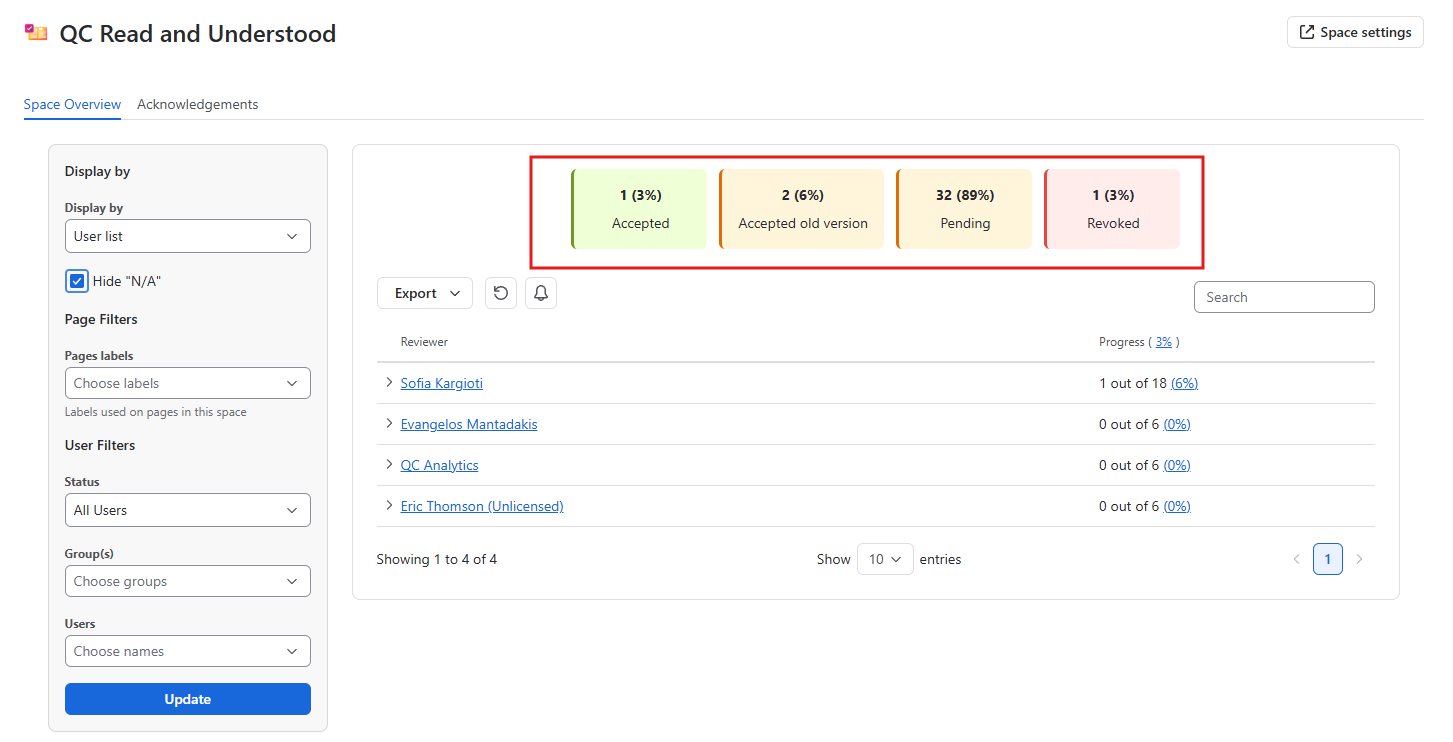
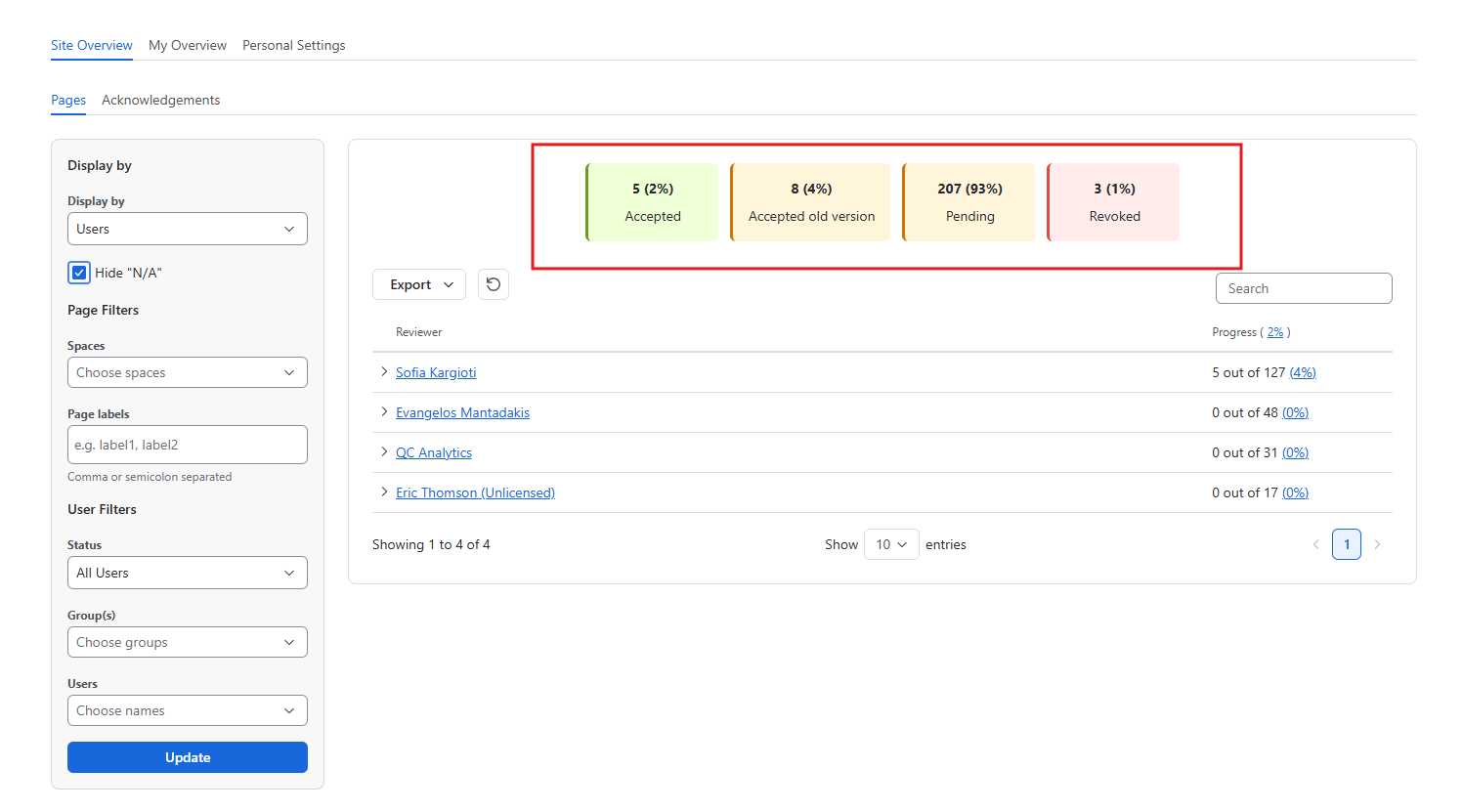
R&U Overview tables (Site Overview, Space Overview) |
Added a status overview with the overall statistics of:
|
How to Complete the Upgrade
To complete the upgrade to the Forge version, a Site Admin must update the app manually by following the steps below:
-
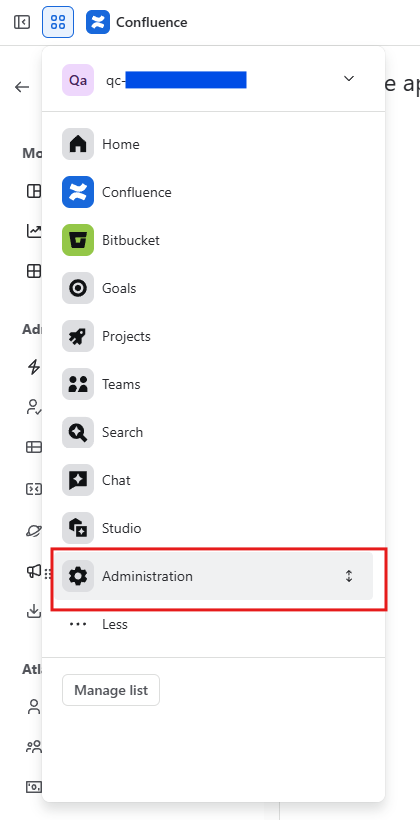
Go to Administration (from the top left menu),
-
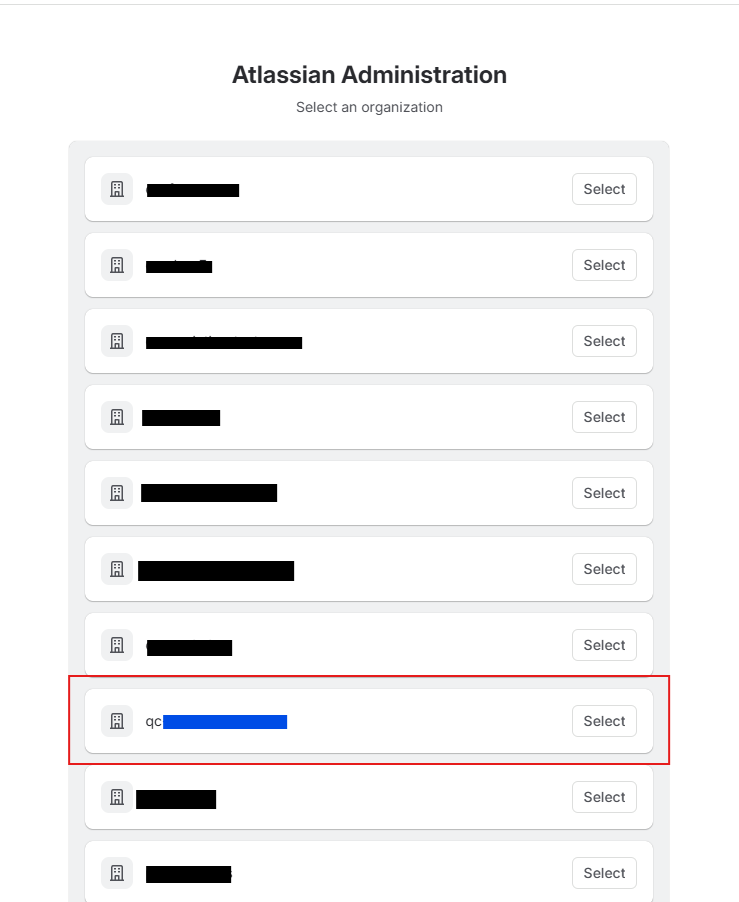
Find the site that you have installed the QC Read & Understood app (if you have more than 1 sites) and click Select
-
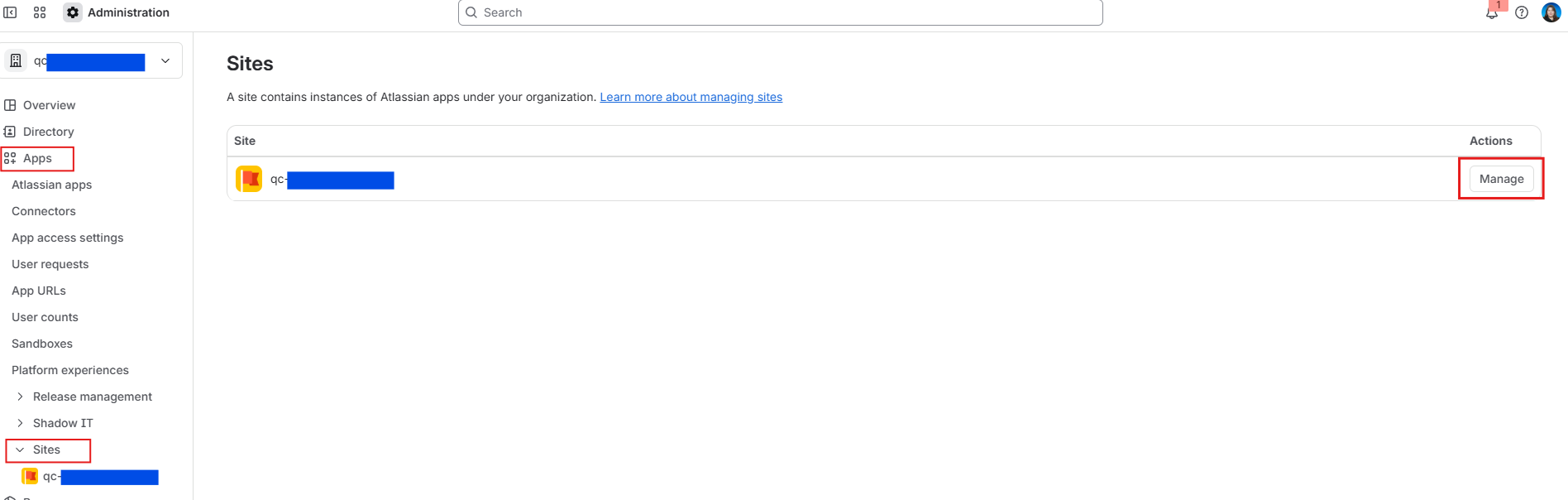
Navigate to the Apps option on the left sidebar, open the Sites menu, and click Manage
-
Navigate to Connected apps, find the QC Read & Understood for Confluence Cloud, and click Update.
You will be prompted to review and approve the updated Forge permissions required for the new platform architecture. Once you accept the permissions and confirm, the update will finish automatically, and all of your existing data and settings will stay completely intact, with no additional configuration needed.
Upgrade Timeline
According to Atlassian’s Connect End of Support timeline, Atlassian is phasing out the Connect framework over a multi-stage process, leading to full End of Support in Q4 2026. To stay ahead of these platform updates and avoid any disruption to your day-to-day process, we are completing our transition before Q4 2026, and we aim to officially release this new Forge version on September 07, 2026.
Please note that we will continue to maintain and support the current Connect version for as long as it remains in our hands to do so. However, no new features will be added to the Connect app, and Atlassian will eventually end platform support for it entirely. For these reasons, we strongly recommend that all customers update to the Forge version once it becomes available.
Once released, Site Administrators will be able to update the app directly from the Administration settings menu as mentioned in the “How to Complete the Upgrade” paragraph above.
Support
If you have any questions or concerns regarding this migration, we are here to help every step of the way.
You can reach out to our team directly from our Service Desk portal to submit a ticket, or schedule a 1-on-1 Zoom call with us to discuss your setup and address any questions you might have.
How to Contact Us
-
Send us an email to support@qc-analytics.com
-
Schedule a Zoom meeting. Our team is available every Monday to Friday from 09:00 AM to 05:00 PM, EEST, excluding Greek Public Holidays
-
Raise a Service Desk ticket.